Table of Contents
Your Gmail password is the password for your entire Google Account, so changing it also affects services such as Drive, Photos, and YouTube. You can change it from the Gmail app, your phone's Google settings, or a browser. If you cannot remember the current password, use account recovery instead.

You do not need to change a strong password on a fixed schedule. Change it promptly if it was reused, exposed in a breach, entered on a suspicious site, or seen by someone else. The replacement should be unique to Google and saved in a trusted password manager.
Change your Gmail password on Android or iPhone
- Open the Gmail app and tap your profile picture in the upper-right corner.
- Select Manage your Google Account. If you have several accounts, check that you selected the correct address.
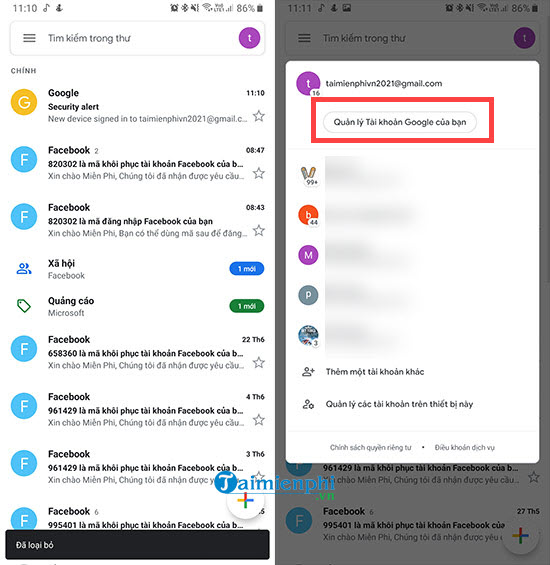
- Open Security & sign-in. On some app versions, you may first see Personal info; the navigation labels can vary.
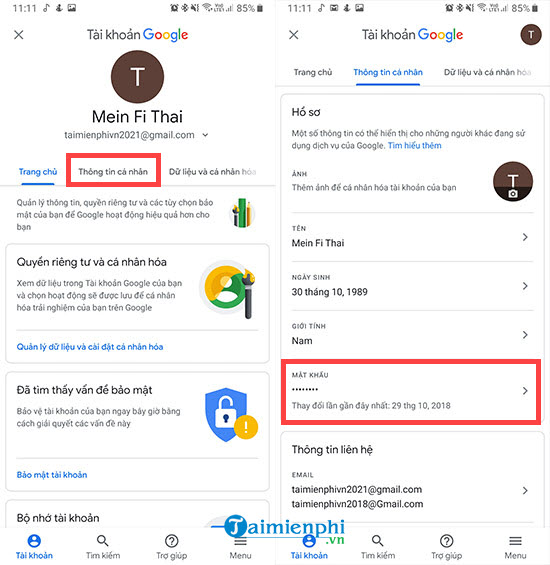
- Under How you sign in to Google, tap Password.
- Verify your identity with your current password or another method Google offers.
- Enter the new password twice, then tap Change password.
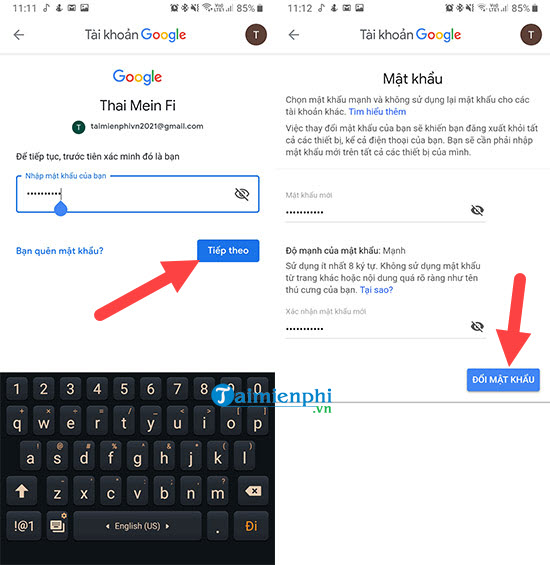
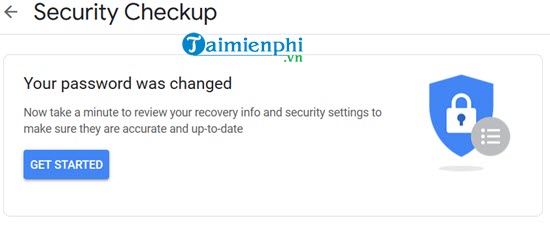
A confirmation should appear when the change succeeds.
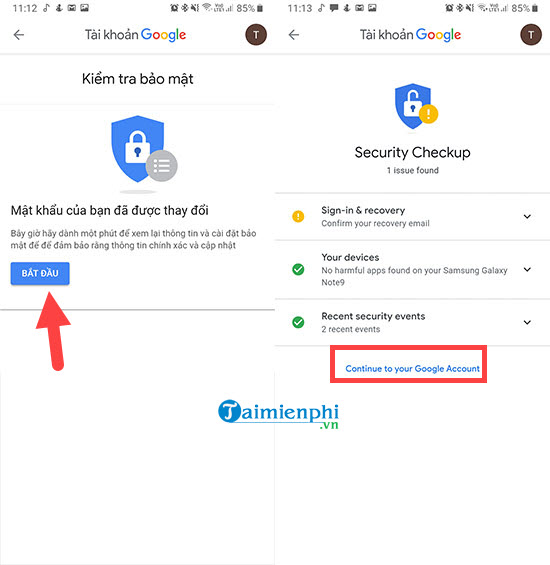
On Android, you can also open the device's Settings, select Google, tap your name or Manage your Google Account, and follow the same Security path.
Change your Gmail password in a web browser
- Go directly to Google Account security settings and sign in to the account you want to update.
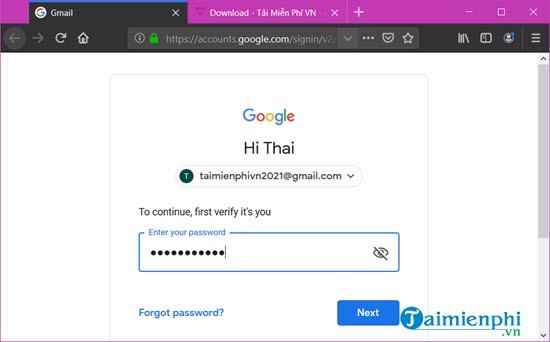
- Under How you sign in to Google, select Password.
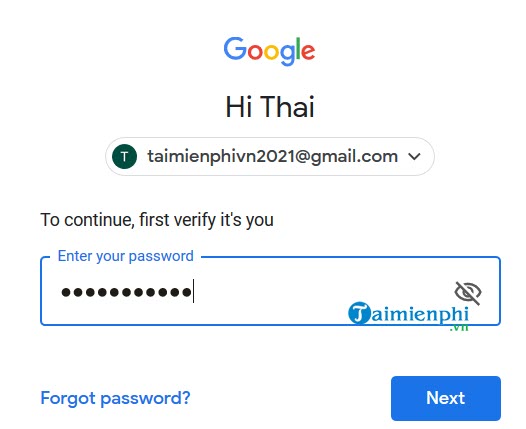
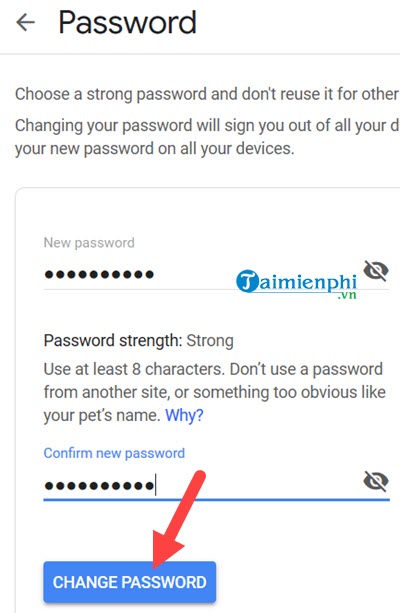
- Verify your identity, enter a new password, confirm it, and select Change password.
Alternate route from Gmail settings
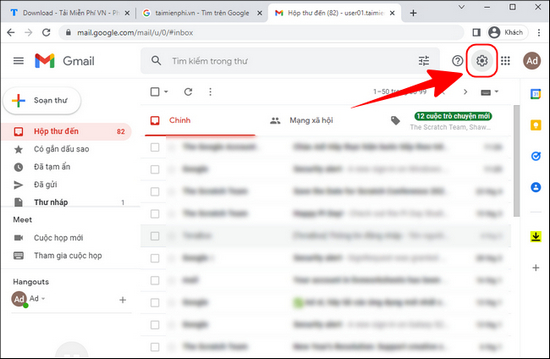
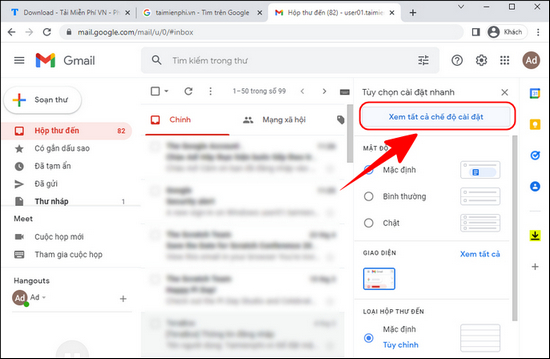
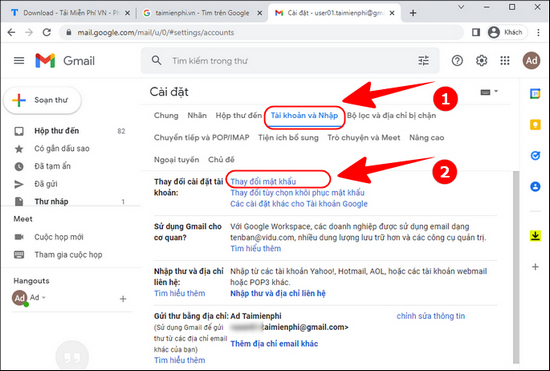
Some Gmail interfaces also expose a password link through Settings > See all settings > Accounts and Import. The following screenshots show that older route, but opening Google Account security settings directly is quicker and less dependent on the Gmail layout.
What to do after changing the password
Google normally signs you out of most places after a password change, but there are exceptions, including some verification devices and authorized apps. Complete these checks:
- Review Your devices in the Google Account security page and sign out any device you do not recognize.
- Check recovery phone and recovery email details.
- Turn on two-step verification or a passkey where appropriate.
- Update the stored password on your own mail apps and devices. Never approve an unexpected verification prompt.
- If the old password was reused elsewhere, replace it on those services with a different unique password.
A password manager can generate and store a long, unique password. See the comparison of browser password managers and the broader guide to password manager options.
If you forgot the current password
Do not follow the change-password steps above. Use Google's account recovery page, answer the ownership questions as accurately as possible, and complete the verification method offered. Avoid services that claim they can bypass Google's recovery process.
Related Articles
 How to Change Gmail Password (Password) on the Computer3 minutes read
 How to Change Gmail Password on Computer: Create Gmail Account4 minutes read
 How to Change Your Computer, Phone and Mac Passwords4 minutes read
 How to Change Your Zalo Password on Your Phone Quickly2 minutes read
 How to Change Google Password on Computer, Phone3 minutes read
 How to Change Your Wi-Fi Password Using an iPhone6 minutes read
Reader Comments 0
Sign in with email or Google to join the discussion.