Table of Contents
MathType is an equation editor for creating mathematical and scientific notation in documents and presentations. On Windows, download it from the official WIRIS site, run the installer, and then activate it with a subscription, organization license, product key, or available trial.

Note: The screenshots below show an older MathType 7 installer. Button names may differ in a current release, but the safety checks and general installation sequence are the same.
Before downloading MathType
- Confirm that your version of Windows and Microsoft Office is supported. Compatibility varies between the MathType desktop application and the Microsoft 365 add-in.
- Use the official MathType download page. Avoid third-party installers that may be outdated or modified.
- Close Word, PowerPoint, and other Office programs before installing the desktop integration.
- If a school or employer manages the computer, check whether it already provides a MathType license or controls Office add-ins.
Download and install MathType on Windows
- Download the installer. Open the official download page, choose the Windows version, and save the setup file somewhere you can find it, such as the Downloads folder.
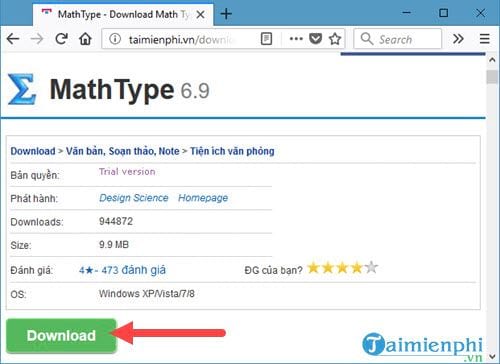
- Start setup. Double-click the downloaded file. If Windows displays a User Account Control prompt, confirm that the publisher is WIRIS or Design Science before allowing it to make changes.
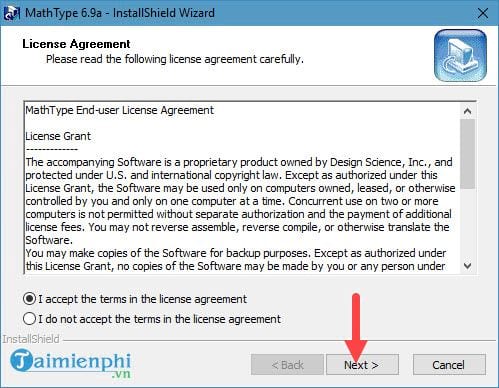
- Review the license terms. Select I Accept only after reading and agreeing to the terms.
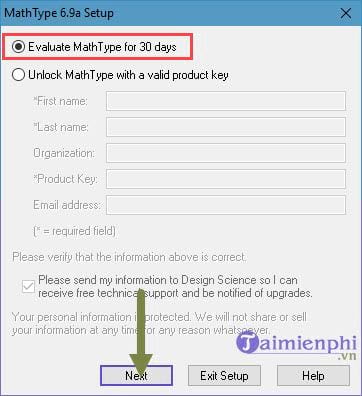
- Choose an activation option. Depending on the version, enter a product key, sign in with the account attached to your license, use an institution-provided license, or start the offered trial.
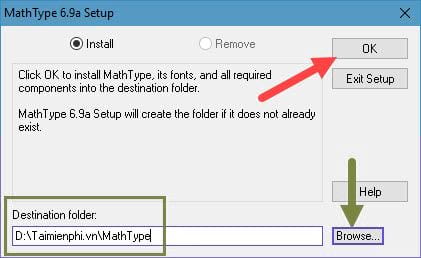
- Select the installation folder. The default location is appropriate for most people. Use Browse only if you have a specific reason to install elsewhere, then continue.
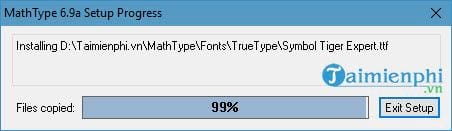
- Finish the installation. Wait for setup to copy the required files. The time depends on the computer and package; do not close the installer while it is working.
Check that MathType works
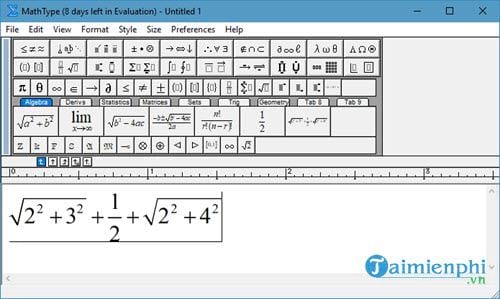
- Open MathType from the Start menu and create a small test equation.
- Open Word or PowerPoint and look for MathType on the ribbon. Its location depends on the Office and MathType versions.
- Create an equation, insert it into a test document, save the file, close it, and reopen it to confirm the equation remains editable.
Once setup is working, create MathType keyboard shortcuts for symbols you use often. For simple notation, Word's built-in equation tools may be enough; the guide to inserting brackets and equations in Word or Excel explains that alternative.
If MathType does not appear in Word
- Restart Word and Windows after installation.
- Make sure you installed the product intended for your Office version. MathType for Microsoft 365 is an Office add-in and has a different installation path from the MathType 7 desktop application.
- In Word, check File > Options > Add-ins for a disabled or inactive MathType component.
- If a managed Office account blocks add-ins, contact your administrator.
- Consult the official MathType 7 installation instructions or the documentation for the Microsoft 365 add-in that matches your product.
Do not use an unverified license key, crack, or repackaged installer. Besides violating the license, it exposes the computer and documents to unnecessary security risk.
Related Articles
 Mathtype - Mathtype Download and Installation Guide6 minutes read
 MathType Keyboard Shortcuts - All MathType Keyboard Shortcuts You Need to5 minutes read
 How to Create a Grid Chart on Mathtype4 minutes read
 How to Write Math Formulas on Word with Mathtype4 minutes read
 How to Save Frequently Used Formulas on Mathtype4 minutes read
 How to Use Mathtype to Write Math Formulas5 minutes read
Reader Comments 0
Sign in with email or Google to join the discussion.