Table of Contents
This curated overview of 4 extremely useful macbook security tips, did you know? focuses on useful options, standout features, and details worth checking before making a choice.
1. How to Set Password or Touch ID on MacBook
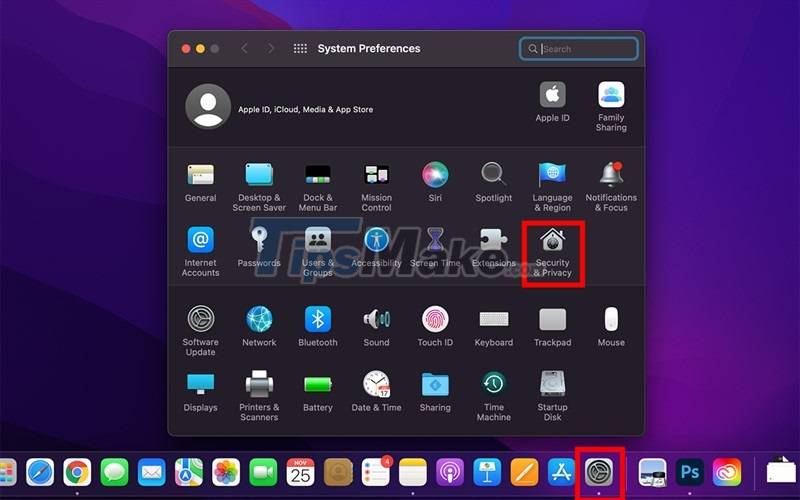
Step 1. Go to System Preferences > Security & Privacy.
Step 2. Click the padlock icon, then enter your password or Touch ID to allow customization.
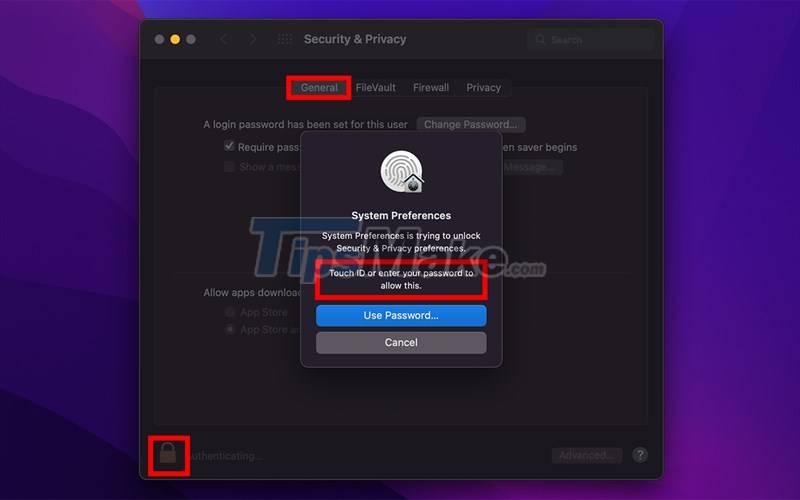
Step 3. At the general custom tab (General), you can customize with options, including: change the user password (Should be longer than 9 characters, including: lowercase letters, uppercase letters, numbers, and special symbol), reset password input time after machine sleeps or after screen saver turns off (No more than 5 minutes), set message on lock screen (Recommended contact information in case of loss) . At the bottom, you should only authorize app downloads from the App Store (optimal) or the App Store and identified developers.

2. Enhanced Security with FileVault
FileVault is a feature that automatically ends up encrypting the data on your device, helping to protect information securely. Security is optimal only when FileVault is enabled. Then the FileVault tab will display as shown below.

If FileVault is off, you need to enable FileVault as follows:
Step 1. Click Turn On FileVault.

Step 2. You need to choose iCloud as FileVault's data recovery method in case you forget your device password, then click Continue.

3. Enhance security with a firewall
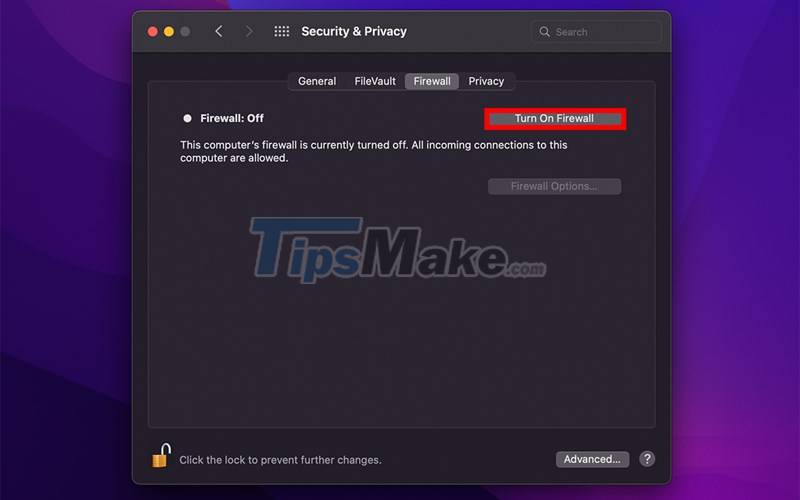
At Security & Privacy, select the Firewall tab. Security is optimized when the Firewall is turned on and displayed as shown below.

If the Firewall is off, turn it on by clicking Turn On Firewall.
4. Enhanced Security at Customize App Permissions
Step 1. At Security & Privacy, select the Privacy tab. The window will display a variety of application permissions, such as location permission, contact view permission, photo store access. Next, you need to select the permission type in the left scroll bar, then you can select or deselect the application permission in the right list. In the picture is an example of disabling Google Chrome's location permission.

Step 2. After completing the security customization for the device, remember to click on the padlock icon to lock the Security & Privacy section.

Above are 4 ways to increase the security of the MacBook available on the machine that you can quickly implement to reduce the security risk of your machine. Have you tried it yet?
Good luck.
Key Takeaways
Use the information above as a practical reference for 4 extremely useful macbook security tips, did you know?. Review each step carefully, confirm any requirements, and choose the option that best fits your situation.
FAQ
What does this guide explain about 4 Extremely Useful Macbook Security Tips, Did You Know?
It explains the main concepts, practical considerations, and useful steps related to 4 extremely useful macbook security tips, did you know without requiring advanced knowledge.
Who can benefit from learning about 4 Extremely Useful Macbook Security Tips, Did You Know?
This information is useful for readers who want a clear overview, practical guidance, and reliable steps related to 4 extremely useful macbook security tips, did you know.
What should I check before applying this information?
Review the requirements, confirm that your device, software, or situation matches the instructions, and back up important data before making major changes.
Related Articles
 Tips for Newbies to Macbook10 minutes read
 Top 5 MacBooks Worth Spending Money on in 20254 minutes read
 Compare Macbook, Macbook Pro and Macbook Air10 minutes read
 5 Useful Settings for 2013 MacBook Air Users4 minutes read
 5 Simple Ways to Take a Screenshot of Your Macbook, Guaranteed to Be8 minutes read
 How to Fix Frozen Macbook Error12 minutes read
Reader Comments 0
Sign in with email or Google to join the discussion.