Clear, practical technology insights BSOD Code Lookup · Windows Error Code Lookup · Wi-Fi Troubleshooting · PC Troubleshooting Checklist

How to Change the Safari Boot Page Background Image on macOS Big Sur

Learn how to change the Safari Boot Page Background Image on macOS Big Sur with clear steps, practical tips, and key considerations for completing the task.

Table of Contents

This guide explains how to change the Safari Boot Page Background Image on macOS Big Sur, with clear steps, practical tips, and important checks before you begin.

How to Change the Safari Boot Page Background Image on macOS Big Sur screenshot

How to change the Safari boot page background image on macOS Big Sur

The following is a detailed guide on how to change the background of Safari boot page on macOS Big Sur.

Step 1: Open Safari on your Mac and press the bar button at the bottom right corner of the start page.

How to Change the Safari Boot Page Background Image on macOS Big Sur screenshot 2

Step 2: From the menu that opens, you can choose the wallpaper from the list provided by Apple or click the plus button to select the wallpaper you save on your computer.

How to Change the Safari Boot Page Background Image on macOS Big Sur screenshot 3

Step 3: Browse and select the image you want to set as the startup page of Safari.

Step 4: Click on the image to preview the result.

Step 5: When you're satisfied, click the Choose button to confirm.

How to Change the Safari Boot Page Background Image on macOS Big Sur screenshot 4

How to Change the Safari Boot Page Background Image on macOS Big Sur screenshot 5

Note: When you want to change to another wallpaper, you need to delete the current wallpaper first. Open Safari's launch page> click the horizontal bar button in the lower right corner> click the X button located in the upper left corner of the background image you want to delete> click the plus button to select a new background image.
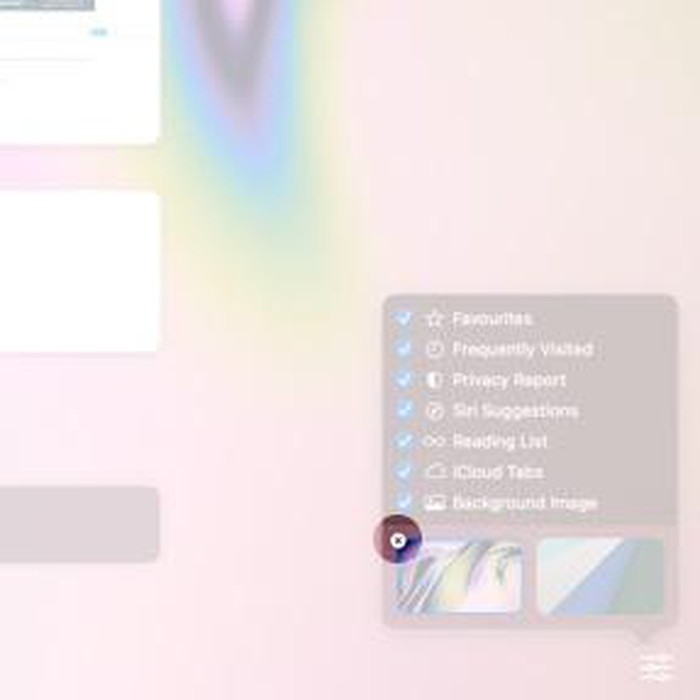
How to Change the Safari Boot Page Background Image on macOS Big Sur screenshot 6

If you do not want to set the background image for the Safari start page, you can disable this setting, open Safari> click the three bar buttons> uncheck the Background Image option.
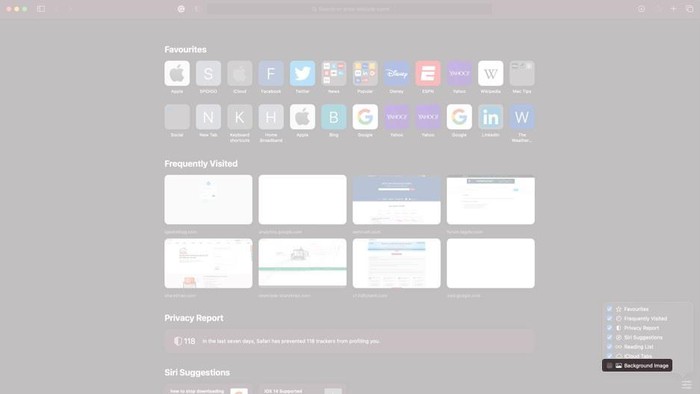
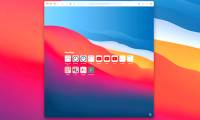
How to Change the Safari Boot Page Background Image on macOS Big Sur screenshot 7

FAQ

What should I know about Change the Safari Boot Page Background Image on macOS Big Sur?

Focus on the key features, requirements, limitations, and practical use cases explained in this guide.

How do I get the best results with Change the Safari Boot Page Background Image on macOS Big Sur?

Follow the recommended steps, use current software or information, confirm compatibility, and review settings before major changes.

Are there any risks or limitations?

Potential limitations depend on compatibility, data quality, cost, privacy, support, and how the product or method is used.

Discussion

Reader Comments 0

Sign in with email or Google to join the discussion.