Table of Contents
When you feel that the icons on your Android phone screen are too large or too small, you can adjust the display density on the screen.
If you find that the icons on your Android phone's screen are too big or too small, you can adjust the display density. Display density determines the number of pixels per inch of screen. Adjusting this setting changes the way your phone processes those pixels, making icons, text, and menus look right to you. Here's how to change the display density on Android.
How to change display density on Android
Step 1:
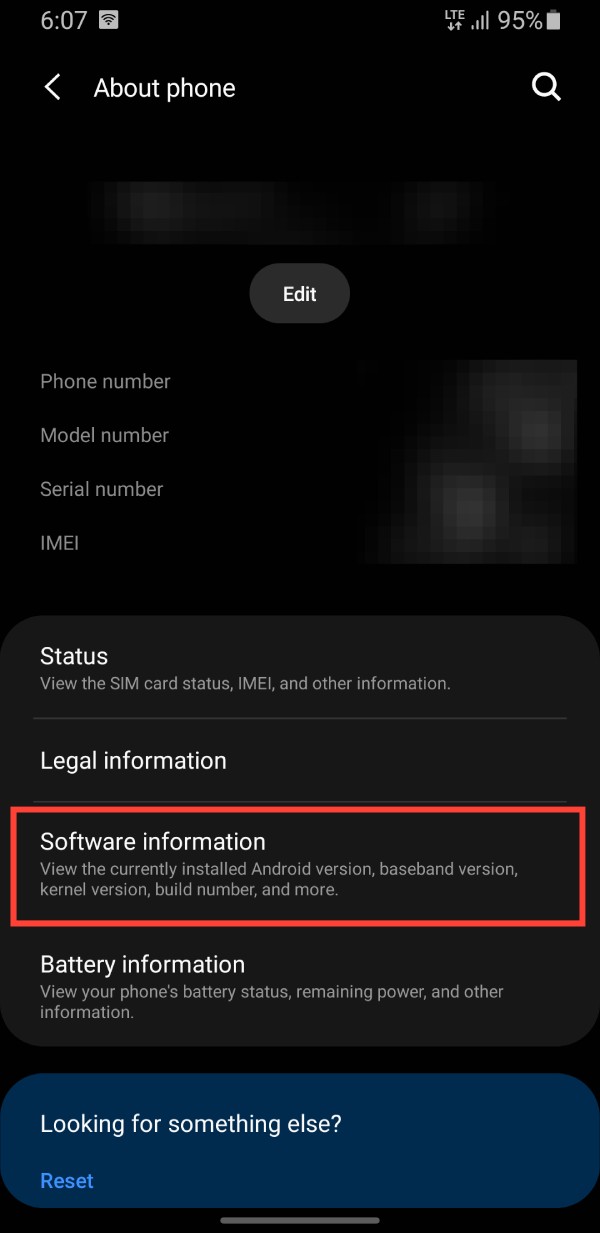
Go To Settings Then select About phone , then click Software information To view system information.
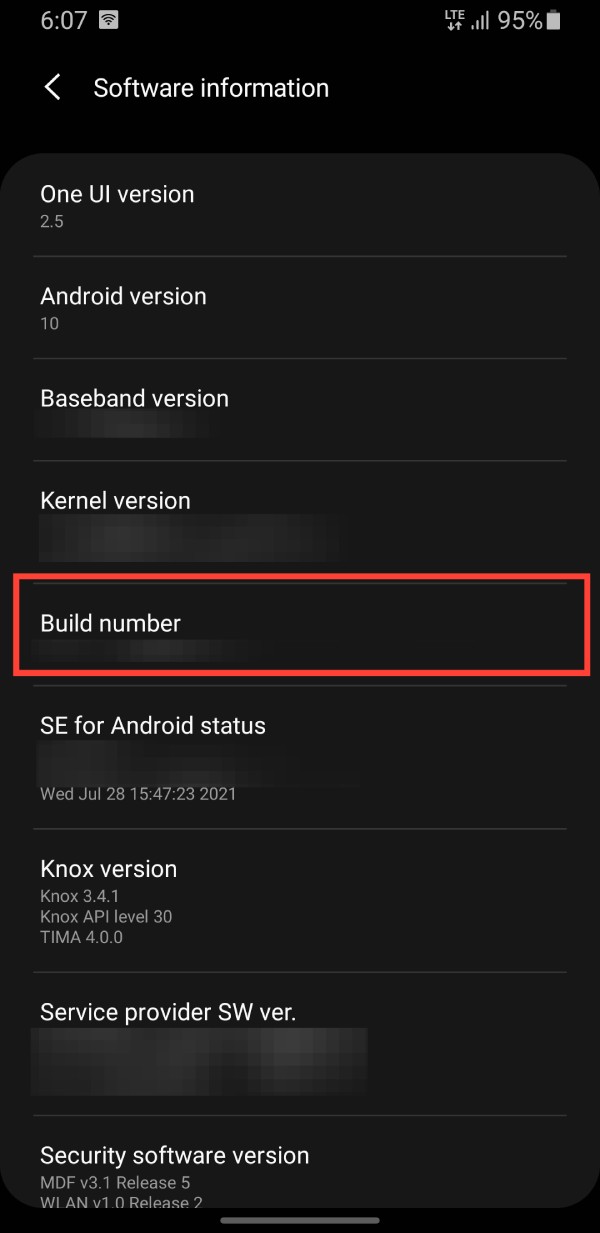
Tap Build number 10 times in a row To enable developer mode on your Android phone.
Step 2:
Back to the Settings interface, click on Developer options .
Step 3:
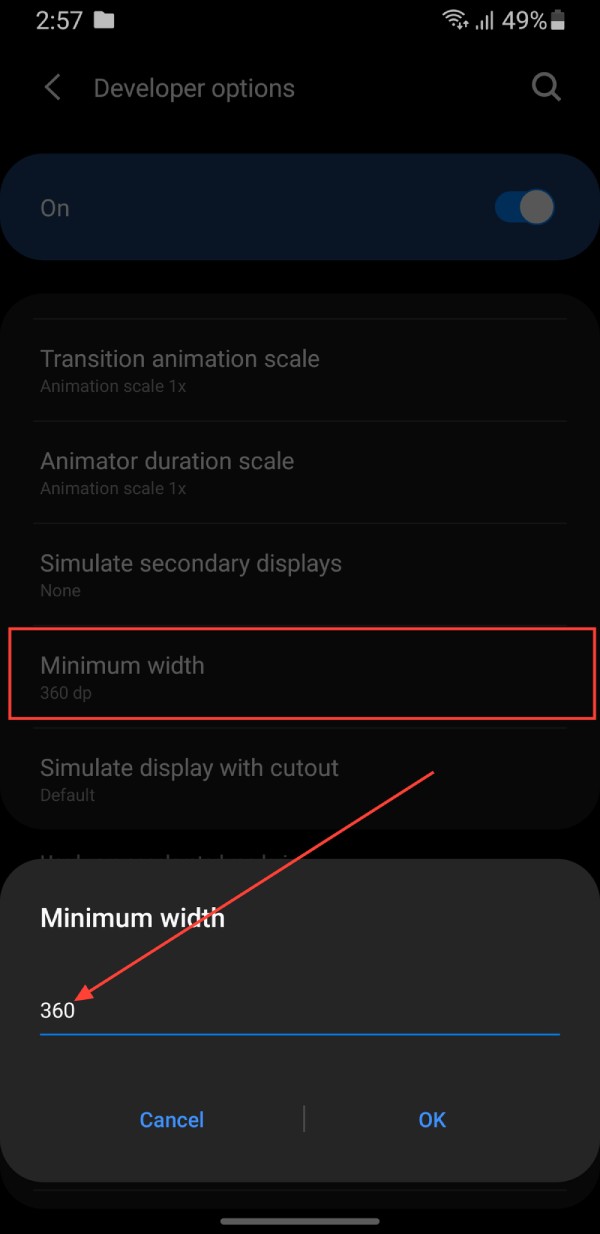
Click on Minimum width And adjust the number. The larger the number, the smaller everything will be, while the smaller the number, the larger everything will be.
Adjusting Android's display density is pretty straightforward. It lets you easily move away from the factory defaults and create a viewing experience that's truly tailored to each user's needs.
FAQ
How do you change display density on Android phone: step-by-step guide?
In practical terms, if you feel that the icons on your Android phone screen are too large or too small, you can adjust the display density on the screen.
What should you check before getting started?
Review the requirements, compatible device or software version, and any warnings described in the guide before making changes.
What should you do if the steps do not work?
Repeat the steps in order, confirm that your app or system is up to date, and review the troubleshooting details provided above.
Related Articles
 How to Change the Name of Android Phone4 minutes read
 How to Customize DPI on Android Phones5 minutes read
 11 Amazing Android Apps That Will Change the Way You Use Your Phone11 minutes read
 Change DNS Iphone: How to Change DNS on Iphone, Android Phones3 minutes read
 Energy Bar - Change the Way of Displaying Battery Status for Android4 minutes read
 Change Android Phone Wallpaper with Just a Shake5 minutes read
Reader Comments 0
Sign in with email or Google to join the discussion.