Table of Contents
Learning how to change iMessage bubble color in iPhone doesn't have to be complicated. This updated guide presents a clear workflow, practical checks, and troubleshooting advice you can use while completing the process.
Key Takeaways
- Follow the steps to change iMessage bubble color iOS 17.
- Follow the steps to change iMessage bubble color iOS 17 and below.
- Follow the recommended steps in order to avoid common mistakes with change iMessage bubble color in iPhone.
How to Change iMessage Bubble Color iOS 17
Step 1:
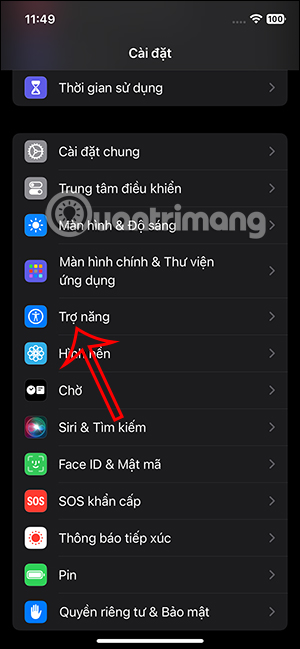
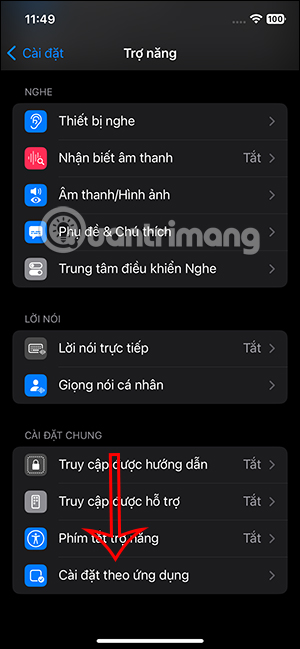
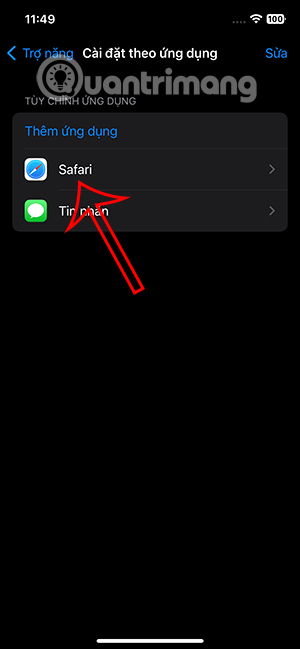
First, you access the Settings section, then we select Accessibility to adjust. Switch to the new interface, you select Settings by application at the bottom of the interface.
Step 2:
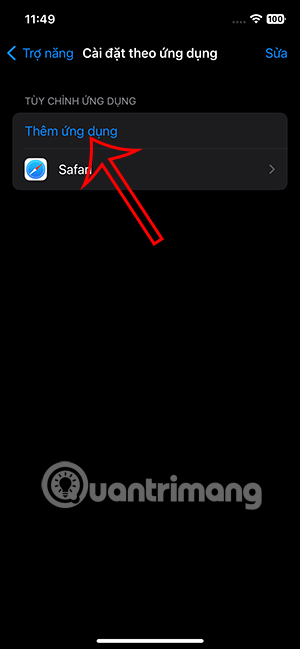
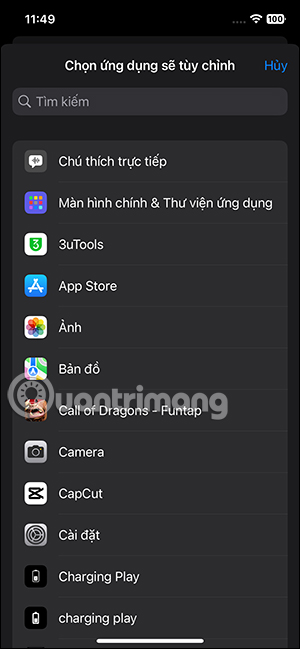
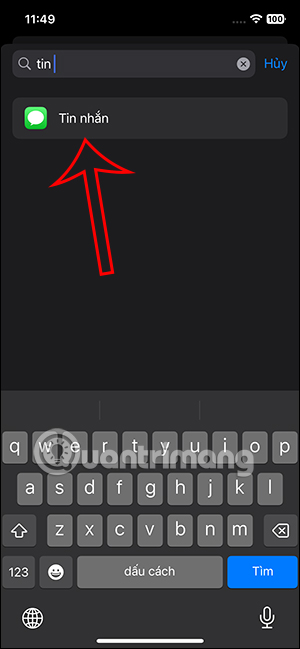
In the interface as shown, the user clicks on Add application to set up the application. Here, select the search bar, then type Messages and select the Messages application to set up the application settings.
Step 3:
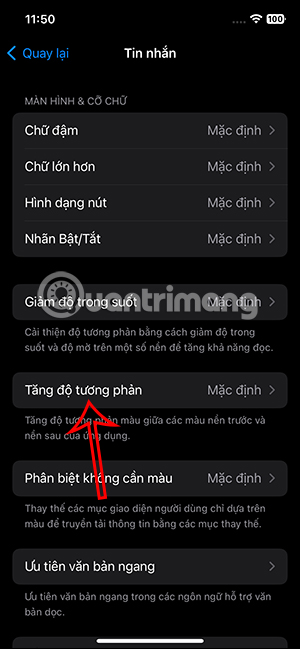
You continue to select the application to set up after adding the Messages application to this list. Switch to the interface of specific settings for the Messages application, we select Increase contrast.
Step 4:
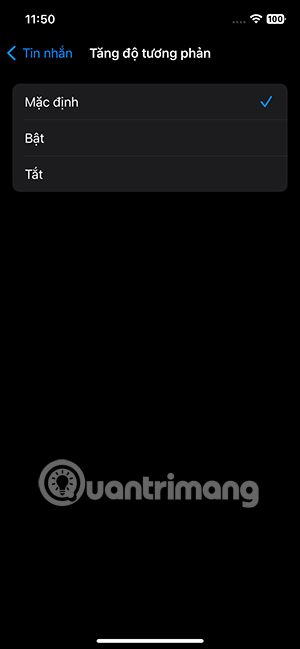
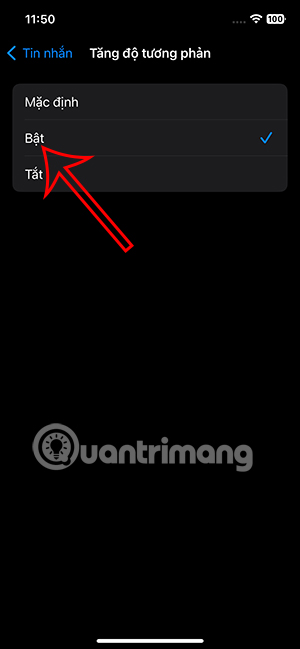
Here the user will switch to On mode to enable color contrast for the messaging application on iPhone.
As a result you can see that the blue color in the iMessage bubble has become a bit darker.
How to Change iMessage Bubble Color iOS 17 and Below
1. Open the App Store and search for 'Color Text Bubbles on iMessage'. Alternatively, you can directly open the app page on the App Store and download Color Text Bubbles on iMessage.
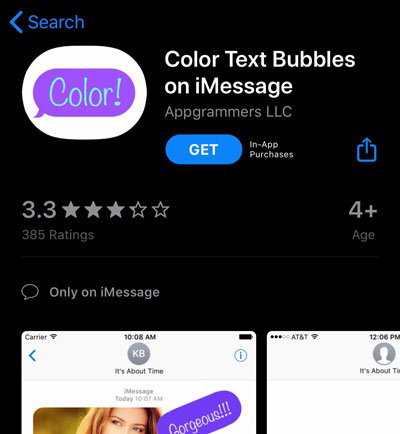
2. Click Get and enter your Apple ID or password if prompted for verification. The app will download and install on your device.
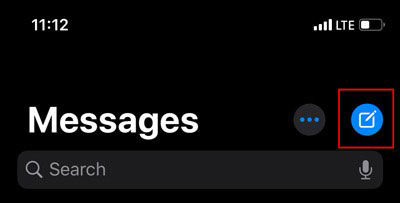
3. Once the app has been successfully installed, open the Messages app on your device. Compose a new iMessage by tapping the Compose button in the upper right corner.
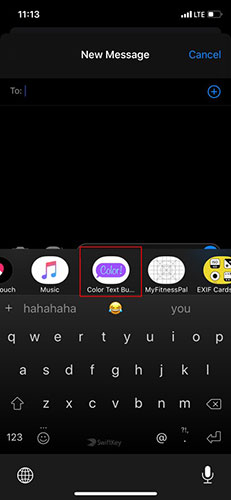
4. Once open, tap on the Apps icon. Scroll to the right in the menu above the keyboard and select 'Color'.
5. Select 'Type Custom Message' and enter a message into the bubble. (Alternatively, you can choose to send one of the default template messages directly).

6. From the colored bubble (highlighted below), choose from a range of colors to send the message.
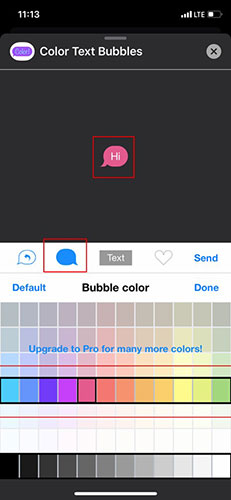
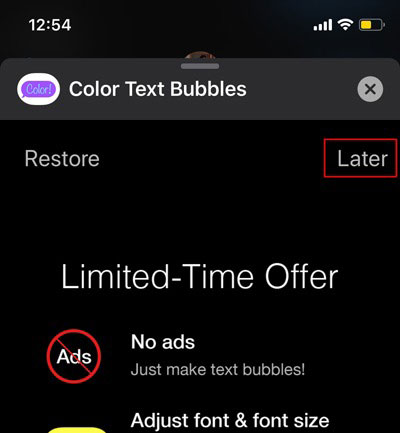
7. Once entered, tap Send. An ad will appear and you will have to wait 5 seconds before skipping it by tapping 'Later'.
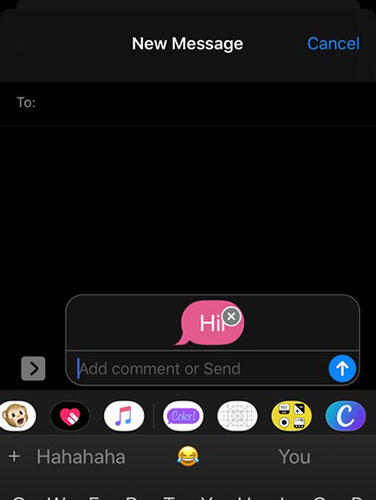
8. Once complete, you will be able to send your iMessage as a colored message.
Upgrading to the paid version of the app offers more features, like unlimited colors, customizable font sizes, font styles, and more. The paid version of Color Text Bubbles costs $4.99 and is a worthwhile investment if you want to add a little flavor to your messages. In contrast, the free version only allows you to change colors (within a limited range) and add a few stickers (included by default).
Final Thoughts
The most reliable way to handle change iMessage bubble color in iPhone is to follow the process in order, verify each important setting, and test the result before moving on. Use the guidance above as a practical reference, then adjust the details for your device, software version, or specific goal.
FAQ
What should I check before I change iMessage bubble color in iPhone?
Use the latest available software, confirm that your device meets the requirements, and make sure you have the necessary permissions, account access, or backup before changing anything.
Why might I be unable to change iMessage bubble color in iPhone?
Common causes include outdated software, missing permissions, incompatible settings, incomplete setup steps, or a temporary network problem. Recheck the process from the beginning and restart the app or device if needed.
Is it safe to change iMessage bubble color in iPhone?
It is generally safe when you use official tools, review every permission, and back up important data before making system-level or account-level changes.
Related Articles
 How to Change the Imessage Bubble Color in iOS4 minutes read
 How to Style Messages for Imessage iOS 106 minutes read
 Iphone: How to Change Imessage Color12 minutes read
 How to Fix the Error Cannot Be Used on Imessage iOS 105 minutes read
 How to Fix Errors Waiting to Activate Imessage on iPhone7 minutes read
 How to Cancel Imessage on iPhone, iPad and Computer: Step-by-Step Guide3 minutes read
Reader Comments 0
Sign in with email or Google to join the discussion.