Table of Contents
Learn how to use the touchless scrolling feature on oppo with clear steps, practical tips, and troubleshooting guidance for a reliable result.
Instructions on using the touchless scrolling feature on Oppo phones
Step 1
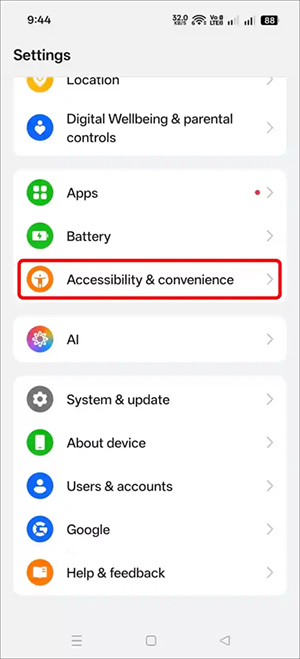
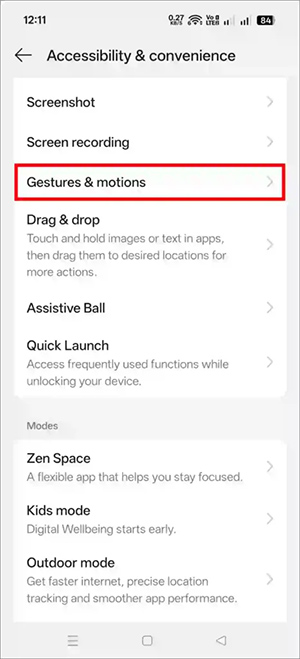
Users access Settings on their Android phone and then tap on Accessibility & Convenience .
Next, users select the Gestures & Motions option to adjust the gestures and movements for their phone.
Step 2
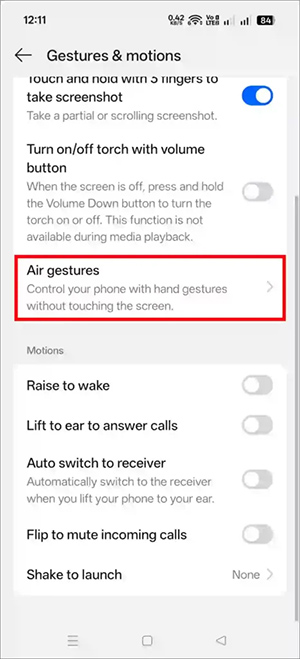
On the new interface, users select the Air Gestures option to adjust touchless scrolling gestures on their Oppo phone.
Step 3
The user then taps on the Air Call Control option and activates Air Call Control as shown in the image.
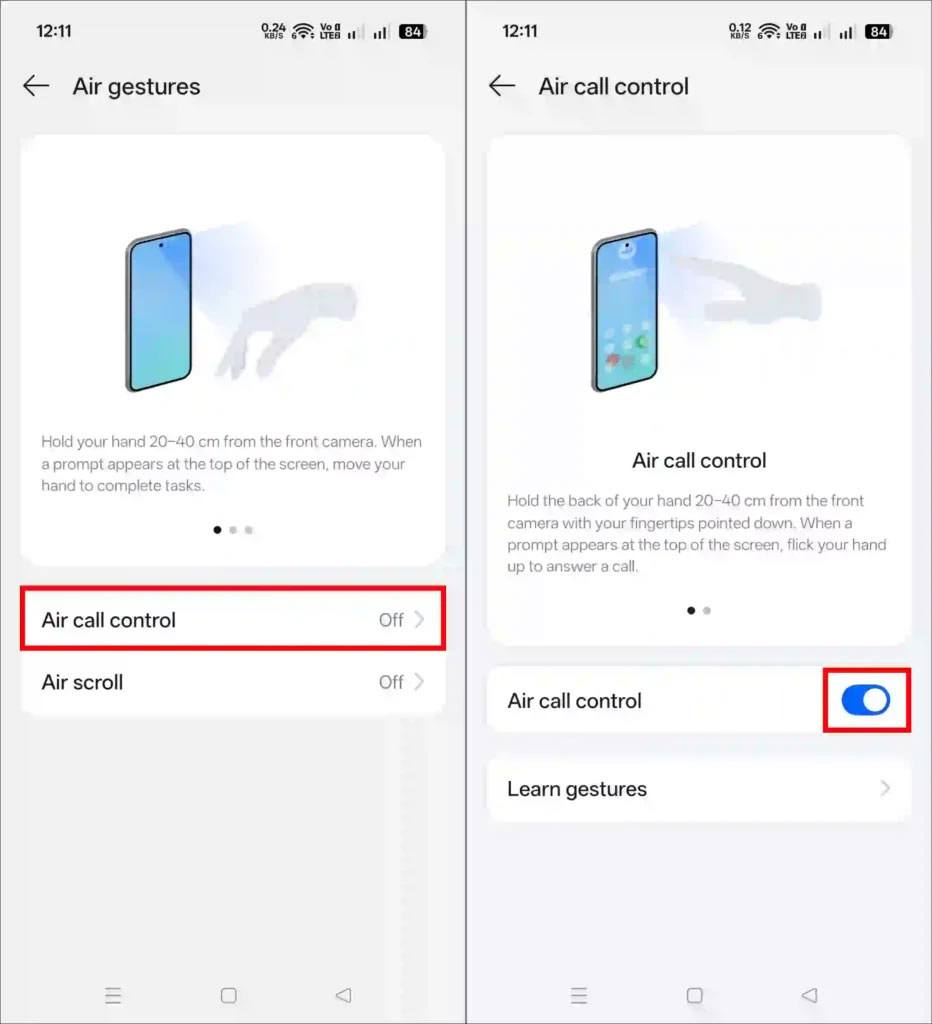
Continue to enable Air Scroll for the Facebook, Instagram, and YouTube apps.
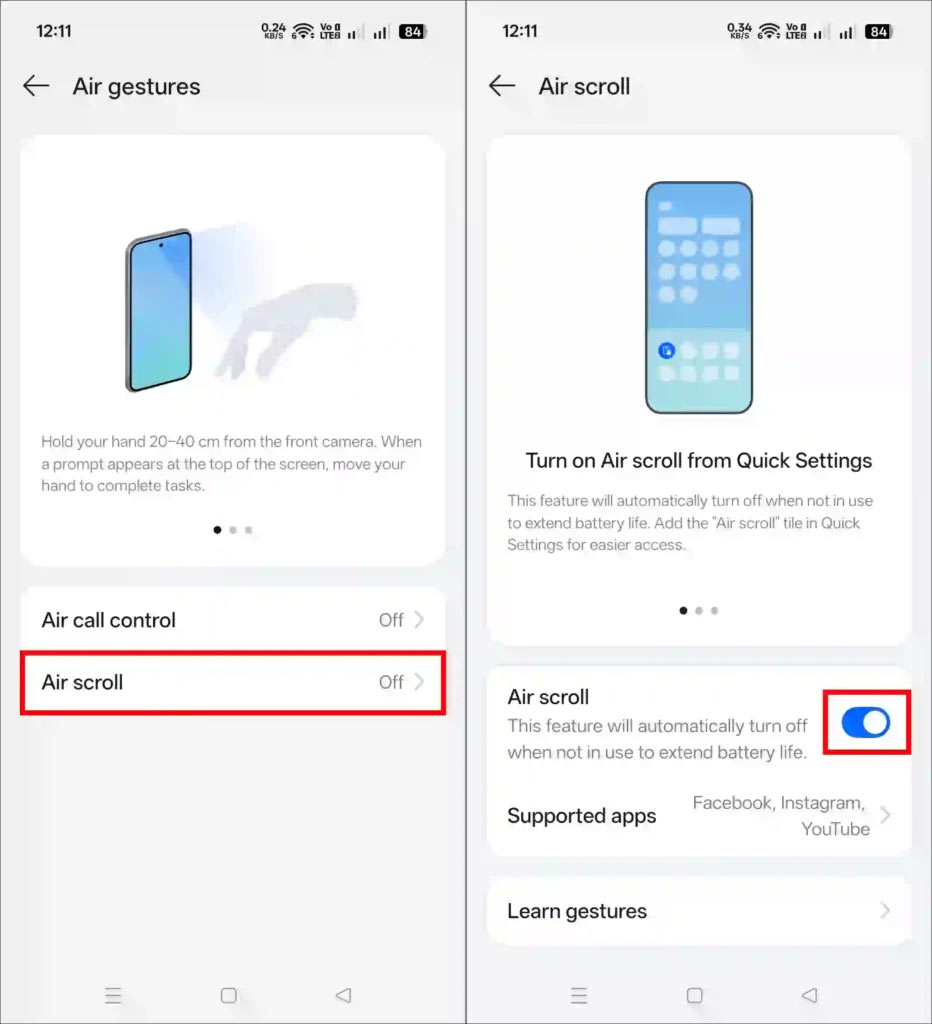
If you have Air Scroll enabled, open a supported app such as YouTube, Facebook, or Instagram. Then, hold your finger 20-40 cm away from the screen until the hand icon appears, and then swipe up or down to scroll.
If you have Air Call Control enabled, whenever you receive a call, simply hold your palm (open or closed, depending on the model/settings) in front of the camera (20-40 cm away) and wave your hand to answer or mute the call without touching the screen.
Final Thoughts
Use this guide as a practical checklist for how to use the touchless scrolling feature on oppo. Work through the steps in order, verify each result, and adjust the options to match your needs.
FAQ
What do you need before following this How to Use the Touchless Scrolling Feature on Oppo guide?
Review the required tools, accounts, settings, or materials mentioned in the article. Learn how to use the touchless scrolling feature on oppo with clear steps, practical tips, and troubleshooting guidance for a reliable result.
What are the main steps for how to use the touchless scrolling feature on oppo?
Follow the sections in order, especially Instructions on using the touchless scrolling feature on Oppo phones, Step 1, Step 2. Complete each step before continuing and verify the result as you go.
What should you do if the process does not work as expected?
Recheck the prerequisites, update the relevant app or service, review the settings, and repeat the step that caused the issue. Use any troubleshooting notes included in the guide.
Related Articles
 Google Updates Hands-free Features for Nexus Devices4 minutes read
 OPPO Find X2: Experience the Super Anti-shake Movie Feature5 minutes read
 Oppo A91: 8gb RAM, Set of 4 Cameras, Fingerprint Sensor 0.323 minutes read
 Instructions for Enabling Smooth Scrolling on Google Chrome2 minutes read
 Review Oppo F15: Is It Only on the Outside?10 minutes read
 How to Fix Oppo Lost the Background Playback Feature, How to Fix6 minutes read
Reader Comments 0
Sign in with email or Google to join the discussion.