Table of Contents
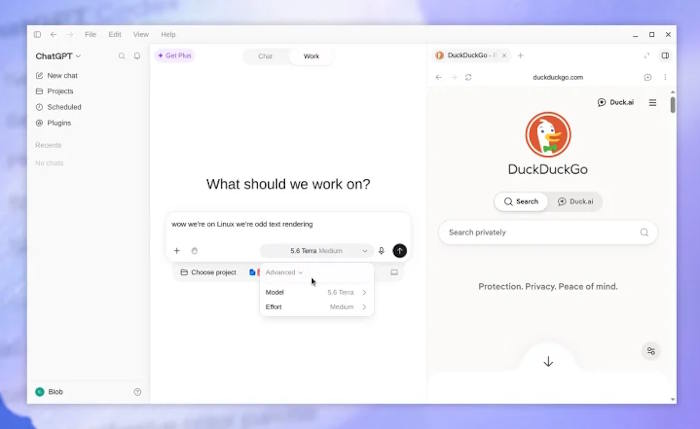
To install the official ChatGPT desktop app on Linux, download the package for your distribution and processor, then install it with APT or DNF. The app is available in preview, so check the official Linux installation guide before downloading. This walkthrough covers Ubuntu, Debian and Fedora, followed by sign-in, a small Codex project and updates.
Check your distribution and processor
Open a terminal and identify your Linux version:
grep -E '^(ID|VERSION_ID)=' /etc/os-release
uname -m
The first command shows the distribution and version. The second identifies the processor: x86_64 means x64; aarch64 or arm64 means ARM64. Match both the distribution and architecture when downloading.
| Distribution | Supported preview versions | Installation format |
|---|---|---|
| Ubuntu | 24.04 LTS and 26.04 LTS | .deb |
| Debian | 13 | .deb |
| Fedora | 43 and 44 | .rpm |
| Arch Linux | Current, fully updated rolling release | Official installation script; see OpenAI's guide |
Other distributions may work but are not formally supported in the preview. If you need help with package management, see installing and removing apps on Ubuntu.
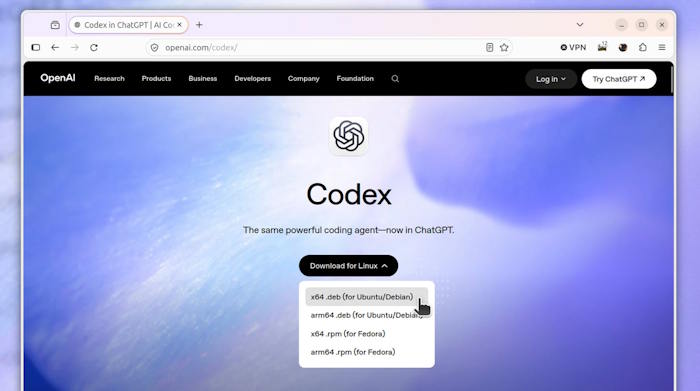
Download the matching package
Use the download links in OpenAI's guide. Choose a .deb file for Ubuntu or Debian, or an .rpm file for Fedora. These are the filenames used in the installation examples:
| System | x64 | ARM64 |
|---|---|---|
| Ubuntu or Debian | chatgpt_amd64.deb | chatgpt_arm64.deb |
| Fedora | chatgpt.x86_64.rpm | chatgpt.aarch64.rpm |
If your downloaded filename differs, use that exact filename in the commands below. Check it in your file manager or list the packages in Downloads:
ls -lh ~/Downloads/*.deb
ls -lh ~/Downloads/*.rpm
A message saying that no files match one format is normal if you downloaded only the other format. Unofficial wrappers and repackaged installers are separate projects; do not assume they are OpenAI's desktop app.
Install on Ubuntu or Debian
For x64, run:
cd ~/Downloads
sudo apt install ./chatgpt_amd64.deb
For ARM64, replace the last line with:
sudo apt install ./chatgpt_arm64.debThe ./ tells APT to install the local file. Read the package and dependency summary before confirming. If APT cannot find the file, check that you are in the correct folder and that the spelling matches the download.
Install on Fedora
For x64, run:
cd ~/Downloads
sudo dnf install ./chatgpt.x86_64.rpm
For ARM64, use:
sudo dnf install ./chatgpt.aarch64.rpmReview DNF's proposed changes before confirming.
Launch ChatGPT and try a Codex project
Open ChatGPT from the applications menu or run chatgpt in a terminal. See launching programs from the Linux command line if you are unfamiliar with terminal launchers.
Sign in with your ChatGPT account and follow the app's setup prompts. Standard ChatGPT sign-in does not require an API key.
To try Codex, choose Codex in the product selector and open a small local project. An empty Git repository makes the first changes easy to inspect:
mkdir -p ~/Projects/codex-linux-demo
cd ~/Projects/codex-linux-demo
git init
Git must be installed for the last command. Select that folder in the app and keep permissions limited to what your task requires. Try this prompt:
Create a Python file that prints the Linux distribution, kernel version and Python version. Run it and show the output. Do not install packages or access the internet.
Review the generated file and command output before using the result in a larger project.
Update the app
The official installer configures OpenAI's signed package repository. On Ubuntu or Debian, run:
sudo apt update
sudo apt install --only-upgrade chatgpt
On Fedora, run:
sudo dnf upgrade --refresh chatgptIf an update or installation fails, keep the error message and recheck the current official instructions. A wrong architecture, a different filename or an unsupported distribution needs a different fix; repeating the same command will not resolve it.
Related Articles
 Instructions for Installing Kali Linux on Windows 10 Are Easier6 minutes read
 How to Install Software and Applications on Linux7 minutes read
 How to Install Docker in Linux8 minutes read
 A Simple and Easy Guide to Downloading and Installing AutoCAD 20203 minutes read
 How to Install and Remove Fonts on Linux: Install Fonts on Linux7 minutes read
 Should I Install Arch Linux?11 minutes read
Reader Comments 0
Sign in with email or Google to join the discussion.