Table of Contents
Illustrator-style illustrations are always popular thanks to their bright colors, clear lines, and modern, professional feel.
Gemini is not just a tool for searching and creating content; it also has the ability to generate impressive images through descriptive commands. Simply enter the correct requirements, and you can create illustrations in vector, cartoon, or professional graphic design styles without needing advanced design skills. In this article, we'll explore how to use Gemini to create Illustrator-style images.
How to create Illustrator images in Gemini
Step 1:
First, download an Illustrator-style image, then go to Gemini, switch to Mind mode, and upload the Illustrator image.
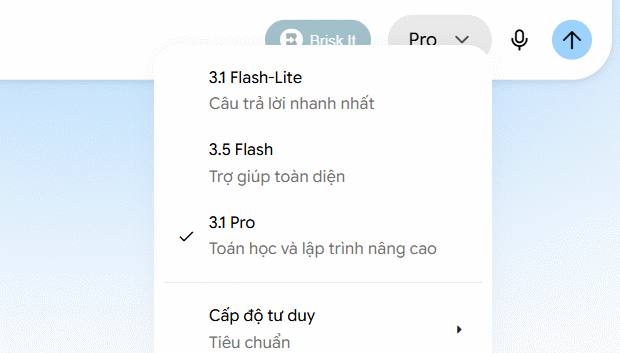
Step 2:
Then enter the following command to execute it.
Make json prompt for this exact style
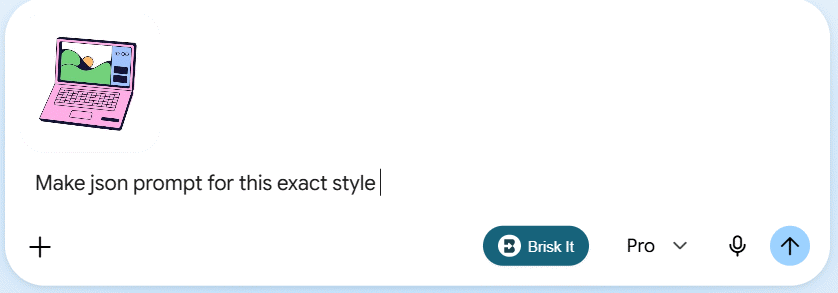
As a result, we have the code to use for the next operation. Please copy this code to use.
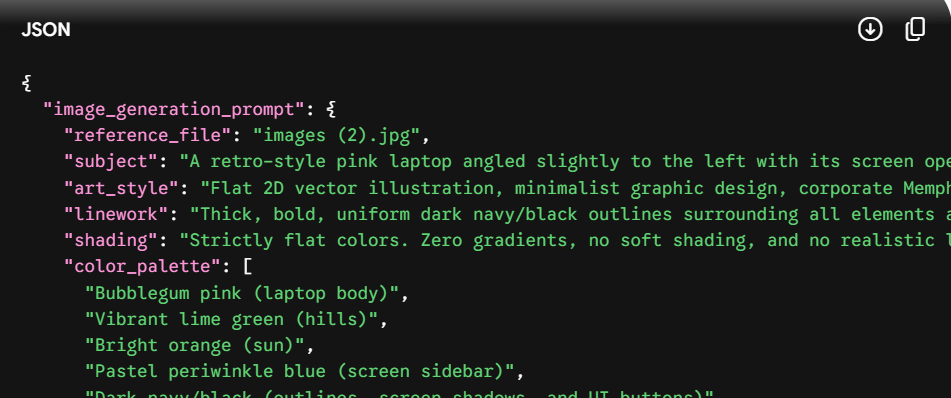
Step 3:
Create a new chat on Gemini, then paste the JSON code into the chat box, then enter the command below to create the icon you want in Illustrator style, and press send.
Generate [x] icon for me form json code
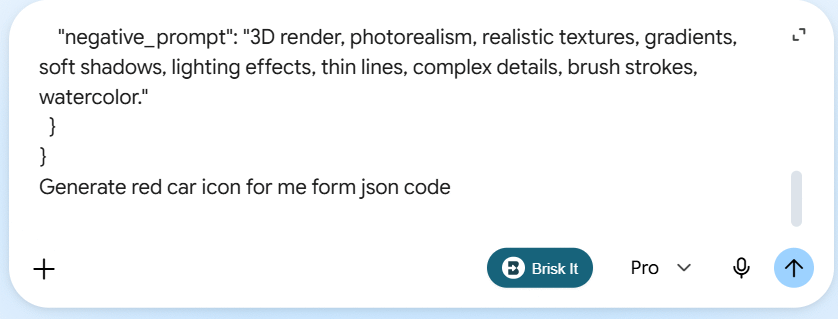
The result will also return a JSON code snippet describing the icon you want to create.
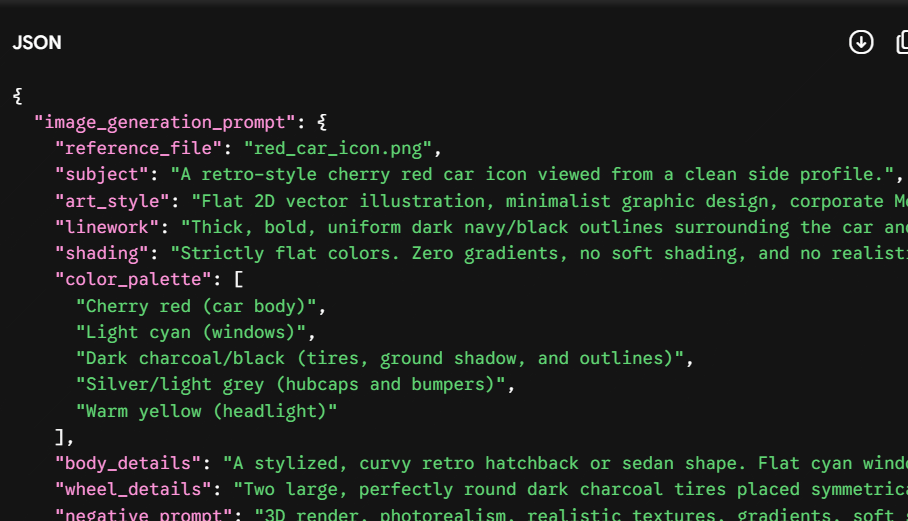
Finally, we enter the command below and press submit, and we're done.
Create [x] icon using this JSON style.The result is a new icon in the Illustrator style, as shown below.

Step 4:
To create multiple icons in this Illustrator style, enter the command below.
Using this exact JSON style, create these icons: - Home - Search - User - Settings - Bell - Calendar - Email - Chat - Camera - Heart Keep the style identical. Use exactly the same visual style, proportions, colors, stroke width, shadows, spacing and design language as the previous icon.We can change the icons to create Illustrator-style icons in bulk.
As a result, you now have a set of Illustrator-style icons like the ones below.

Related Articles
 How to Create Mind Maps for Lessons Using Gemini5 minutes read
 Tips for Quickly Creating Automated Tests on Gemini4 minutes read
 A Guide to Creating Presentation Slides Quickly Using Gemini4 minutes read
 How to Color Vector Icons in Adobe Illustrator4 minutes read
 Guide to Creating Scheduled Activities on Gemini4 minutes read
 Instructions on Creating Multiple-choice Questions on Gemini3 minutes read
Reader Comments 0
Sign in with email or Google to join the discussion.