Table of Contents
Gemini can use Personal Intelligence and a connected Google Photos library to create images based on your interests or selected personal photos. The feature is not available to every account, country, or account type, so first check whether Personal Intelligence and Google Photos appear in your Gemini settings.
Before you begin
Use a personal Google Account that is eligible for the feature. Work, school, and supervised accounts may have different restrictions. In Gemini, open Settings or your profile menu, find Personal Intelligence and Connected Apps, then check whether Google Photos can be connected.
Connecting a photo library gives the service access to personal material for supported requests. Review the current Gemini Apps Privacy Hub, Keep Activity setting, and Connected Apps explanation before enabling it. Do not use another person's image without their permission, and avoid creating misleading or harmful depictions.
Create an image from personal context
Start a new Gemini conversation and ask for an image. When the feature is enabled, a concise prompt can draw on preferences from connected apps. A useful prompt still states the subject, setting, visual style, mood, and format:
Create a warm watercolor illustration of my ideal reading corner, with morning light and a vertical composition.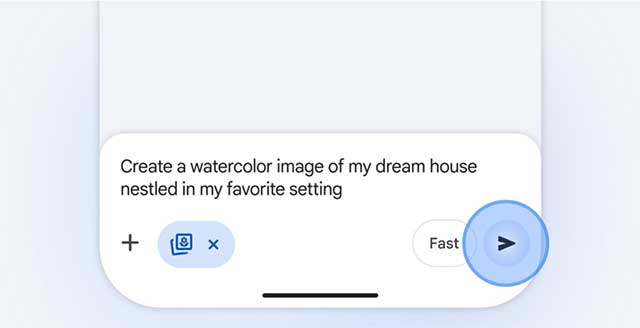
Personal context can fill in some details, but it should not replace clear direction. If the first result feels generic, name the two or three details that matter most instead of writing a long list of conflicting requirements.
For a wider overview of Gemini's capabilities, see five reasons to try Google Gemini.
Include yourself, family members, or pets carefully
If Google Photos integration is available, you may be able to ask Gemini to use photos of people or pets recognized in your library. Be explicit about who should appear, the intended scene, and the style. For example:
Create a clay-animation-style family vacation portrait using appropriate references from my connected Google Photos. Keep each person's face recognizable and do not add extra people.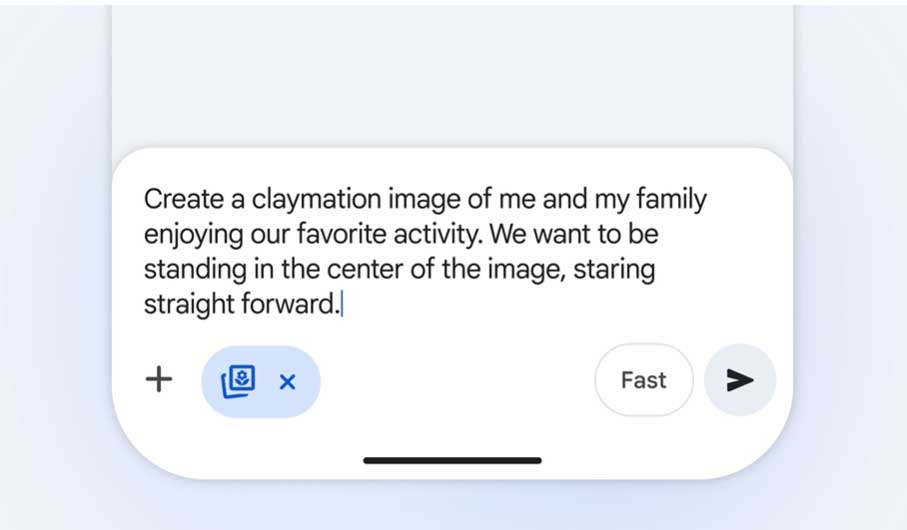
If Gemini chooses the wrong reference, use the interface's reference-photo control where available or upload a specific image you are authorized to use. Do not assume the output is private merely because the source photo came from a private library.
Refine the image without starting over
Describe one change at a time so it is easy to see whether the edit worked:
- “Keep the people unchanged and replace only the background with a beach at sunset.”
- “Use a wider camera angle and leave space above the subjects for a heading.”
- “Change the style to a pencil sketch while preserving the composition.”
- “Remove the extra object on the table; change nothing else.”
Inspect faces, hands, text, reflections, logos, and small background details. Generated images can contain plausible-looking errors. If you need conventional retouching or precise control, compare dedicated options in TipsMake's guide to AI photo editors and their limitations.
Control the connection and your data
You can disconnect Google Photos from Gemini's Connected Apps settings when you no longer want it available. Also review Gemini Apps Activity and the current privacy notice, because data handling can depend on the feature, account, and activity settings.
Google states that its models are not trained on a user's private Google Photos library as a whole. That statement should not be read as a guarantee that every photo shared with Gemini is excluded from all processing or service-improvement workflows. Check the current explanation shown for uploads and connected gallery content before using sensitive images.
If the option is missing
Confirm that you are signed in to the intended personal account, that your region and age are eligible, and that the required activity setting is enabled. Availability may roll out gradually. You can still create images with a normal prompt and manually upload an authorized reference photo even when the personalized Google Photos feature is unavailable.
Related Articles
 Tips for Quickly Creating Automated Tests on Gemini4 minutes read
 Instructions on Creating Multiple-choice Questions on Gemini3 minutes read
 How to Create Mind Maps for Lessons Using Gemini5 minutes read
 How to Restore Old Photos with AI Gemini: Step-by-Step Guide5 minutes read
 A Guide to Creating Presentation Slides Quickly Using Gemini4 minutes read
 4 Practical Ways to Use Gemini's Camera Mode Around the House7 minutes read
Reader Comments 0
Sign in with email or Google to join the discussion.