Table of Contents
The Pick tool is CorelDRAW’s main tool for selecting, moving, resizing, rotating and grouping objects. Most editing commands affect the current selection, so learning the selection handles and modifier keys is one of the fastest ways to become comfortable in CorelDRAW.
The screenshots use an older CorelDRAW release. Icons and option locations can vary, but the selection behavior remains broadly the same. If the toolbox is hidden, restore it from the workspace or toolbar settings in your version.
Select and deselect one object
- Activate the Pick tool from the toolbox.
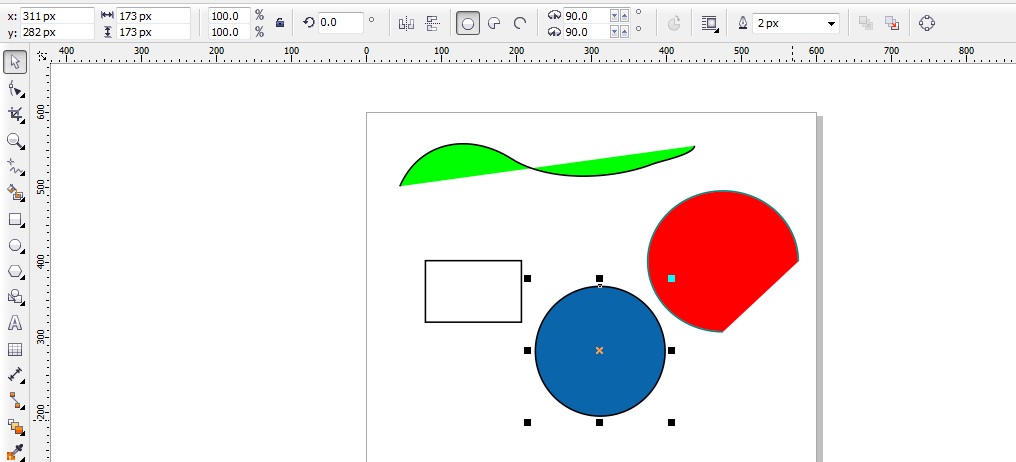
- Click the fill of a closed object. For an unfilled object, click its outline.
- Confirm that eight selection handles appear around the object.
- Click an empty area of the page to clear the selection.
Click a selected object again to switch from resize handles to rotation and skew handles. Drag the center-of-rotation marker when the object needs to pivot around a different point.
Select an unfilled object more easily
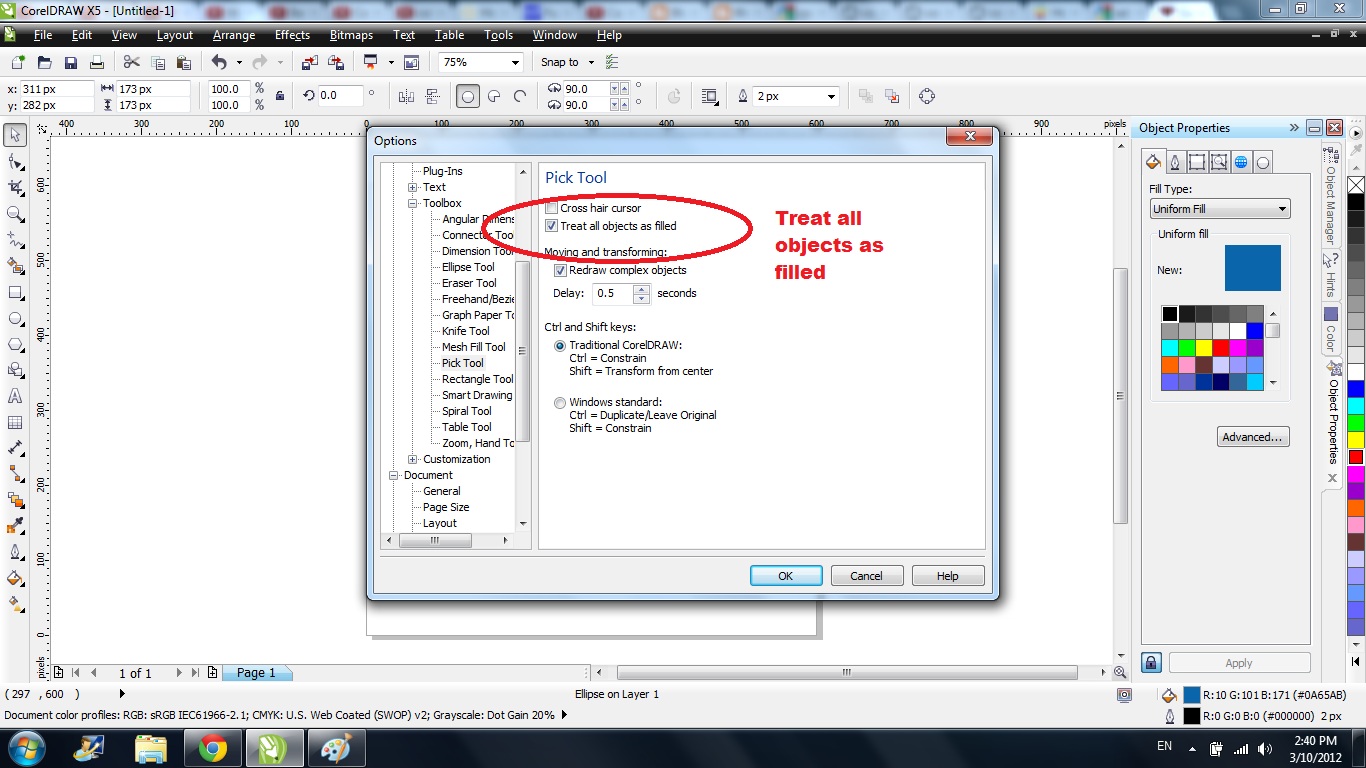
By default, an object without a fill is easiest to select by clicking its outline. Some CorelDRAW workspaces also offer a Treat all objects as filled preference, which lets you click inside an unfilled closed shape. The exact settings path differs between releases, so search the application options for that phrase rather than relying on an old menu path.
Select several objects
Use a marquee
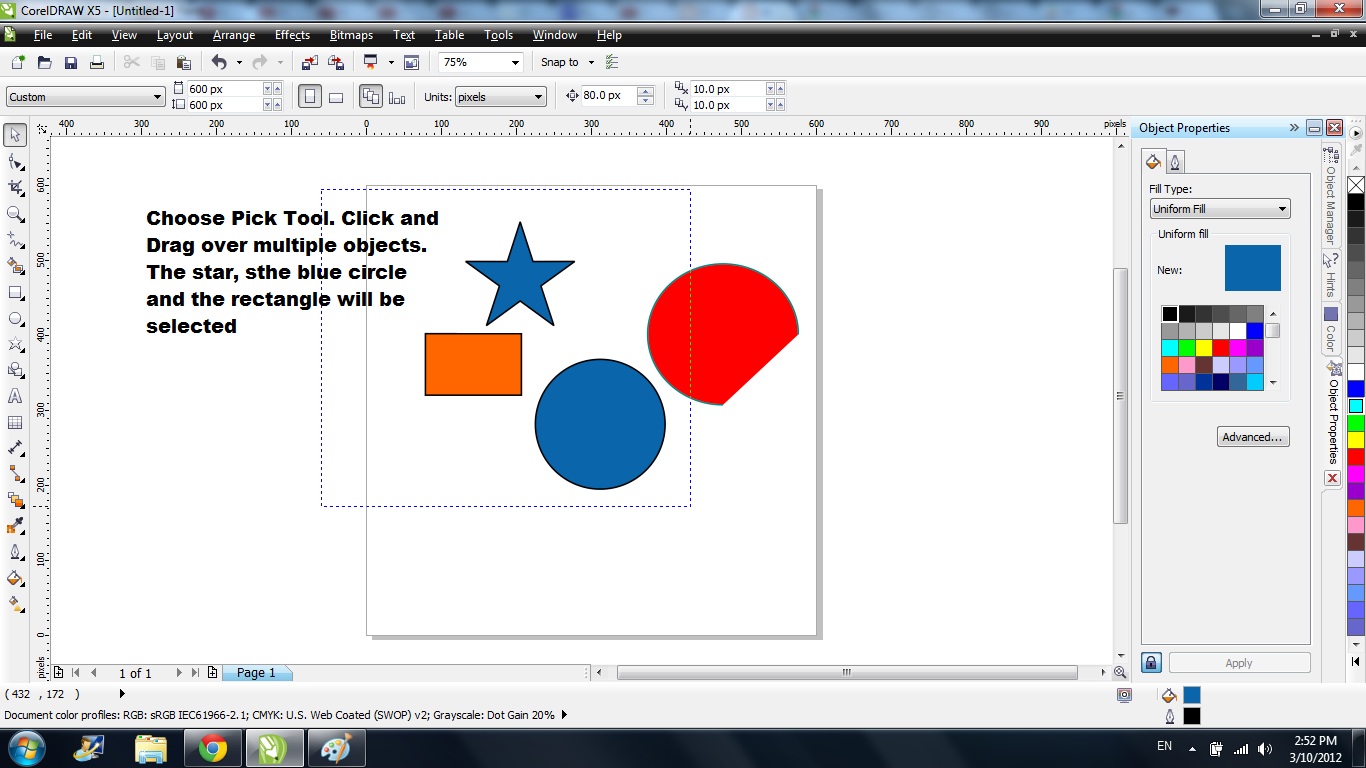
With the Pick tool active, drag from an empty area to draw a rectangular selection marquee around the objects. Release the mouse when the objects you need are enclosed. The status bar reports the type and number of selected objects.
Use Shift for separated objects
Click the first object, hold Shift, and click each additional object. Shift-clicking an already selected object removes it from the selection. This method is useful when the objects are far apart or when a marquee would also capture unwanted items.
Select everything on the active page
Press Ctrl+A to select all eligible objects. Check the status bar before applying a command, especially in a document that includes guides, hidden layers or locked content.
Move, resize and rotate the selection
- Move: drag from inside the selected object. Use the property bar when an exact position is required.
- Resize: drag a corner handle to change both dimensions or a side handle to change one dimension. Modifier-key behavior can depend on the version and workspace.
- Rotate or skew: click the selected object again, then drag a corner rotation handle or a side skew handle.
- Keep objects together: group a finished multi-object arrangement before moving it, then ungroup it when individual editing is needed.
Common selection problems
- If clicking selects the wrong object, zoom in or use the Objects docker to select by name and layer.
- If an object cannot be selected, check whether its layer or the object itself is locked.
- If a marquee misses an item, make sure the object is fully enclosed or add it with Shift-click.
- If the Pick tool is not active, select it explicitly instead of assuming the current shortcut behavior.
Next, review the CorelDRAW interface and common controls, keep the CorelDRAW shortcut list nearby, and practice object selection in the butterfly drawing exercise. Corel’s official help library is the best reference when a command has moved in a newer release.
Related Articles
 Technique Using the Pick Tool and the Transformations8 minutes read
 Get Familiar with Coreldraw 12 - Lesson 1: Set up the Drawing Page4 minutes read
 Coreldraw X6 Interface Overview, and Coreldraw X6 KEYS to11 minutes read
 Comparing Illustrator and CorelDraw5 minutes read
 Designing a Chrome Logo Using CorelDraw7 minutes read
 How to Install CorelDraw on a MacBook4 minutes read
Reader Comments 0
Sign in with email or Google to join the discussion.