Table of Contents
CorelDRAW is professional design software for those working and studying graphic design, where you can freely design the most unique works.
Designing a Chrome Logo Using CorelDraw: Overview

Designing a Chrome logo using CorelDraw is much easier than using Illustrator or Photoshop, especially Photoshop, because it's a versatile tool and not as specialized in design as Corel or Illustrator. Through This guide, you'll learn about many essential features for learning CorelDraw later on.
Guide to designing a Chrome logo using CorelDraw
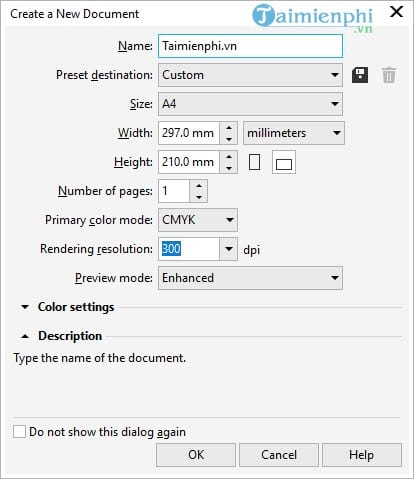
Step 1: First, create a new file the size of an A4 sheet of paper, as shown in the image.
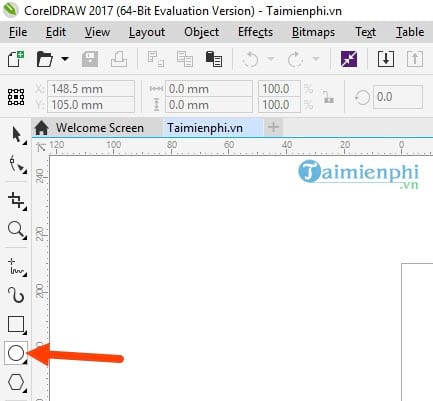
Step 2: On the left-hand toolbar, select the Ellipse Tool to draw a circle.
Step 3: To draw a circle, simply hold down Ctrl and drag ; a perfectly proportioned circle will appear.

Next, we will draw two more circles inside by clicking on any corner point, then holding Shift and dragging . When you reach your desired stopping point, right-click .

Do this twice and you will get a circle like the one above.
Step 4: Look at the menu bar and select the Rectangle tool to draw a rectangle.
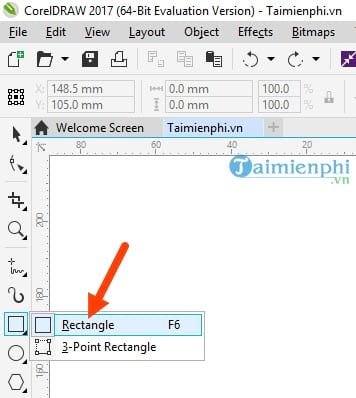
Note that when drawing the rectangle, the right edge and the top edge must match the second outline and the outermost outline of the circle.

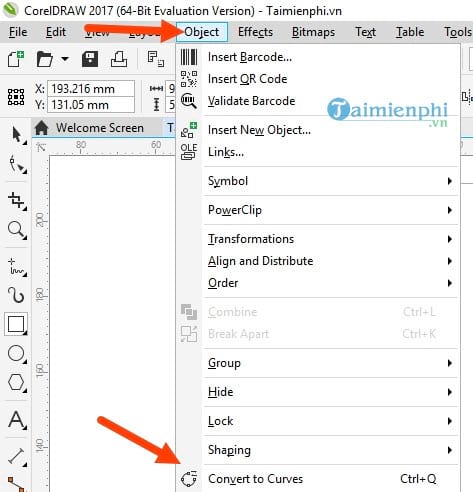
Step 5: Next, go to Object and select Convert to Curves to process this rectangle.
Step 6: Next, on the toolbar, select Shape to proceed with deleting the excess lines.
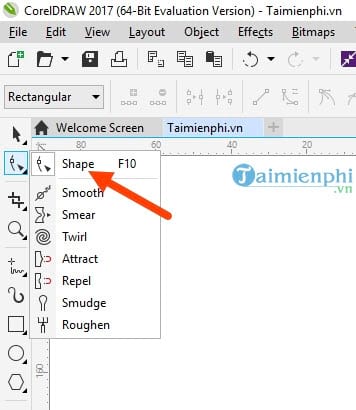
Here, you simply move your mouse to the desired location, and any extra lines outside that area will be deleted.
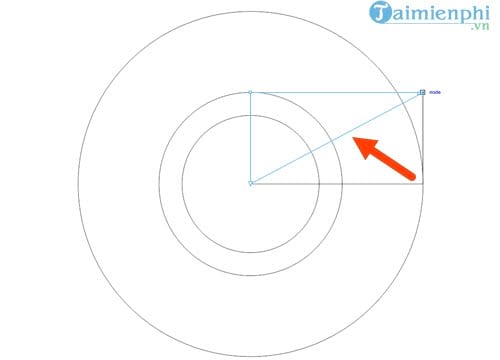
Drag from the bottom upwards to shrink the triangle, taking half of its area is enough.

Step 7: click the triangle layer and drag our center to the center of the screen , aligning it with the center of the circle.
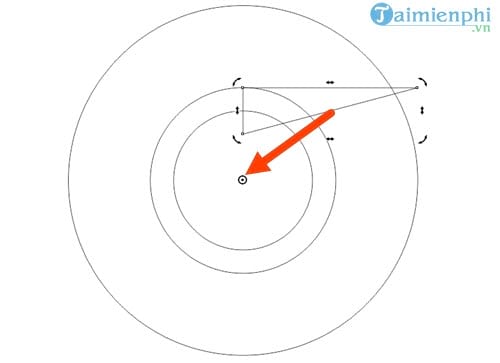
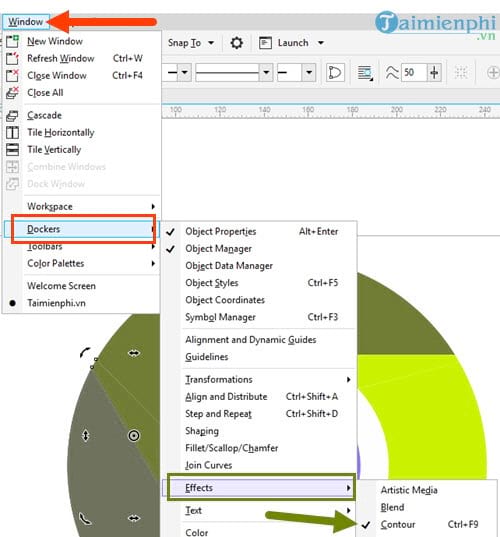
Then go to Windows , select Dockers > Transformations , and click Rotate .
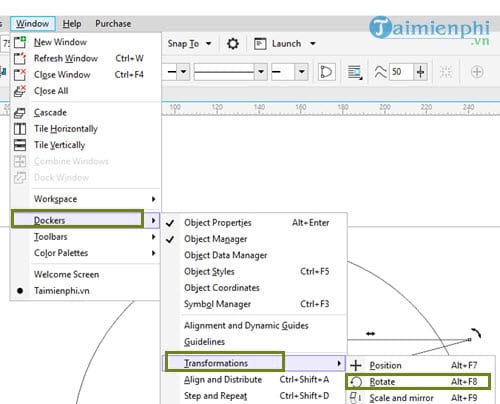
On the right-hand Transformations panel, select rotate 120 degrees and multiply that by 2 .
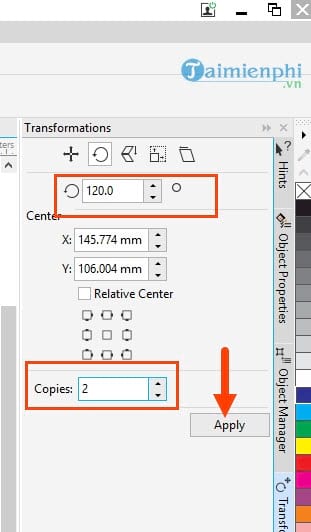
The result will look like the image below.
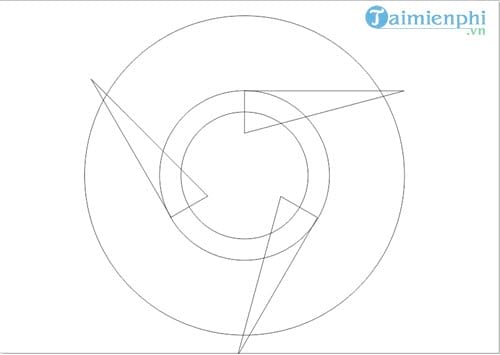
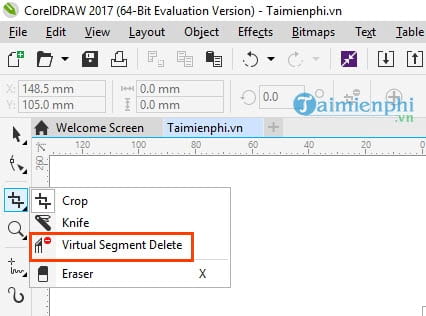
Step 8: Use the Virtual Segment Delete tool to remove all the extra lines you want to delete.
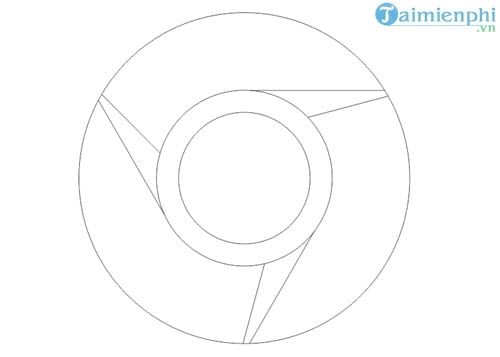
Step 9: click the extra lines in the image to make it resemble the Chrome logo as closely as possible, and the result will be as shown below.
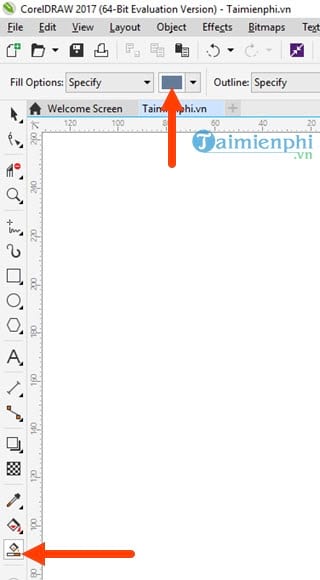
Step 10: The next step in designing the Chrome logo using CorelDraw is to color it, using the Smart Fill Tool as shown in the image. Choose a color that matches the actual Chrome logo.
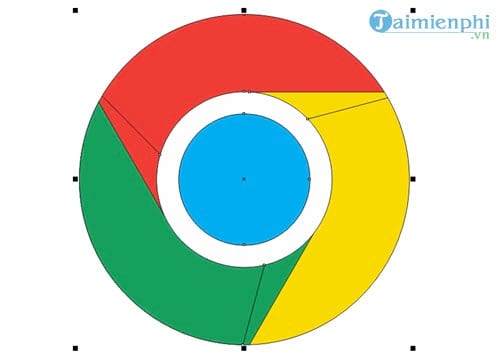
Then you just need to fill it until it looks like the rough Chrome logo, and then hover your mouse over it to select after you've colored it.
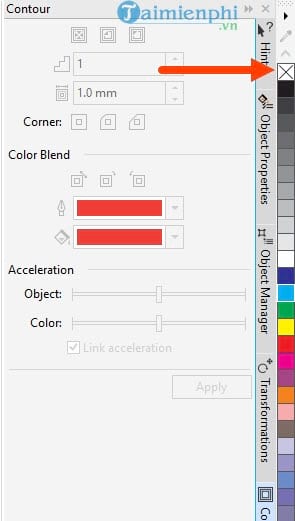
Click the X next to the right to remove any selected borders.
Step 11: But if the border still has tiny black or white streaks, do the following: first, click that border layer.
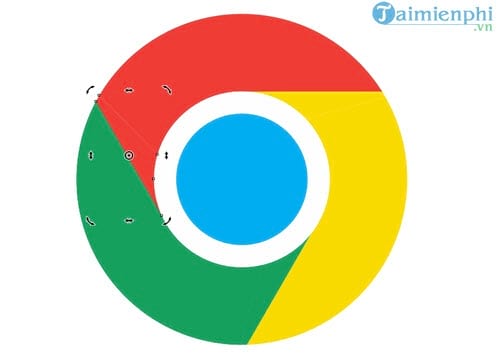
Next, select Windows > Dockers > Effects > Contour .
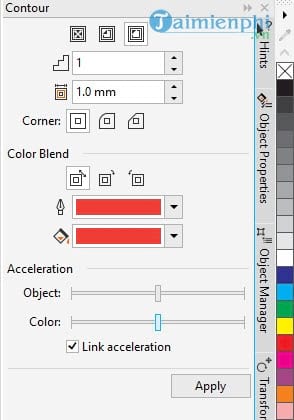
Finally, adjust the border color to match the background color, select the parameters to match the image, and then click Apply .
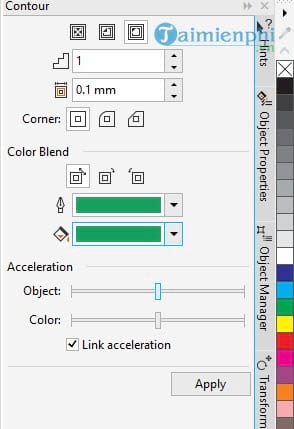
Applies to the color blue.
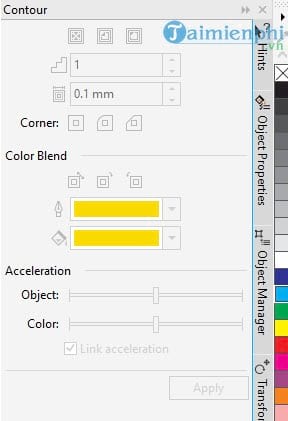
Applies to yellow
And the result is as shown in the image below.
Step 12: click the border layer you just created, then double-click the color section . Here, we will fill the shadow with color.
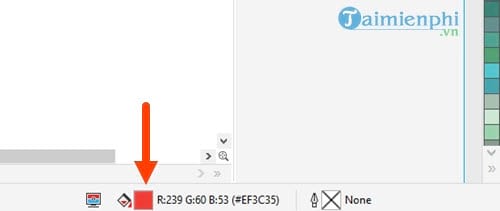
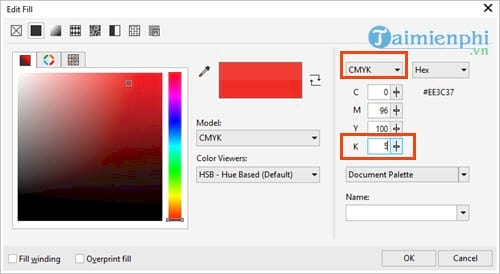
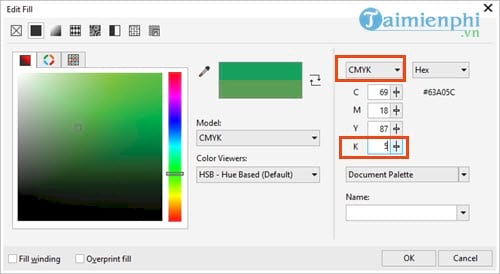
For the red color, we switch to CMYK color mode and set the K value to 5 .
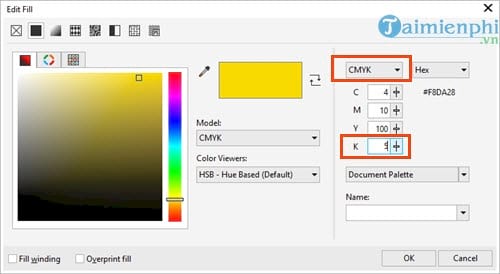
Similar to the yellow, you need a darker shade of color.
Apply the same method as for green.
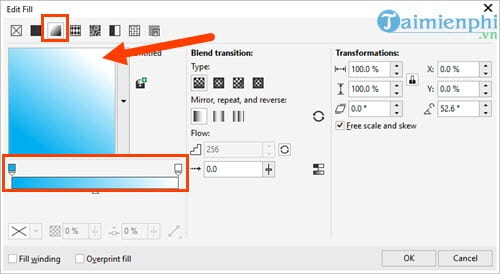
For the center of the image, we select the color blue, switch to the Gradient tab, and adjust the lighting style as shown in the image.
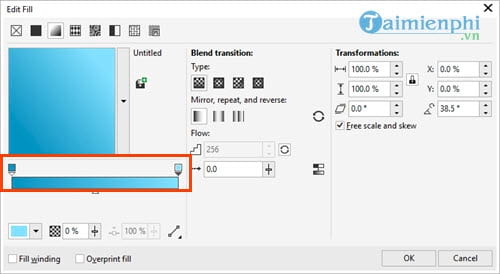
Then adjust the two ends so that the shades of blue are different, from dark to light.
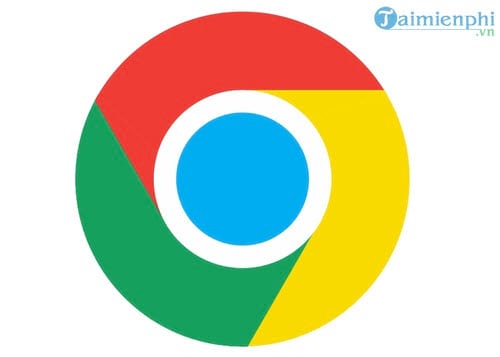
Step 13: Let's see the result of all the steps above; you have now completed designing the Chrome logo using CorelDraw.

So, TipsMake has just finished guiding you on how to design a Chrome logo using CorelDraw. It's really simple, isn't it? This process will be even faster if you use Corel keyboard shortcuts to quickly open tools, because with any sophisticated software like Corel, memorizing and using Corel keyboard shortcuts proficiently should be your top priority.
In addition, there are many software programs and online services that support creating Chrome logos as well as many other logos you see. Creating logos online is especially helpful because it saves hard drive space and eliminates the time spent installing software.
FAQ
What should you know about designing a chrome logo using coreldraw?
CorelDRAW is professional design software for those working and studying graphic design, where you can freely design the most unique works.
Do the steps or features vary by device or software version?
They can. Menu names, available settings, and compatibility may differ by device, region, account type, or software version, so check the options shown on your own screen.
What should you do if the recommended method does not work?
Repeat the steps in order, confirm that the requirements are met, and restart the relevant app or device when appropriate. Also check for updates and review any error message before trying again.
Related Articles
 Using AAA Logo Professional Logo Design6 minutes read
 Google Chrome Has a New Logo After 8 Years3 minutes read
 How to Design a Simple Logo in Photoshop8 minutes read
 Coreldraw X6 Interface Overview, and Coreldraw X6 KEYS to11 minutes read
 Comparing Illustrator and CorelDraw5 minutes read
 How to Install CorelDraw on a MacBook4 minutes read
Reader Comments 0
Sign in with email or Google to join the discussion.