Table of Contents
Explore fixes the issue where steam games don't show up in the app.
Show hidden games on Steam again
Steam has a feature that hides games, preventing them from appearing in the regular Game Library.
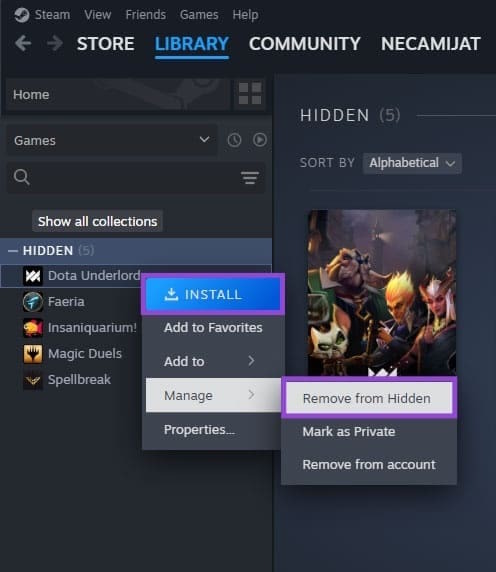
Open the Steam app , then tap View , and select Hidden Games . You will see a list of games hidden in Steam. If you find a game you want, right-click it, select Manage, and then choose Remove from Hidden .
Steam game installed for another account
If someone else logs into your Steam app and downloads a game, that game may remain on your computer but registered under their account.
In your Steam library, uncheck all filter options, then click the Games dropdown menu and check the Group by Library box. This will sort games by the account used to purchase them.
Check your library and make a note of whether the game appears in any tabs other than the Uncategorized or Owned games tabs. If so, note down the account name and log in with a different account to open the game.
Check the local files again
The best way to fix the Steam game not showing up in the app error is to try reinstalling or checking the files again.
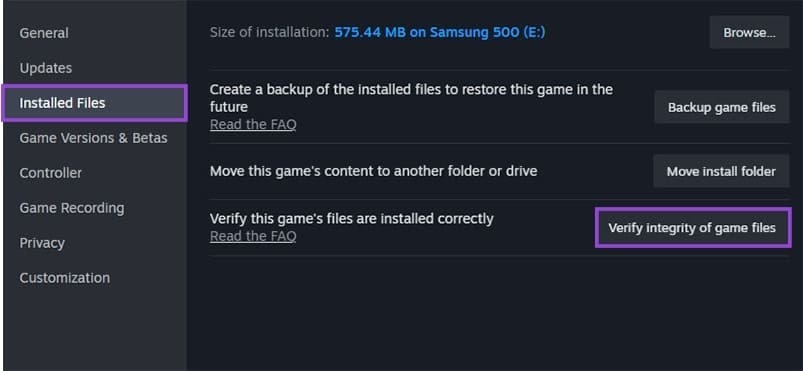
Right- click on the game and select Properties , then click Installed Files on the left and click Verify integrity of game files . Wait for the process to complete.
Final Thoughts
Understanding fixes the issue where steam games don't show up in the app makes it easier to evaluate the information and apply the most relevant recommendations. Focus on the key points above and verify details that may change over time.
FAQ
What is fixes the issue where steam games don't show up in the app?
Explore fixes the issue where steam games don't show up in the app.
What key points does this article cover?
The article focuses on Show hidden games on Steam again, Steam game installed for another account, Check the local files again, with practical explanations and examples.
How can you use this information in practice?
Use the explanations to compare options, verify important details, and make a more informed decision. Apply the recommendations that best match your goals and situation.
Related Articles
 How to Fix “Steam Is Temporarily Unavailable”5 minutes read
 How to Display Adult-Only Games on Steam6 minutes read
 How to Pin a Steam Game in Windows 108 minutes read
 How to See a List of Hidden Games on Steam4 minutes read
 Top 15 Free Games on Steam Gamers Should Experience9 minutes read
 How to Use Steam Play to Play Windows Games on Linux6 minutes read
Reader Comments 0
Sign in with email or Google to join the discussion.