Table of Contents
Overview
This guide covers fix error 0x00000709, 0x00000040, 0x0000011b when sharing printer in clear, practical terms. It covers the key concepts, recommended steps, common limitations, and useful checks so you can make a better-informed decision.
While connecting to a shared printer from a computer in the LAN, if you encounter errors 0x00000709, 0x00000040, 0x0000011b when trying to connect to a shared printer. This article will guide you to fix the above errors with just 2 simple steps.
- 8 New Shortcuts for Windows 11 You Should Know
- Despite criticism, Apple still sold 6.5 million MacBooks in Q3 2021
- PC shipments maintain growth in Q3 2021 despite COVID-19 pandemic impact
Learn about the errors
Error 0x00000709 occurs when you cannot set the default printer, the error message often appears on the screen Operation could not be completed (error 0x00000709) The machine can only recognize the old printer by default. When installing another printer, it cannot be set as default.
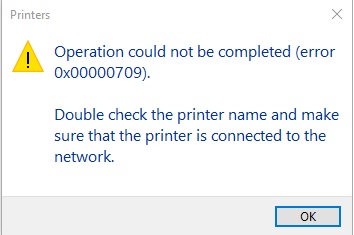
For error code 0x00000040, this error has many problems but is usually due to a problem with the connection from the printer to the Wi-Fi lan, try one of the following ways to fix error 0x00000040 " The Specified Network Name Is No Longer Available Error "

0x0000011b: The situation is that it is impossible to print to shared printers over LAN, deleting and reinstalling the printer does not work, or Windows 7, Windows 10 clients cannot print to printers from Windows 10 servers with the message ' Windows cannot connect to printer'.

Fix the error in 2 simple steps
To fix this error 0x00000709 0x00000040 0x0000011b, you need a little basic knowledge about computers, we just need a few simple operations with the following 2 steps:
Step 1: Uninstall update packages KB5005565, KB5006670 Run CMD with Administrator rights, type the following commands: wusa /uninstall /kb:5005565 wusa /uninstall /kb:5006670
 [caption id="attachment_30342" align="aligncenter" width="980"] Run CMD with Administrator rights,[/caption]
Step 2: Run the REG file with the content below, import it into the registry and restart the computer Code: Windows Registry Editor Version 5.00
[HKEY_LOCAL_MACHINESystemCurrentControlSetControlPrint] "RpcAuthnLevelPrivacyEnabled"=dword:00000000 [HKEY_LOCAL_MACHINESoftwarePoliciesMicrosoftWindows NTPrintersPointAndPrint] "RestrictDriverInstallationToAdministrators"=dword:00000001
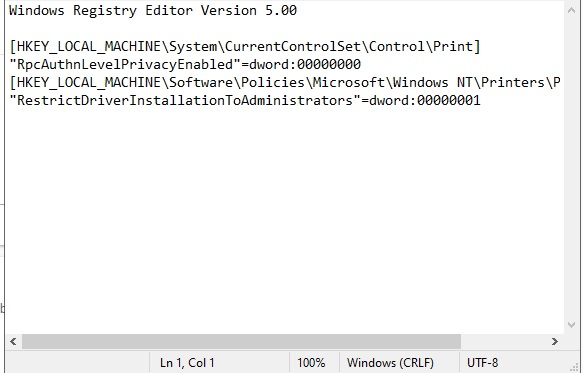
If you don't know how to create a REG file, you can download it here.
Source: Voz
Key Takeaways
Use the guidance above as a practical reference for fix error 0x00000709, 0x00000040, 0x0000011b when sharing printer. Check compatibility, follow the steps carefully, and verify important details with official documentation when software, security, accounts, health, or purchases are involved.
FAQ
What is the main point of this article?
This article explains fix printer sharing errors 0x00000709, 0x00000040, and 0x0000011b, including the central facts, context, practical implications, and details needed to understand the topic.
Why does this topic matter?
It may affect performance, cost, safety, convenience, purchasing decisions, or how people understand a broader development.
Could the information change over time?
Yes. Product details, software features, prices, policies, codes, and news developments can change, so verify time-sensitive information with official sources.
Related Articles
 How to Fix Error Operation Could Not Be Completed8 minutes read
 How to Fix Error 0X0000011b When Printing Over the Network on Windows 119 minutes read
 How to Fix Error 0x0000011b When Printing over the Network4 minutes read
 How to Fixed Error 0x0000011b Could Not Be Printed When6 minutes read
 Fix Printer Error Code 0x000006d94 minutes read
 The Printer Is Jammed - Causes and Ways to Fix the Error6 minutes read
Reader Comments 0
Sign in with email or Google to join the discussion.