Table of Contents
Overview
This guide covers Excel doesn't have A3 size, what to do in clear, practical terms. It covers the key concepts, recommended steps, common limitations, and useful checks so you can make a better-informed decision.
Excel does not have A3 size so you cannot print documents in this paper size? This guide will quickly help you learn the reason and how to fix it.
Today, Word and Excel files can be shared online quickly. Recipients can also open these files with software available on PCs and phones, which is extremely convenient. However, in many cases, Excel files also need to be printed for storage. Usually, A4 paper size is the most popular option. But there are also many cases where A3 size printing is required. So what to do when Excel does not have A3 size?
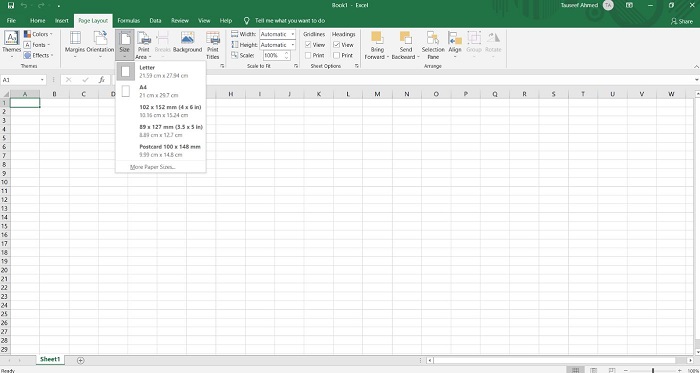
Find out why Excel does not have A3 size
No A3 paper size in Excel is a common problem, especially for those who often set up printing. The 'culprits' leading to this situation are often:
- You have not added A3 paper size to Excel.
- Your printer does not support A3 paper size.
- Users print Excel files with A3 paper size incorrectly.
Above are the 3 main reasons why you cannot print Excel files with A3 paper size. The ways to fix this problem are in the next section.

How to fix when Excel does not have A3 size
If you are unable to print and cannot find the A3 size option in Excel, please try the following solutions to fix the problem:
1/ Check the printer you are using
First, you need to make sure that your printer supports A3 paper printing. Because if the printer does not support it, you will not find the A3 printing option in Excel. In case the printer supports A3 printing, do not forget to update the full printer driver so that Excel can recognize it.
2/ Add A3 paper size to Excel
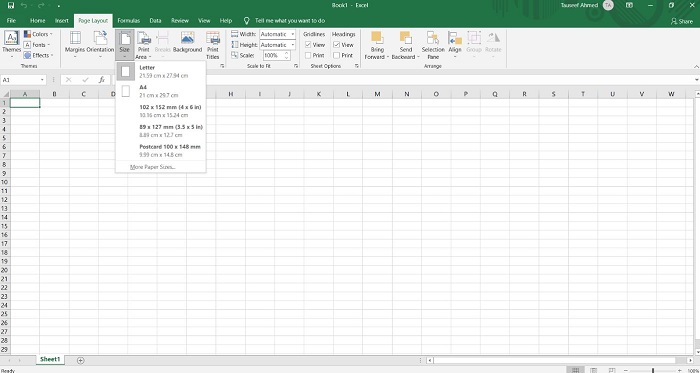
In your Excel file, click on Page Layout > Size to check if there is A3 paper size. If not, add A3 paper size to Excel by:
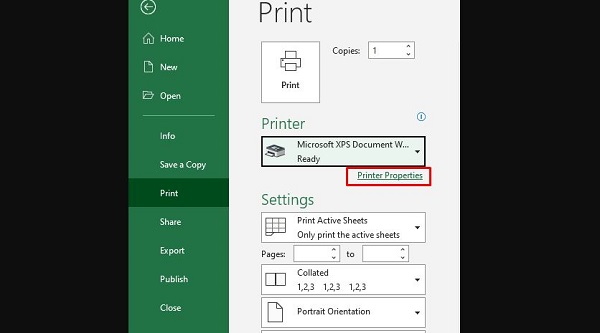
- Step 1: Select the File tab > Click Print > Select your printer > Continue to click on the Printer Properties line below the printer name.
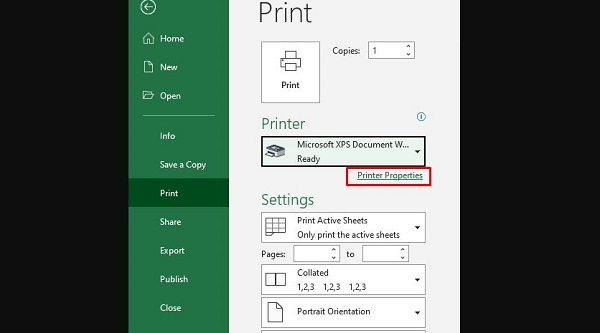
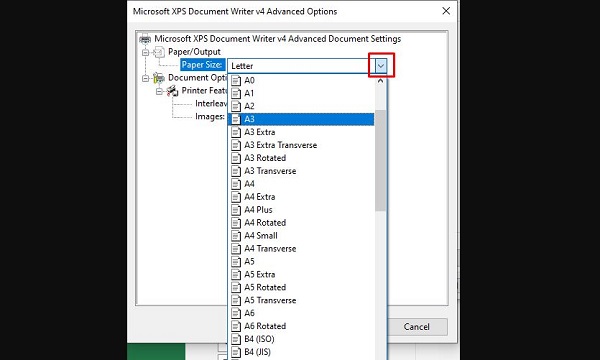
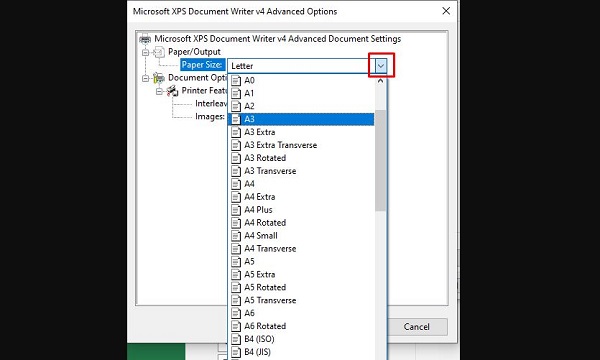
- Step 2: Find Paper/Quality or Advanced in the new dialog box that appears > Continue to click on the Paper Size line (paper size) > Select A3 size > Click OK to print in A3 size and you're done.
Some other settings when printing related to A3 paper size
- Set the orientation of A3 paper: You just need to go to the Page Layout tab, Orientation section and set Portrait (vertical) and Landscape (horizontal).
- Set margins for A3 paper: If you want, you can adjust in Page Setup > Margins tab.
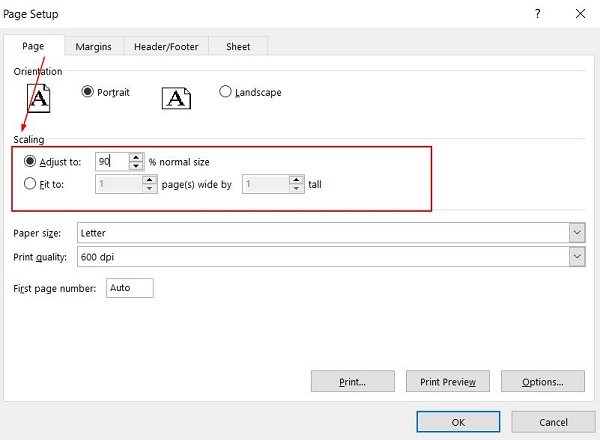
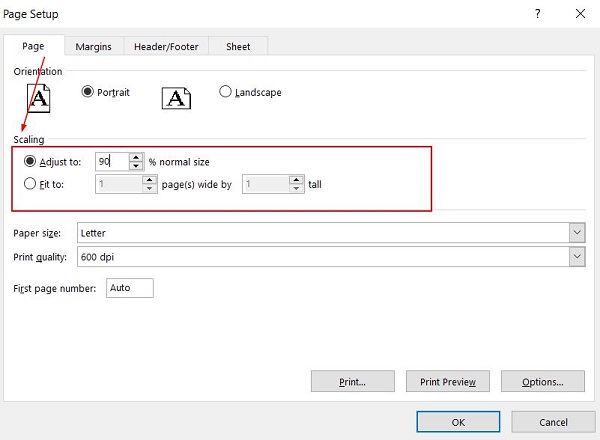
- Set up to always print to fit A3 paper: Continue to find Page Setup, select Scaling > Here you can choose Adjust to (Scale according to ratio) or Fit to (Automatically squeeze to fit the specified number of pages).
Some other solutions when Excel does not have A3 paper size
- It is possible that the Excel version you are using is outdated, old, or has problems, which is why the problem of not having A3 paper size occurs. You should try updating to a new version (if available) or deleting and reinstalling Excel (new versions from 2013 onwards) to ensure that you have all the necessary features and tools when using it. Sometimes, installing cracked versions also has some problems, so if possible, install the original Excel!
- Turn off and restart the device, check and reconnect the printer. These are also traditional tricks that you should apply when there is a problem with printing.
This guide has shared some solutions when Excel does not have A3 size. Hope you can apply them successfully!
- Excel does not have Sort Oldest to Newest, what should I do?
- Adjusting Group in Excel is reversed extremely quickly

Key Takeaways
Use the guidance above as a practical reference for Excel doesn't have A3 size, what to do. Check compatibility, follow the steps carefully, and verify important details with official documentation when software, security, accounts, health, or purchases are involved.
FAQ
What is the main point of this article?
This article explains Excel doesn't have A3 size, what to do? [super fast fix], including the central facts, context, practical implications, and details needed to understand the topic.
Why does this topic matter?
It may affect performance, cost, safety, convenience, purchasing decisions, or how people understand a broader development.
Could the information change over time?
Yes. Product details, software features, prices, policies, codes, and news developments can change, so verify time-sensitive information with official sources.
Related Articles
 How to Equalize LINE, Column, and Cell Sizes in Excel5 minutes read
 How to Rotate Paper Size in Excel: How to Rotate Excel Paper Size4 minutes read
 Scientists Create Cockroach Robots That Run Super Fast, Step Back3 minutes read
 Learn About Wigig, the New Super Fast Wi-Fi Standard6 minutes read
 Set the Default Font and Font Size in Excel3 minutes read
 How to Set the Default Font and Font Size on Excel3 minutes read
Reader Comments 0
Sign in with email or Google to join the discussion.