Table of Contents
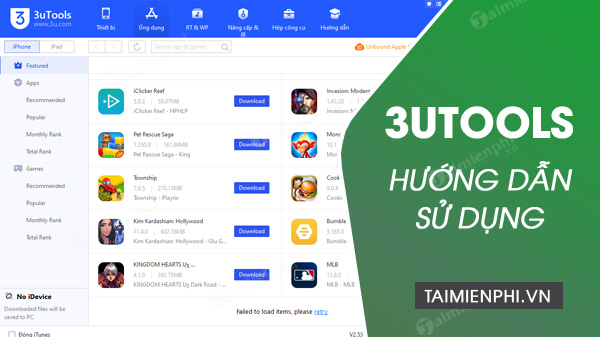
3uTools is a third-party iPhone and iPad management utility for Windows. It can display device information, transfer certain files, create ringtones, and offer backup, restore, and firmware tools. Because it is not an Apple product and some actions can erase data, install it only from the official publisher and make an independent Apple backup first.
Before installing 3uTools
- Create a current iCloud or encrypted computer backup.
- Use a Windows account that you control.
- Download from the official 3uTools website, not a mirror or bundled installer.
- Scan the installer and verify its publisher details before running it.
- Install Apple's current device software so Windows has the required iPhone drivers.
Install 3uTools on Windows
- Download the appropriate official Windows installer.
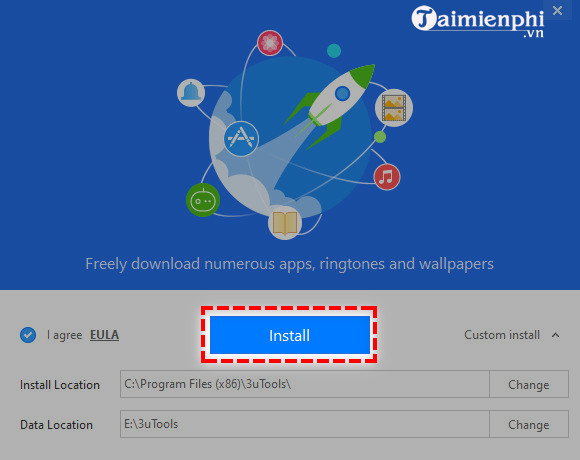
- Open the installer, read the licence and privacy terms, and use Custom Install if you want to review the destination or optional settings.
- Select Install. Decline unrelated bundled software if any is offered.
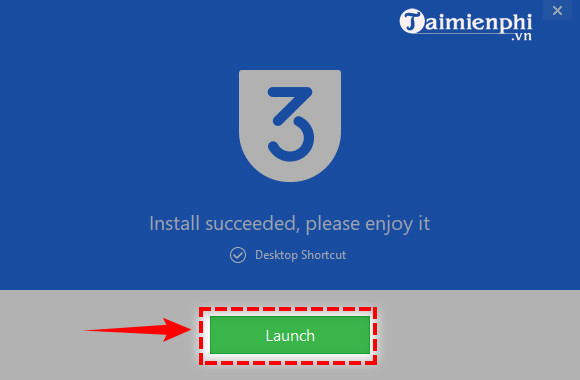
When setup finishes, choose whether to create a desktop shortcut, then launch the program.
Connect an iPhone or iPad
- Unlock the device and connect it directly to the PC with a data-capable cable.
- Tap Trust on the iPhone or iPad and enter its passcode.
- Wait while Windows loads the Apple device driver and 3uTools identifies the device.
Older 3uTools releases prompted users to install iTunes because they depended on its device components. Current setups may use Apple's newer Windows components instead. If 3uTools shows a missing-driver prompt, get the required Apple software from Apple or Microsoft rather than from an unknown driver site.
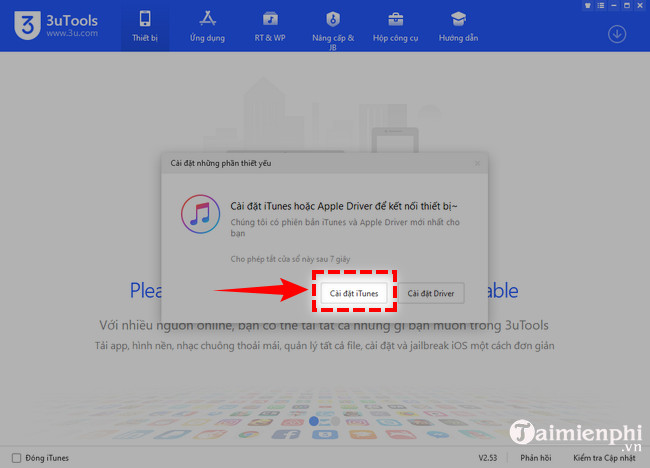
If the device is not detected, try another cable and USB port, reopen the trust prompt, and confirm that Apple Devices or iTunes can see it. The guide to fixing an iPhone connection on Windows covers the same underlying checks.
Understand the main sections
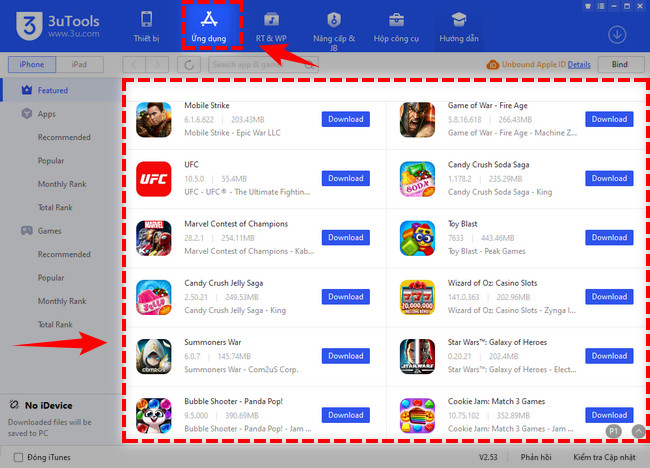
Apps
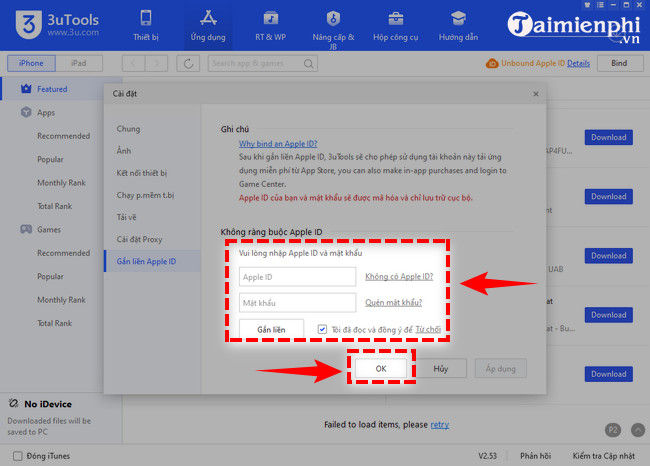
The Apps area can browse and install software. Prefer the App Store on the iPhone for ordinary installations. Do not enter Apple Account credentials into a third-party tool unless you have verified exactly how the sign-in is handled, and never bypass paid-app licensing.
The following screen shows an older Apple Account sign-in workflow; current interfaces may differ.
Ringtones and wallpapers
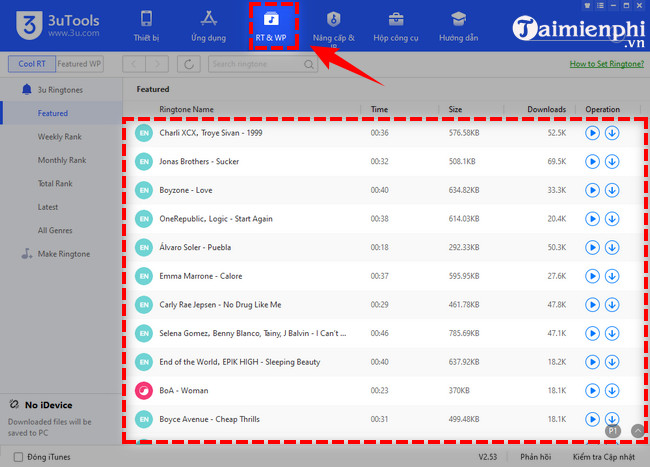
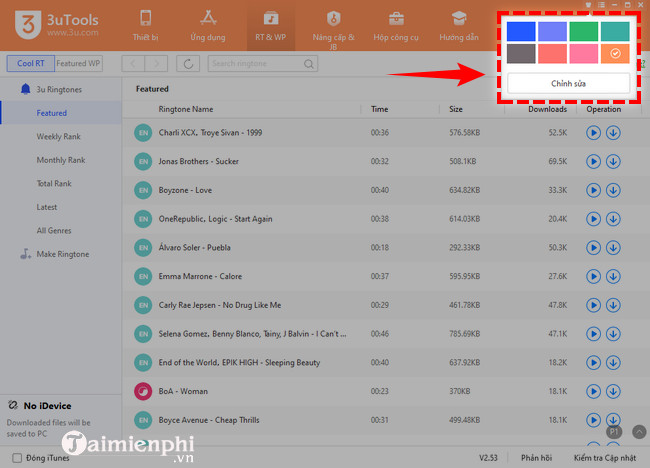
The ringtone area can download tones or build one from a local audio file. Confirm that you have permission to use the audio. The wallpaper area works similarly for images.
For an Apple-supported ringtone method, use GarageBand or the iTunes M4R workflow.
Toolbox
The available tools vary by version. They may include backup and restore, data migration, photo compression, video conversion, screen viewing, logs, device restart, firmware download, and other advanced actions.
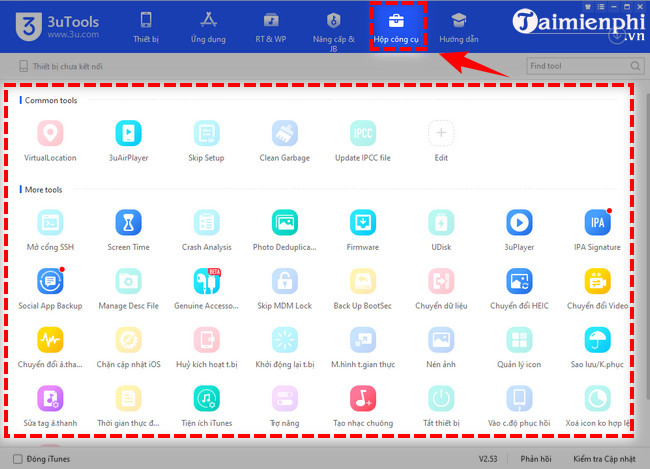
Use backup and restore carefully
According to the publisher's backup documentation, encrypted backups are needed for some sensitive data categories. Set a strong password, store it safely, wait for completion, and verify the backup in Backup Management. Keep a second backup made with Apple Devices or iCloud so recovery does not depend on one third-party application.
Avoid high-risk actions unless you understand them
- Flashing firmware can erase the device or leave it needing recovery. Confirm the exact model and maintain power and cable connection.
- Jailbreaking or opening SSH changes the security model and can expose the device. It is unnecessary for ordinary file management.
- Device “verification” reports are not an Apple guarantee of authenticity or hardware condition.
- Cleaning tools can remove data. Review selections and back up first.
For most users who only need supported syncing and backups, Apple Devices is the safer default. See how to install Apple's Windows tools and choose 3uTools only for a specific feature you understand.
Related Articles
 Instructions for Creating Ringtones on iPhone with 3utools8 minutes read
 How to Download iPhone Apps with 3utools7 minutes read
 There Are 3uTools V2.31, Support Connecting to IDevice via Wi-Fi5 minutes read
 How to Delete Duplicate Contacts on iPhone with 3utools6 minutes read
 How to Check iPhone Imei Using 3utools on PC Laptop4 minutes read
 All Information Disabilities and How to Use 3utools5 minutes read
Reader Comments 0
Sign in with email or Google to join the discussion.