Table of Contents
Choose a Netflix extension for the specific control you want. A timer, an intro skipper and a watch-party tool solve different problems. Try one extension at a time so you can tell which one is responsible if playback changes.
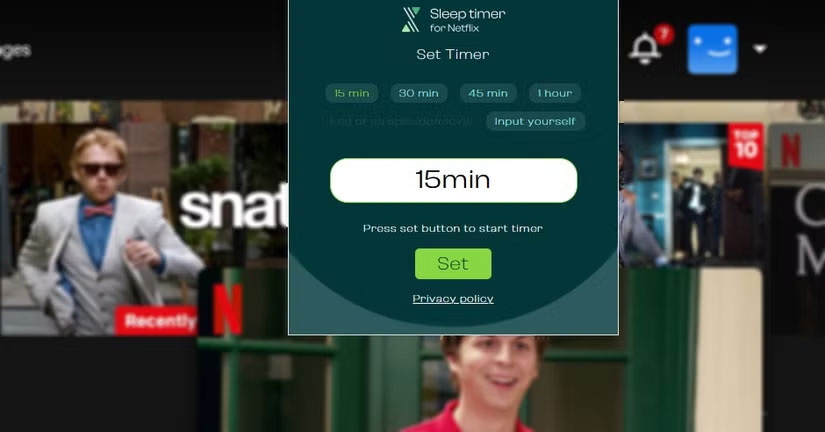
1. Sleep Timer for Netflix
A timer can stop playback after an interval. The Netflix Sleep Timer listing describes its supported behavior. Set a short test timer first. Pausing a tab and putting the computer or display to sleep are separate actions.
2. Netflix Skipper
Netflix Skipper can automate some of Netflix’s on-screen skip prompts. Test it with a familiar episode and check which actions you enabled, particularly if you want to keep recaps or previews.
3. Picture-in-Picture
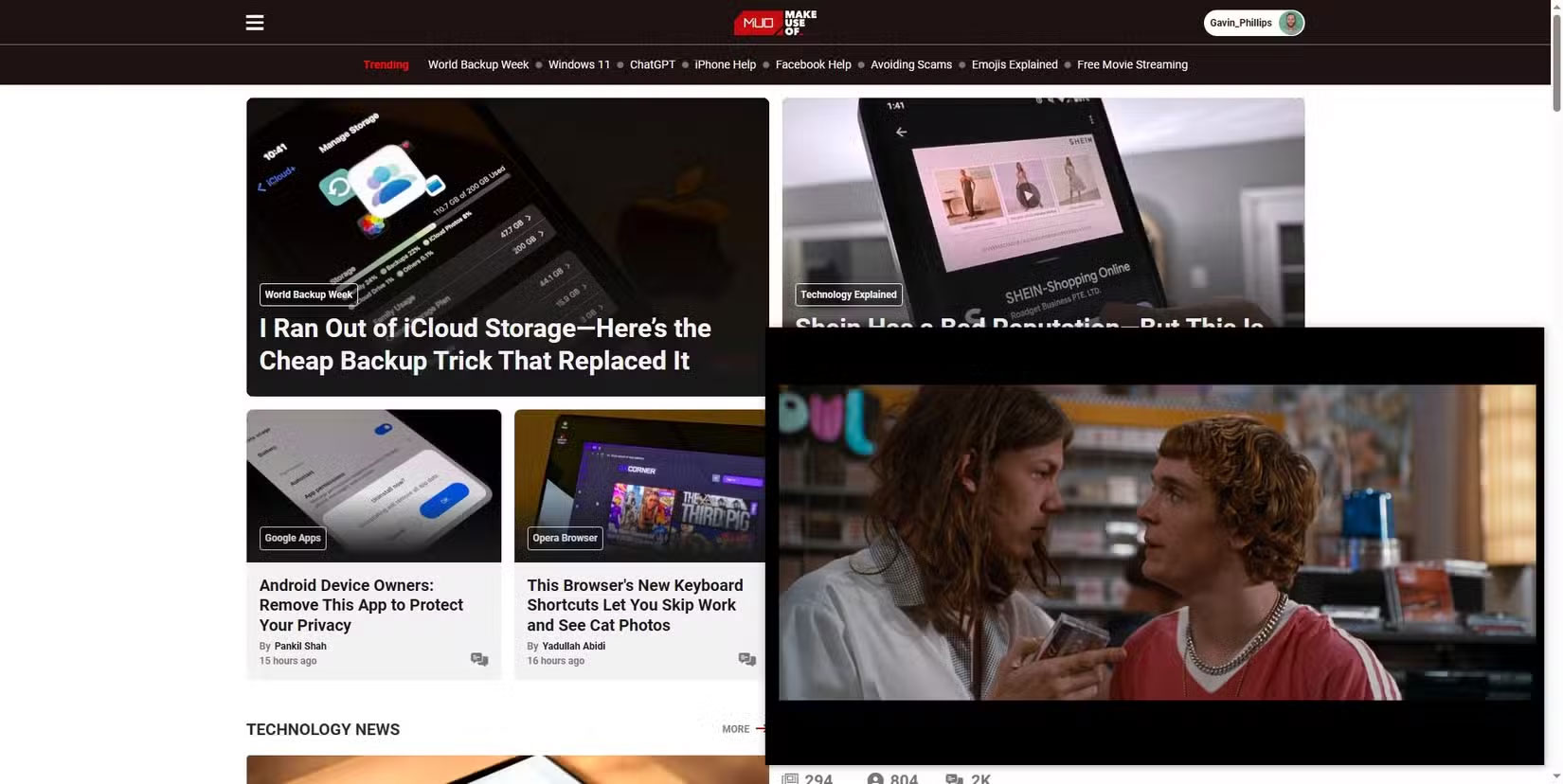
Try Chrome’s built-in picture-in-picture controls first. You can also try Google’s Picture-in-Picture extension. Test your program before relying on it. Subtitles and some playback controls may remain in the main tab.
4. Trim ratings
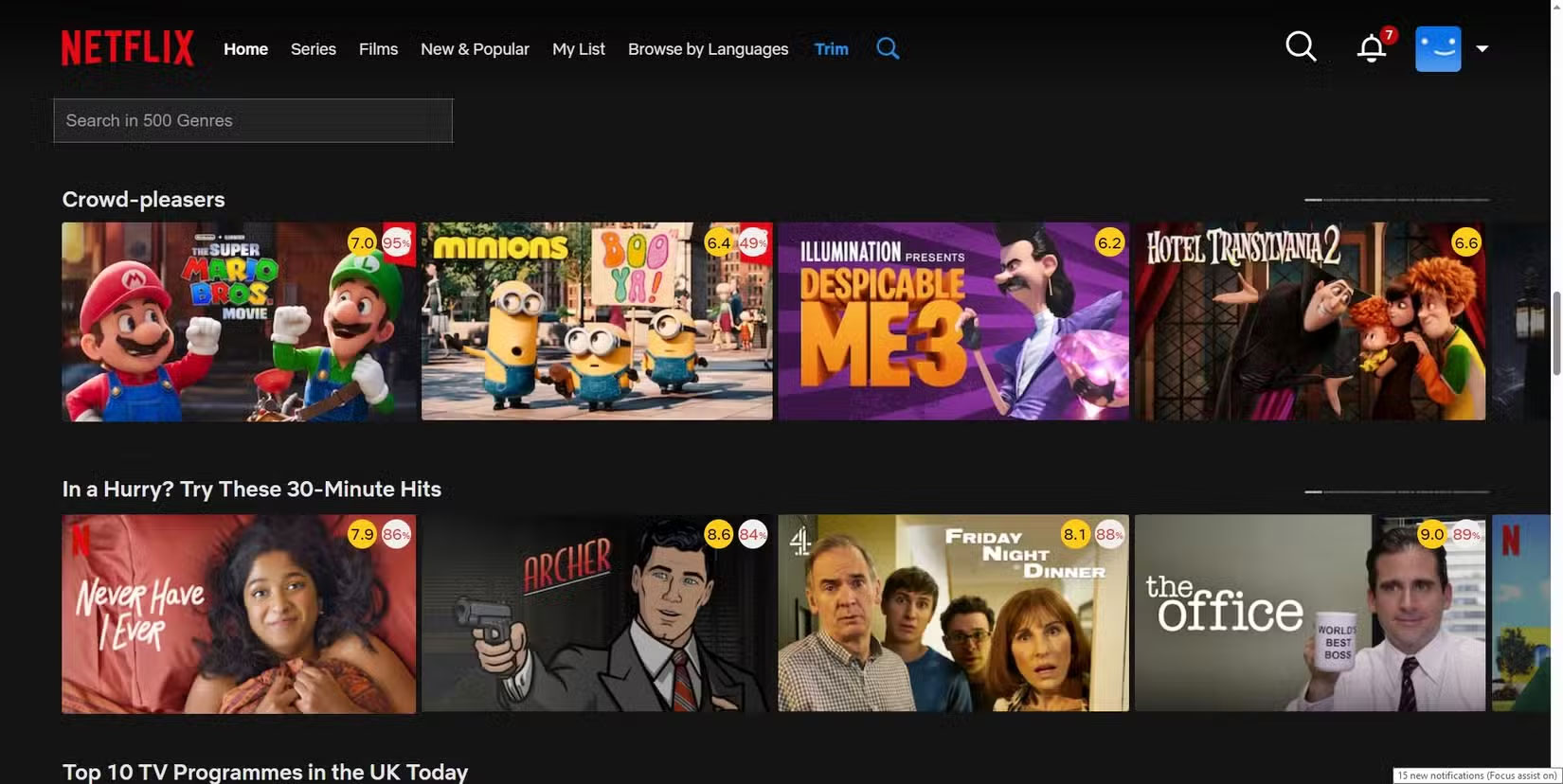
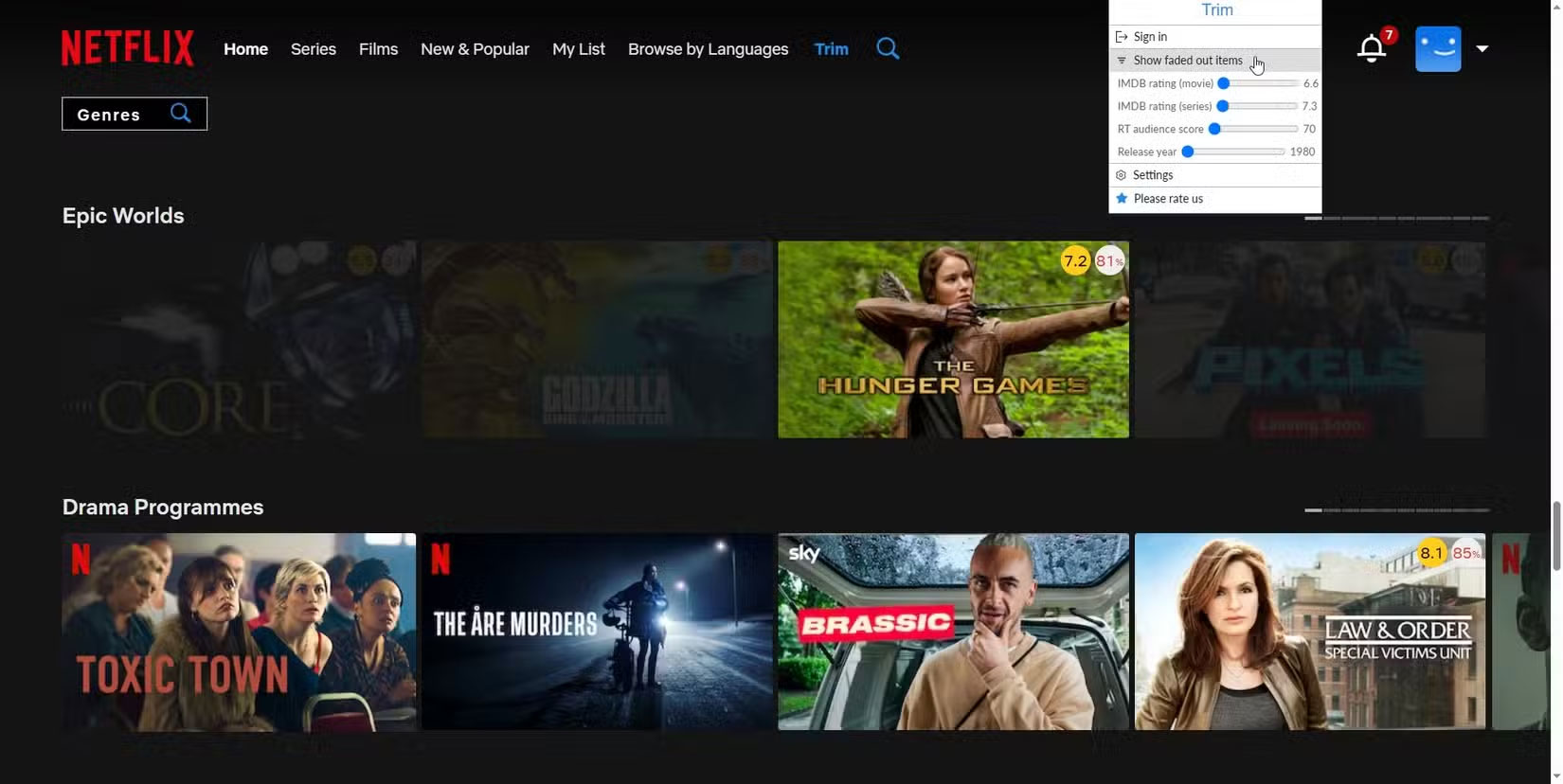
Trim adds ratings to supported streaming pages. Treat those scores as a browsing aid. Coverage can vary by title, and filters can hide programs you might otherwise enjoy.
5. Teleparty
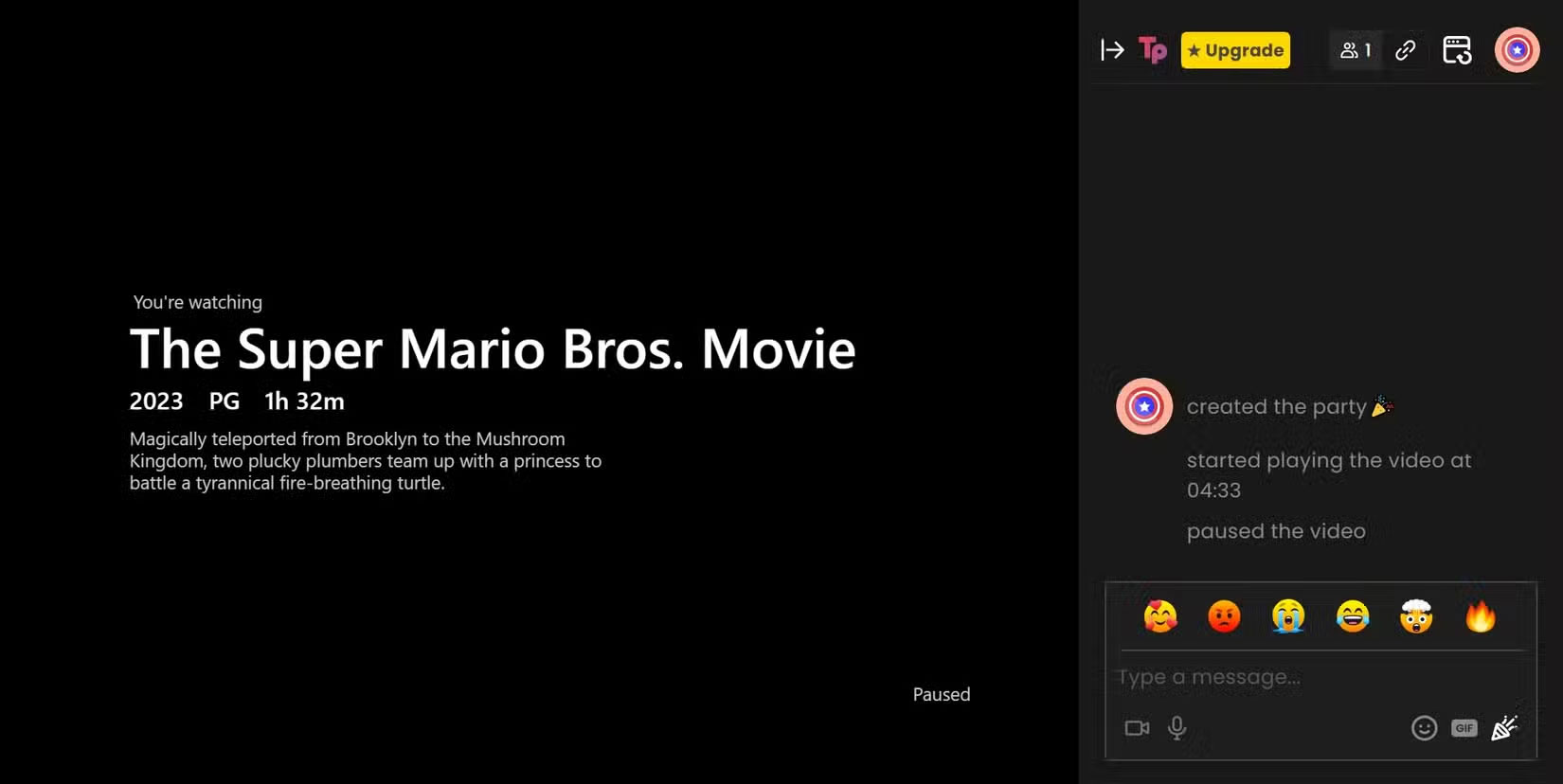
Teleparty can synchronize playback and provide a group chat. Confirm that everyone has access to the same title in their region, then create a party while the title is open and share its invitation link.
Review requested site permissions before installing. Netflix interface changes can interrupt third-party controls. If playback fails with extensions on, disable them and test the same title again. See how to review Chrome extension access.





Reader Comments 0
Sign in with email or Google to join the discussion.