Table of Contents
Learning how to use the chrome extension trim to make Netflix better doesn't have to be complicated. This updated guide presents a clear workflow, practical checks, and troubleshooting advice you can use while completing the process.
Key Takeaways
- Understand what is trim.
- Explore experience Netflix before using trim.
- Understand how will trim transform your Netflix experience.
What Is Trim?
Trim is a free Chrome extension designed to enhance the Netflix interface with handy extra features for a better experience when watching and even searching for something to watch. One of its main features is that it overlays IMDb and Rotten Tomatoes ratings directly onto the Netflix catalog.
It makes it easier to find movies and shows worth watching than just relying on Netflix's sometimes inaccurate recommendations. This means you can watch something worth your time without leaving the site, using movie and TV recommendation sites.
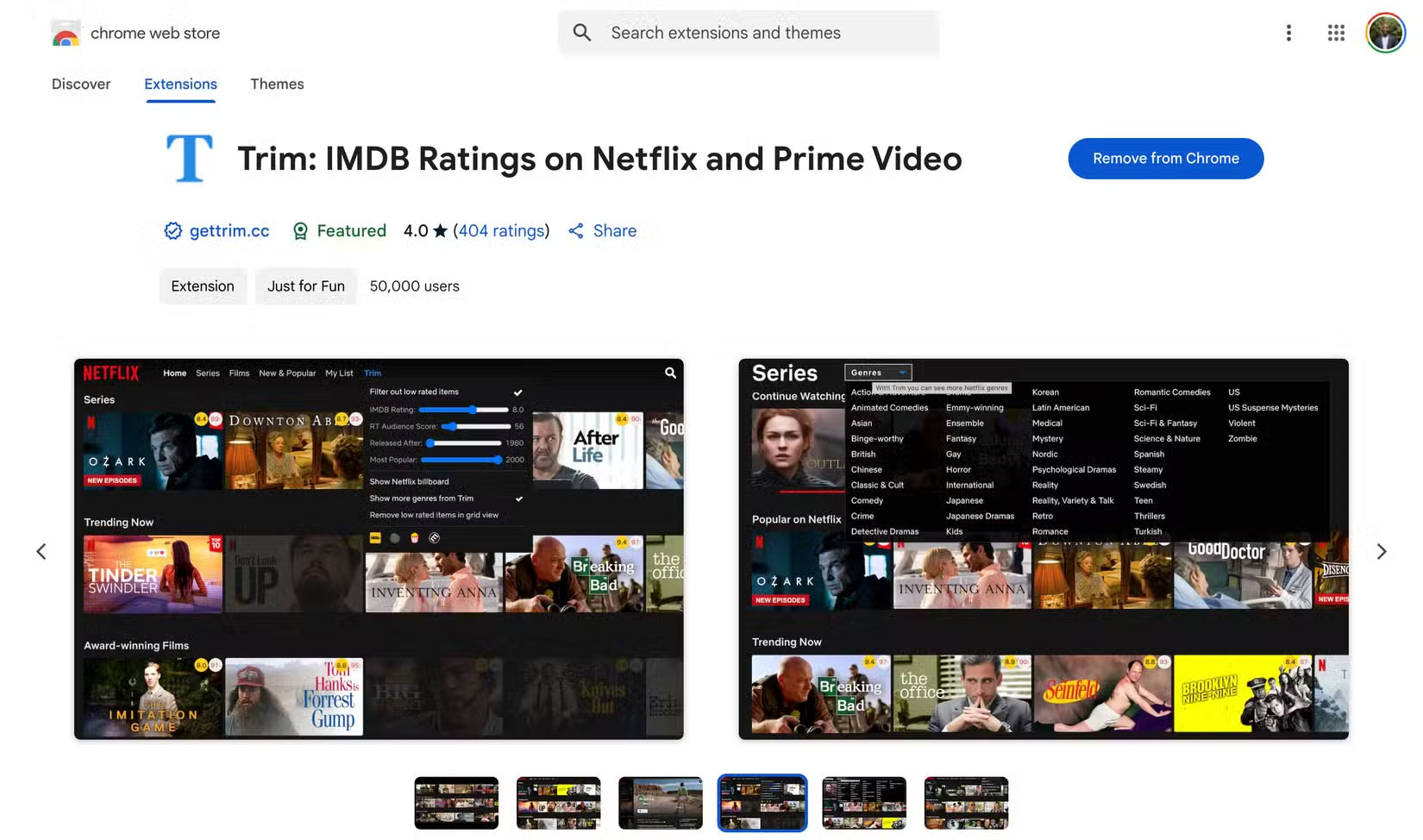
Once installed, Trim works like a charm by automatically adding ratings to thumbnails, so you can scroll through Netflix with a much clearer idea of what's good and what's worth skipping. In addition to ratings, Trims adds useful features like Picture-in-Picture mode, instant search, more genres, auto-skip intros, and more.
It also works with Amazon Prime Video, Disney+, and HBO Max while you can use it to enhance your Netflix experience. However, not all of Trim's features work on all four streaming services.
Experience Netflix Before Using Trim
Watching Netflix often felt like a waste of time before discovering Trim. Spending more time browsing than actually watching, endlessly scrolling through titles that looked promising but ultimately disappointed. Netflix's built-in recommendations weren't much help either—they'd suggest random shows based on everything you'd watched once, not what you liked.
Sure, Netflix's recommendations can be spot-on, but if you've been a subscriber for a while, you know that's not always the case. In fact, sometimes you have to reset your Netflix recommendations to start from scratch.
With recommendations turned off, you can rely on IMDb, Rotten Tomatoes, and third-party aggregation sites like Flick Metrics to figure out what's actually worth watching on Netflix.
That means you have to constantly switch tabs to check whether a movie or TV show is worth your time, which is frustrating and time-consuming. That's why user reviews are one of the many Netflix features that many people want back - they solved a major pain point. However, recommendations aren't the only area where Netflix is lacking.
The same goes for simple things like instant search, filtering by year and genre, adjusting playback speed with keyboard shortcuts, etc.—convenient features you expect Netflix to have, but they're not there. Netflix has always been a hit with content, but the experience hasn't been perfect. Trim changes all that.
How Will Trim Transform Your Netflix Experience?
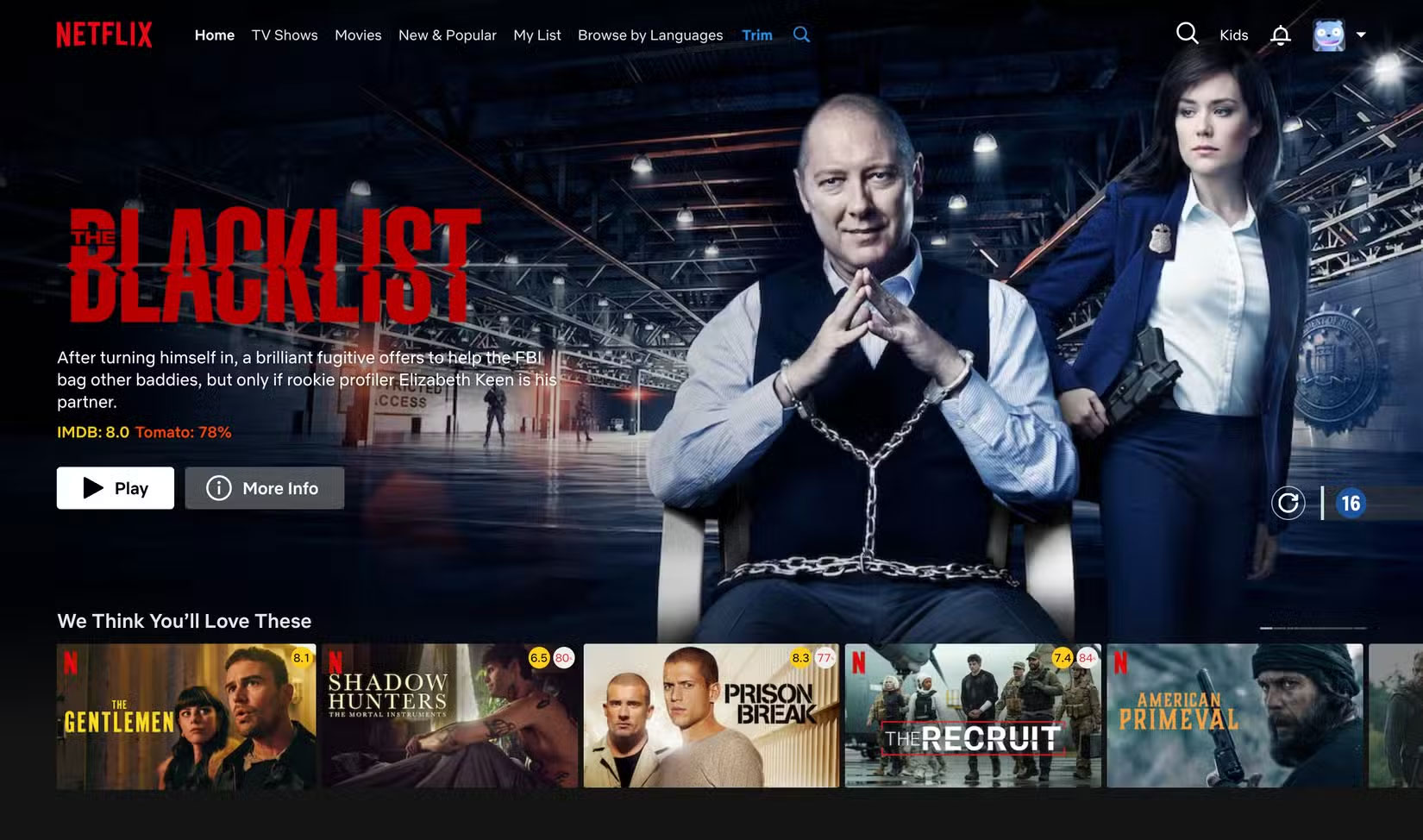
Once you install Trim, Netflix feels like a whole new platform. No more switching between tabs or guessing whether something is worth watching—it's all there. IMDb and Rotten Tomatoes ratings pop up on thumbnails, giving you immediate context before you click anything. Finally, you can make quick, confident choices and enjoy your free time.
Since Rotten Tomatoes has two scores (the audience score and the so-called Tomatometer score), Trim provides both. By default, however, it displays the more useful Rotten Tomatoes audience score, since many people want to see what other users think of a movie or TV show rather than the so-called experts. But if you like that or both, you can turn them on.
Another game-changing feature is fade-out. All the low-rated shows and movies will be faded out if you set a threshold for both IMDb and Rotten Tomatoes ratings. Only the high-rated titles will stand out, making it much easier to distinguish good from bad.
But Trim doesn't stop there. You can also fade titles in and out based on release year. The fading alone makes browsing Netflix's extensive catalog much more manageable and less frustrating.
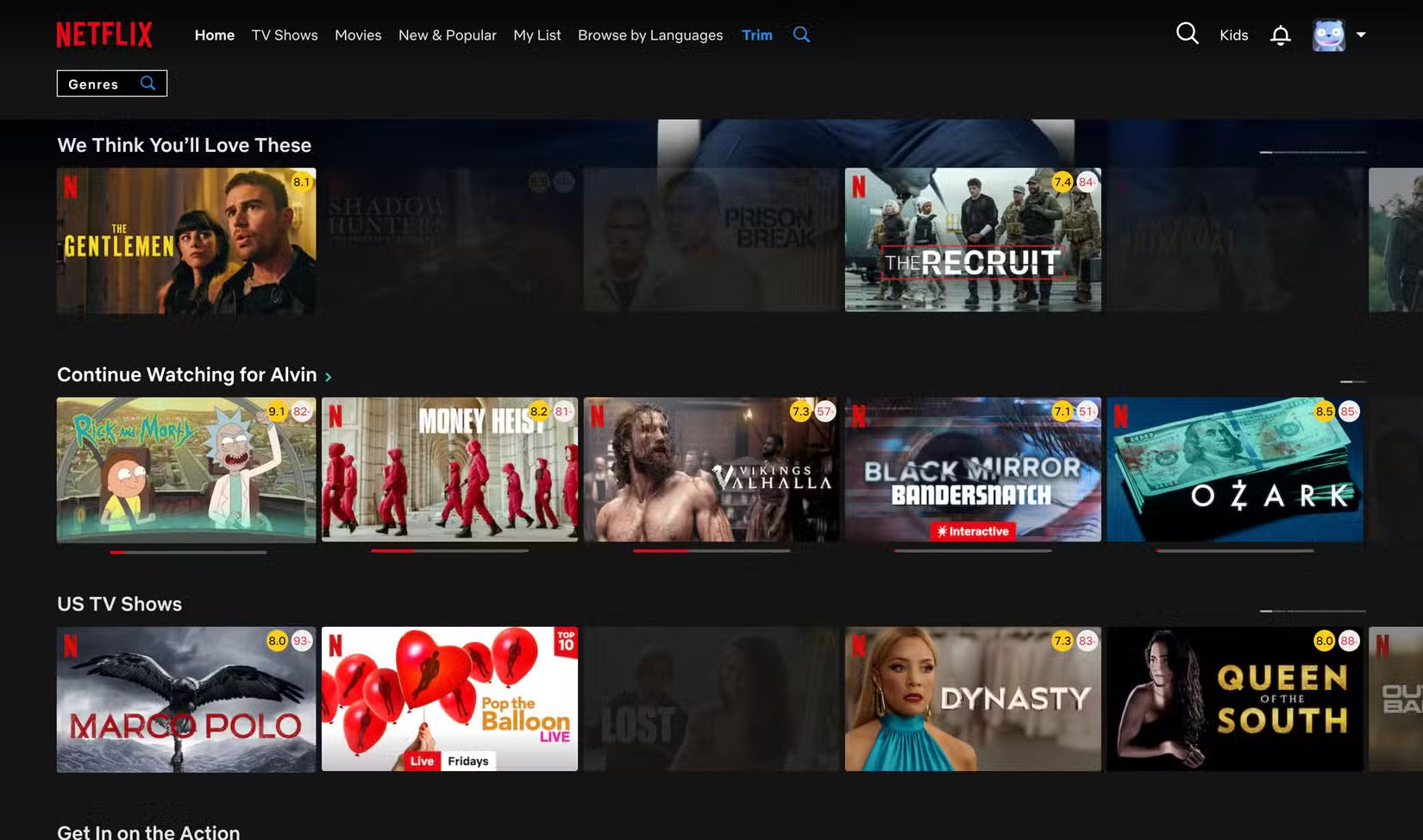
You also don't realize how much you need instant search until you have it. Many people think it's redundant since Netflix has a search function. But they're wrong. Trim's version works right away and doesn't take you to another page to give you search results — it shows them below the search bar in a dialog box.
Then there are hidden genres, which make it easy to explore Netflix in niche categories that interest you, like Spy Action & Adventure. Like instant search, search results update in real time as you type in a genre.
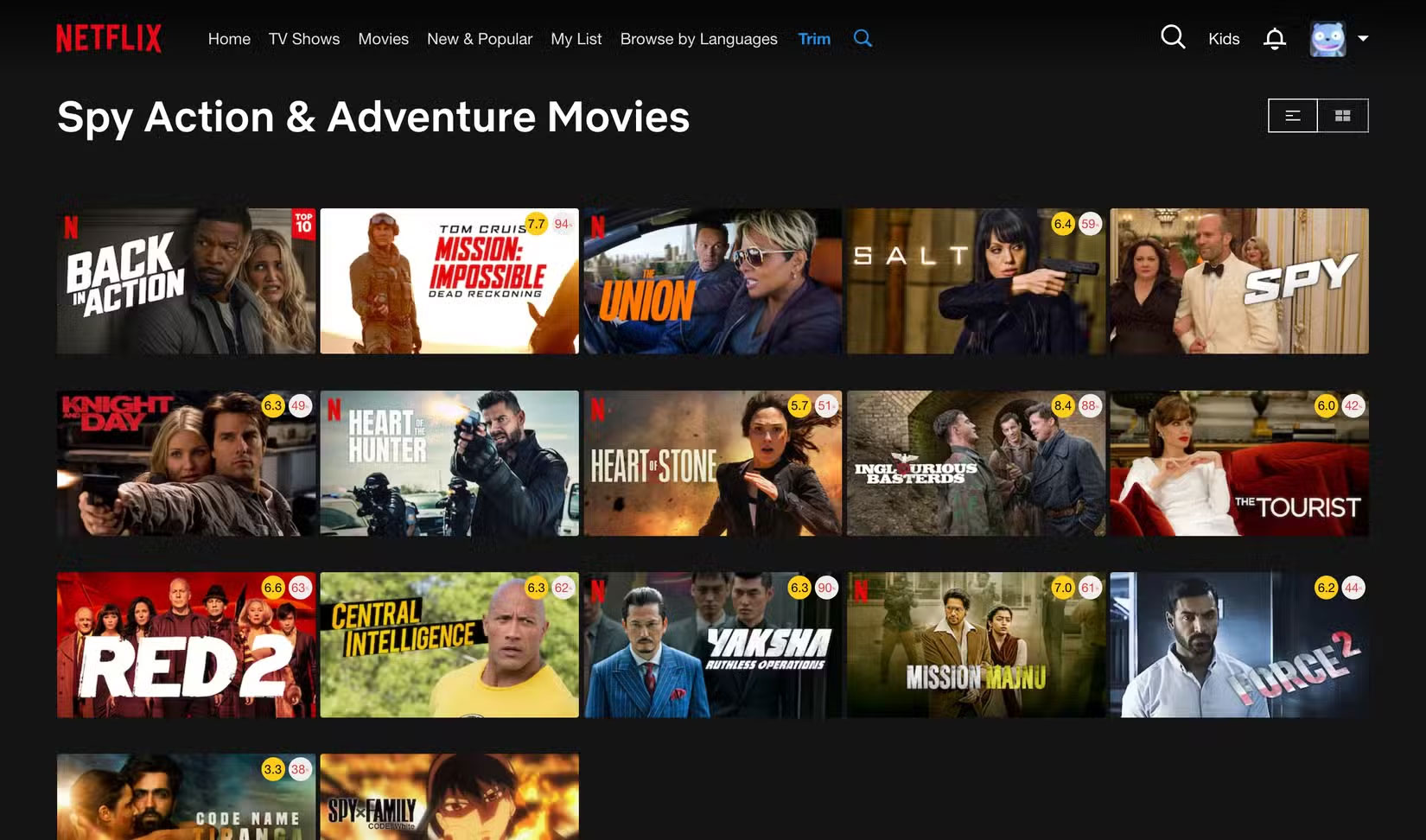
Trim not only improves Netflix, it streamlines and personalizes Netflix so much that, frankly, you wonder why these features weren't built into Netflix in the first place. From being able to see ratings overlaid on titles to filtering out low-rated titles and even searching for niche genres, Trim is the companion you can't live without.
Final Thoughts
The most reliable way to handle use the chrome extension trim to make Netflix better is to follow the process in order, verify each important setting, and test the result before moving on. Use the guidance above as a practical reference, then adjust the details for your device, software version, or specific goal.
FAQ
What should I check before I use the chrome extension trim to make Netflix better?
Use the latest available software, confirm that your device meets the requirements, and make sure you have the necessary permissions, account access, or backup before changing anything.
Why might I be unable to use the chrome extension trim to make Netflix better?
Common causes include outdated software, missing permissions, incompatible settings, incomplete setup steps, or a temporary network problem. Recheck the process from the beginning and restart the app or device if needed.
Is it safe to use the chrome extension trim to make Netflix better?
It is generally safe when you use official tools, review every permission, and back up important data before making system-level or account-level changes.
Related Articles
 Don't Watch Netflix Without These 5 Chrome Extensions!8 minutes read
 Best AI Extensions for Google Chrome5 minutes read
 7 Best Chrome Extensions for Quick Information Gathering7 minutes read
 3 Chrome Extensions That Make Online Reading Better Than Kindle: Key Takeaways5 minutes read
 7 Chrome Extensions for Web Designers7 minutes read
 Instructions for Installing Extension for Chrome on a Computer3 minutes read
Reader Comments 0
Sign in with email or Google to join the discussion.