Table of Contents
To turn a PDF into JPG or PNG files, export each page as an image from a trusted desktop PDF app. A multi-page PDF usually produces one image per page. Choose PNG for sharp text and diagrams or JPEG for smaller photo-heavy files; check the output dimensions and page order before sharing.
Convert PDF pages with a desktop app
- Open the PDF in an application that supports exporting pages as images. In Adobe Acrobat, use its PDF export or convert tools and choose an image format. On a Mac, Preview can export a selected PDF page through File > Export; choose PNG, JPEG, or another offered format.
- If prompted, select whether to export every page or only the current/selected pages. The wording varies by app.
- Set image quality or resolution when available. Higher resolution keeps small text clearer but creates larger files. Avoid reducing resolution if the images will be printed or enlarged.
- Choose an output folder and export. Open a few output files to confirm the pages are readable, correctly oriented, and in the expected order.
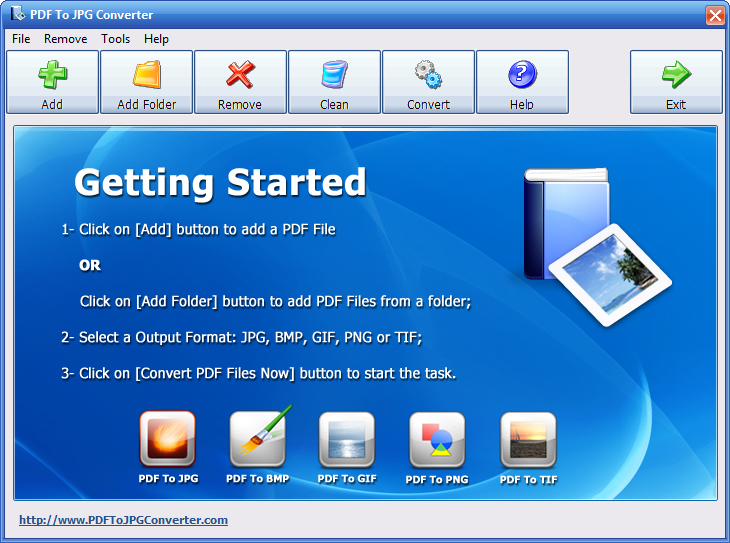
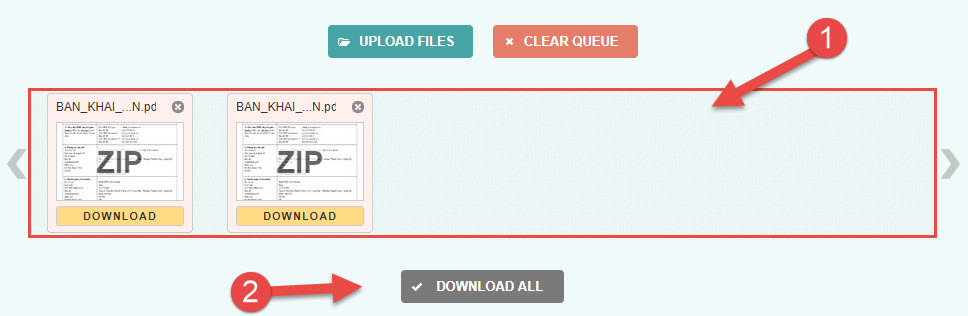
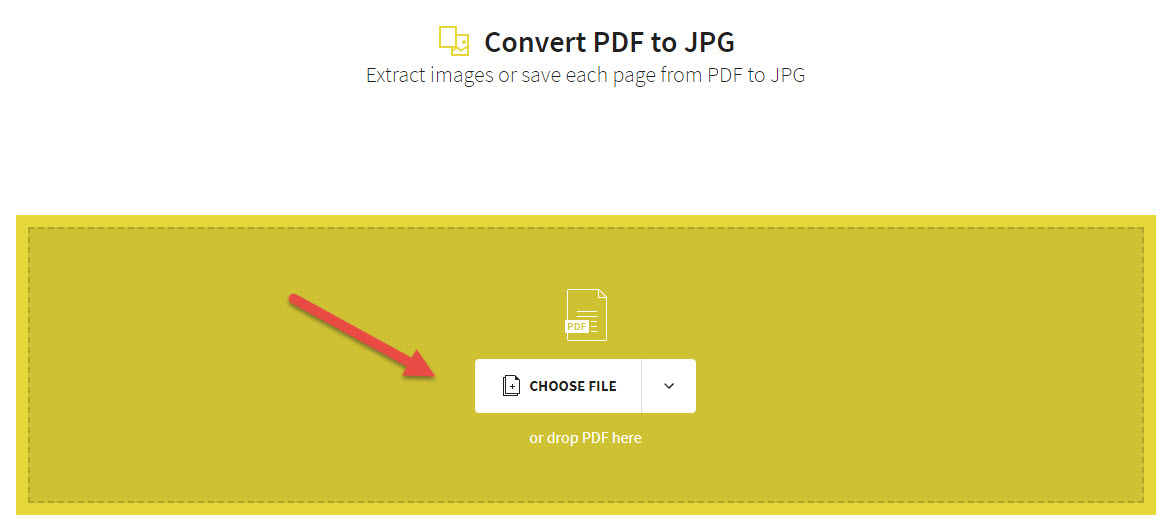
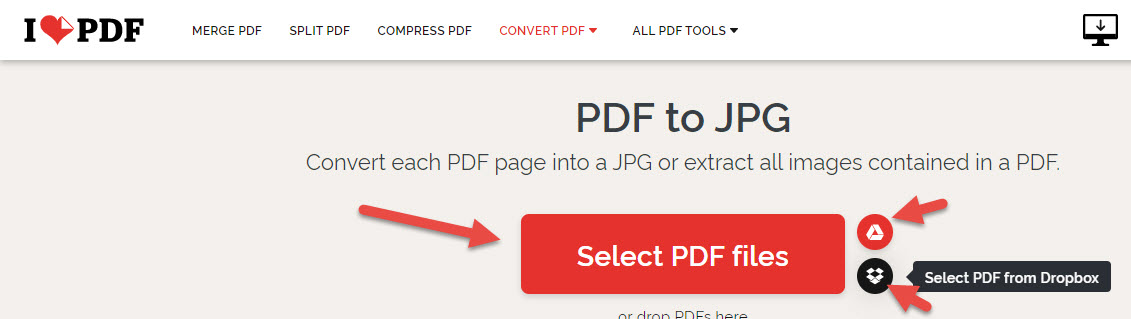
Original screenshots are preserved below for reference. They show older third-party software and web services; their availability, limits, privacy practices, and interfaces may have changed, so verify them before use.


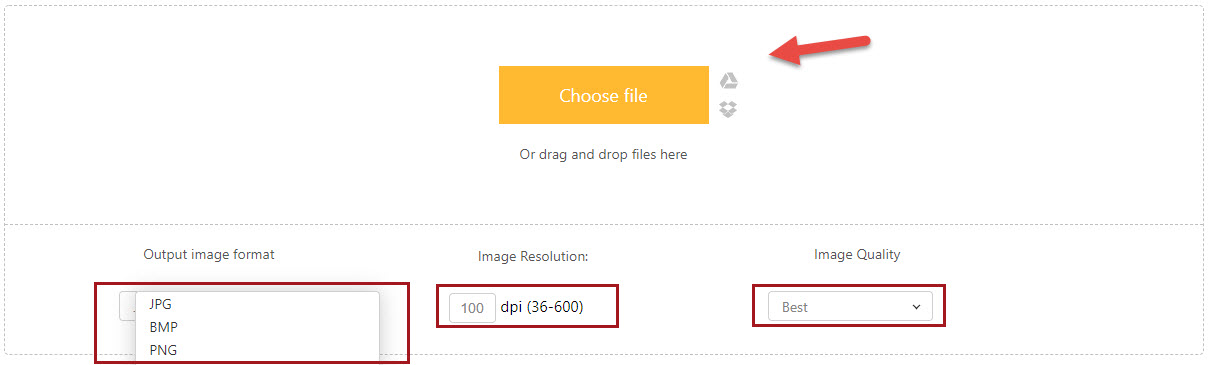
Choose JPG or PNG
- PNG: usually a good choice for pages dominated by text, line art, or diagrams because it avoids JPEG compression artifacts.
- JPG: often produces smaller files for pages with photographs. Repeatedly re-saving a JPG can reduce image quality.
Protect sensitive documents
Prefer an offline desktop application for documents containing personal, financial, health, or business information. Uploading a PDF to a web converter sends its contents to that service, so review its privacy and deletion terms first. A password-protected PDF may require the correct password and permission to export; do not try to bypass access controls.
For more options, see the official guides for exporting a PDF with Adobe Acrobat and extracting a PDF page as an image in Preview. For other document tasks, browse our TipsMake guides.
Related Articles
 How to convert a JPG image to a PDF
 How to Convert PDF Pages to PNG, JPEG, or TIFF Images
 3 How to convert image files to Cad most accurately
 how to convert a JPG file to PDF with just one operation
 How to convert PDF files and image files to Word 96.69% without error Font!
 How to convert a PDF to a JPG image
Reader Comments 0
Sign in with email or Google to join the discussion.