Table of Contents
DigiKam is not your average photo gallery app. It is built from the ground up to manage, organize, and search photo archives of all sizes.
Photographers' photo albums are often so cluttered they dare not touch them. Years of shooting have left the pile of images to be edited so overwhelming that finding the right one can be like looking for a needle in a haystack.
Your phone's photo library is easily handled by apps like Google Photos and Apple Photos, and there are tricks to making Google Photos searches smarter. However, if you're trying to find an old photo on your PC, it's best to give up before you even start.
Luckily, there's a surprisingly simple solution to all your messy photo albums. It works on any PC operating system and is free to download.
DigiKam brings AI to desktop photo organization
A professional tool for those who love to archive photos
DigiKam is not your average photo gallery app. It was built from the ground up to manage, organize, and search photo archives of all sizes. In addition to the usual photo categorization features like tags, the app uses AI to recognize faces and common objects in photos.
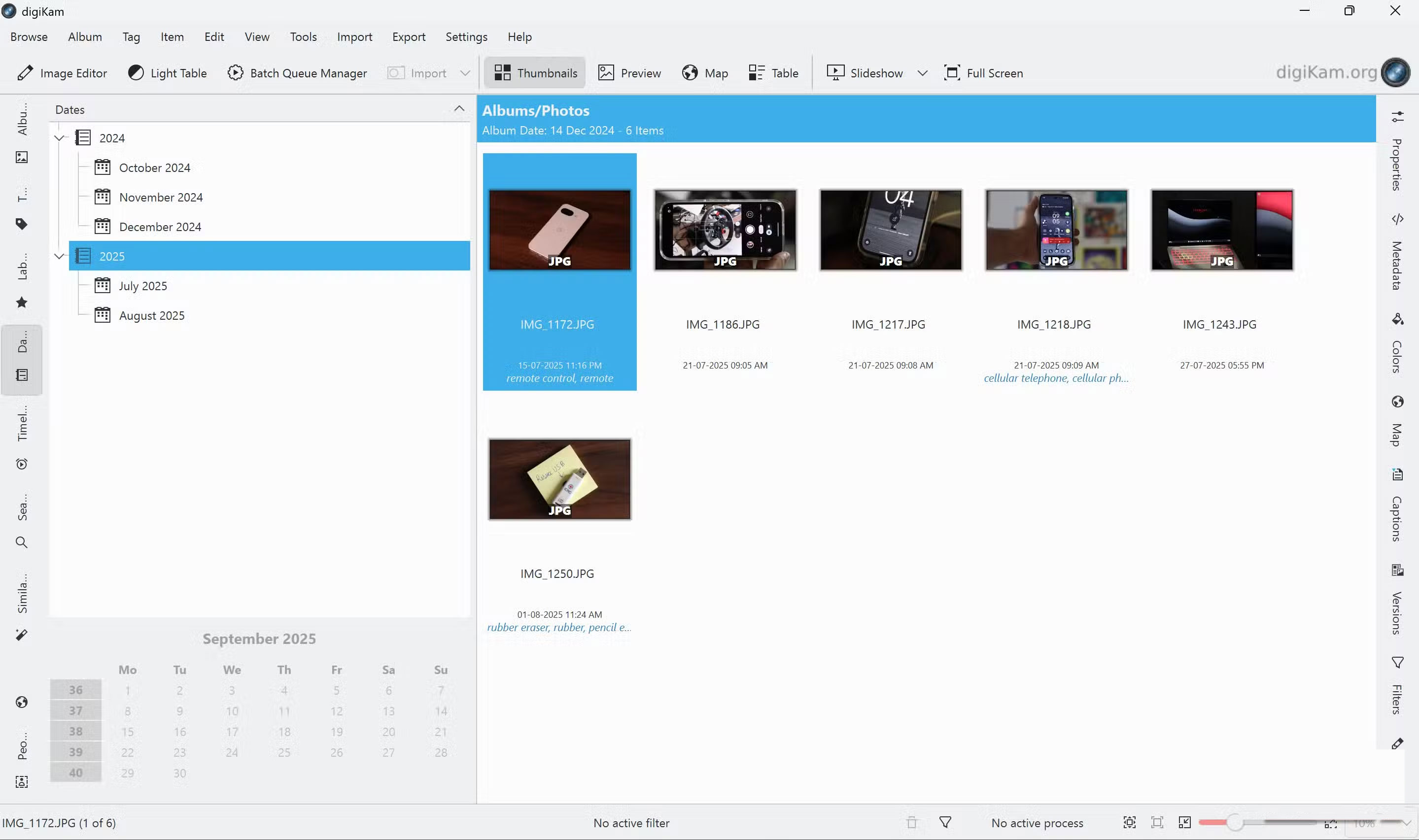
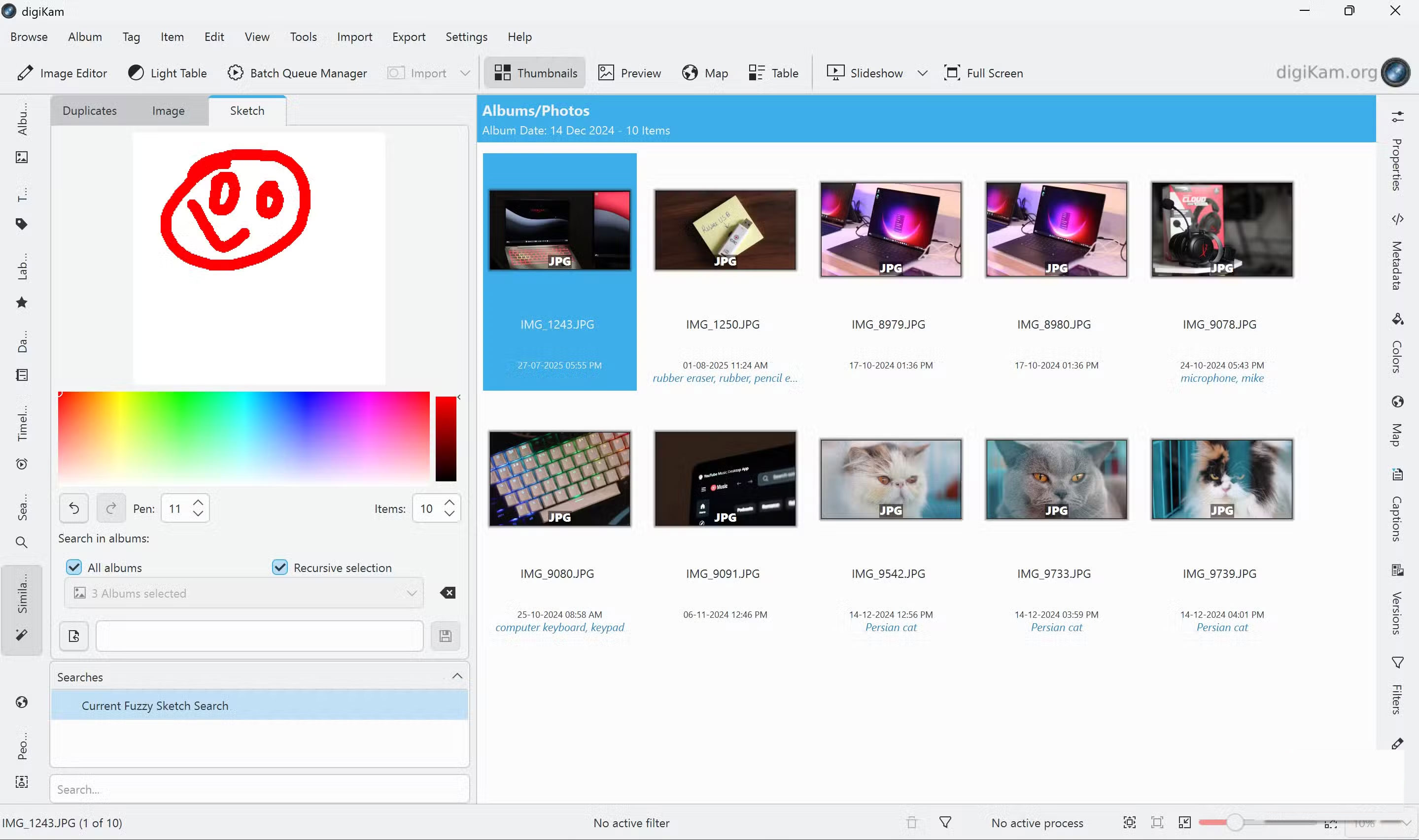
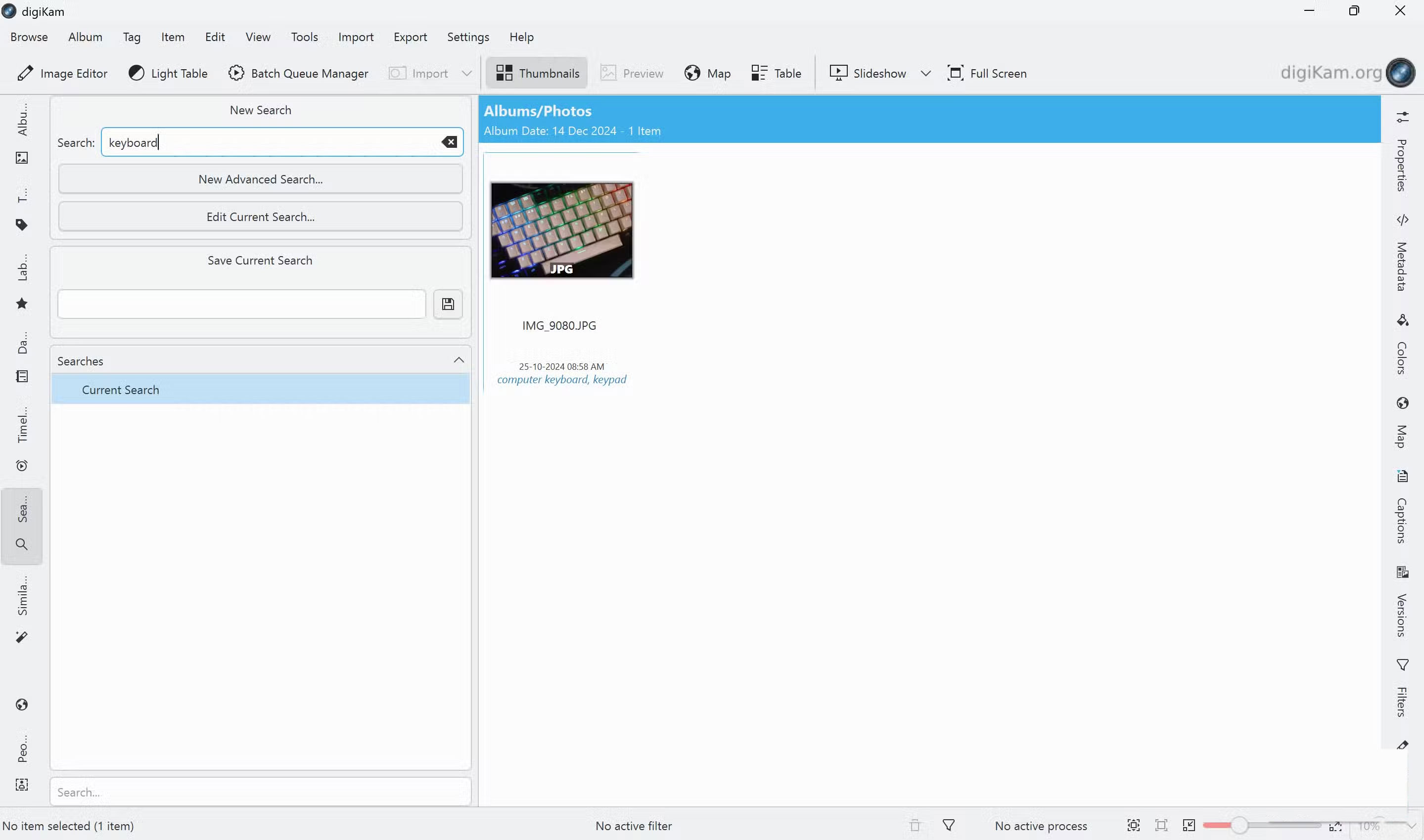
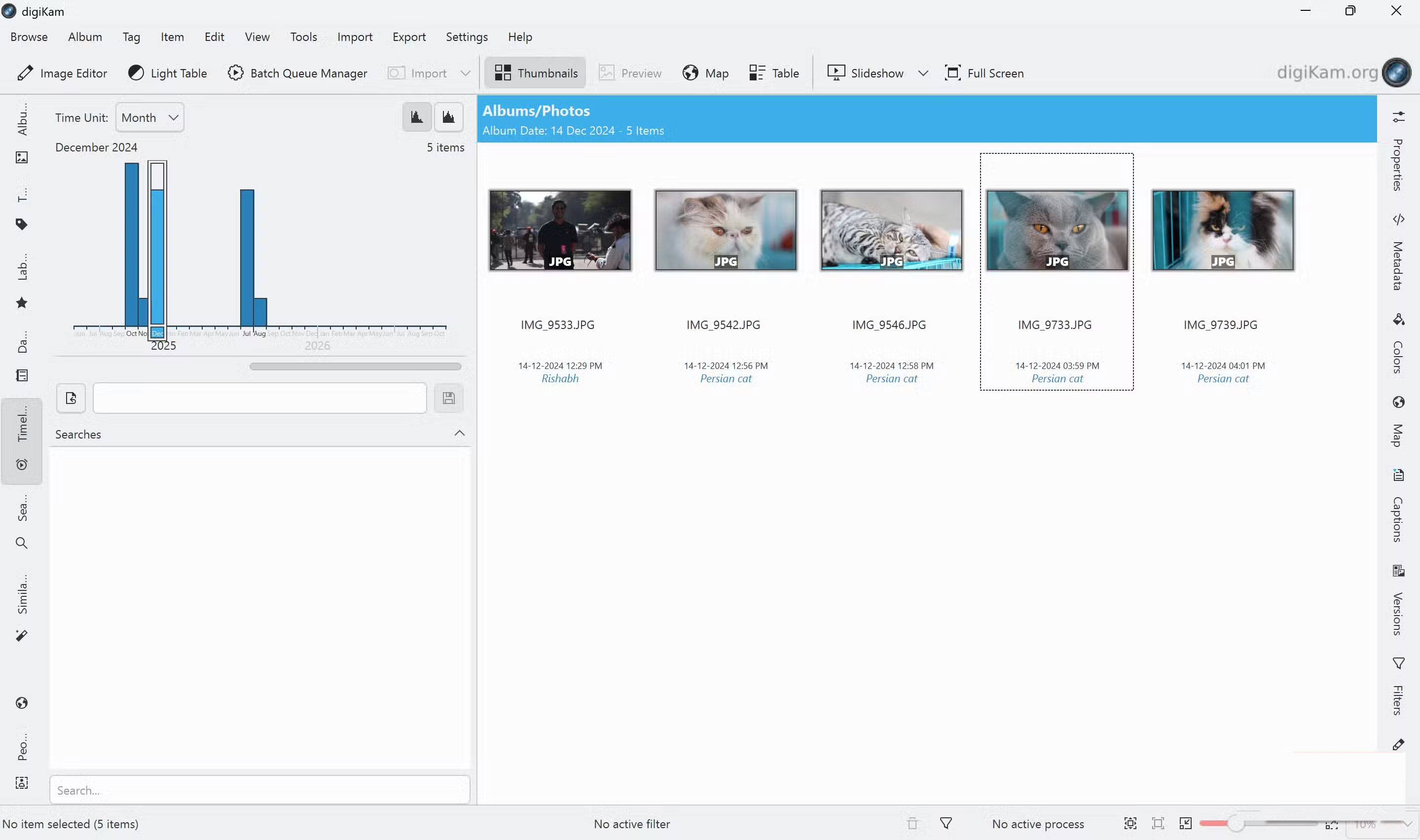
In practice, you can search for content in images instead of file names. The latest version at the time of writing uses models like YOLOv11-Nano, YOLOv11-XLarge, and EfficientNet B7 to automatically detect and tag objects, animals, plants, and even events in images. In total, the AI can recognize more than 1,000 objects and scenes.
It also works with faces, but you have to create tags first for digiKam to remember them. Unlike cloud-based solutions, digiKam's facial recognition happens entirely on the computer, using a neural network based on OpenCV, one of the world's largest open-source computer vision libraries.
Additionally, the program can also automatically evaluate photo quality using its image quality scanner. It analyzes noise, blur, composition, and other factors to provide a quality rating. This is especially useful for burst photographers, as it makes it easy to find the best quality image from a particular series of photos.
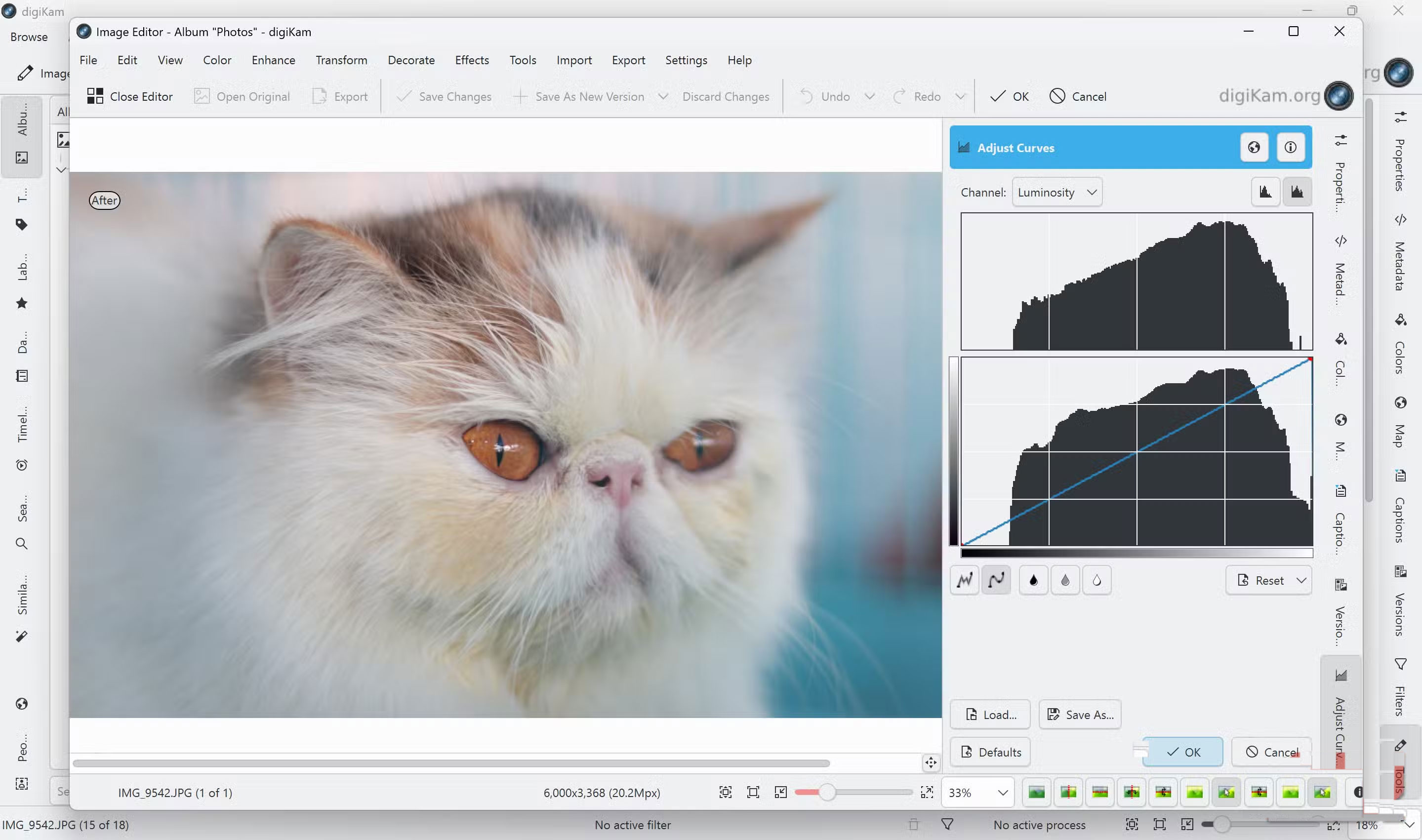
Last but not least, digiKam also has editing, post-production, and batch processing features that you can find in more advanced tools like Adobe Lightroom. These aren't the most powerful editing features, but you can do basic edits like color correction, cropping, and quick edits, which makes it a great free Lightroom alternative.
How to arrange photos in DigiKam
From chaos to neatness in just minutes
Before you can organize your photos and start searching, they need to be imported into digiKam. The software supports over 200 RAW photo formats, videos, and even MP3 files. You can also drag photos or videos directly from any folder or connected camera.
DigiKam will ask you where to save your photos during the initial setup, so you should import all of them as soon as you open the program. However, if your photos are scattered across your drive, you can use the Import Menu on the program's toolbar to import individual photos or folders. You can also add cameras to the program for more direct syncing, or import photos from USB drives, card readers, and even Google Drive.
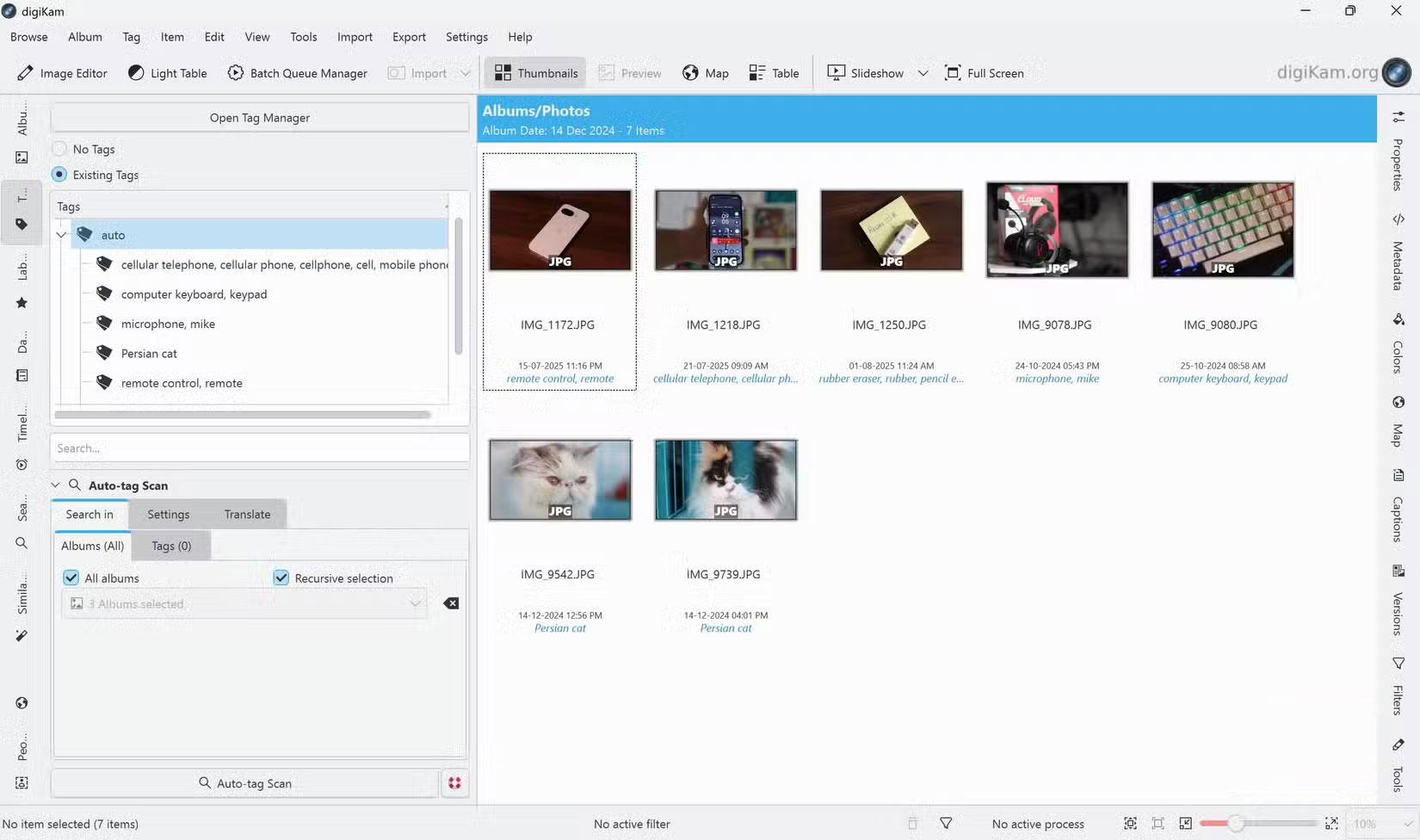
Once you've finished importing, it's time to scan your photos. Go to the Tags Section and click the Auto-tag Scan Button to start scanning your photos. This can be a time-consuming process, especially if you have thousands of photos. It also requires good hardware if you don't want your computer to take days to import and analyze all of your photos.
These auto-assigned tags are mostly accurate, but you'll occasionally see anomalies. For example, digiKam confused the Pixel 9a with a remote control and headphones with a microphone. On the other hand, it was able to detect images of Persian cats in the gallery without any trouble.
Detecting and working with faces is also pretty easy. Select the album you want to scan in the Albums Section, right-click on the album, then click Scan for Faces . You'll find all detected faces in the People Section, where you can browse and add names by hovering over a detected face.
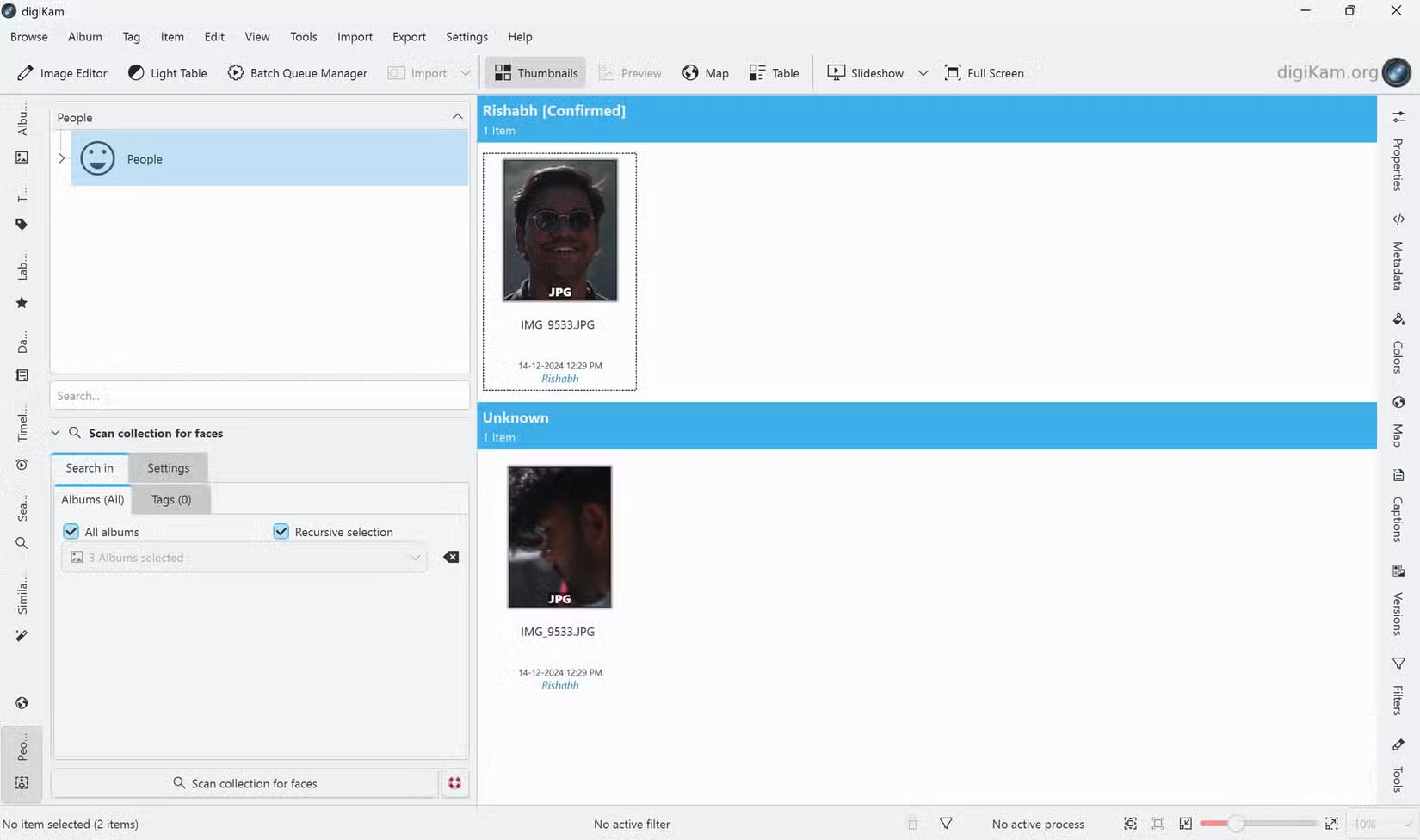
Obviously you just need to add a name to a detected face instance. Once added, the name will be saved as a tag and you can look up all the photos that have the same person in them.
And that's all there is to it. DigiKam stores thumbnails and metadata, so you can easily browse through your photo library without waiting for photos to load. From this point on, your entire imported photo selection will be smartly tagged and searchable. You can also choose to use a combination of date albums and hierarchical tags for better organization.
DigiKam isn't perfect, and the AI models can sometimes fail to detect or auto-tag random objects in photos. But unless you're willing to go through thousands of photos and tag them yourself, this is your best shot without spending a dime.
It's also constantly learning and improving. As you take and import new photos, they're automatically organized and tagged. Your photo library is automatically maintained, allowing you to focus on taking photos and editing as needed.
FAQ
What should you know about digiKam?
In practical terms, digiKam is not your average photo gallery app. It is built from the ground up to manage, organize, and search photo archives of all sizes.
Why does digiKam matter?
The article highlights that it also works with faces, but you have to create tags first for digiKam to remember them.
What is the main takeaway?
The main takeaway is that last but not least, digiKam also has editing, post-production, and batch processing features that you can find in more advanced tools like Adobe Lightroom.
Related Articles
 Why Do Many People Choose DigiKam over Lightroom for Photo Organization8 minutes read
 How to Play Pokémon GO on a Computer6 minutes read
 How to Play Pokémon GO on a Smartphone6 minutes read
 26 Types of Poké Balls Explained: Part 25 minutes read
 How to Earn and Use Stardust in Pokémon GO5 minutes read
 Pokémon GO Eggs: Incubation and Hatching Guide4 minutes read
Reader Comments 0
Sign in with email or Google to join the discussion.