Table of Contents
Discover why do many people choose digikam over lightroom for photo organization and explore the main causes.
Many people hate paying Adobe monthly fees, telling themselves they'll get organized someday. But that's easier said than done, and then they discover a photo-organizing app so good they ditch their Lightroom library altogether.
DigiKam turns chaos into useful archives
AI-based tagging and facial recognition help analyze massive photo collections
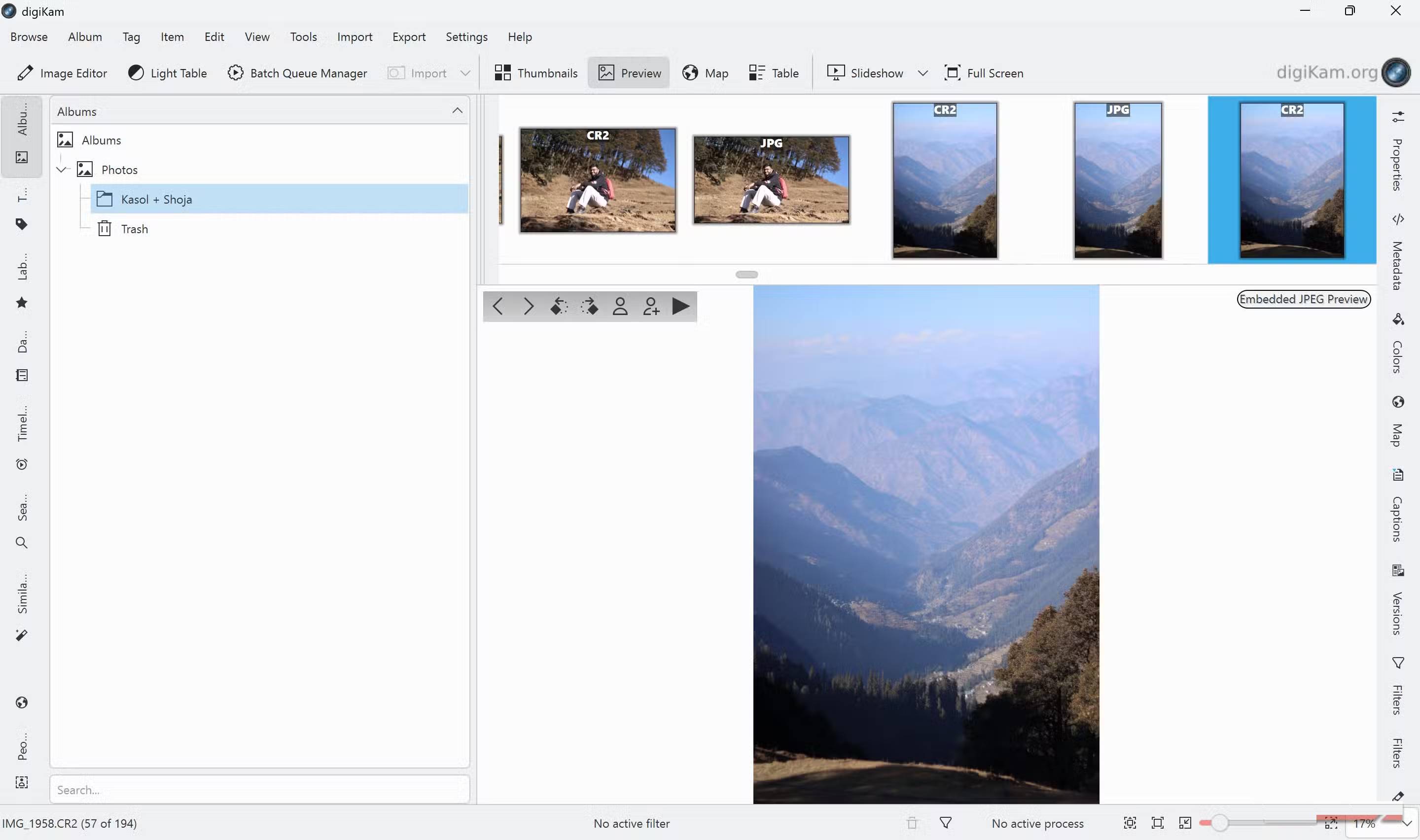
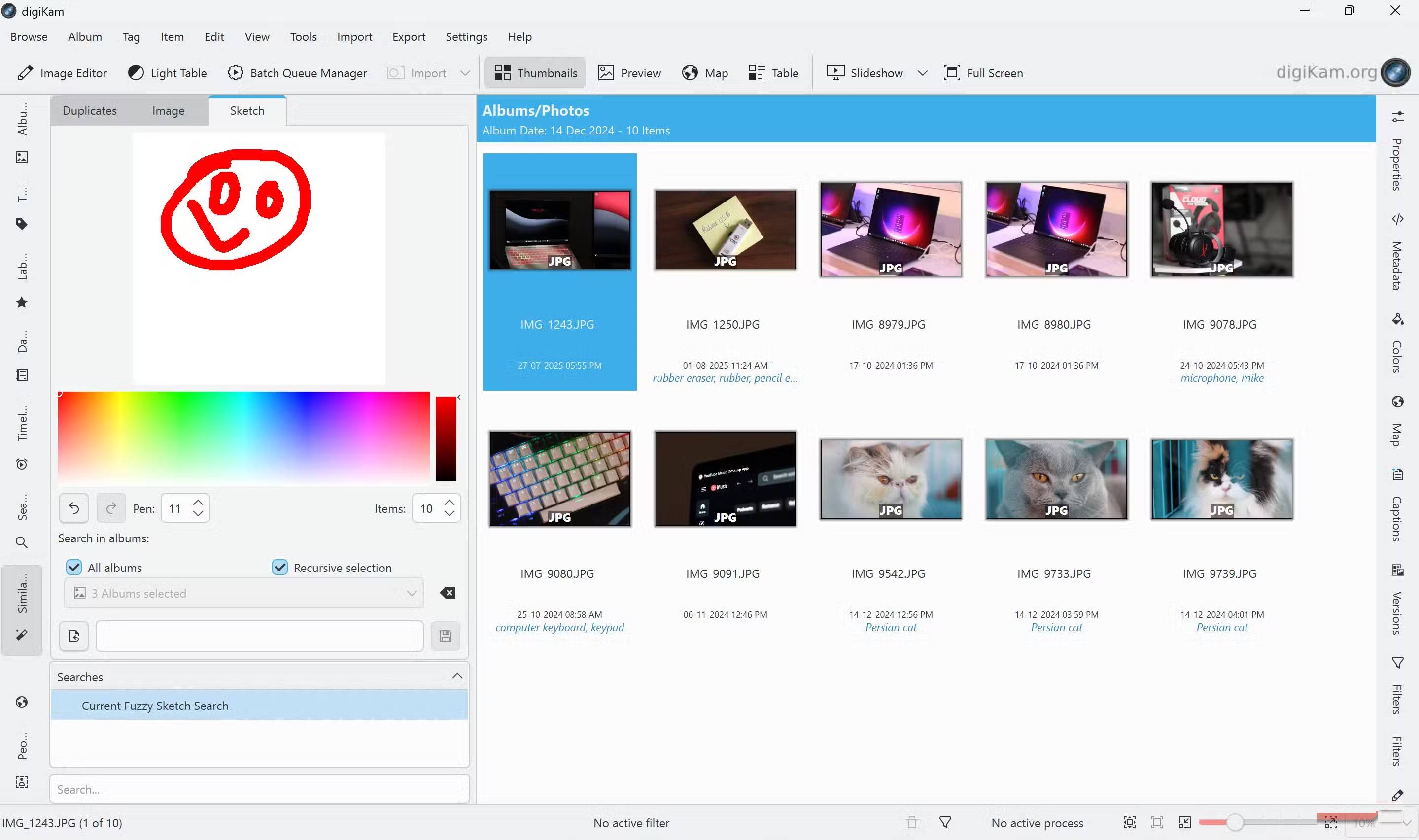
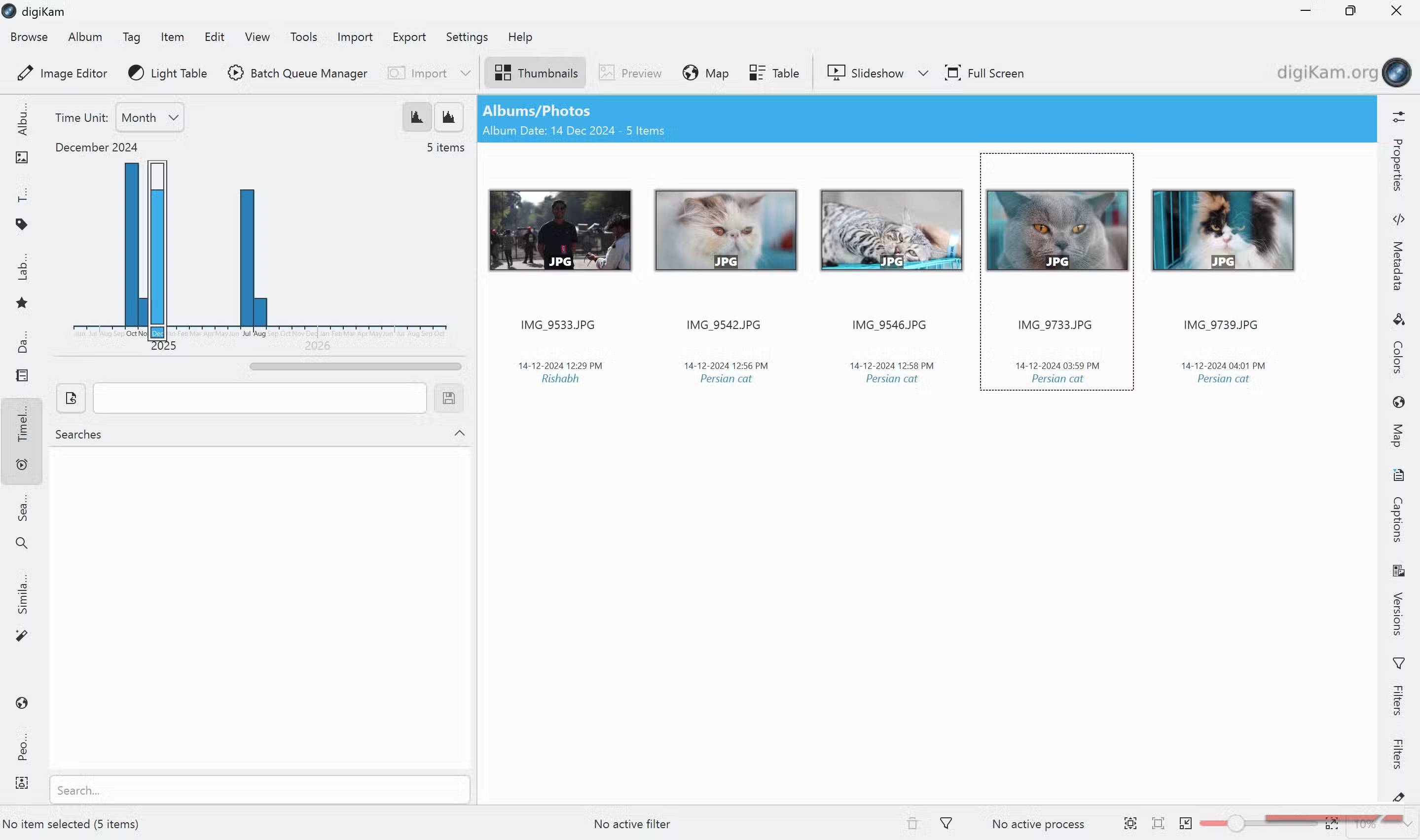
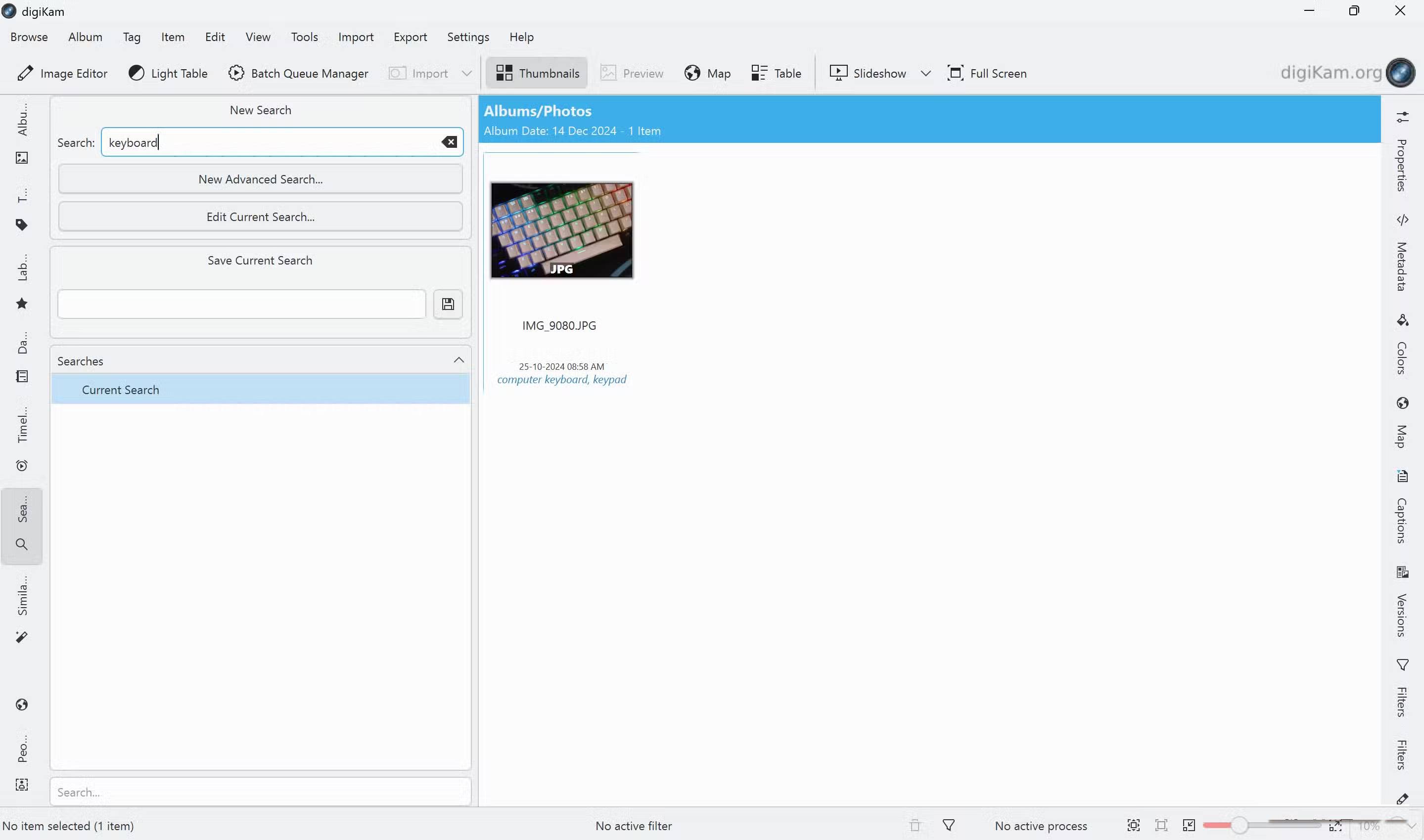

digiKam is a free, open source application available on Windows, macOS, and Linux. No monthly fees, no paid features, no cloud lock-ins, just free software that actually works.
It doesn't force your photos into a pre-defined structure like Lightroom's collection model. Instead, digiKam works alongside your existing folder structure. Your photos can be stored on your internal hard drive, external SSD, network storage, wherever you want. The software builds a database around your photos without requiring you to move or rearrange anything to fit into its system.
And unlike Lightroom, digiKam can automatically tag your photos for you. The program comes with AI-powered features that run locally on your computer to analyze your photos and automatically generate keywords. It doesn't always get the keywords right, but it's fast and accurate enough to quickly create a large, easily searchable photo collection.
You can also do facial recognition. The software identifies each person in your photos, then learns who they are when you confirm a few matches. Once it's done, it can find every photo of that person in your entire library. You can easily add names, sort, and categorize photos by image.
The software supports over 1,000 RAW photo, video, and even MP3 file formats. You can also upload photos or videos directly from any folder or connected camera and process metadata like a pro. You can also rename and batch process photos, add geolocation data, and search by GPS coordinates. There is a light table feature that allows you to compare photos side by side, which is great for scraping.
Organize photos quickly, neatly and easily
Workflows built on speed, automation, and clean navigation
Before you can organize your photos and start searching, they need to be imported into digiKam. During the initial setup, the program will ask you where to save your photos, so you should import all of them as soon as you open the program.
However, if your photos are scattered across your drive, you can use the Import menu on the program's toolbar to import individual photos or folders. You can also add cameras to the program for more direct syncing, or import photos from USB drives, card readers, and even Google Drive.
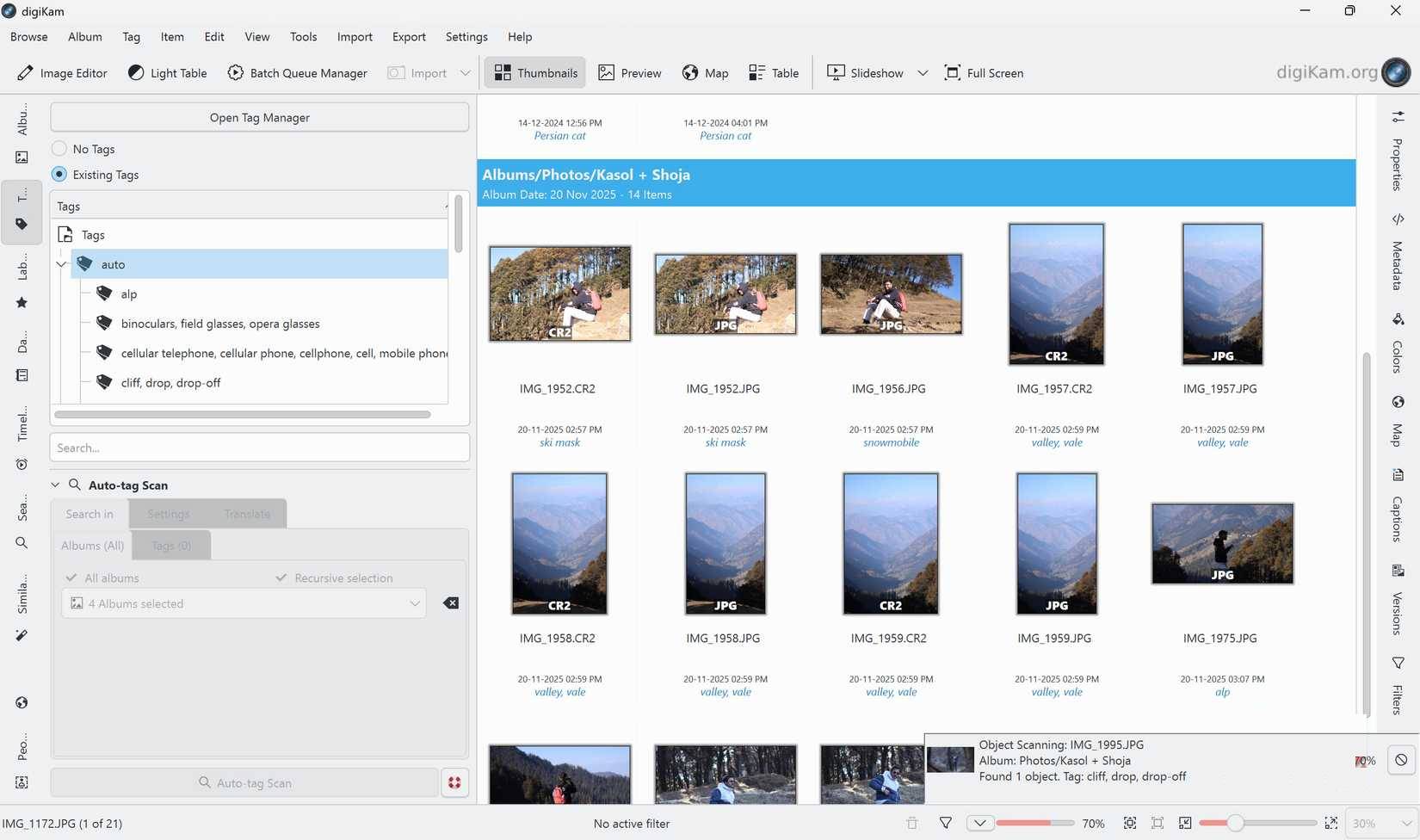
Once you've finished importing, it's time to scan your photos. Go to the Tags section and click the Auto-tag Scan button to start scanning your photos. This can take a while, especially if you have thousands of photos. It also requires good hardware if you don't want your computer to take days to import and analyze all of them.
Detecting and working with faces is pretty easy too. Select the album you want to scan in the Albums section, right-click on the album, then click Scan for Faces . You'll find all the detected faces in the People section, where you can browse and add names by hovering over a detected face.
DigiKam is the leading photo organizer
A focused, distraction-free, slider-free, organization tool
While digiKam is a great photo organizer, that's about all it can do. Can it organize a photo collection of thousands of photos regardless of their content, metadata, and file size? Yes. Can you edit those photos in digiKam after they've been organized? That really depends on how advanced your editing is.
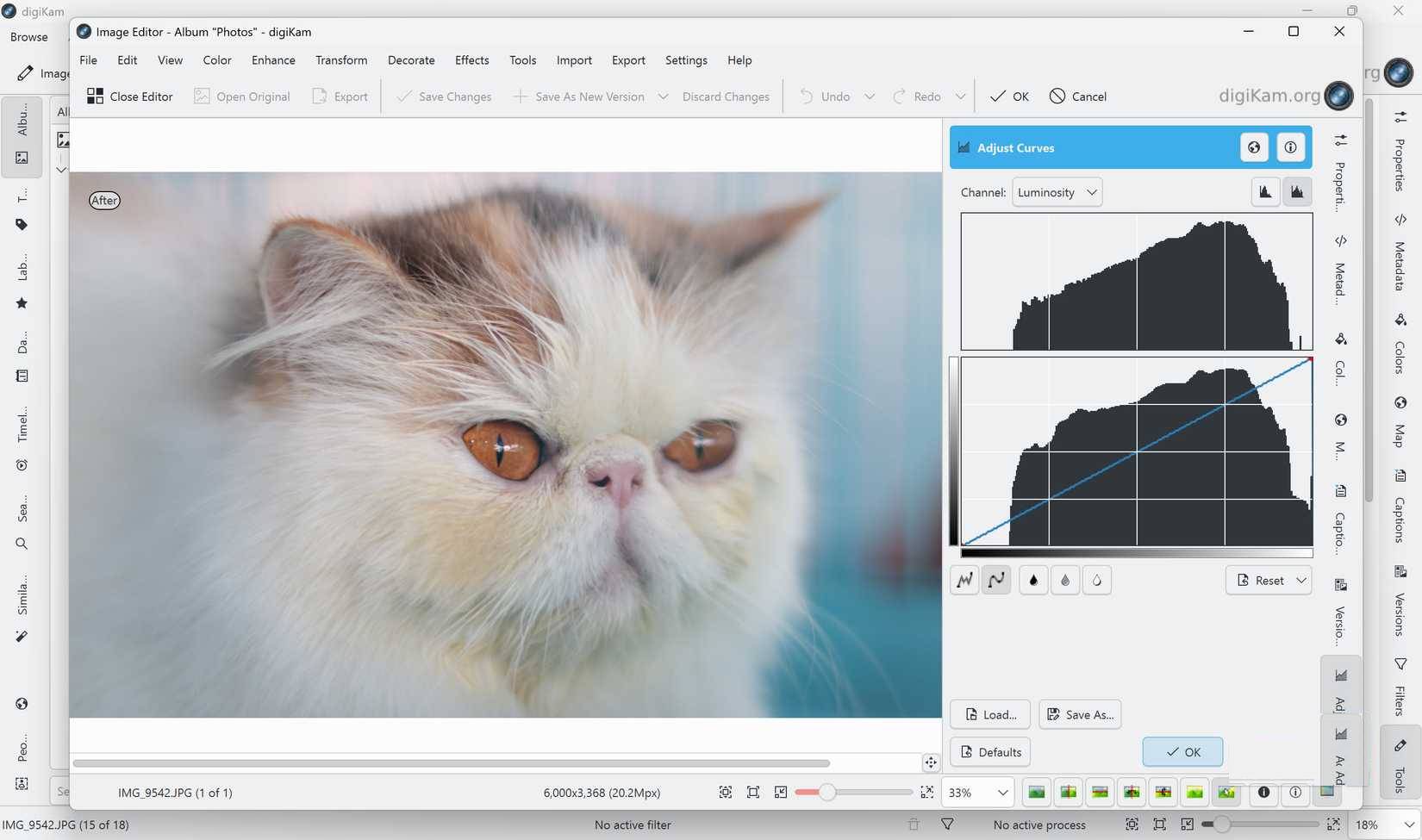
The built-in photo editor handles basic editing well, but you'll need to export your photos to other programs like GIMP or RawTherapee for more advanced editing. If you're looking for a complete photo organizer and developer, or if you rely on Adobe's presets and an overall seamless editing experience, Lightroom is still the way to go.
There are also some caveats to automatic tagging. AI models can sometimes fail to detect or automatically tag random objects in photos. The auto-tagged tags are mostly accurate, but you'll see some anomalies here and there. For example, digiKam mistook a Pixel 9a for a remote control and headphones for a microphone. On the other hand, it was able to detect a photo of a Persian cat in the example photo gallery without any trouble.
However, unless you're willing to go through thousands of photos and tag yourself, this is your best shot without spending a dime.
Final Thoughts
Understanding why do many people choose digikam over lightroom for photo organization makes it easier to evaluate the information and apply the most relevant recommendations. Focus on the key points above and verify details that may change over time.
FAQ
What is why do many people choose digikam over lightroom for photo organization?
Discover why do many people choose digikam over lightroom for photo organization and explore the main causes.
What key points does this article cover?
The article focuses on DigiKam turns chaos into useful archives, AI-based tagging and facial recognition help analyze massive photo collections, Organize photos quickly, neatly and easily, with practical explanations and examples.
How can you use this information in practice?
Use the explanations to compare options, verify important details, and make a more informed decision. Apply the recommendations that best match your goals and situation.
Related Articles
 digiKam: Complete Guide7 minutes read
 Instructions on How to Pair HDR Photos on Lightroom5 minutes read
 A Set of Video Tutorials on How to Edit Photos with Lightroom3 minutes read
 Instructions on How to Improve and Speed up Lightroom8 minutes read
 Lightroom Editing Formula for Trendy Social Photos3 minutes read
 Lightroom - Lightroom Download and Installation Guide5 minutes read
Reader Comments 0
Sign in with email or Google to join the discussion.