Table of Contents
On a current Windows PC, add the tracks to the Apple Music app and sync them with the Apple Devices app. On a Mac, add the tracks to Music and use Finder to sync the iPhone or iPad. Older Windows and macOS versions can still use iTunes.
Back up the device before changing sync settings. An iPhone or iPad can be associated with only one manually synced music library at a time. Accepting a prompt to erase, replace, or “Remove and Sync” can remove music previously synced from another computer.
Before you begin
- Use audio files you own or have permission to copy.
- Install operating-system and Apple app updates.
- Use a data-capable USB or USB-C cable for the first connection.
- Unlock the iPhone or iPad and select Trust if prompted.
- Check available storage on the device.
If Sync Library is enabled with an Apple Music subscription, your library is normally synchronized through the cloud and manual music syncing may be unavailable. Decide which method you want before changing that setting.
Windows: use Apple Music and Apple Devices
- Install Apple Music and Apple Devices from the Microsoft Store. Apple states that the Apple Music app must be installed for music syncing through Apple Devices.
- Open Apple Music on Windows and add the local audio files to its library.
- Connect the iPhone or iPad to the PC.
- Open Apple Devices and select the device in the sidebar.
- Select Music, then enable Sync music onto [device].
- Choose the entire music library or selected artists, albums, genres, and playlists.
- Select Apply. When syncing finishes, use the eject control before disconnecting the cable.
Apple's current instructions are available in the Apple Devices guide for music syncing.
Mac: use Music and Finder
- Open the Music app and import the local tracks into the Mac's music library.
- Connect the iPhone or iPad to the Mac.
- Open Finder and select the device in the sidebar.
- Open the Music tab and enable Sync music onto [device].
- Choose the entire library or selected artists, albums, genres, and playlists.
- Select Apply or Sync.
See Apple's Finder syncing guide for the current Mac interface.
Older Windows or macOS: use iTunes
iTunes remains relevant on older systems and some Windows installations. The screenshots below show that interface.
Connect the device and open iTunes. Select Songs in the library, then add or drag the local audio files into the library.
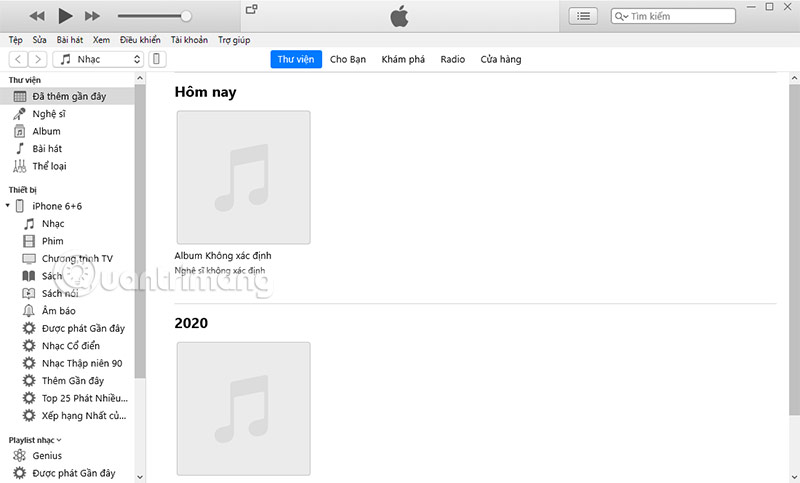
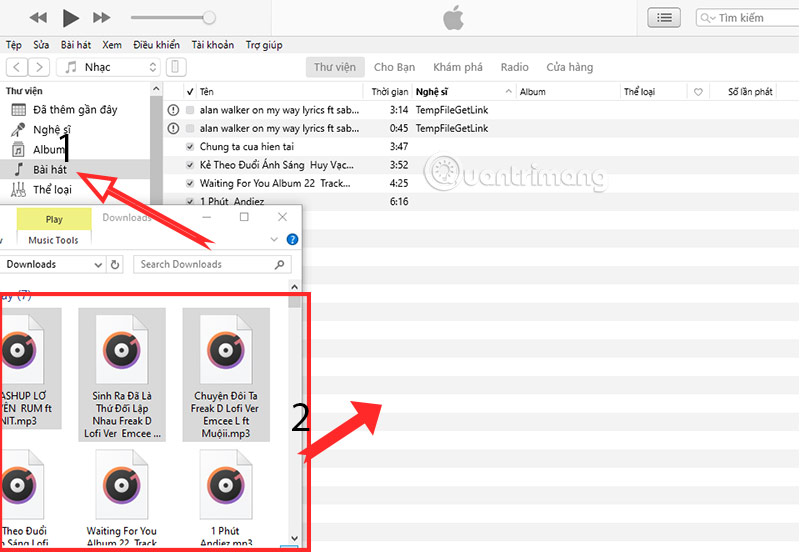
Select the device icon near the top of the iTunes window.
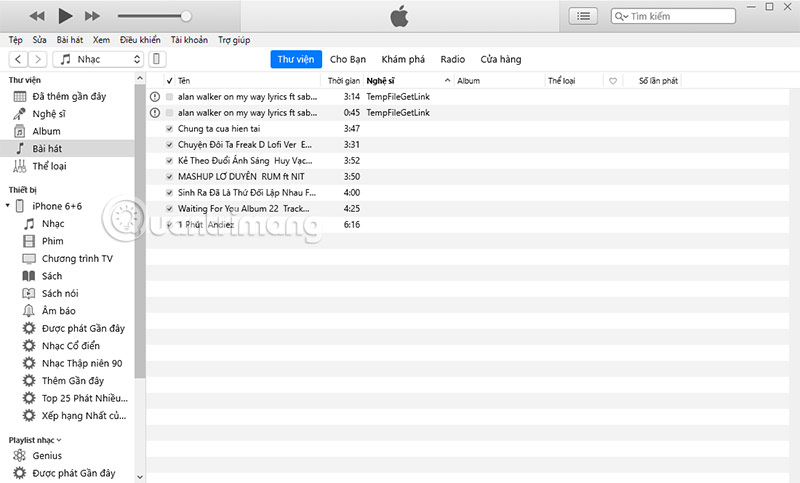
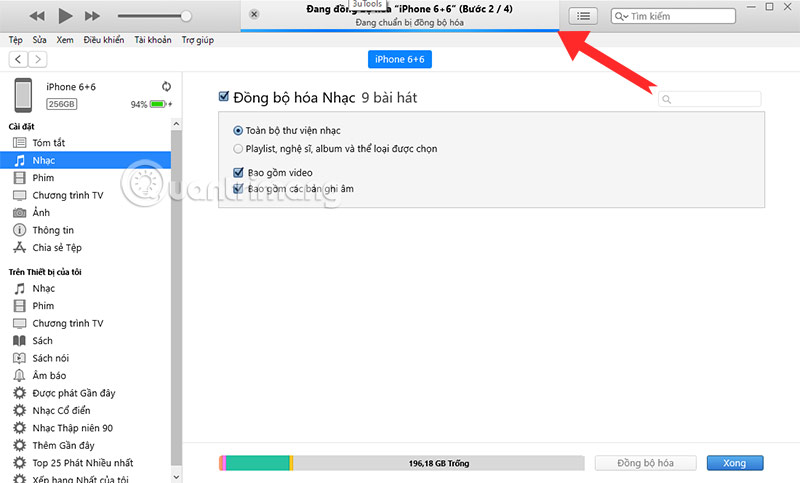
Select Music, enable Sync Music, and choose the entire library or selected content. Select Apply or Sync.
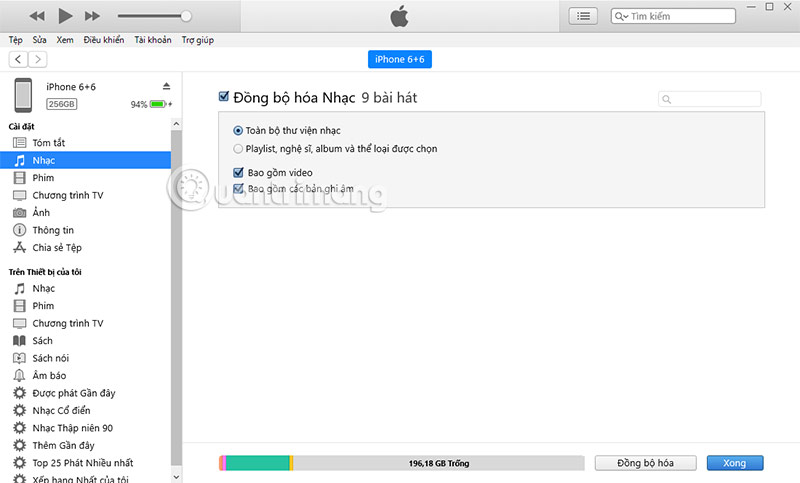
Wait until the status bar shows that synchronization has finished.
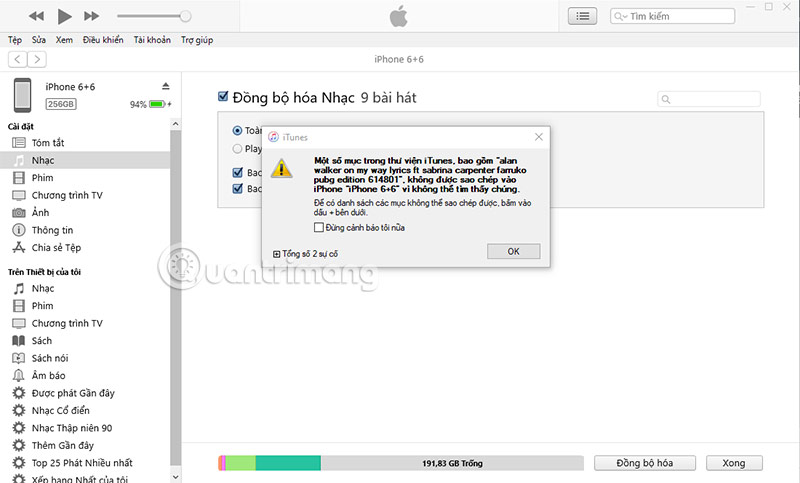
If iTunes warns that tracks cannot be found, locate the missing files on the computer or remove those broken library entries before syncing.
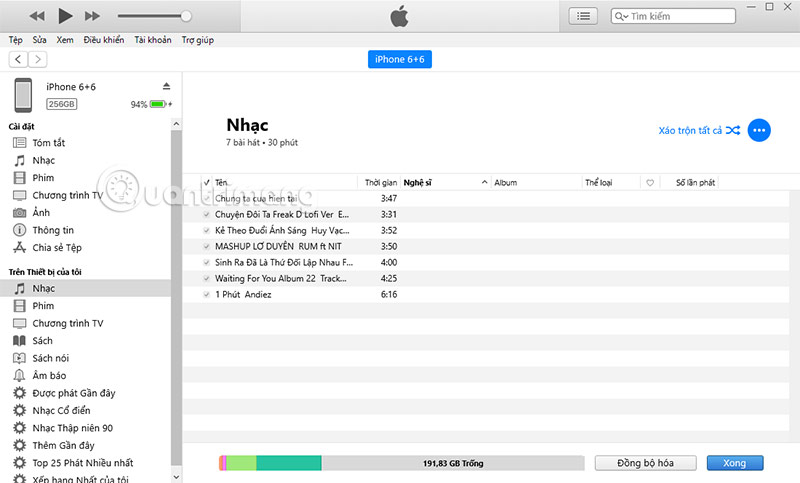
After the sync, the copied tracks appear under the device's Music section.
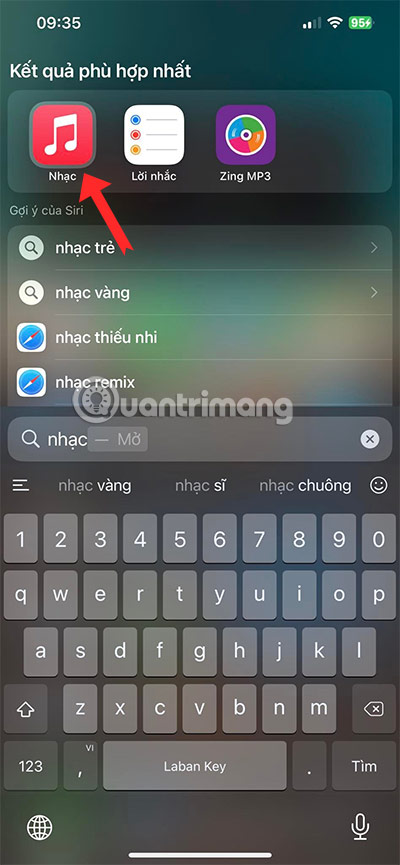
Find the transferred songs on iPhone or iPad
Open the Music app.
Open Library > Songs, or browse the artist, album, or playlist selected during synchronization.
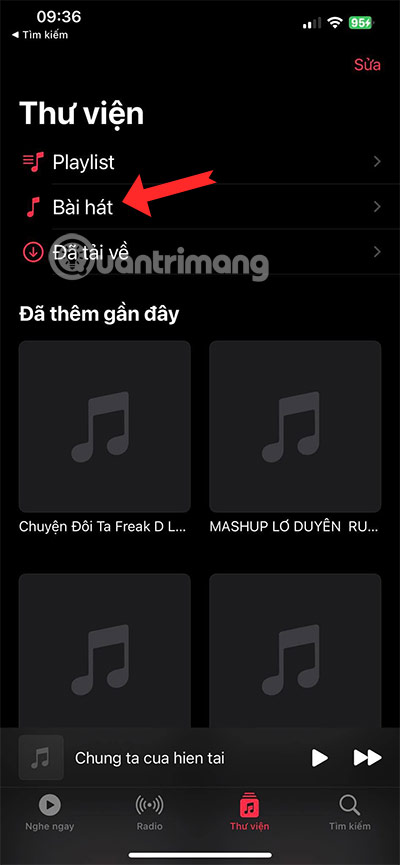
Local tracks may lack artwork, synchronized lyrics, or complete album metadata if those details were not embedded in the source files.

Use Sync Library with Apple Music instead
If you subscribe to Apple Music, you can import personal tracks into the Music app on the computer and enable Sync Library on each device signed in to the same Apple Account. The music is then matched or uploaded and becomes available without a cable, subject to the service's rules and storage behavior.
Follow Apple's Sync Library instructions. Keep an independent copy of original audio files; a cloud music library is not a substitute for a backup.
Why third-party transfer tools are not the first choice
Device-management utilities may request broad access to the iPhone, local backups, photos, messages, or account data. Use Apple's tools unless a verified requirement cannot be met. If considering another app, review the developer, code-signing identity, privacy policy, permissions, update history, and backup plan before connecting the device.
Troubleshooting
- The device does not appear: unlock it, tap Trust, try another data cable or USB port, and update Apple Devices, iTunes, or macOS.
- Music sync is unavailable: check whether Sync Library is enabled for an Apple Music subscription.
- A track will not copy: verify that the file plays on the computer and uses a supported, non-corrupt format.
- Previously synced music disappears: compare the current computer library and selected sync options; automatic syncing mirrors those selections.
- Not enough storage: sync selected playlists or albums instead of the entire library.
Related Articles
 How to Copy, Transfer, and Move Music from Your PC to Your iPhone or iPad Using iTunes4 minutes read
 How to Transfer Music from an Old Ipod to a Computer or Iphone7 minutes read
 Itunes: How to Transfer Music from Your PC to the Ipad6 minutes read
 How to Copy Music to iPhone, iPad from Computer?8 minutes read
 How to Transfer Music from Computer to iPhone Quickly6 minutes read
 How to Transfer Music from Iphone to PC13 minutes read
Reader Comments 0
Sign in with email or Google to join the discussion.