Table of Contents
Explore czkawka -- an open-source application that helps remove duplicate data.
Having had enough and decided to clean up the hidden junk on their computers, many people opt to use Czkawka, a utility that finds and cleans duplicate files. It even found over 35,000 duplicate photos occupying 160GB of storage space on one user's hard drive.
What is Czkawka?
Czkawka is a fast, open-source file management tool written in the Rust language. It searches for duplicate files, empty folders, similar images, corrupted files, and temporary files across various platforms with caching support.
What is Czkawka doing?
Czkawka is a duplicate file finder
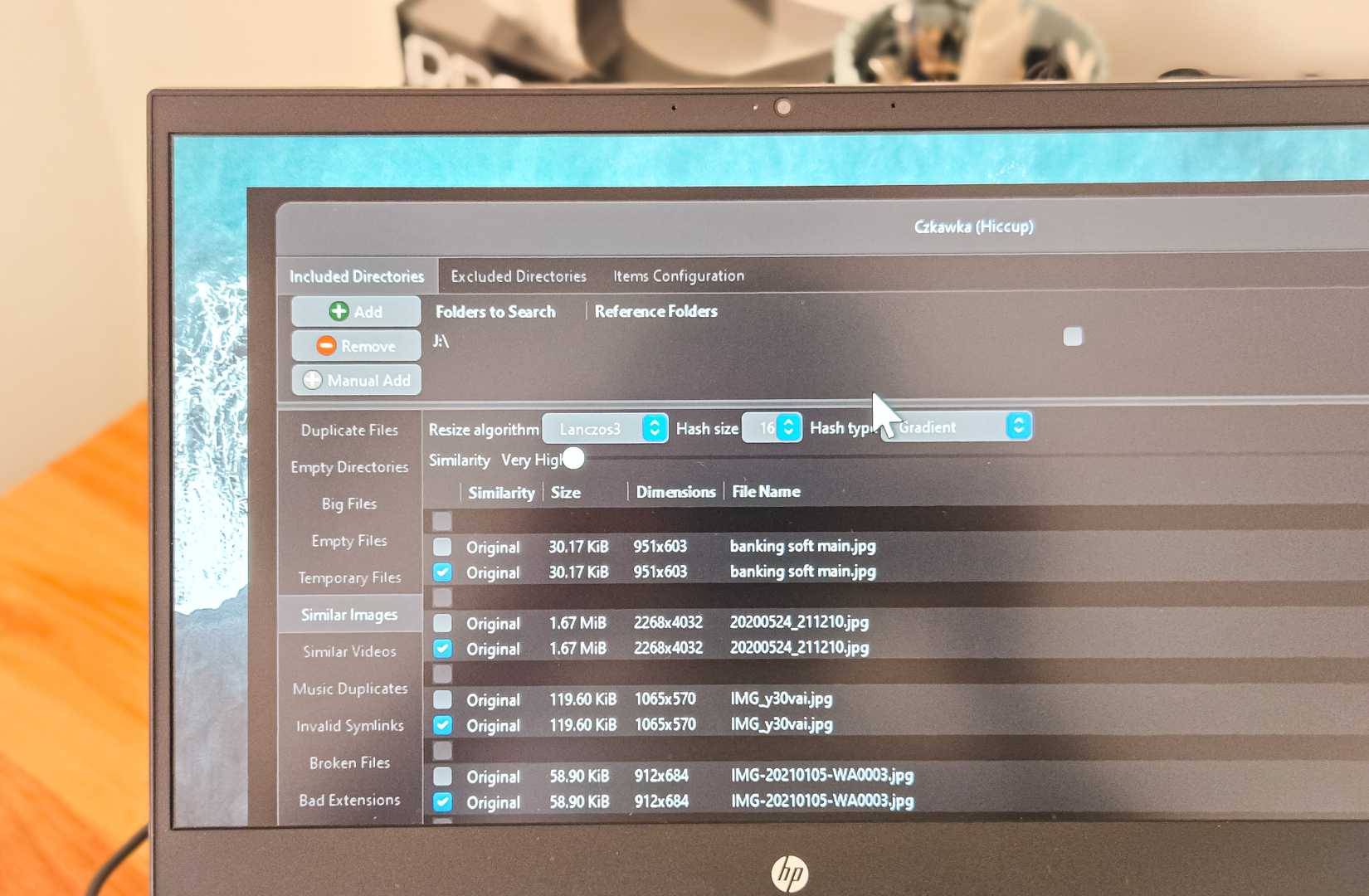
Czkawka is an open-source disk cleanup tool written in the Rust language. This application is designed to find and delete duplicate files, similar images, empty folders, and other unnecessary files that are silently taking up your storage space. Unlike Windows' built-in duplicate file finder, Czkawka not only matches file names but also compares the actual file contents using a hash algorithm.
What makes it particularly useful for photo libraries is its Similar Images mode. This feature can detect photos that look similar even if they have different resolutions, file names, or compression levels. So, if you've saved the same photo from WhatsApp, Google Photos, and your phone's photo library, Czkawka will group them together regardless of minor differences in quality between them.
Besides photos, Czkawka can also find duplicate music files by comparing audio content or tags, detect empty folders that clutter your directory structure, and identify temporary files left behind by applications. It's a versatile disk cleanup tool, not just a duplicate file finder.
The application works completely offline without collecting any data or information remotely, which is a great plus if you care about privacy. It's available for Windows, Linux, and macOS, although installation on macOS is more complicated and not as beginner-friendly.
How to install and use Czkawka
A portable application that doesn't require installation
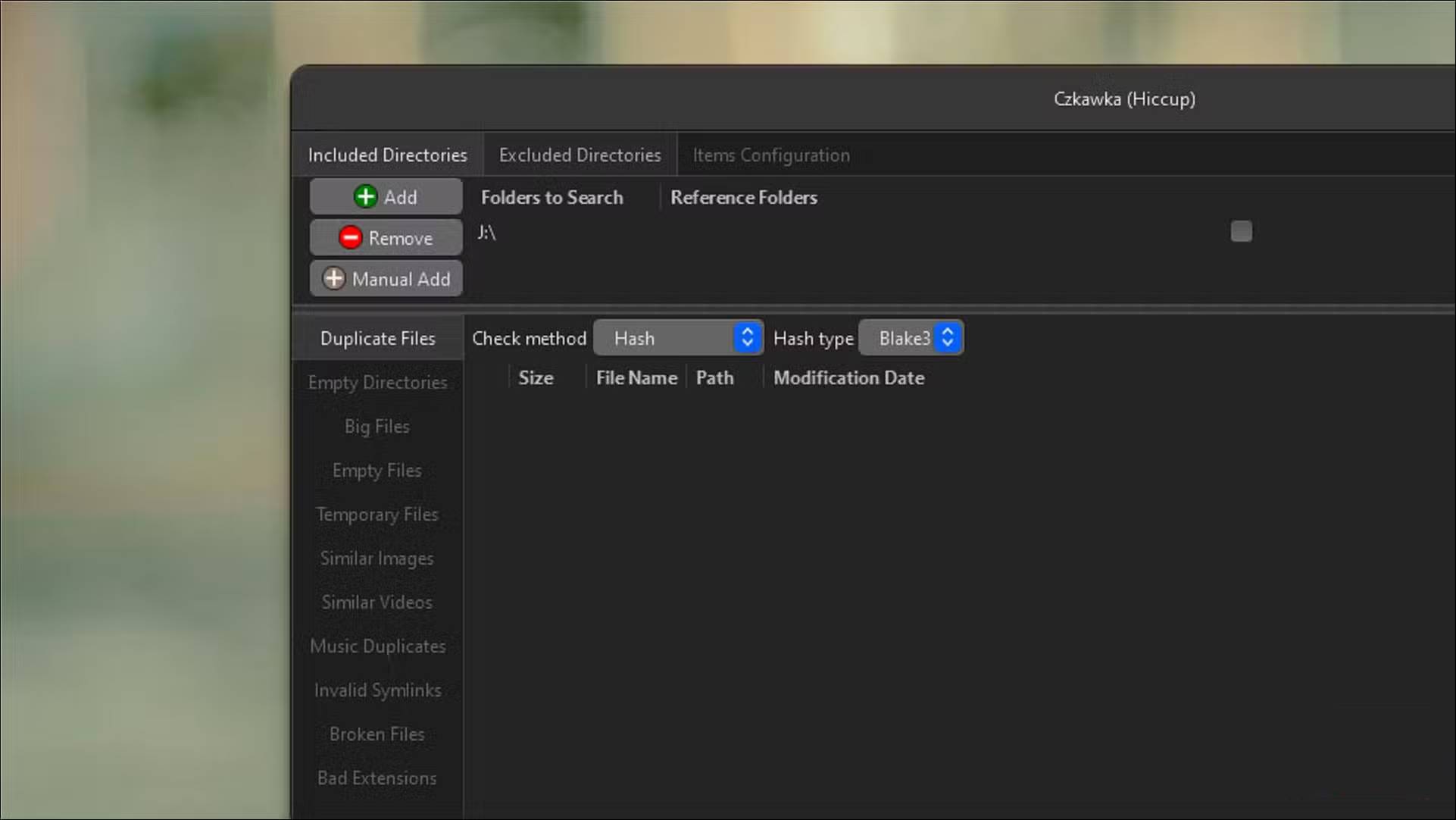
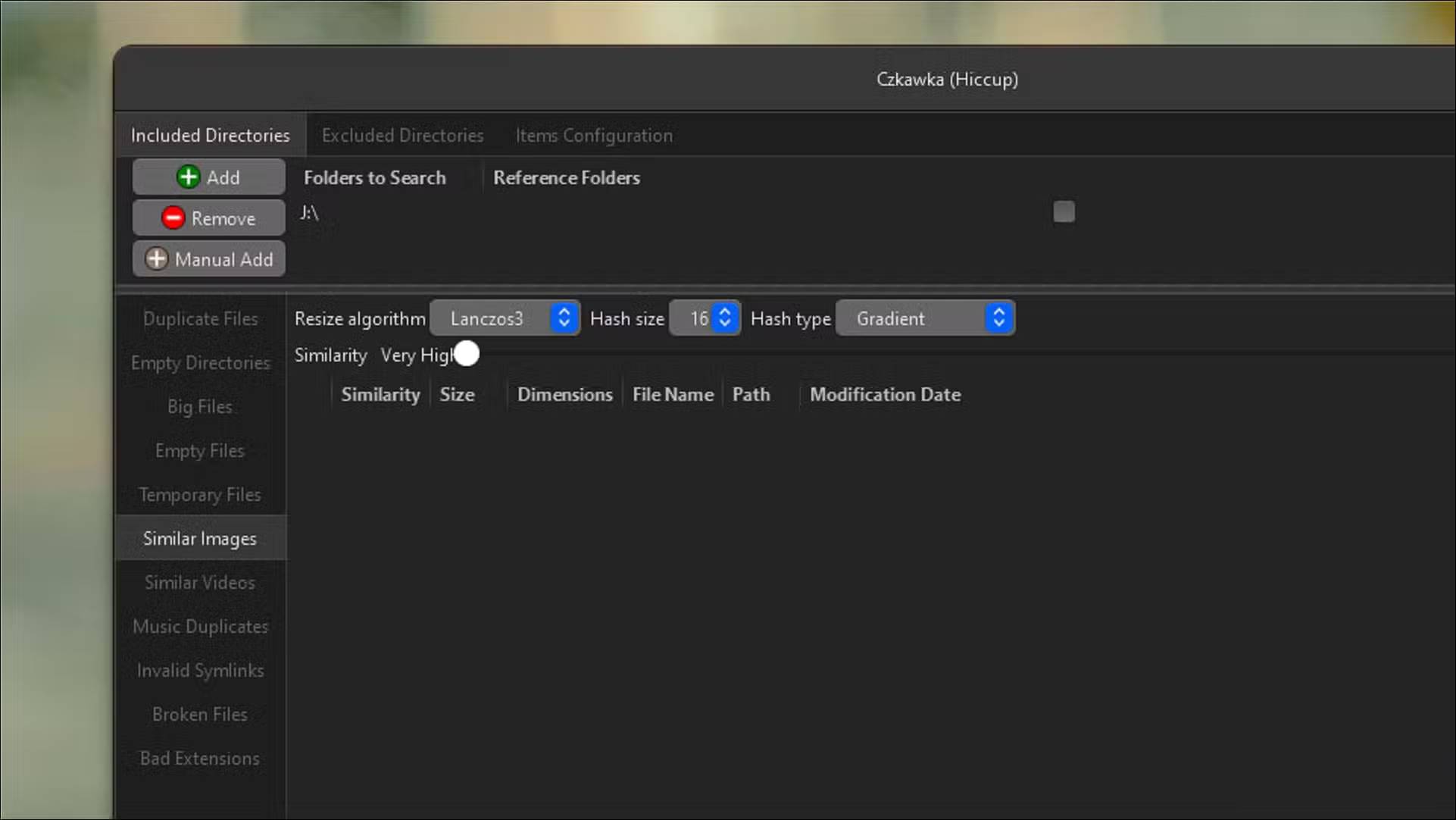
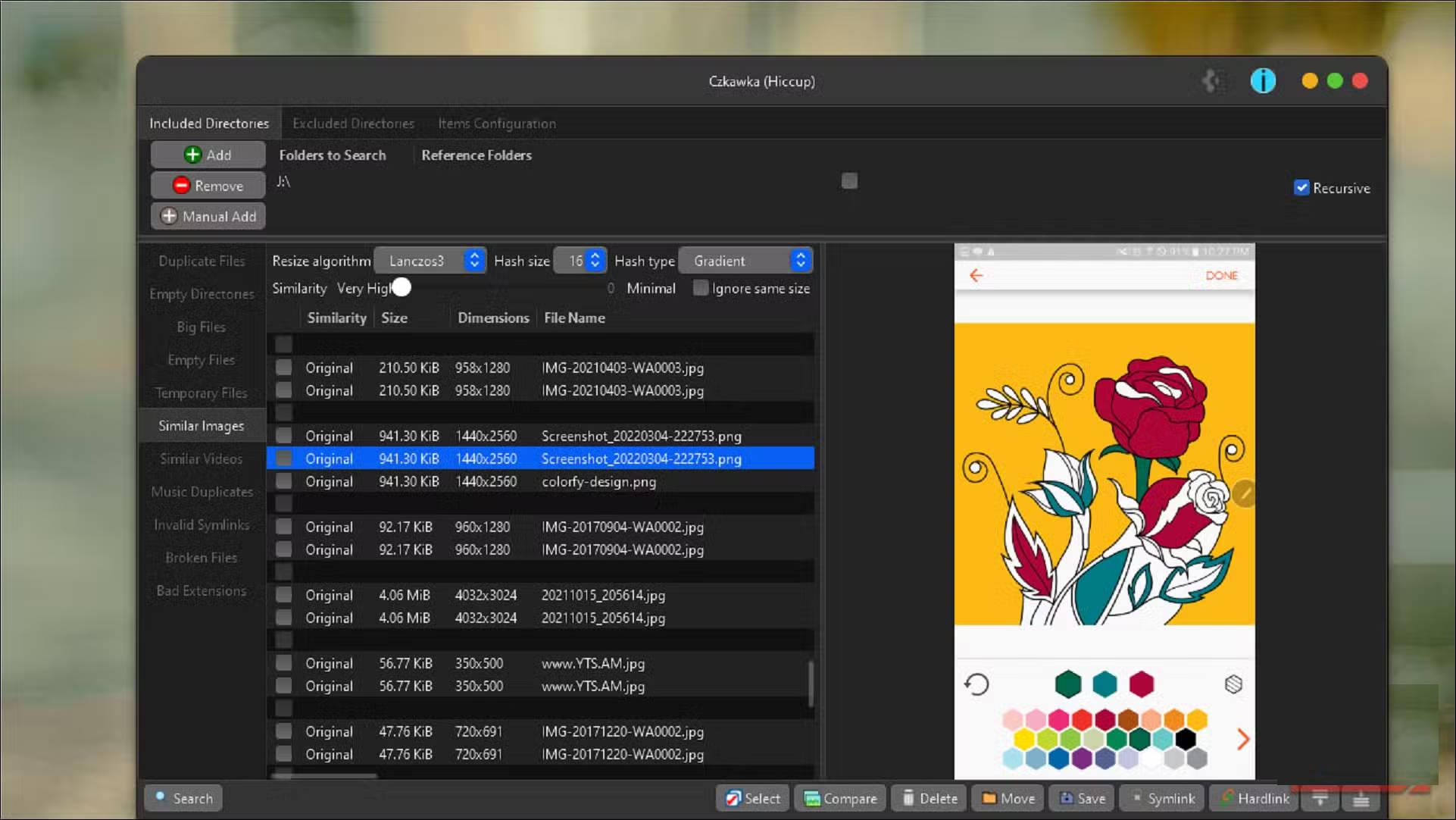
Running Czkawka on Windows is similar to installing any application from GitHub. So, go to the Czkawka repository on GitHub, click on Releases , and download the Windows GUI archive file from the Assets section. Extract the file, open the extracted folder, and run czkawka_gui.exe to run the portable executable.
The app has a macOS-inspired interface with three main windows at the top. In Included Directories , you add the folders you want to scan for duplicate files. You can add your entire Pictures folder, including years of phone backups scattered across multiple subfolders. If there are specific folders you want to exclude, switch to the second tab and add them as excluded folders.
On the left side, you'll see different modes: Duplicate Files, Similar Images, Similar Videos, and Music Duplicates. To clean up images, start with the Duplicate Files mode to find identical duplicates, then run the Similar Images mode to find close duplicates that the hash matching method would miss.
After selecting the mode, click Search . Czkawka scanned a 160GB photo library in less than 2 minutes on a SATA SSD, significantly faster than other duplicate file finder software. This speed comes from Rust's performance optimizations and multi-threaded scanning capabilities, so if you have a modern processor, expect quick results even with large folders.
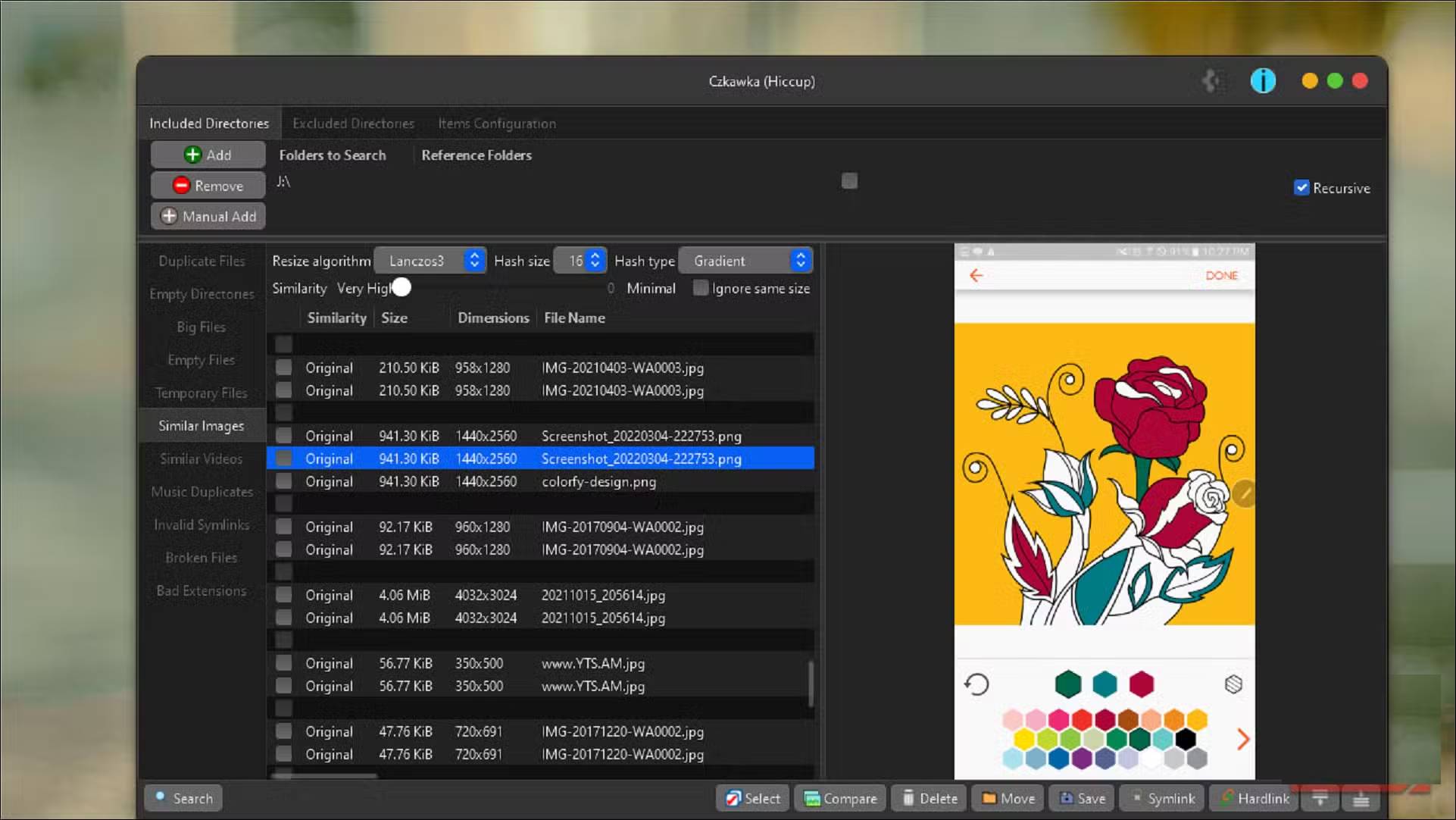
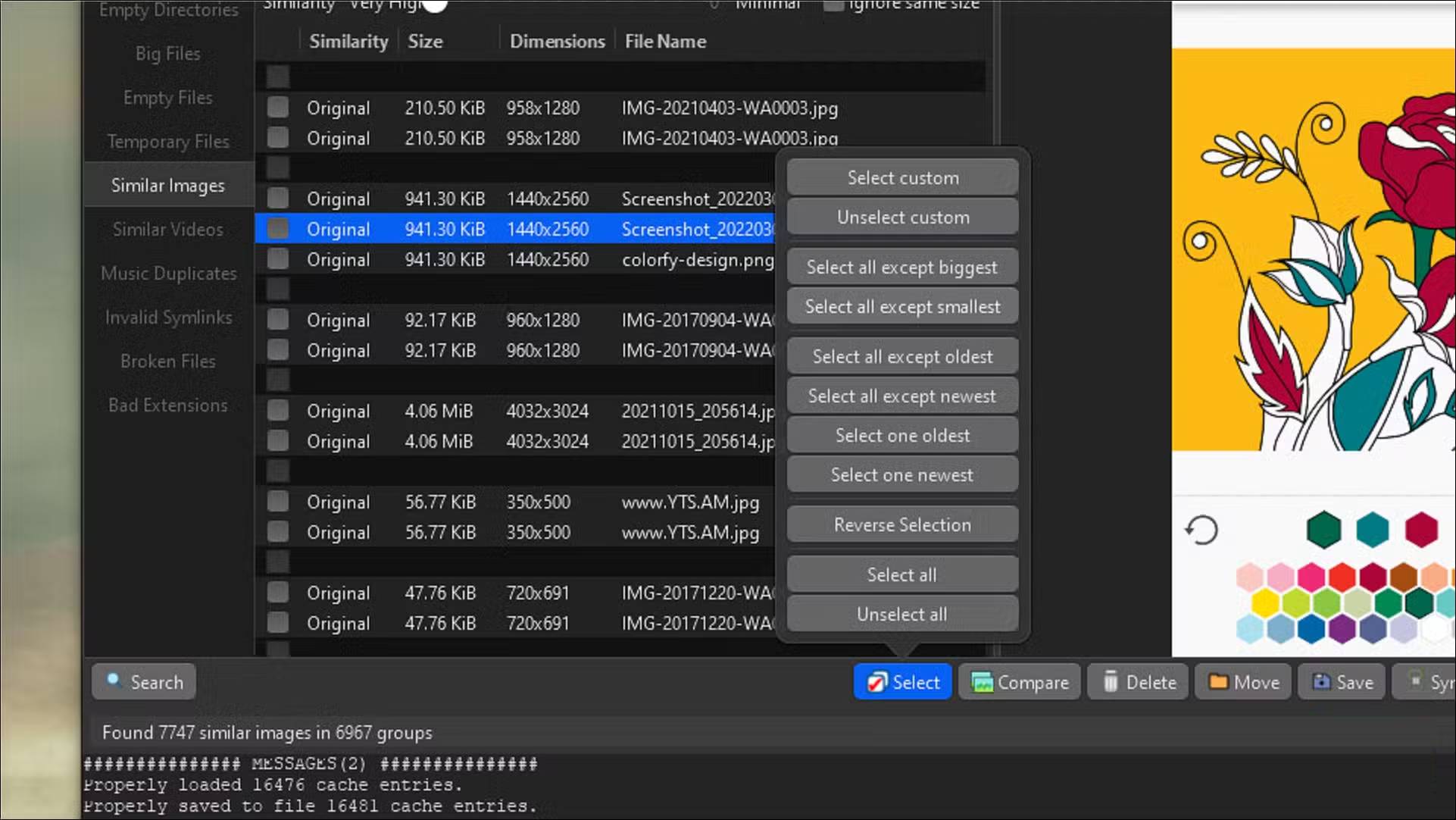
The results are displayed in grouped lists, each containing files that Czkawka identifies as duplicates or similar. You can sort by file name, size, or path to help decide which versions to keep. For images, clicking on an image in Similar Images mode will display a preview on the right, and pressing the Compare button will open a side-by-side view if you need to examine it more closely.
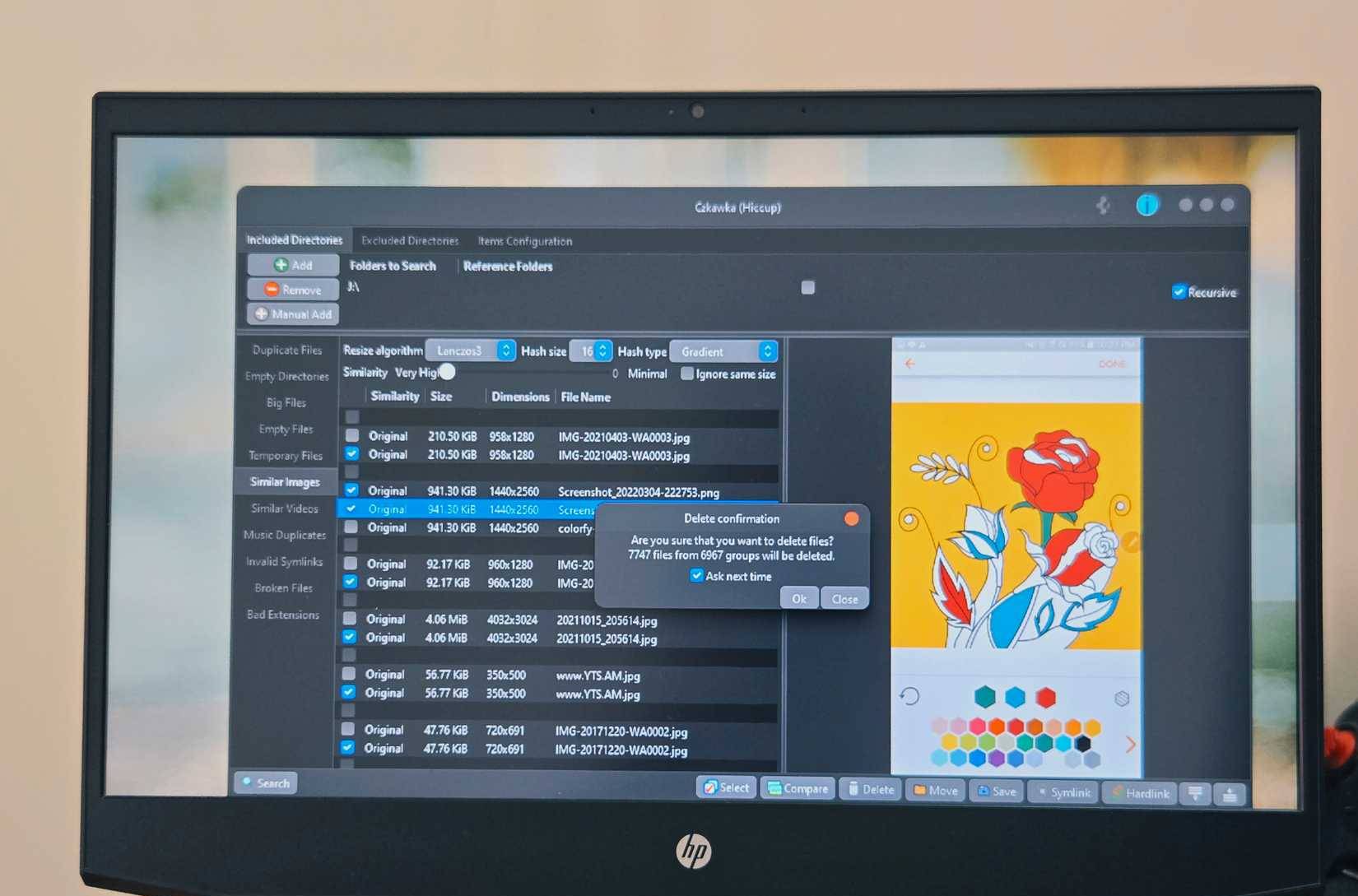
To delete duplicate files, you can manually select files within each group or use the Select button to set up automatic rules such as Select all except oldest or Select all except biggest . Once you've made your selections, click Delete to remove them. Czkawka will display a confirmation dialog before performing any permanent actions, which is helpful when you're about to delete thousands of files.
Final Thoughts
Understanding czkawka -- an open-source application that helps remove duplicate data makes it easier to evaluate the information and apply the most relevant recommendations. Focus on the key points above and verify details that may change over time.
FAQ
What is czkawka -- an open-source application that helps remove duplicate data?
Explore czkawka -- an open-source application that helps remove duplicate data.
What key points does this article cover?
The article focuses on What is Czkawka?, What is Czkawka doing?, Czkawka is a duplicate file finder, with practical explanations and examples.
How can you use this information in practice?
Use the explanations to compare options, verify important details, and make a more informed decision. Apply the recommendations that best match your goals and situation.
Related Articles
 How to Delete Duplicate App Icons on Android5 minutes read
 How to Find Duplicate Data in Excel6 minutes read
 How to Remove Duplicates in Excel: Filtering Excel Data5 minutes read
 5 Great Open Source Tools That Keep Your Personal Data Safe9 minutes read
 How to Delete Duplicate Contacts on Android6 minutes read
 How to Create Duplicate Data Entry Notifications on Excel4 minutes read
Reader Comments 0
Sign in with email or Google to join the discussion.