Table of Contents
A single-response evaluation checks each prompt independently. It is useful when you need to verify a specific answer, keyword, or tool call without carrying context from one question into the next. In Microsoft Copilot Studio, you collect these prompts in a test set, select one or more evaluation methods, and run them against the agent.
Use a conversation evaluation instead when success depends on information gathered across several turns.
Create a single-response test set
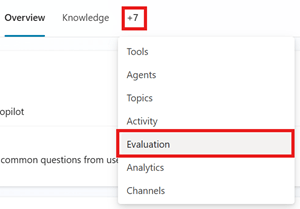
- Open the agent and go to Evaluation.
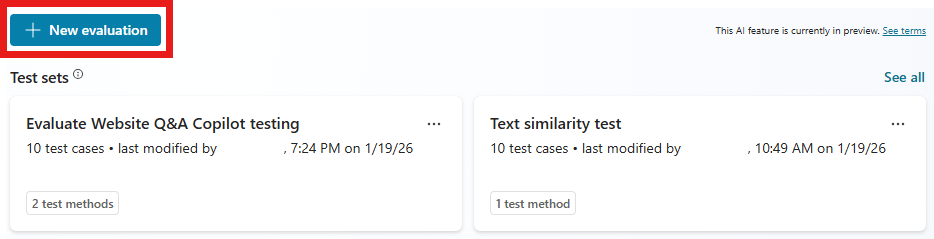
- Select New evaluation, then Single response.
- Choose how to create the cases: enter them manually, generate them from knowledge or topics, import a file, or start from an analytics theme.
- Give the test set a descriptive name, such as “Billing answers — release regression.”
- Add or adjust the evaluation methods for each case.
- Review every generated prompt and expected answer before running it.
- Select a user profile if the agent needs authenticated knowledge or tools.
- Select Save to keep the set without running it, or Evaluate to start a run.
Choose an evaluation method
| Method | What it checks | Result | What you provide |
|---|---|---|---|
| General quality | Overall response quality against defined characteristics. | Percentage score | No expected answer required |
| Compare meaning | Whether the response has the same meaning as the expected answer. | Percentage score | Expected answer and passing score |
| Tool use | Whether the agent used the expected tool or tools. | Pass or fail | Expected tool selection |
| Keyword match | Whether required words or phrases appear. | Pass or fail | Expected keywords or phrases |
| Text similarity | How closely the response text resembles the expected answer. | Percentage score | Expected answer and passing score |
| Exact match | Whether the response exactly equals the expected text. | Pass or fail | Expected answer |
| Custom | Whether the response meets criteria you define. | Labels such as pass or fail | Name, grading instructions, and labels |
Prefer meaning or custom criteria for answers that can be worded several ways. Exact matching is appropriate only when the output must be identical, such as a fixed code or strictly formatted value. Tool-use checks are more useful than wording comparisons when the agent's main job is to perform an action.
Create cases manually
Manual entry gives you the most control. Add questions drawn from real user intent, then specify the essential expected result. Include alternate wording and negative cases, but avoid near-duplicate prompts that inflate the score without increasing coverage.
Generate cases from knowledge or topics
Copilot Studio can generate questions from the knowledge sources and topics already attached to the agent:
- In the new evaluation workflow, choose the option for a complete question set.
- Select Knowledge or Topics.
- For knowledge, select the source to use.
- Choose the number of questions and select Generate.
- Review, correct, or remove each generated case before saving or evaluating.


This approach checks how the agent uses information it already has; it is not a reliable way to discover missing knowledge. Add independent cases for questions that the agent should decline, escalate, or answer from a source that has not yet been configured.
Import test cases from a CSV file
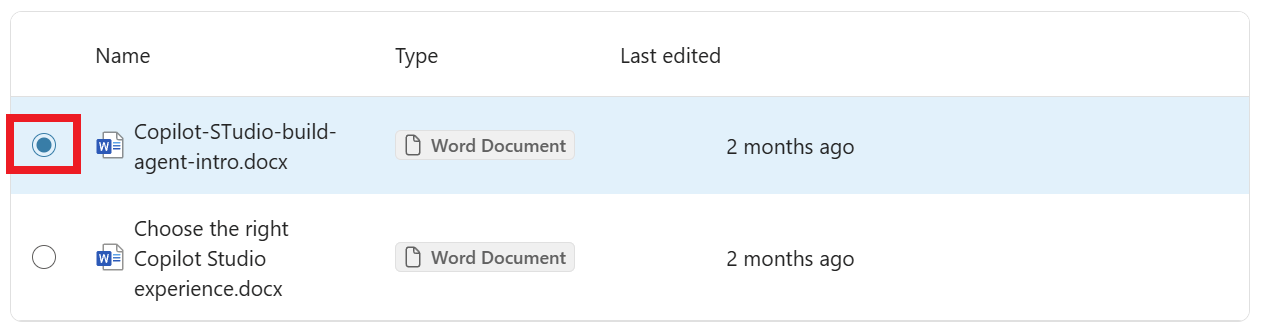
For a larger curated set, download the CSV template offered in the evaluation workflow and edit it in a spreadsheet application. Keep the required column names and order from that template. Each row should contain the question, evaluation method, and any expected response or criteria required by that method. Save the completed file as CSV or TXT, then import it into the new evaluation.

Validate a small file first. Spreadsheet applications can change quotation marks, delimiters, line breaks, and character encoding, so inspect imported cases before running them.
Create a test set from an analytics theme
If the agent has enough conversation analytics to produce themes, you can start with questions associated with a particular theme:
- Open Analytics and locate the theme.
- Point to the theme and select Evaluate. If needed, open the complete themes list first.
- Select Create and open.
- Review the cases, expected responses, and evaluation methods.
- Save the set or run the evaluation.
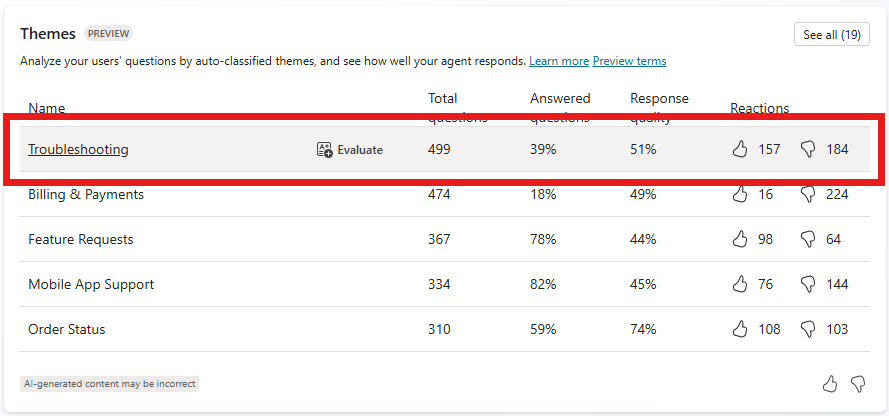
Theme-based sets are useful for monitoring a distinct area such as billing or troubleshooting, but user-derived prompts may contain sensitive data. Apply your organization's privacy and retention rules before using them as tests.
Authentication and data-safety checks
The selected user profile supplies the identity used to access authenticated knowledge and tools during the evaluation. Choose an account with the intended permissions; otherwise tool and connector cases may fail for authentication reasons rather than agent logic.
Generated cases can include information accessible to that account, and other makers with access to the agent may be able to view its test sets. Remove sensitive content and use a dedicated test identity with the least privileges necessary.
Limits and maintenance
A single-response test set supports up to 100 cases. Generated cases can fail when their content conflicts with the agent's moderation settings. Correct the source, prompt, instructions, or moderation configuration rather than repeatedly submitting the same blocked material.
Copilot Studio retains evaluation results for a limited period; the source documentation states 89 days for this workflow. Export important results if your audit or comparison period is longer, and confirm the current retention policy in your tenant.
After creating the set, learn how to edit individual test cases and review evaluation results.
Related Articles
 Edit Test Cases in the Test Toolkit5 minutes read
 How to Format Multiple Choice Exercises in Ispring Suite6 minutes read
 Dont Complain About Why Youre Single, This Is the Answer for You6 minutes read
 How to Create Multiple Choice Exercises with Ispring Suite6 minutes read
 Change the Details of the Test Kit8 minutes read
 How to Fix Errors When Using Ispring Suite: Ispring Suite Error4 minutes read
Reader Comments 0
Sign in with email or Google to join the discussion.