Table of Contents
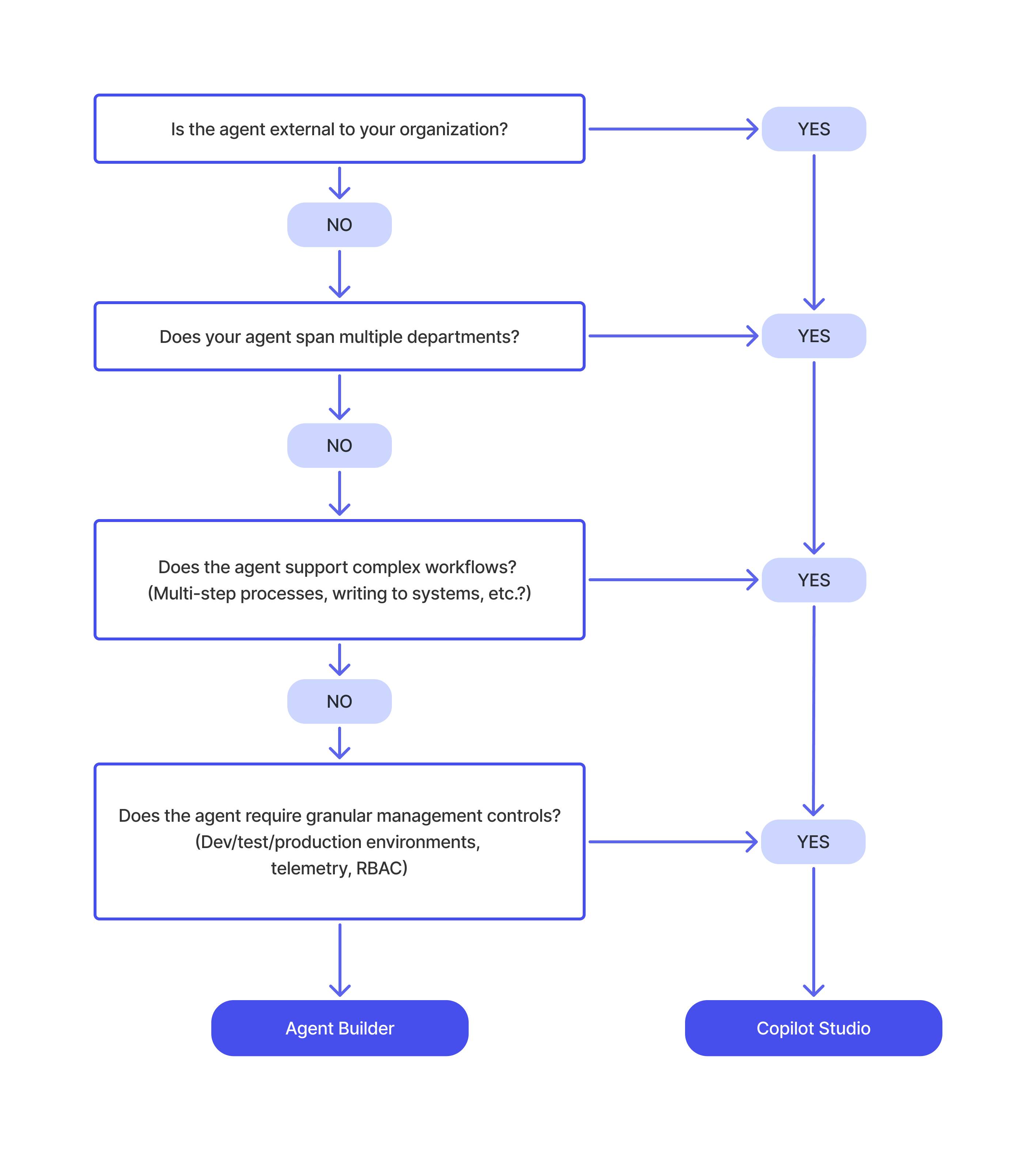
Use Agent Builder in Microsoft 365 Copilot for a quick, lightweight agent that answers questions from Microsoft 365 or web knowledge inside the Copilot experience. Use Copilot Studio when the agent needs multi-step logic, actions, external systems, autonomous triggers, broader publishing, or formal development and deployment controls.
Feature comparison
| Decision point | Microsoft 365 Copilot Agent Builder | Copilot Studio |
|---|---|---|
| Best fit | Focused knowledge and coaching agents for an individual or small team | Departmental, organization-wide, customer-facing, or process-oriented agents |
| Authoring | Natural-language builder inside Microsoft 365 Copilot | Dedicated low-code web application with richer configuration |
| Knowledge | Microsoft 365 content, SharePoint, supported Copilot connectors, and web sources subject to plan and policy | Knowledge sources plus Dataverse, connectors, APIs, tools, topics, and other supported agents |
| Actions and logic | Designed for straightforward declarative-agent scenarios; advanced external actions require Copilot Studio | Multi-step logic, branching, approvals, agent flows, workflows, tools, and autonomous triggers |
| Publishing | Used in supported Microsoft 365 Copilot experiences and shared within the organization | Teams, Microsoft 365 Copilot, websites, and other supported channels |
| Lifecycle | Simple create, test, share, and administrative inventory | Solutions, versioning, development/test/production environments, pipelines, telemetry, and role-based controls |
| Primary administration | Microsoft 365 admin center | Power Platform admin center, with Microsoft 365 controls where relevant |
Choose Agent Builder when the job is knowledge-centered
Agent Builder is appropriate when a user wants to assemble instructions and approved content without leaving Microsoft 365 Copilot. Typical examples include:
- A project FAQ grounded in a team SharePoint site.
- An onboarding guide that explains team processes and points to documents.
- A writing or presentation coach based on organizational standards.
- A product-documentation assistant for a small internal audience.
The agent respects each user's existing Microsoft 365 permissions; it does not grant access to a SharePoint site, mailbox, or Teams content the user cannot otherwise open. However, permissions can still be overly broad at the source, so test with multiple identities and fix oversharing.
Choose Copilot Studio when the agent must do more
Copilot Studio is the better fit when the agent must:
- Create a ticket, update CRM data, start an approval, or call an external API.
- Use deterministic topics, entities, variables, or multi-step workflows.
- Run from an event or schedule without a user starting a chat.
- Serve customers, a full department, or users outside Microsoft 365 Copilot.
- Move through managed development, test, and production environments.
- Expose telemetry, connections, data policies, and publishing to dedicated administrators.
For example, an IT help-desk agent can classify a request, collect required fields, check an asset system, create a ticket, and route an exception to a person. That process needs more than knowledge retrieval.
You can copy an Agent Builder agent to Copilot Studio
If a lightweight agent outgrows Agent Builder, copy it to Copilot Studio. Microsoft states that core configuration and instructions are preserved, after which makers can add connectors, tools, workflows, channels, and governance controls.
Treat the copy as a new deployment, not an automatic upgrade. Recheck knowledge permissions, authentication, sharing, connections, environment policy, test results, and ownership before publishing the Copilot Studio version.
Licensing is not the whole architecture
Microsoft currently includes both Agent Builder and Copilot Studio capabilities with a Microsoft 365 Copilot add-on license for authenticated users. Without that license, Copilot Credits or pay-as-you-go options may support eligible scenarios. Agent Builder can also create web-grounded agents under free Copilot Chat conditions.
Licensing, capacity, channel rights, and feature availability change. Confirm the expected users, monthly usage, tenant settings, and billing model in Microsoft's current documentation rather than assuming that “included” means unlimited or covers external users.
Governance differences
Agent Builder
Administrators use Microsoft 365 controls to view agent inventory and metadata, manage availability and sharing, review usage, and apply supported Purview auditing, sensitivity, retention, and data-loss controls. An agent does not create new Microsoft 365 privileges.
Copilot Studio
Power Platform administrators manage environments, security roles, data policies, connectors, capacity, publishing, and solution lifecycle. Makers can separate development, test, and production and use telemetry to monitor behavior. Agents published to Microsoft 365 still interact with Microsoft 365 administration and compliance controls.
Four questions that usually decide it
- Audience: one person or small internal team, or a broader/external population?
- Action: answer from content, or change a business system?
- Channel: only Microsoft 365 Copilot, or Teams, web, and custom channels?
- Lifecycle: simple sharing, or managed environments, testing, releases, and operational monitoring?
If the answers are small audience, knowledge-only, Microsoft 365, and simple sharing, start with Agent Builder. If any answer requires broader execution or governance, start in Copilot Studio.
Microsoft's official comparison tracks current capabilities and licensing. For the full platform, read our Copilot Studio overview and security controls guide.
Related Articles
 Overview of Copilot Studio11 minutes read
 Evaluating Agent Performance in Microsoft Copilot Studio15 minutes read
 Check the Copilot Studio Agent7 minutes read
 Upload Files as Knowledge in Microsoft Copilot Studio12 minutes read
 Add Copilot Connectors to Copilot Studio Agents8 minutes read
 Copilot Studio Knowledge Sources: Complete Guide10 minutes read
Reader Comments 0
Sign in with email or Google to join the discussion.