Table of Contents
In Microsoft Copilot Studio, you can edit questions, multi-turn conversations, reference responses, keywords, and expected tool use inside a test set. Save each case with Apply, then save the whole test set or run Evaluate. Use reviewed, realistic cases so a passing score reflects behavior that matters to users.
Edit a single-response test case
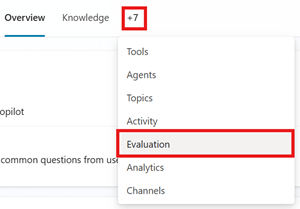
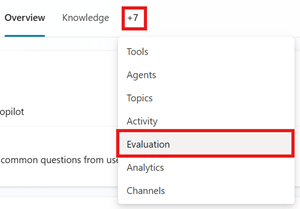
- Open the agent and go to Evaluation.
- Select the relevant test set.
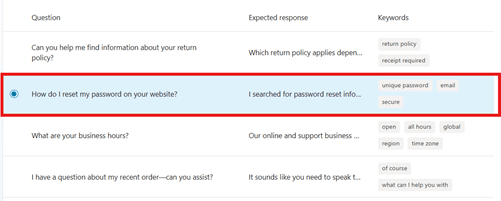
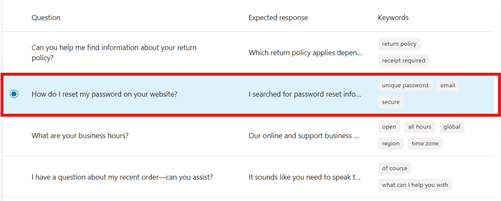
- Select the test case you want to change.
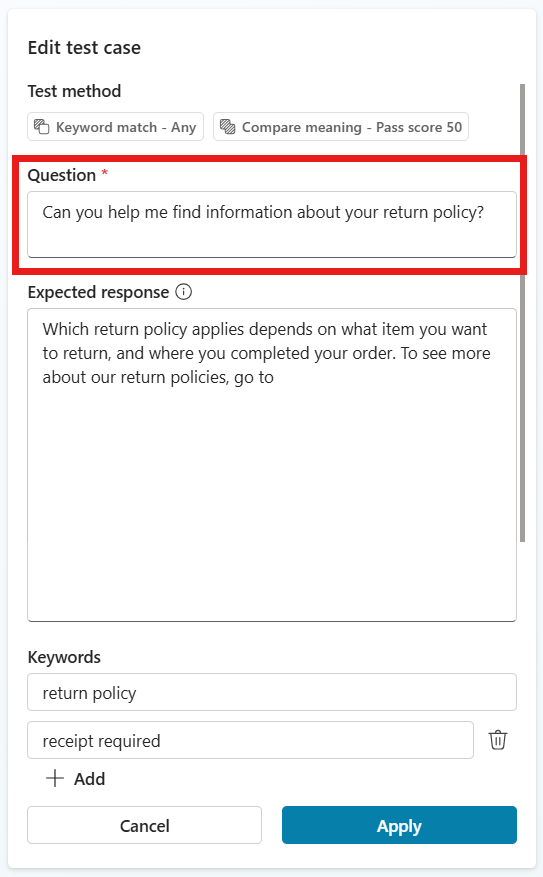
- Edit the text in the Question field.
- Complete any fields required by the test methods, such as expected answer, keywords, pass score, or expected capability.
- Select Apply.
- When all cases are ready, select Save or Evaluate.
Configure the expected outcome
Each evaluation method needs different case data. Do not paste the same expected answer into every field.
| Method | What to provide for the case |
|---|---|
| General quality | No fixed expected answer is required |
| Compare meaning | A reference answer that captures the required meaning |
| Tool use | The tool or topic the agent is expected to use |
| Keyword match | Required words or phrases, with Any or All matching |
| Text similarity | An expected answer whose wording should be similar |
| Exact match | The exact output expected |
| Custom | Clear evaluation instructions and pass labels |
Write reference answers around the facts and actions that must be present. Avoid unnecessary wording that could penalize a correct paraphrase. Reserve exact match for deterministic responses such as a fixed code or tightly formatted value.
Edit a conversation test case
Conversation evaluations test behavior across multiple turns. They are useful for clarification, context retention, follow-up questions, and workflows where the agent must gather information before acting.
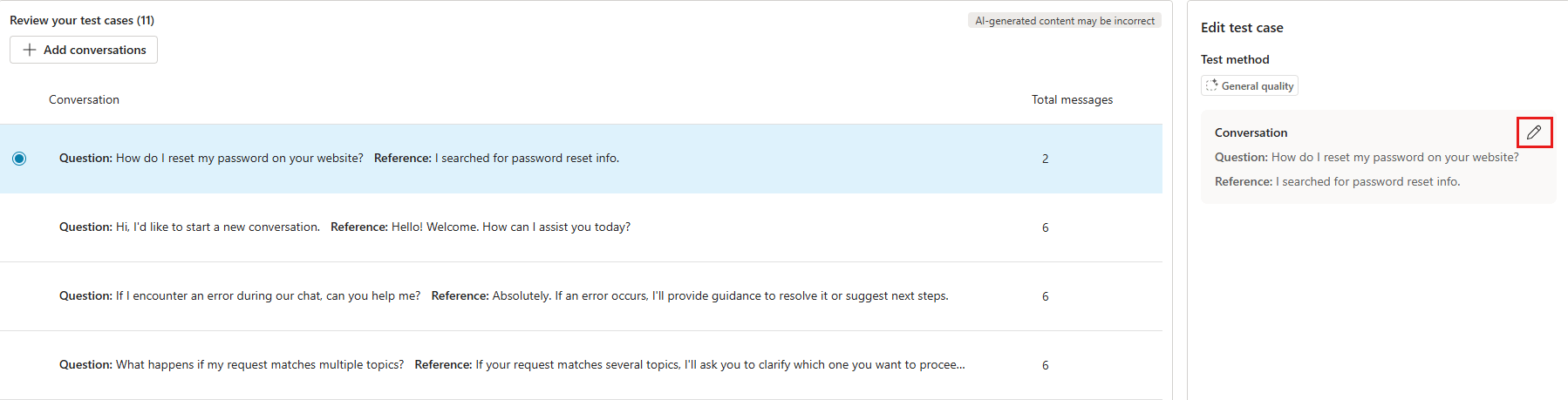
- Open the test set from the Evaluation page and select the conversation.
- In the right pane, select the edit icon.
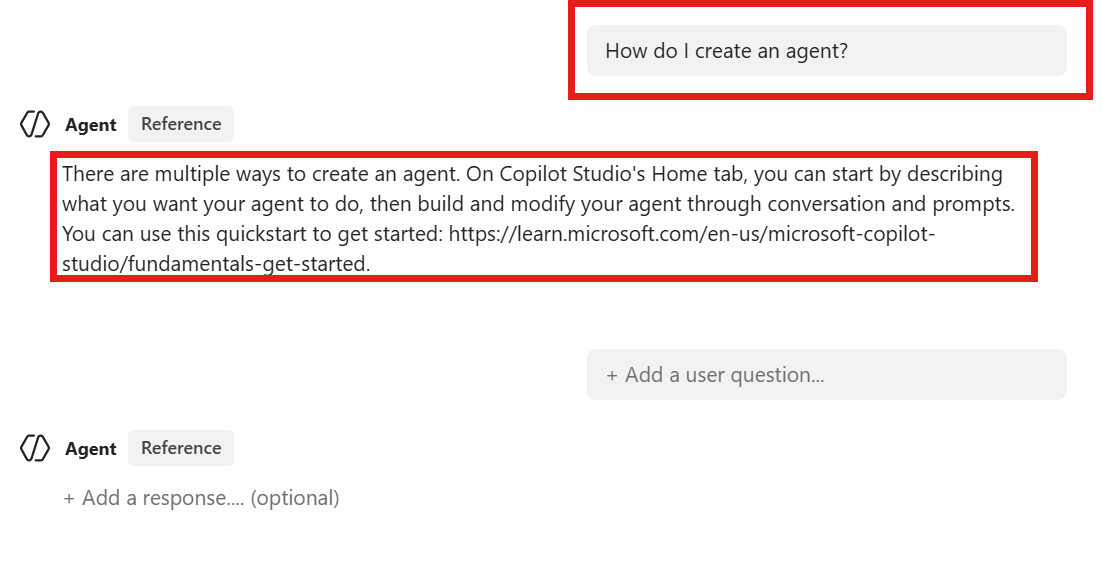
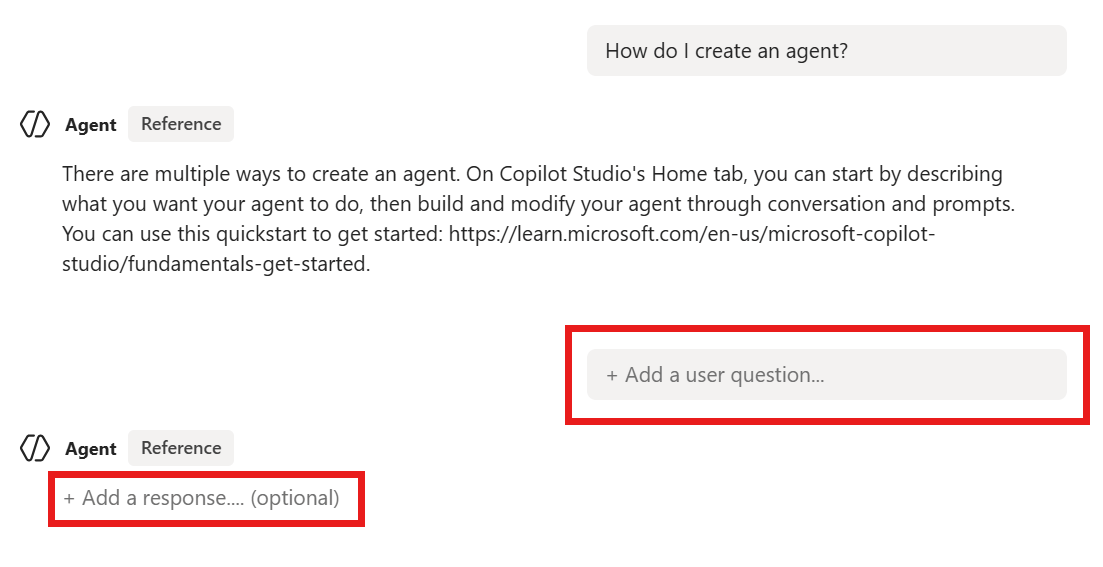
- Select a user message or agent reference response to change it.
- Optionally select Add a user question to extend the scenario.
- Select Done to close the conversation editor.
- Complete any fields required by the selected test methods.
- Select Apply, then save the test set or run the evaluation.
Keep each turn purposeful. If a reference response assumes information the user has not supplied, add a turn in which the agent asks for it. Also include a case where the user changes a detail or corrects an earlier statement.
Add more cases to an existing test set
- Open the test set from the agent's Evaluation page.
- Select Add questions for single-response tests or Add conversations for multi-turn tests.
- Choose an available source: write a case manually, generate additional cases, import supported data, or use another option shown in the current interface.
- Open each new case and add the required expected outcomes.
- Apply the case changes and save the test set.

What makes a useful test case?
- One clear purpose: each case should reveal a specific success or failure.
- Real language: preserve spelling, abbreviations, and ambiguity seen in actual user requests.
- Verified expectation: a subject-matter owner should approve important reference answers.
- Permission awareness: the expected result must match the selected user profile's access.
- Stable scoring: do not require exact wording when meaning is what matters.
- Negative coverage: include unsupported, unsafe, and out-of-scope requests that should be declined.
Avoid common test-set mistakes
- Editing a case but forgetting to select Apply.
- Applying case changes but forgetting to save the test set.
- Using AI-generated cases without checking their facts or expected answers.
- Adding many near-duplicate questions that inflate the pass rate.
- Changing both the agent and test expectations merely to make a failure disappear.
- Comparing runs made with different accounts, connections, or test cases as if they were equivalent.
When an agent changes, keep a stable regression set and add new cases for the failure that motivated the change. Run the same saved set before and after the update. Microsoft's current test-case editing guide documents the interface and supported methods. For set-level settings, see our guide to editing a Copilot Studio test set.
Related Articles
 Change the Details of the Test Kit8 minutes read
 Download Monokai Toolkit -- the Handy Toolkit for Facebook on2 minutes read
 Learn About Flash Memory Toolkit6 minutes read
 Build React Apps with Blueprint UI Toolkit7 minutes read
 It Took South Korea Only 3 Weeks to Produce the Covid-19 Test11 minutes read
 Download the Google Cloud Connect Toolkit for Microsoft Office2 minutes read
Reader Comments 0
Sign in with email or Google to join the discussion.