Table of Contents
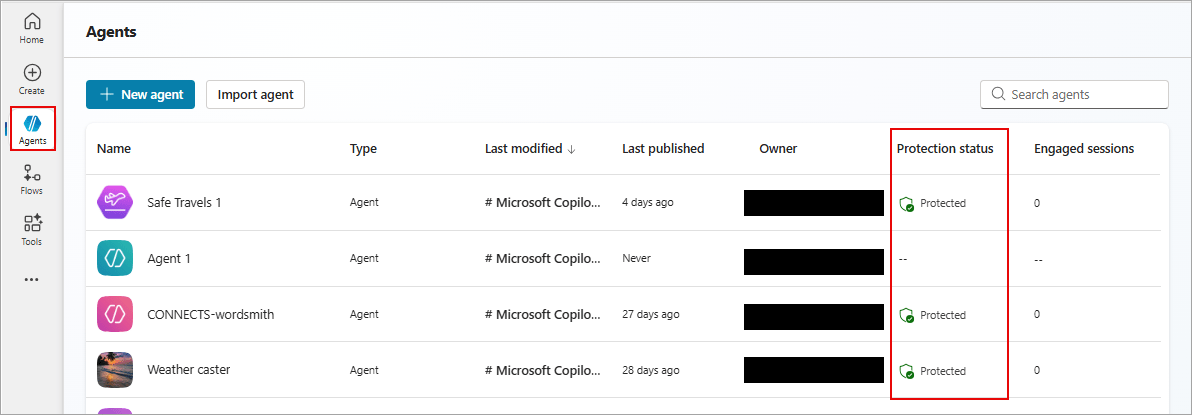
Copilot Studio shows a runtime protection status for each published agent on the Agents page. The status helps makers spot authentication or policy problems and review blocked-message trends, but it is a signal to investigate—not a complete security certification.
Protection status values
- Protected: Copilot Studio has not detected an immediate issue in the evaluated signals. A green shield appears beside the status.
- Needs review: Authentication is inadequate or the agent conflicts with an organizational policy. Open the details and correct the identified condition.
- Unknown: Copilot Studio cannot provide a conclusive protection assessment. Investigate the agent rather than assuming it is safe.
All published agents have threat detection enabled and display an Active label. A Protected result reflects the signals Copilot Studio currently evaluates; it does not prove that source permissions, tools, custom code, or every business risk have been reviewed.
Open the protection summary
- In Copilot Studio, open the Agents page.
- Find the published agent and select its value in the Protection status column.
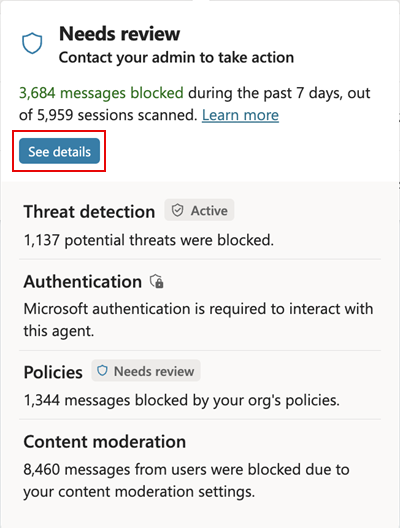
- Review the Authentication, Policies, and Content moderation categories in the summary.
- Note the number of blocked messages and select See details for security analytics.
The summary uses the same Protected, Needs review, and Unknown labels. An Authentication or Policies result of Needs review rolls up to the agent-level status. Content moderation appears in the statistics, but Microsoft states that it does not directly determine the protection-status label.
What each security category means
| Category | What it shows | What to do |
|---|---|---|
| Threat detection | Statistics for prompt attacks that were blocked, including direct and indirect threats. | Investigate spikes, affected agents, and repeated attack patterns. Correlate them with audit and incident data where available. |
| Authentication | Whether end-user authentication is required or the agent is public. | Select Open settings, then go to Settings > Security > Authentication. Require authentication when the agent can reach nonpublic data or actions. |
| Policies | Conflicts with policies configured by administrators, such as a blocked connector. | Select Review errors and change the agent to comply. Only change the organizational policy when the exception is justified and approved. |
| Content moderation | Blocked-message trends associated with the configured moderation level. | Open Settings > Generative AI and review Moderation > Content moderation level. Test the setting against the use case. |
Use Security analytics
The Security analytics dialog shows blocked-message counts and trends for the last 7, 14, or 30 days when data is available. The Reason for block stacked bar chart separates blocking reasons, while Session block rate trend shows the share of sessions containing a blocked prompt over time.
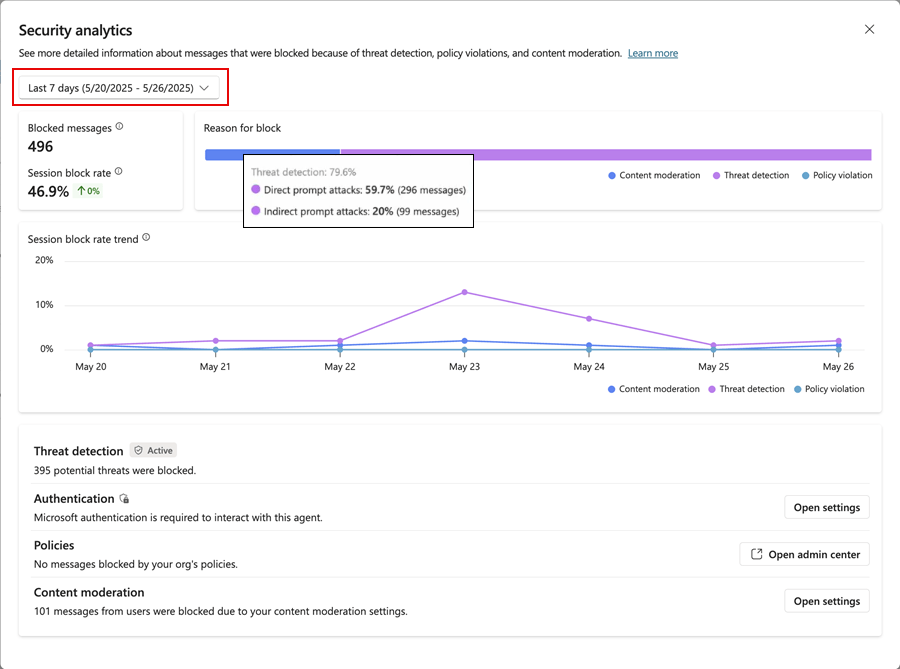
Use the charts to identify changes, not just totals. A sudden rise can follow a public launch, a new knowledge source, an attack campaign, or an overly restrictive configuration. Review sample sessions and recent agent changes before deciding which explanation fits.
What to check when the status needs review
- Confirm the agent's audience and authentication mode.
- Remove or replace tools and connectors blocked by data policy.
- Check that every knowledge source enforces the intended user permissions.
- Review moderation settings and legitimate messages that were blocked.
- Run security-boundary cases through your Copilot Studio agent tests.
- Confirm audit logging and ownership using the broader Copilot Studio security controls.
Recheck protection status after remediation and after any material change to authentication, tools, knowledge, channels, or policy. See Microsoft's runtime protection documentation for the current interface and supported signals.
Related Articles
 What Is Runtime Application Self-protection? How Does RASP8 minutes read
 Deploy Data Protection Manager 2007 (Part 3)11 minutes read
 What Is Runtimebroker.exe or Runtime Broker and Why Is It Running6 minutes read
 How to Fix Runtime Error R6034 on Windows5 minutes read
 What Is an Agent Harness?13 minutes read
 How to Fix Runtime Error in Windows8 minutes read
Reader Comments 0
Sign in with email or Google to join the discussion.