Table of Contents
Classic agents created with the Copilot Studio for Teams plan can include sample lesson topics that demonstrate the topic editor. The examples progress from a one-message answer to conversations that use questions, variables, conditions, and entities. They are learning material, not production-ready HR, retail, or customer-service content.
Since the end of June 2026, the older Copilot Studio for Teams authoring app redirects makers to the Copilot Studio web app. These lessons apply only to classic-orchestration agents; a newer agent or different license may show a different interface or no lesson topics.
Before editing the samples
- Create a test agent rather than experimenting in a published production agent.
- Duplicate a lesson topic before changing it so you can compare the original flow.
- Use the test panel and variable inspector after each change.
- Replace sample dates, store hours, links, and product names before reusing any pattern.
- Do not publish sample trigger phrases that could overlap with real topics.
Lesson 1: A simple topic
The first lesson normally answers a straightforward question such as store opening hours. Inspect:
- the topic name and description;
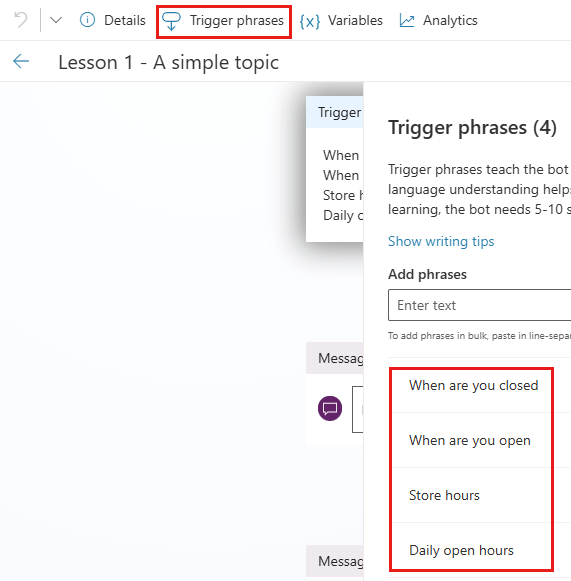
- the trigger phrases that route a message to the topic; and
- the message node that returns the answer.
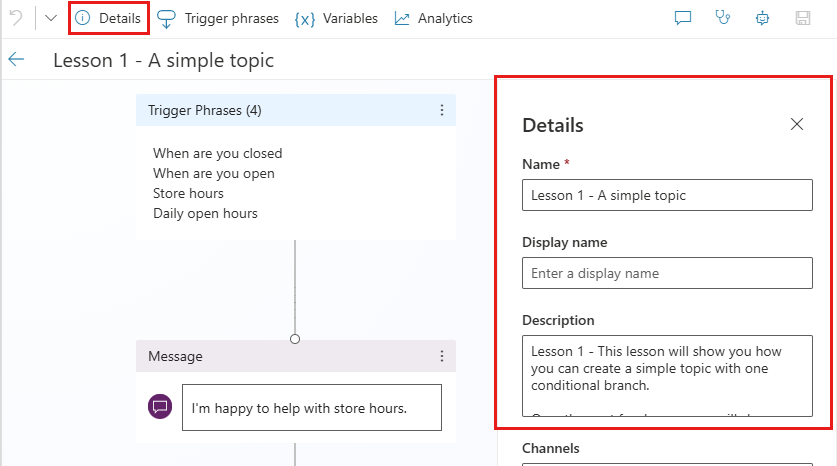
Test several natural phrasings, including one that should not trigger the topic. A trigger list should cover intent variations without using broad words such as “help” that compete with unrelated topics.
Lesson 2: Questions, variables, and conditions
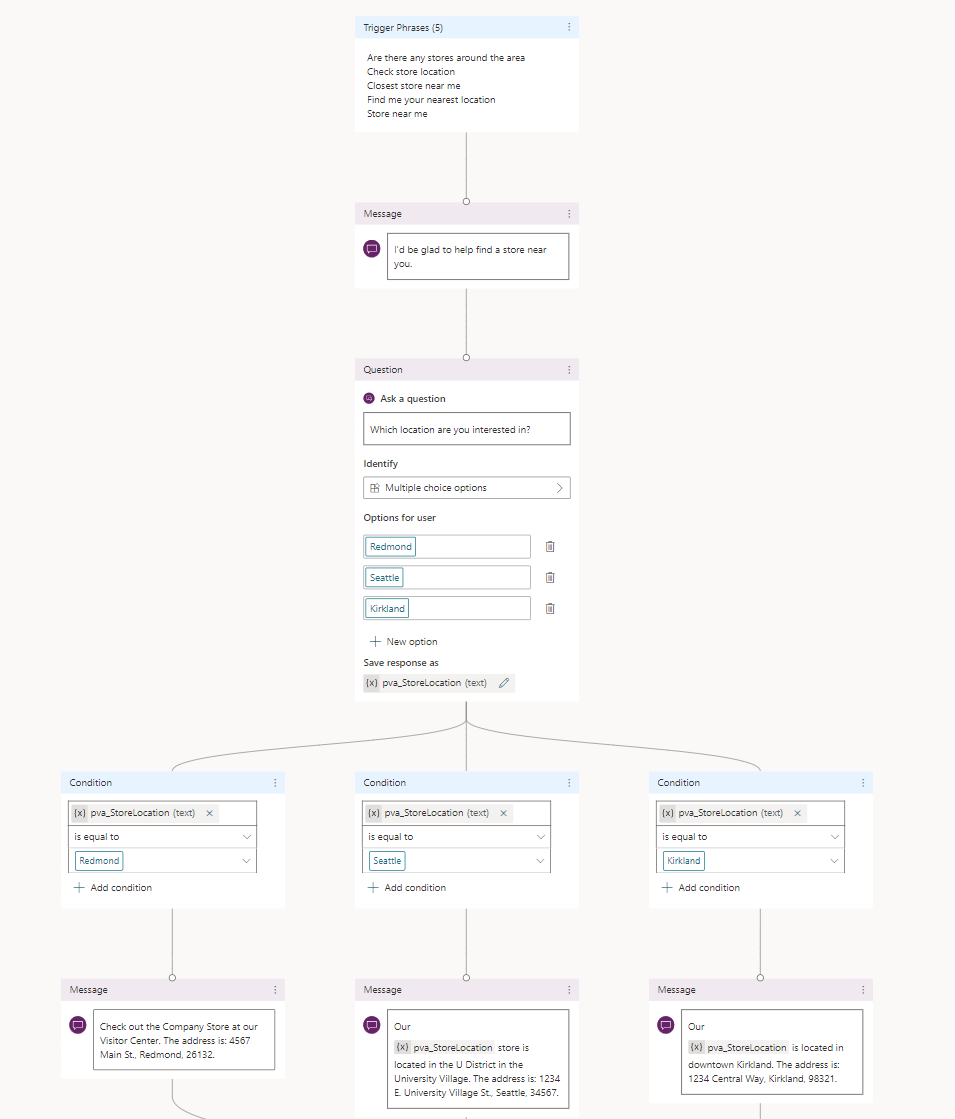
The second lesson asks which store the user means, stores the response in a variable, and branches to the appropriate message. It demonstrates three important ideas:
- A question node gathers a missing value.
- A variable such as
StoreLocationstores the answer. - Condition nodes compare that value and choose a branch.
Rename generated variables to describe their meaning and scope. Add an else path for an unexpected or unsupported location instead of leaving the conversation with no useful response.
Lesson 3: Built-in entities
This lesson uses a built-in entity, such as a US state or color, to recognize structured information in a user response. The normalized entity value is saved to a variable and used in later conditions.
If the opening message already contains the value—“Ship it to Oregon,” for example—slot filling may populate the variable before the question node is reached. The agent can then skip the redundant question.
Test spelling variations, two values in the same message, an unsupported value, and a sentence where the same word has another meaning. Entity recognition is probabilistic and should be confirmed before a consequential action.
Lesson 4: A custom entity
The fourth lesson combines a conditional branch, variable, and custom closed-list entity. A phrase such as “I want a business laptop” can identify business laptop as the requested category and skip a category question.
Open the custom entity and inspect its canonical values, synonyms, and Smart matching setting. Add synonyms only when they have the same intended meaning. For a large or changing catalog, query an authorized data source rather than copying hundreds of products into a closed list.
Review a lesson topic step by step
- Open the classic agent’s Topics page.
- Select Lesson 1 — A simple topic or the next available lesson.
- Open Details and review the name, description, status, and scope.
- Open the trigger and examine its phrases.
- Follow every node from the trigger to the end, noting questions, variables, conditions, and entity references.
- Open the test panel, reset the session, and enter a matching phrase.
- Watch the highlighted path and variable values.
- Repeat with an alternate phrase, missing value, invalid value, and nonmatching intent.
Turn a sample into a production pattern safely
Copy the structure, not the sample content. A real topic needs:
- an identified content owner and review date;
- current answers from an authoritative source;
- permission-aware access to internal information;
- validation and confirmation for important inputs;
- clear handling of unsupported, ambiguous, and failed cases;
- a privacy-safe escalation route; and
- repeatable tests before each publication.
Remove or disable the lesson topics before publishing if their triggers could be reached by users. Otherwise an employee might receive fictional store hours or other sample data.
Related guides
Continue with the detailed guide to entities and slot filling, then learn how to test the agent and publish a classic agent to Teams. Microsoft’s current Teams-plan quickstart explains the plan and authoring limitations.
Related Articles
 5 Best Apps to Try Multiple AI Chatbots at Once11 minutes read
 Guide to Creating Lesson Plans Using NotebookLM4 minutes read
 Experience AI Chatbots for Free on the Same Website5 minutes read
 Twitter Allows You to Follow 'Topics'4 minutes read
 Online Gaming Platforms: the Role of Chatbots6 minutes read
 Prompt Template for Building Lesson Objectives in NotebookLM4 minutes read
Reader Comments 0
Sign in with email or Google to join the discussion.