Table of Contents
X, formerly Twitter, lets you mute words, phrases, usernames, emojis, and hashtags so unwanted topics appear less often in your notifications and timeline. The controls are available on both mobile and desktop.
How to Mute Keywords and Hashtags in the X Mobile App
Step 1: Open the X app, tap your profile picture, and expand Settings and Support .

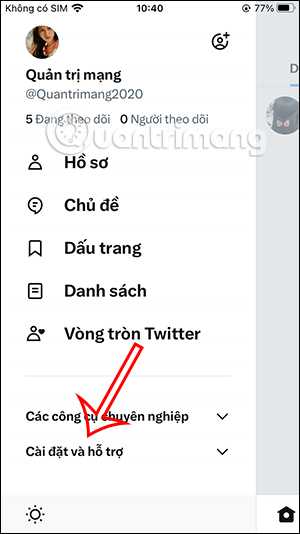
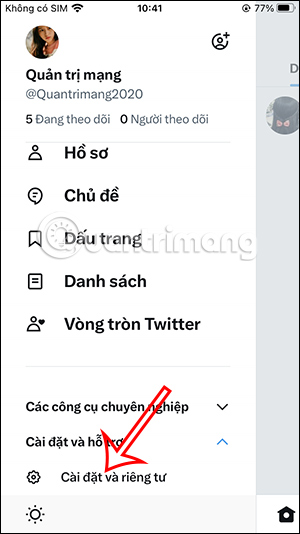
Step 2: Choose Settings and privacy , then open Privacy and safety .
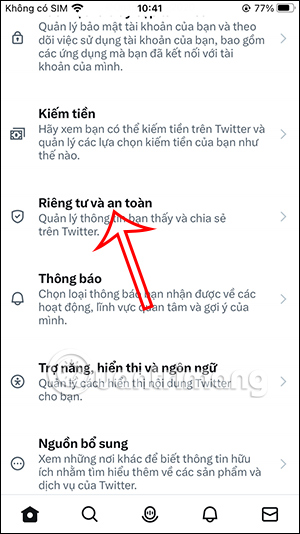
Step 3: Select Mute and block , then open Muted words .
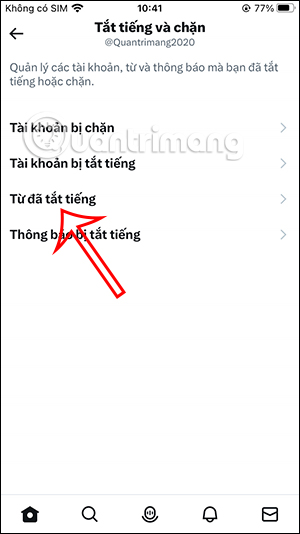
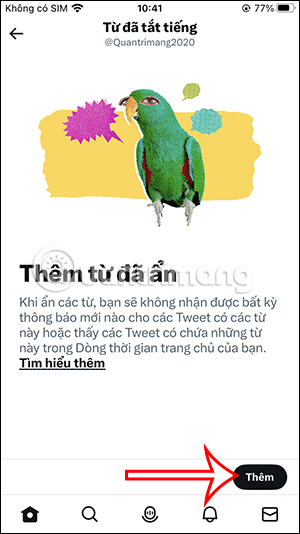
Step 4: Tap the add button and enter the word, phrase, username, emoji, or hashtag you want to mute.
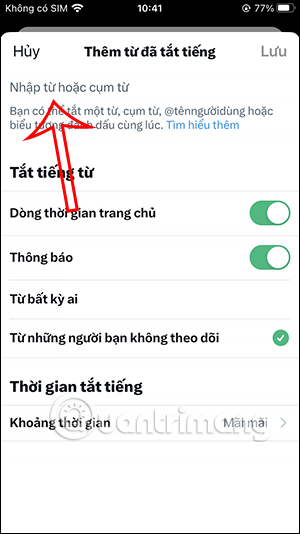
Step 5: Choose whether the filter applies to the Home timeline, notifications, or both. You can also select who the filter applies to and how long it should remain active.
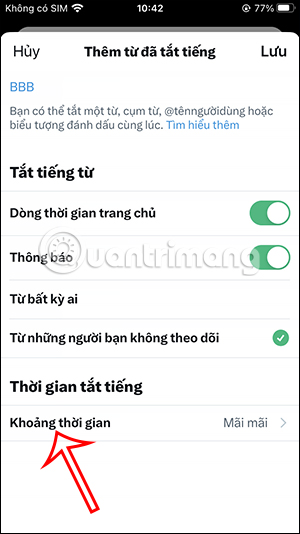
Step 6: Save the rule. X will apply the mute settings according to the options you selected.

How to Unmute a Keyword or Hashtag
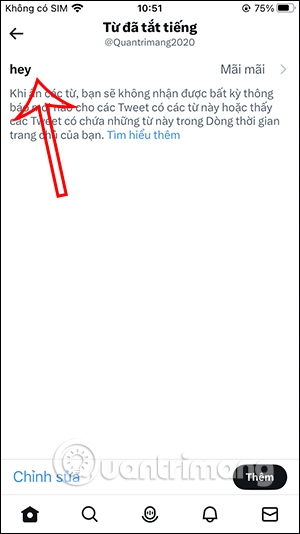
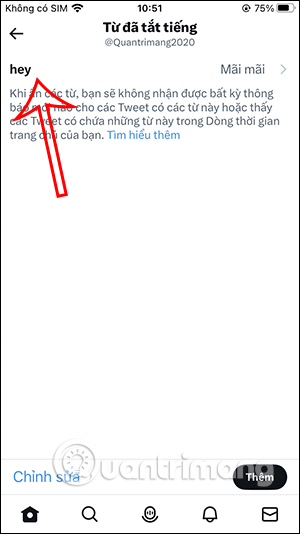
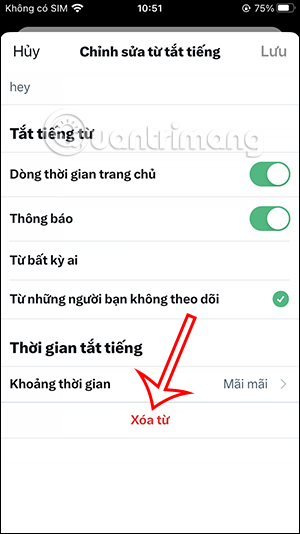
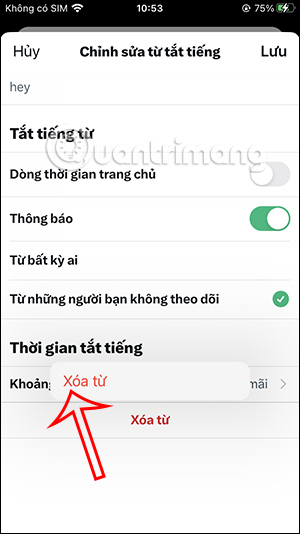
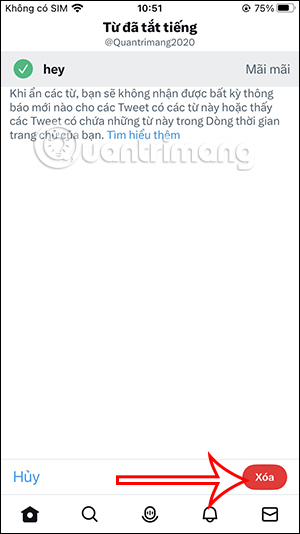
Return to Muted words , select the saved rule, and choose the option to delete or unmute it. The topic can begin appearing again after the change is saved.
How to Mute Keywords and Hashtags on Desktop
Step 1: Sign in to X in a web browser and select More from the left navigation.
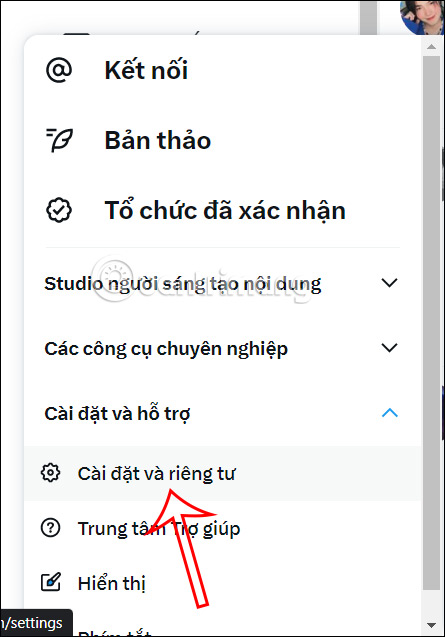
Step 2: Open Settings and privacy , then choose Privacy and safety .
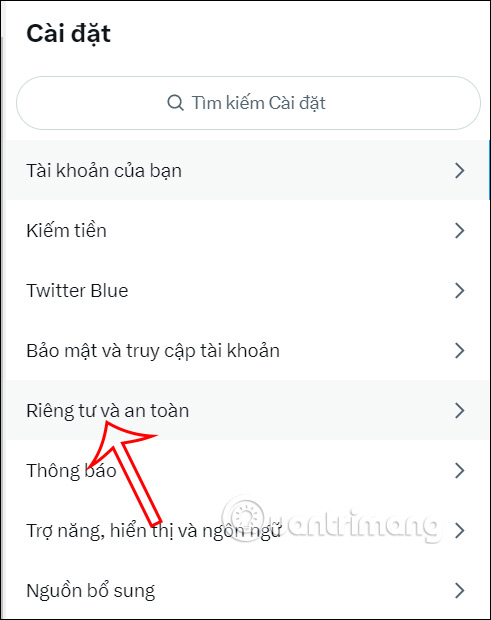
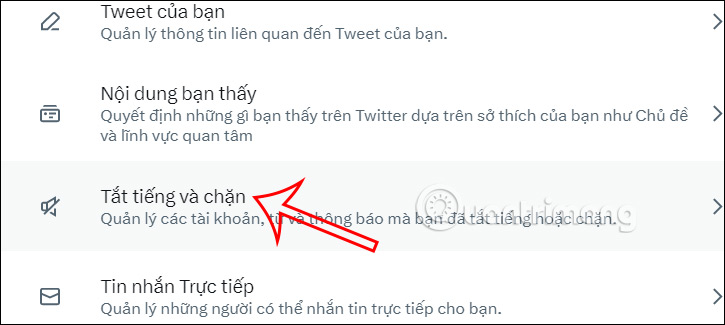
Step 3: Select Mute and block followed by Muted words .
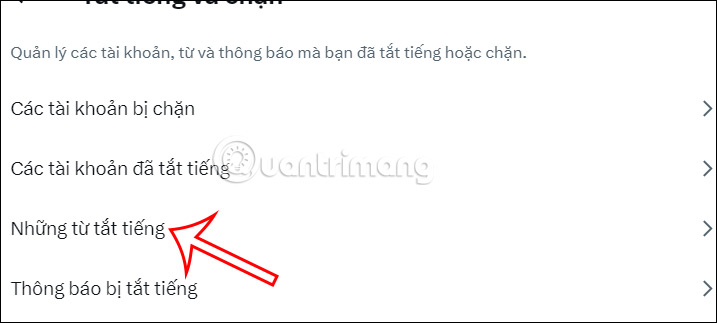
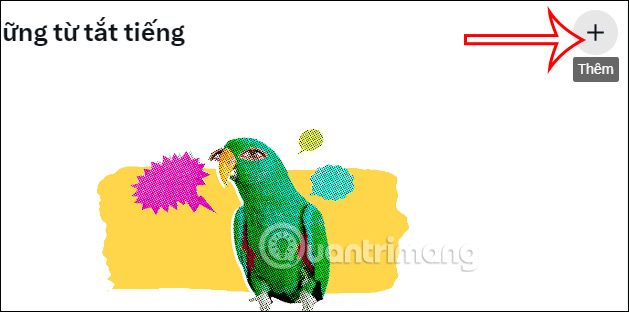
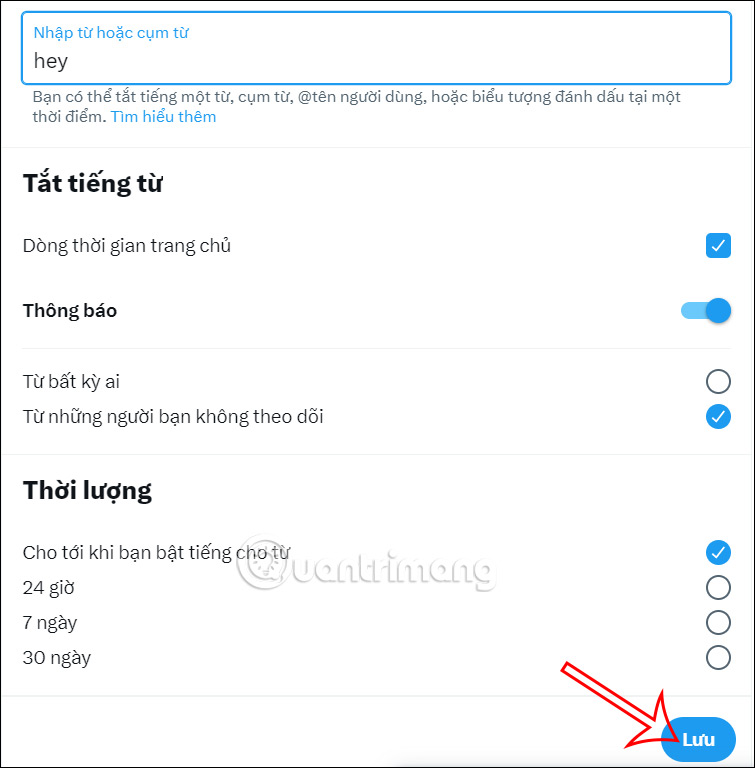
Step 4: Add the word or hashtag, configure where and how long it should be muted, and save the rule.
Important Notes About Muted Words
Muting does not block an account and does not remove posts from the platform. It only filters matching content according to your selected timeline, notification, source, and duration settings. Exact menu labels may change as X updates its interface.
FAQ
What should I prepare before I mute keywords and hashtags on x (twitter)?
Review the requirements and options in the guide first. Having the correct device, app version, account access, or materials ready helps prevent avoidable errors.
How long does it take to mute keywords and hashtags on x (twitter)?
The time depends on the task and your setup. Most basic steps can be completed quickly, while downloads, updates, scans, or troubleshooting may take longer.
What should I do if the steps do not work?
Repeat the instructions in order, confirm that your software or device is supported, and check permissions, connectivity, and available updates before trying again.
Related Articles
 Tricks Using the Hashtag on Twitter3 minutes read
 What Is a Hashtag and How Do People Use It on the Internet?10 minutes read
 13 Useful Shortcuts That Twitter Users Need to Know4 minutes read
 How to Block Keywords, Users and Hashtags on Twitter3 minutes read
![[Infographic] What Do You Know About #Hashtag on Social Networks?](/data/thumbs_200x120/[infographic]-what-do-you-know-about-hashtag-on-social-networks_thumbs_200x120_W6GdkpduE.jpg) [Infographic] What Do You Know About #Hashtag on Social Networks?3 minutes read
[Infographic] What Do You Know About #Hashtag on Social Networks?3 minutes read Instructions for Using Hashtag on Facebook3 minutes read
Reader Comments 0
Sign in with email or Google to join the discussion.