Table of Contents
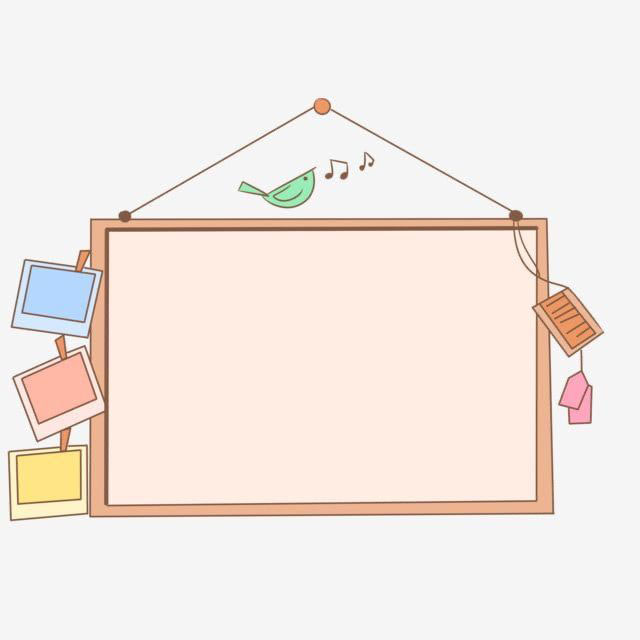
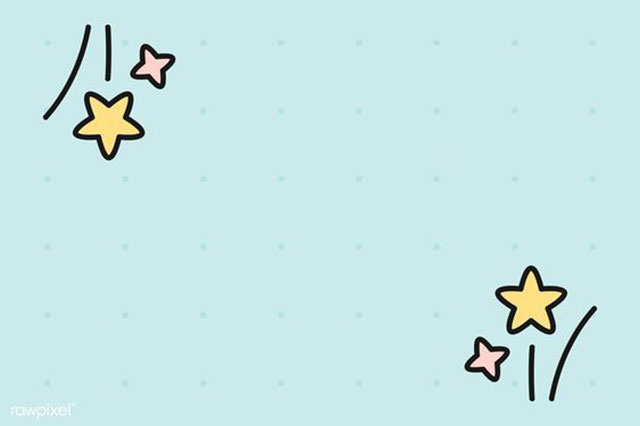
This collection contains 20 colorful backgrounds for preschool and kindergarten presentations. They can support lessons about colors, shapes, animals, stories, classroom routines, art activities, and movement, provided the decoration does not compete with the teaching content.
These are background images rather than complete editable lesson templates. You still need to add your own objectives, instructions, visuals, and activities in PowerPoint.
Preschool PowerPoint background gallery
Open an image before saving it so you can use the largest version available. Look for a design with clear space where the slide title and main visual can sit.


















How to use an image as a PowerPoint background
- Save the chosen image to your computer.
- Open the presentation and select the slide that needs the background.
- Go to Design > Format Background.
- Select Picture or texture fill, then insert the saved image.
- Adjust transparency if the artwork makes text difficult to read.
- Apply the background to one slide, or choose Apply to All only if the same design should appear throughout the deck.
For screenshots of this process, see the guide to changing a PowerPoint slide background.
Match the image to the slide size
A modern widescreen presentation normally uses a 16:9 slide, while an older deck may use 4:3. If the image has a different aspect ratio, PowerPoint can crop, stretch, or tile it in an undesirable way.
- Check Design > Slide Size before preparing the backgrounds.
- Crop a copy of the image to the same aspect ratio as the deck.
- Do not stretch the image independently in width and height.
- Use a source large enough for the display or projector.
- Keep an uncropped original in case the slide size changes later.
Keep preschool slides easy to follow
- One task per slide: young learners should be able to identify the activity quickly.
- Large, simple text: use short instructions and avoid placing text over detailed artwork.
- Strong contrast: add a solid or translucent shape behind text when the background is busy.
- Consistent placement: keep titles, instructions, and navigation controls in predictable positions.
- Few decorative elements: animation and clip art should support the lesson rather than distract from it.
- Visible focal point: leave enough room for the object, letter, number, or story image that children need to discuss.
A cheerful background does not need to appear on every content slide. A practical deck might use an illustrated opening slide, simpler activity slides, and a celebratory closing slide.
Ideas for using the backgrounds
- Color and shape identification.
- Counting objects or matching quantities.
- Animal, food, weather, and transport vocabulary.
- Story sequencing with three or four large pictures.
- Drawing, cutting, and pasting instructions.
- Movement prompts such as jump, stretch, turn, or balance.
- Classroom routines and visual schedules.
Use familiar words and age-appropriate images, and review every downloaded background for details that may be confusing, culturally inappropriate, or unrelated to the lesson.
Prepare the final presentation
- Run the slide show on the actual classroom display or projector.
- Check text from the back of the room.
- Test videos, audio, links, and interactive buttons offline if internet access is uncertain.
- Confirm that no image blocks important controls or captions.
- Keep a PDF copy when the presentation may be opened on a computer without the same fonts.
For more general designs, browse these PowerPoint backgrounds or the collection of cute PowerPoint wallpapers. The guide to making slides attractive and readable covers additional formatting choices.
Related Articles
 Set of Beautiful, Professional 3d Powerpoint Wallpapers2 minutes read
 Beautiful White Powerpoint Wallpapers5 minutes read
 Beautiful PowerPoint Wallpapers 20152 minutes read
 Beautiful PowerPoint Backgrounds, Professional PowerPoint Backgrounds3 minutes read
 The Most Beautiful Green Powerpoint Wallpapers3 minutes read
 Set of Beautiful PowerPoint Wallpapers2 minutes read
Reader Comments 0
Sign in with email or Google to join the discussion.