Table of Contents
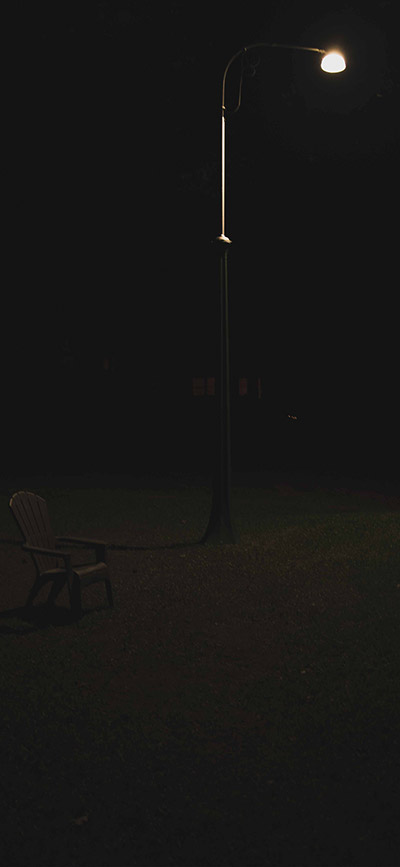
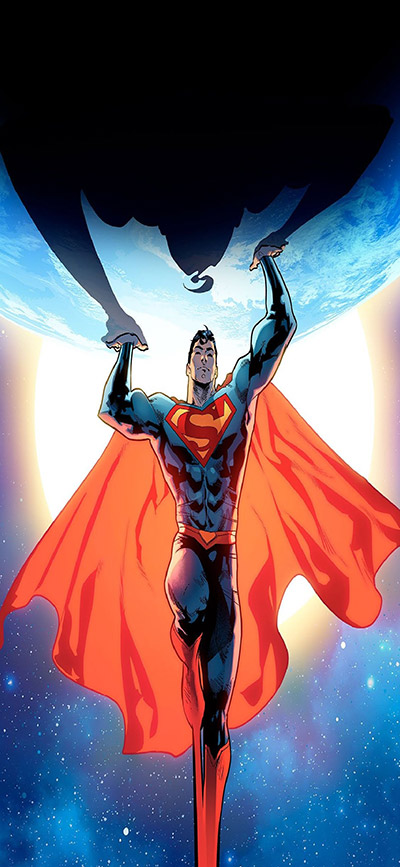
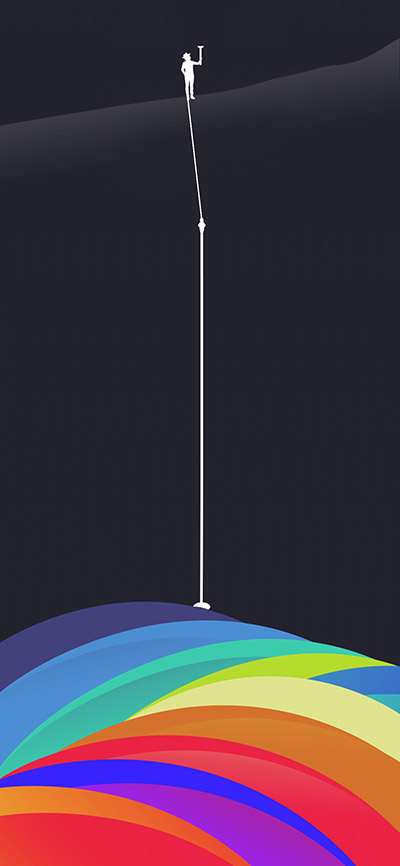
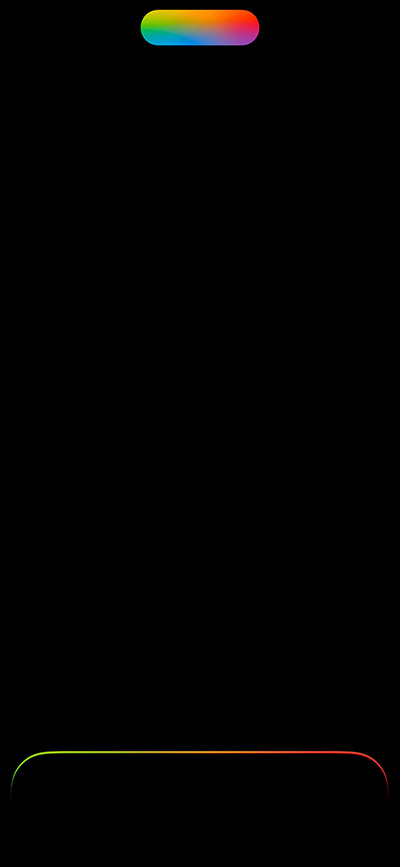
This collection contains 22 wallpapers designed to turn the iPhone 14 Pro or iPhone 14 Pro Max's Dynamic Island into part of the illustration. Some designs conceal the pill-shaped area with a dark band, while others frame it with characters, color blocks, or graphic details.
The artwork must be aligned carefully because the two phones have different display sizes. Apple lists a 2556-by-1179-pixel display for iPhone 14 Pro and a 2796-by-1290-pixel display for iPhone 14 Pro Max. A wallpaper can still be cropped by iOS, so use the Lock Screen preview rather than relying on dimensions alone.
Dynamic Island wallpaper gallery
Open a wallpaper before saving it so you can use the largest version available. The two-column page view may display smaller previews.
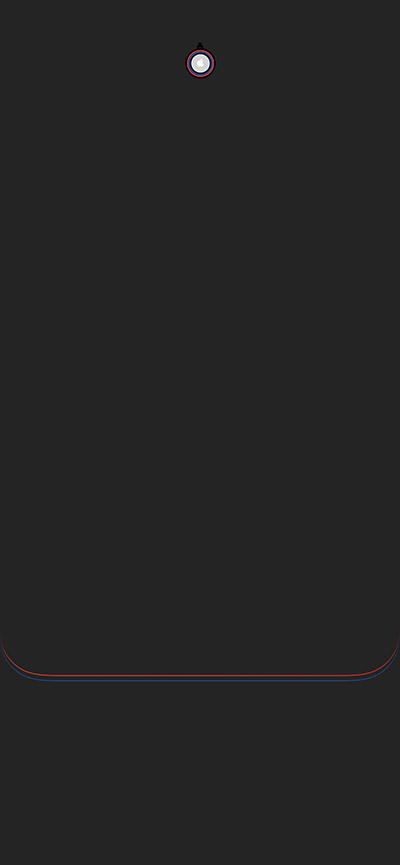
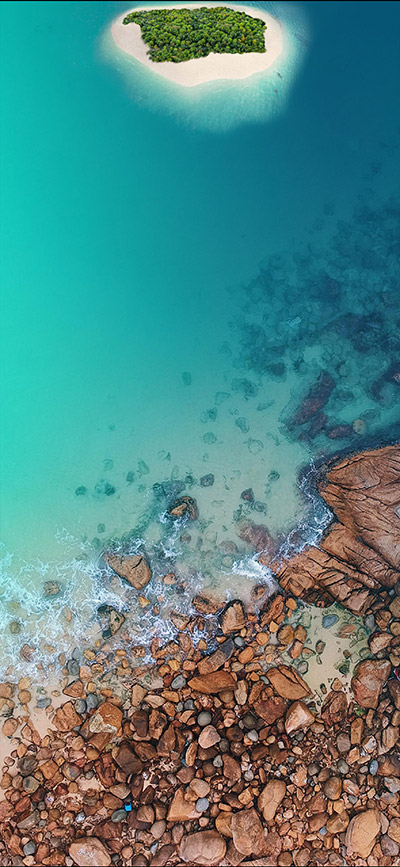


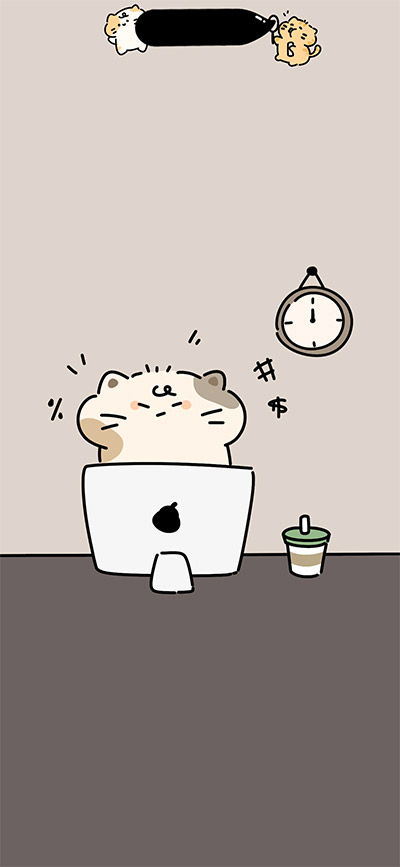
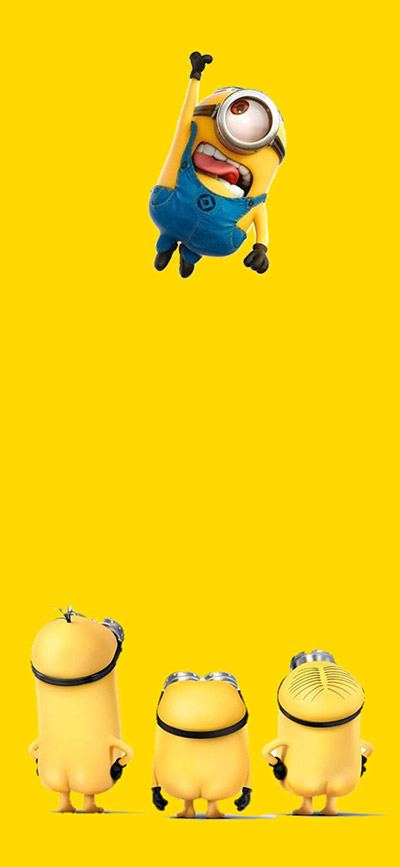
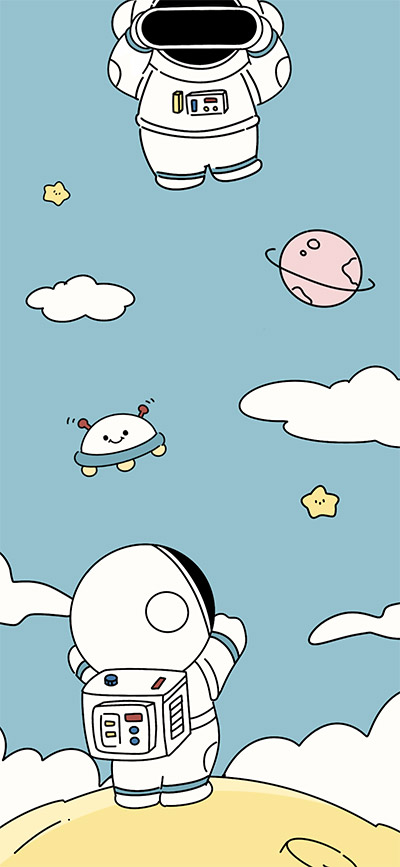

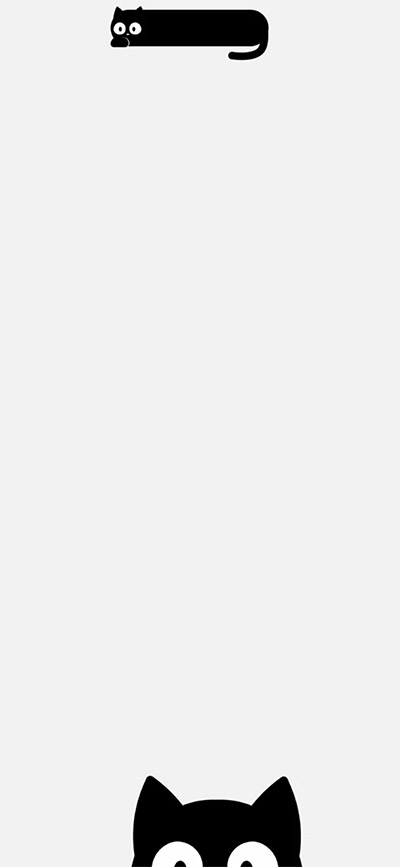



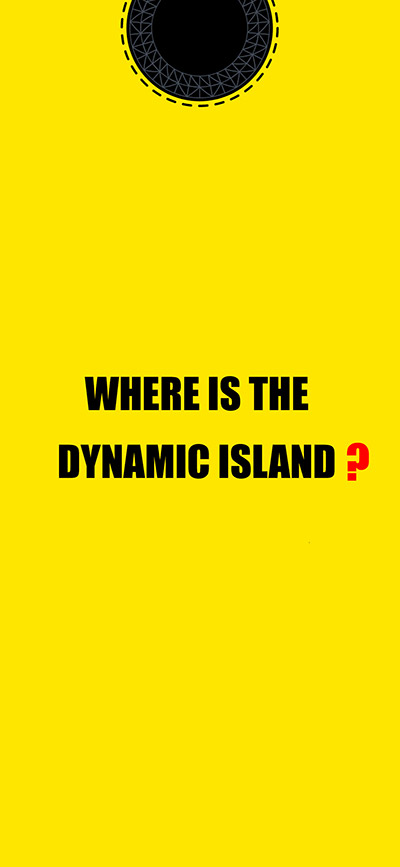
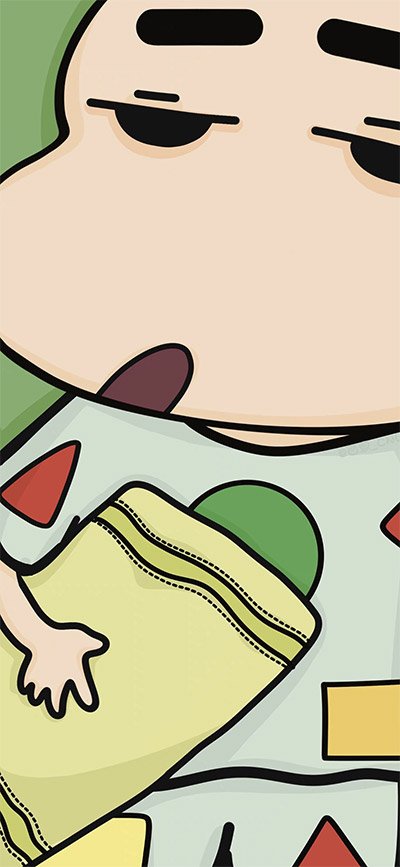




How to save and apply a wallpaper
- Tap the image you want and open it at full size.
- Touch and hold the image, then choose the browser's save or download command.
- Open Settings > Wallpaper > Add New Wallpaper and choose the saved image from Photos.
- Pinch and drag the image until its dark or illustrated detail aligns with the Dynamic Island.
- Check the clock, widgets, notifications, and bottom controls, then tap Add.
Saving the image file directly usually produces a better result than taking a screenshot, which can include browser controls and may reduce the usable resolution.
Align the artwork with Dynamic Island
- Start at the default crop. Move the image only a little at a time; small vertical changes can make the design miss the pill area.
- Use the correct model preview. A crop that fits iPhone 14 Pro may not line up identically on iPhone 14 Pro Max.
- Watch for wallpaper extension. If iOS expands or reframes the top of the photo, recheck the alignment before saving.
- Leave the clock readable. A design that hides the Dynamic Island can still be too busy behind the time.
- Test the real Lock Screen. Wake the phone after saving and check the image with notifications and widgets present.
Lock Screen or Home Screen?
These wallpapers are primarily designed for the Lock Screen, where the top area and Dynamic Island are visually prominent. On the Home Screen, icons, labels, and the dock cover more of the artwork. If the image becomes cluttered, choose a blurred or plain-color Home Screen while keeping the illustrated version on the Lock Screen.
The Dynamic Island can expand or display live information, so a perfect static match will not remain visible during every activity. Treat the wallpaper as a decorative frame for the idle state rather than a permanent mask.
If the wallpaper does not line up
- Confirm that the image has finished downloading and is not only a small thumbnail.
- Try resetting the crop, then reposition it without excessive zoom.
- Make sure you selected the version intended for your phone size if several files are offered.
- Remove and re-add the wallpaper if an old crop remains cached in the editor.
- If the original artwork was made for another Dynamic Island model, expect some manual adjustment or a slight mismatch.
For more options, browse these high-resolution phone wallpapers, customize the interface with iPhone Home Screen apps, or add useful information with Lock Screen widgets.
Apple's specifications confirm the display sizes for iPhone 14 Pro and iPhone 14 Pro Max.
Related Articles
 How to Use Dynamic Island on iPhone 15: Practical Guide7 minutes read
 Dynamic Island Explained6 minutes read
 How to Hide Dynamic Island on iPhone6 minutes read
 iOS 17.1: Complete Guide4 minutes read
 Tips for Using Dynamic Island on Android Smartphones: Main Insights4 minutes read
 Instructions for Playing the Game Hit the Island on Dynamic Island5 minutes read
Reader Comments 0
Sign in with email or Google to join the discussion.