What you will learn
- Explain DNS resolution without treating it as the whole internet.
- Identify configured DNS servers.
- Use nslookup to test a name and a specific resolver.
- Avoid arbitrary DNS changes before recording evidence.
What you need
- A Windows device with Command Prompt.
- A known domain approved for testing.
Separate naming from reachability
RFC 1034 describes DNS as a distributed system for mapping domain names and other data through name servers and resolvers.
Microsoft documents nslookup as a tool for diagnosing DNS infrastructure and displaying name-resolution information.
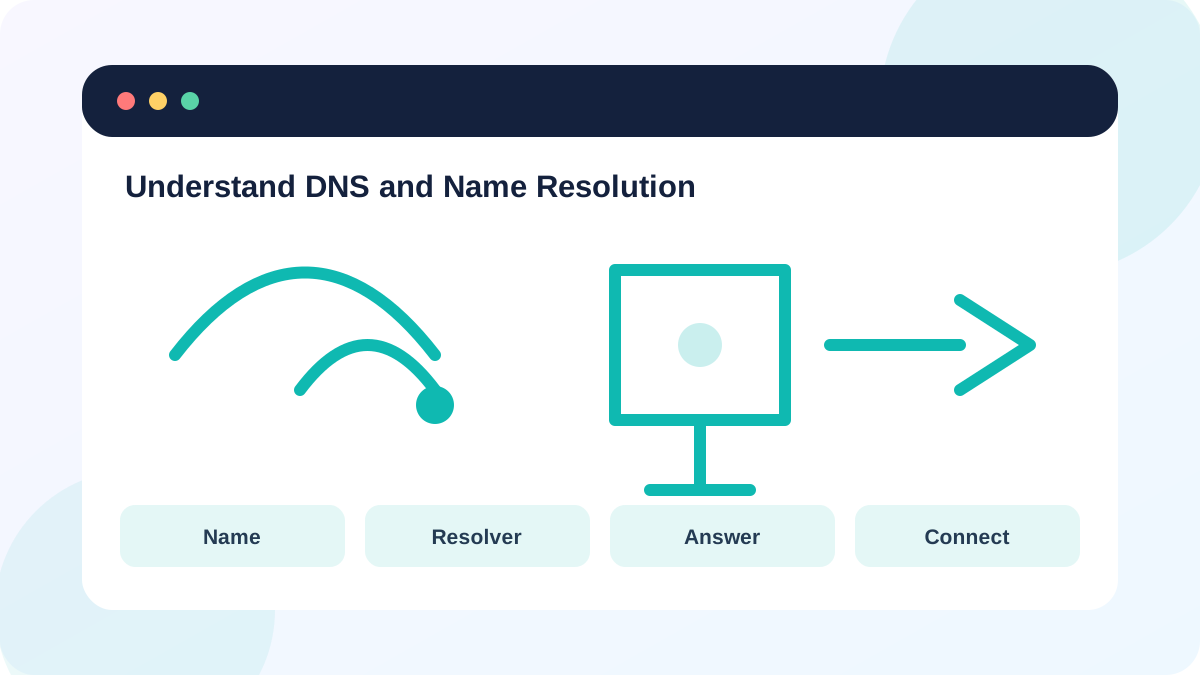
A browser first needs a DNS answer, then it opens a connection to an address. HTTPS certificates, proxies, VPNs, filtering and the remote service can still cause failure after DNS succeeds.
Identify the configured resolver
Use ipconfig /all or Windows network properties to record the DNS server assigned to the active adapter. Home clients often use the router as a forwarding resolver, so the listed address may be the gateway rather than the provider's upstream server.
VPN software and managed-device policy can intentionally replace DNS settings. Do not overwrite them without authorization; doing so can break internal names, security filtering or split-tunnel behavior.
- 1
Run ipconfig /all and locate DNS Servers under the active adapter.
- 2
Run nslookup example.com and record the server, address and answer.
- 3
Repeat with a second known domain.
- 4
Compare the result with an external-IP connectivity test.
- 5
Note whether a VPN, proxy or security product is active.
Read nslookup results carefully
A valid answer shows the resolver returned records; it does not guarantee the website is healthy. A timeout can mean the configured resolver is unreachable or not responding. NXDOMAIN means the resolver reports that the queried name does not exist, which may be correct for a typo.
Different answers are not automatically evidence of attack. Content delivery networks, geographic routing and load balancing can return multiple addresses. Compare timing, status and authoritative documentation rather than expecting one permanent IP.
- The DNS server address is known.
- At least one approved name resolves consistently.
- External IP reachability is tested separately.
Change DNS only as a controlled test
Flushing the local resolver cache removes cached answers; it does not change the DNS server. Changing the resolver is a separate configuration change and can affect privacy, filtering and access to internal services.
Before a temporary resolver comparison, record automatic settings and obtain permission. Restore DHCP-provided DNS after the test unless the network owner has approved a permanent service.
- 1
Save the current adapter and DNS settings.
- 2
Run ipconfig /flushdns only when stale cached results are plausible.
- 3
Repeat nslookup and record whether the response changes.
- 4
If authorized, test a specific resolver with nslookup name server-address without changing Windows settings.
- 5
Restore original settings and verify internal and public names.
Diagnose a name-resolution scenario
Use separate IP and DNS tests to classify a failure.
- 1
Record the configured DNS server.
- 2
Test the gateway and an approved external IP.
- 3
Run nslookup for two domains.
- 4
Test one query against a specific authorized resolver.
- 5
Write whether the evidence points to DNS, routing or the application.
Common mistakes to avoid
- Calling every website failure a DNS problem.
- Changing DNS before recording the assigned server.
- Assuming one returned IP is permanent.
- Ignoring VPN or managed-device DNS policy.
Key takeaways
- DNS maps names; routing reaches addresses.
- nslookup tests resolver behavior separately.
- A controlled comparison is safer than permanently replacing DNS.
Frequently asked questions
Does flushing DNS speed up the internet?
No. It removes cached resolver entries and is useful only when stale or incorrect cached data is suspected.
Why does nslookup show my router as the DNS server?
Many home routers accept client DNS queries and forward them to upstream resolvers.
Sources and further reading
- RFC 1034: Domain names — concepts and facilitiesRFC Editor
- nslookupMicrosoft Learn
- ipconfigMicrosoft Learn
Ready to continue?
Mark the lesson complete so your Learning Path progress stays current on this device.