Table of Contents
Wayground AI can draft an Assessment or Quiz from a document, written prompt, public webpage, YouTube video, curriculum, or worksheet photo. The useful part is speed: teachers receive an editable first draft instead of starting with a blank page. The generated questions still need a subject-matter, accessibility, and answer-key review before students see them.
Wayground is the current name of the platform formerly known as Quizizz. Menu labels can vary slightly by account type and product update, but the creation workflow is the same: choose a source, set the grade and subject, generate questions, edit them, and publish only after checking the result.
What Wayground AI can use as a source
- Document: Upload a PDF, PPT, PPTX, DOC, DOCX, JPG, or PNG file.
- Prompt or text: Describe the learning objective and constraints, or paste source material.
- Website: Paste a URL for a public page that does not require a login.
- YouTube video: Search for a public video or paste its URL, then optionally make it an interactive video quiz.
- Standards or curriculum: Select supported U.S. math or science curricula and topics.
- Worksheet photo: Use the mobile app to photograph printed material.
After generation, you can change question text and types, correct answer options, add media, and use Wayground AI Enhance for supported accessibility or differentiation changes. If you are comparing classroom products, this overview of AI apps for teachers provides additional options.
Before you generate a quiz
A better source produces a better draft. Remove irrelevant headers and answer keys from uploaded material, use a public webpage with a clear main article, and choose a video with accurate speech or captions. Decide the following before opening Wayground:
- The exact learning objective.
- Student grade or expected knowledge level.
- Number and mix of question types.
- Whether the activity checks recall, application, analysis, or another skill.
- Vocabulary, standards, and topics that must be included or excluded.
- Whether students need to see the source passage while answering.
Create questions from a document
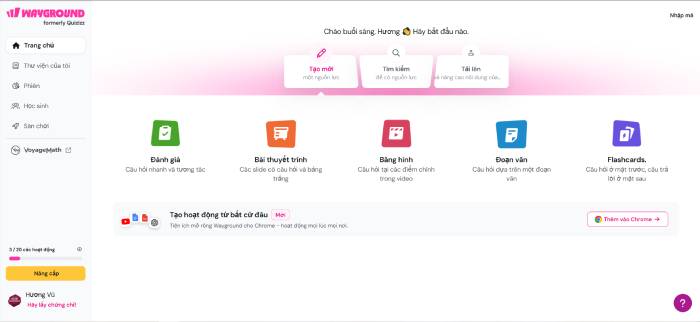
- Select Create > Assessment or Quiz.
- Choose Generate with AI > Document.
- Select Upload from Device or Import from Drive, or drag the file into the upload area.
- Set the number of questions, subject, grade, and language.
- If students should refer to the document, enable Allow students to read this document while answering.
- Select Generate Quiz.
- Review every question, answer, explanation, and attached image. Change the question type where appropriate.
- Select Publish only when the assessment is ready to save or assign.
Wayground’s documentation currently says it processes one uploaded file at a time and reads only the first 16,000 characters. Files dominated by complex tables or images may be interpreted less accurately. Split a long source into focused sections when necessary.
Create a quiz from a prompt or pasted text
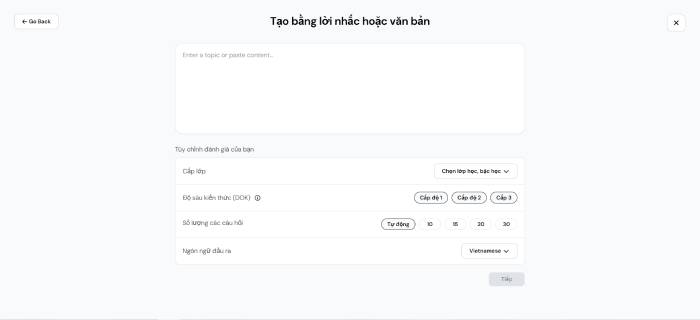
- Select Create > Assessment or Quiz.
- Choose Create with Prompt or Text.
- Enter a detailed prompt or paste the source text.
- Choose the language, question count, grade, subject, standards, and depth of knowledge where available.
- Select Continue, choose the relevant subtopic, and then select Generate quiz.
- Use the AI chat to request a focused revision, or choose Use this quiz and edit questions manually.
- Publish after completing the review checklist below.
Example of a useful prompt
Create 10 questions for Grade 8 science about photosynthesis. Use the supplied lesson text as the only factual source. Include six multiple-choice questions, two short-answer questions, and two application questions. Avoid trick wording. Provide one correct answer and a brief explanation for each question.
This is more effective than “make a quiz about photosynthesis” because it states the audience, scope, source boundary, question mix, and quality requirements. For a more formal assessment plan, see how to create an exam matrix with AI before drafting individual questions.
Create questions from a website
- Select Create > Assessment or Quiz.
- Choose Generate with AI > Website.
- Paste a publicly accessible webpage URL.
- Set the number of questions, grade, subject, and language.
- Select Generate quiz, then review and edit the questions.
- Select Publish when the assessment is complete.
A page behind a login or dominated by navigation, ads, or dynamically loaded content may not work well. Do not assume the generator can distinguish an authoritative source from an inaccurate one. Check the webpage yourself and keep its publication context in mind.
The optional Wayground AI browser extension can send a webpage into the resource-creation workflow. Review the extension’s requested permissions and your school’s browser policy before installing it.
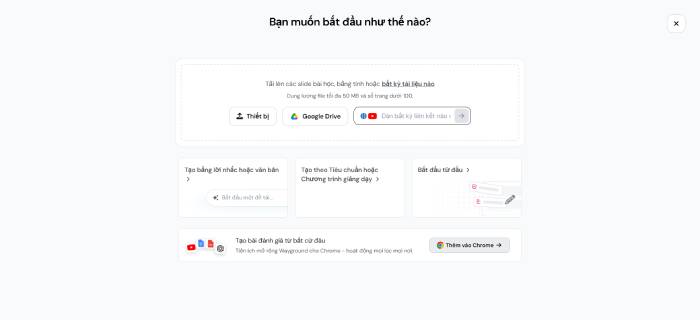
Create questions from a YouTube video
- Select Create > Assessment or Quiz.
- Choose Generate with AI > YouTube.
- Paste a public YouTube URL or use Browse YouTube.
- Set the question count, grade, subject, and language.
- Trim the video if only one segment is relevant.
- Enable Make this an interactive video quiz if you want questions embedded in the viewing experience.
- Select Generate quiz, review the timing and content, and then publish.
Watch the selected segment yourself. Automatic transcription can mishear names, numbers, formulas, or accented speech, and a question can be grammatically correct while relying on a mistaken transcript.
Create a curriculum-aligned assessment
Wayground currently offers this generator for supported U.S. math and science curricula:
- Select Create > Assessment.
- Choose Create with standards or curriculum.
- Select Math or Science, then choose the curriculum and topics.
- Set the question count and output language.
- Generate the quiz and inspect whether each item actually measures the selected standard.
- Refine with AI or edit manually, then publish.
A standards label is not proof of alignment. Check the required skill, cognitive demand, notation, and grade-level vocabulary against the official curriculum document.
Create questions from worksheet photos
- Open the Wayground mobile app and go to Explore.
- Select Click a picture of worksheet.
- Photograph the page in even light with the camera parallel to the paper.
- Use Add more for additional pages or Retake if the text is blurred or cropped.
- Select Done > Create Quiz.
- Edit the generated questions and select Save Quiz.
Check mathematical symbols, diagrams, superscripts, answer choices, and page order carefully. Optical character recognition errors are especially easy to miss in these elements.
Review every generated question
Use this checklist before assigning the quiz:
- Factual accuracy: Verify the question, correct answer, distractors, and explanation against the source.
- One defensible answer: Make sure multiple-choice wording does not accidentally allow two correct options.
- Clear language: Remove vague pronouns, double negatives, and clues caused by grammar or answer length.
- Objective alignment: Confirm the item measures the intended skill rather than a minor detail.
- Appropriate difficulty: Match vocabulary, calculations, reading load, and required background knowledge to the class.
- Accessibility: Add useful image descriptions, avoid color-only cues, and provide necessary accommodations.
- Bias and context: Remove assumptions or examples that unfairly disadvantage a group of students.
- Scoring: Test point values, accepted answers, case sensitivity, and manual-grading rules.
- Student view: Preview the published resource and complete it once as a learner.
Privacy and responsible classroom use
Do not upload student names, grades, individualized education records, private feedback, or other personal information unless your institution has approved the service and workflow. Use licensed or permitted source material, and avoid uploading confidential answer banks.
Tell students how AI was used when that information affects the activity, and provide a way to report a confusing or incorrect item. AI should reduce drafting time, not replace teacher judgment.
The official Wayground AI assessment guide lists the current menu paths, supported file types, and input limits. Because features can depend on the plan, role, and product release, check the interface shown in your account before preparing a time-sensitive lesson.
Related Articles
 Wayground User Guide for Teachers7 minutes read
 How to Use Wayground AI (Quizizz) to Create Quizzes8 minutes read
 Wayground: Great Educational Tool8 minutes read
 Guide to Quickly Creating AI Quiz Questions5 minutes read
 How to Create Quizzes on Quiz. Com7 minutes read
 How to Create Questions and Quizzes Using Quizizz11 minutes read
Reader Comments 0
Sign in with email or Google to join the discussion.