Table of Contents
Quizizz is now Wayground. Existing Quizizz accounts, classes, and resources carried over, and old Quizizz links are intended to redirect to the Wayground domain. Teachers can create assessments and other learning resources, run a live session, assign asynchronous work, and review reports.
The screenshots in this article show the older Quizizz interface. They remain useful for recognizing the general authoring flow, but current button names, colors, modes, and plan-dependent options may differ. Use wayground.com, not similarly named unofficial domains.
What teachers can create
Wayground supports resources such as assessments/quizzes, lessons, passages, flashcards, and interactive videos. Available question types, AI tools, accommodations, integrations, and session modes depend on the resource, account, and school plan.
Public library resources can save time, but they are not automatically accurate or appropriate. Copy a resource to your library and check every answer, explanation, image, link, reading level, and licensing requirement before assigning it.
1. Sign in or create a teacher account
- Open Wayground and select Get Started or sign in.
- Use the same email and sign-in provider as an existing Quizizz account if you need its classes and resources.
- Choose the role and organization details requested by the account setup.
- Open My Library and confirm that the expected resources appear.
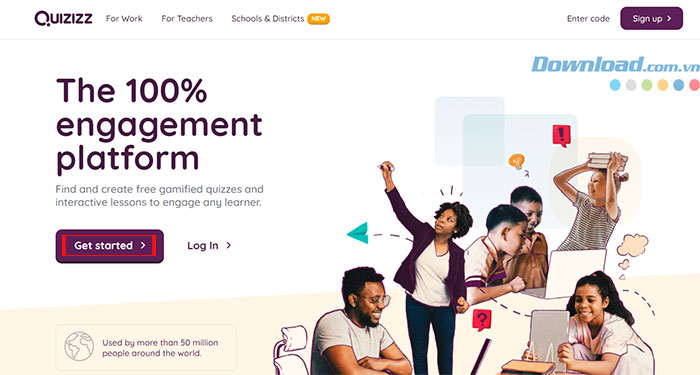
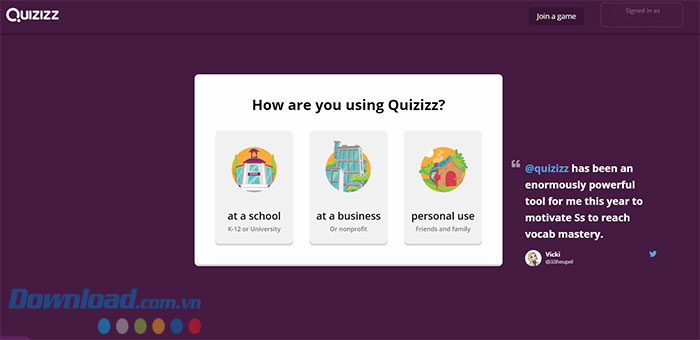
On a managed school account, the administrator may control sign-in methods, apps, domains, classes, and access to premium features.
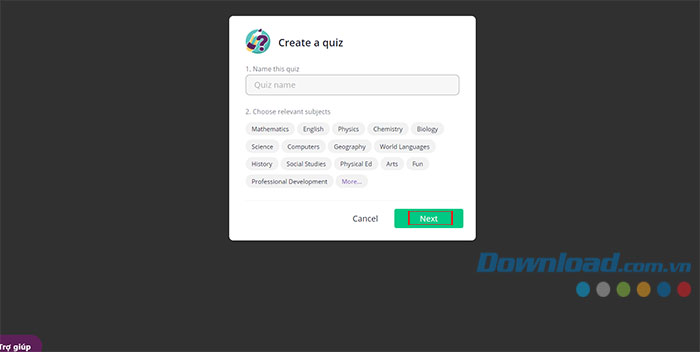
2. Create an assessment
Current interfaces may offer AI-assisted generation at the start. Whether you generate a draft, import questions, or author manually, the teacher remains responsible for the result.
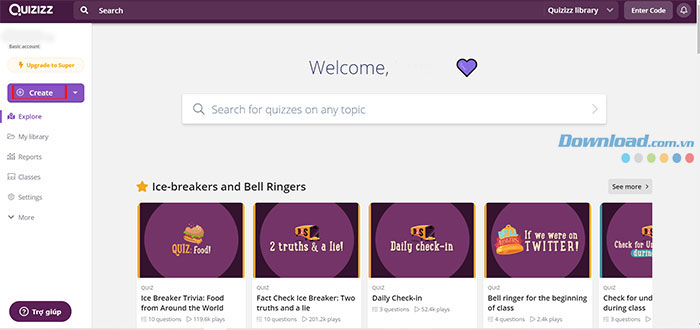
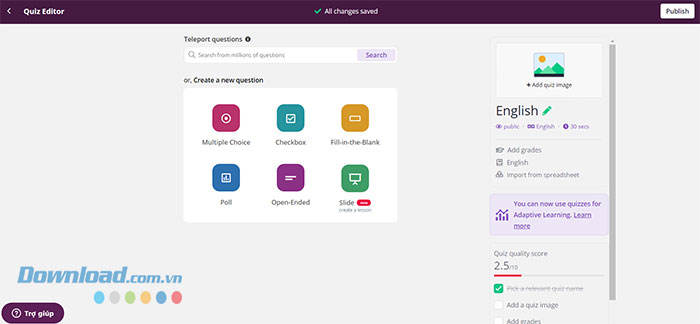
- Select Create, then choose Assessment.
- Enter a topic or approved source and set grade, subject, number of questions, and other preferences where offered.
- Generate or add questions.
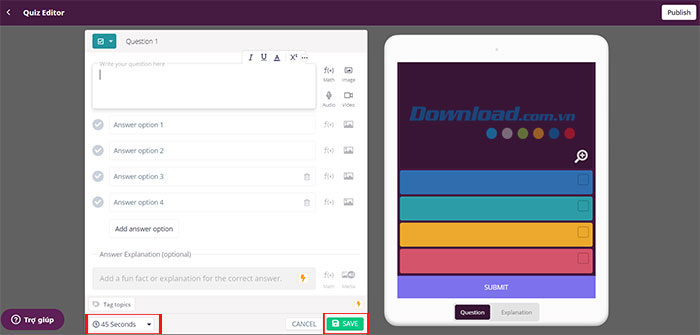
- Open each item and edit its wording, response type, choices, correct answer, explanation, media, points, and time settings.
- Add every required question, then preview the resource.
- Select Publish, supply the name, subject, grade, language, cover, and visibility, and save it to your library.
3. Build clear questions
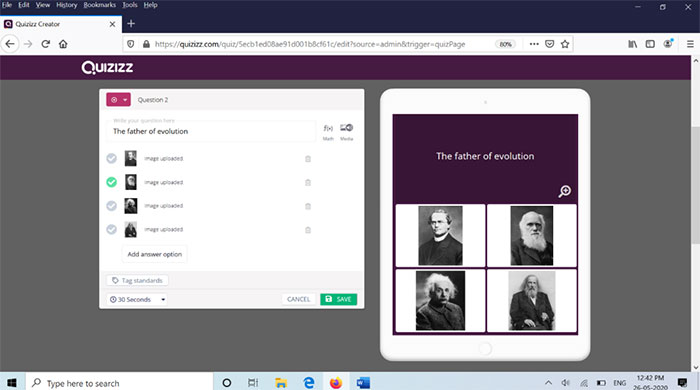
Wayground offers several response formats. Choose the type that matches the learning objective instead of turning every task into multiple choice.
- Use multiple choice for one clearly correct option.
- Use multi-select only when the instructions state how many answers may be correct.
- Use fill-in-the-blank when spelling and acceptable variants are manageable.
- Use open response for explanation, reasoning, or evidence.
- Use polls for opinion or check-ins, not graded correctness.
Question-quality checklist
- The stem has one reasonable interpretation.
- The marked answer is correct and supported by the course material.
- Distractors are plausible but not deceptive.
- The timer allows for reading, reasoning, and accessibility needs.
- Images have a purpose and do not reveal the answer accidentally.
- Feedback explains the concept rather than merely saying “wrong.”
- AI-generated questions were checked against an authoritative source.
4. Preview and publish
After saving the items, preview the student experience. Complete the assessment once yourself and verify scoring, accepted answers, media playback, equations, navigation, and feedback. Publish only after the complete run succeeds.
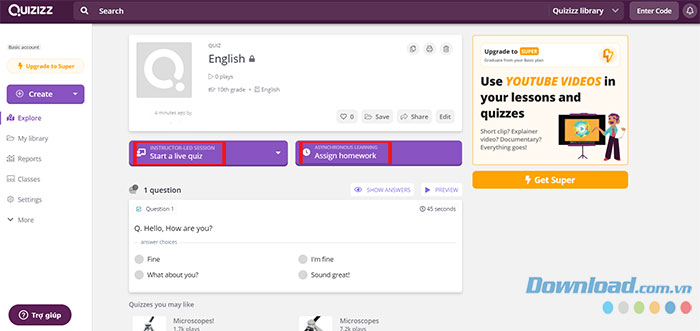
5. Start a live session
- Open the resource and select Start now.
- Choose Teacher-led when the class should move together or Student-paced when learners should advance independently.
- Choose an available session mode and open Customize.
- Review timers, feedback, navigation, music, memes, answer review, accessibility, and other available settings.
- Select Start and share the join link, numeric code, QR code, or LMS invitation.
- Check names in the lobby, then begin.
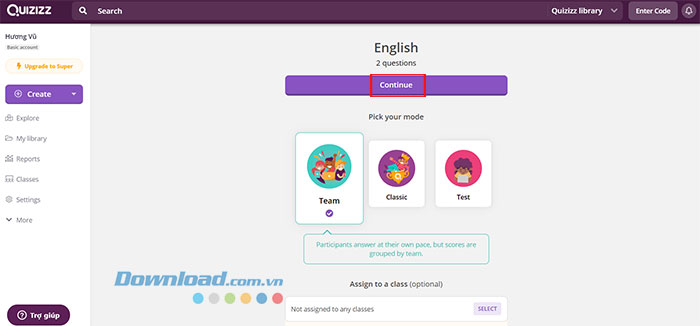
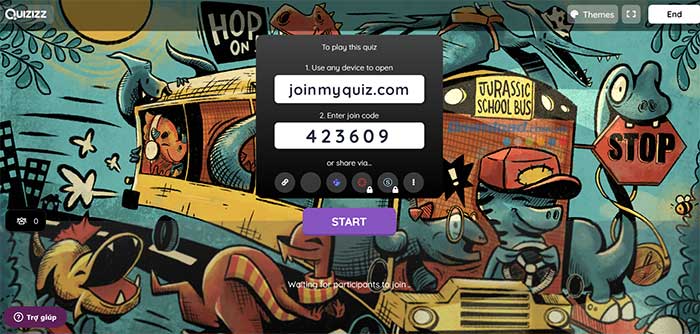
Session codes are generated when a live session or assignment is created. Do not assume an old code remains active, and avoid posting class codes on a public page.
6. Assign asynchronous work
- Open the resource and select Assign.
- Choose an available asynchronous mode.
- Review availability, deadline, attempts, feedback, answer review, accommodations, and class settings.
- Select the class or specific learners where supported.
- Select Assign and test the student link.
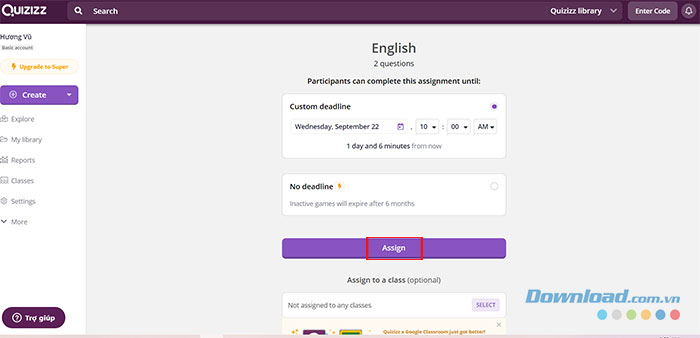
Do not rely on an old claim that every no-deadline assignment expires after a particular number of months; use the expiration information shown in the current assignment settings.
How students join a session
- Open the link from the teacher or go to wayground.com/join.
- Enter the current join code if required.
- Sign in, enter a permitted display name, or follow the school/LMS route according to the teacher's settings.
- Review sound, read-aloud, and other available accessibility controls.
- Wait in the lobby for a live session or begin an active assignment.
Account requirements vary with the organization and session. Teachers should test the exact join path on a student device instead of promising that no account will be required.
Student practice and flashcards
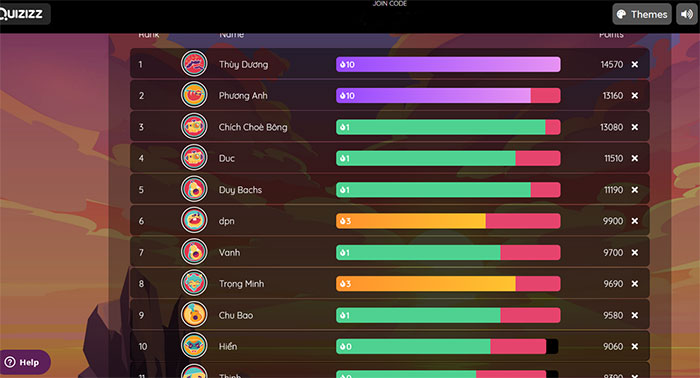
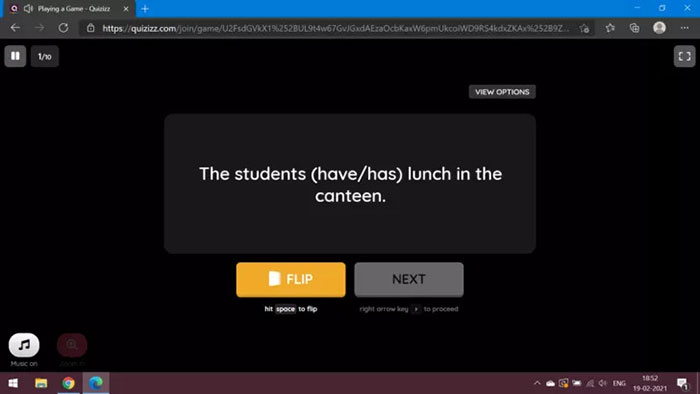
Students may be able to search public resources, practice an assigned activity, or use a flashcard view, depending on the resource and account. The images below show older Quizizz screens; the current Wayground interface can differ.
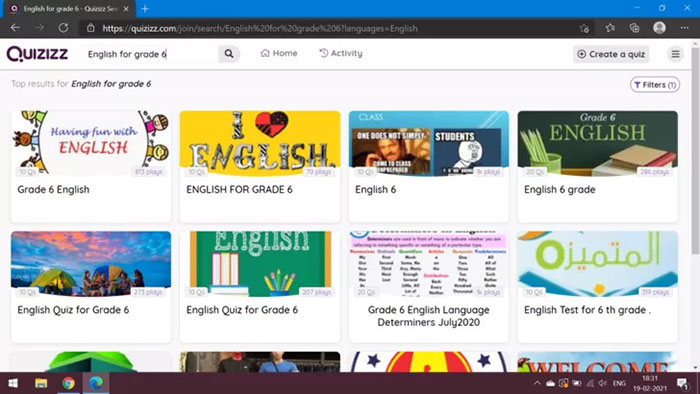
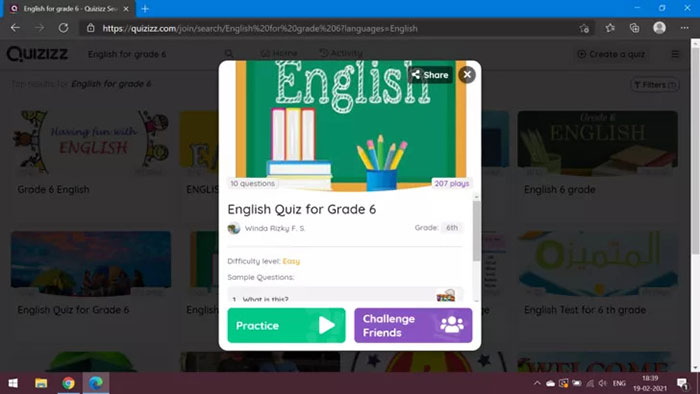
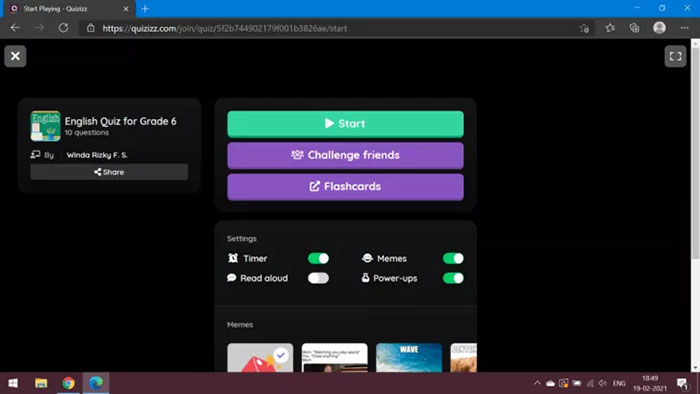
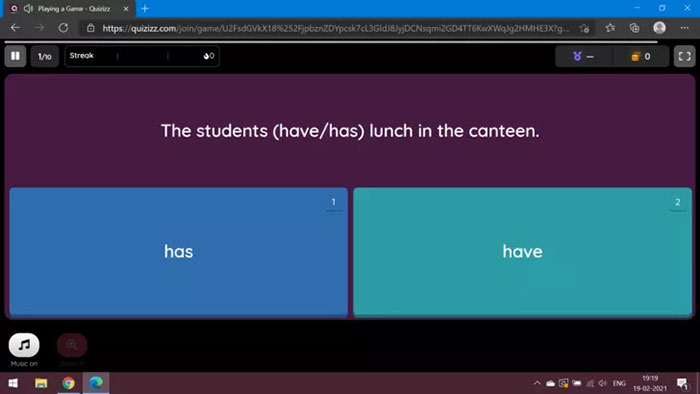
Game mechanics and assistance tools are mode-dependent and can change. Students should read the session instructions and ask the teacher whether speed, streaks, or other game elements affect grading.
Use reports after the session
Open the report and examine:
- Class accuracy by question
- Distractors selected repeatedly
- Students who may need another explanation or accessible version
- Items answered unusually quickly
- Questions with poor wording or an incorrect key
A report from one activity is not a complete measure of a student's ability. Use it with other evidence and correct a flawed question before drawing conclusions.
Privacy and classroom safety
- Use school-approved accounts and integrations.
- Collect only the student information needed for the activity.
- Do not put protected student data into question text or public resources.
- Review the visibility setting before publishing a copied resource.
- Share reports with families or colleagues only through approved channels.
- Provide an alternative when a student cannot access the device, audio, or visual interface.
Teacher pre-session checklist
- All questions and answer keys were checked.
- The resource was completed once in student view.
- The selected mode matches the learning purpose.
- Timer, feedback, and answer-review settings are intentional.
- The join route works on the classroom network.
- A non-device or backup activity is ready.
- Students know whether the activity is practice or graded work.
Related Articles
 Guide to Quickly Creating AI Quiz Questions5 minutes read
 How to Quickly Creating Multiple-Choice Questions Using Brisk3 minutes read
 How to Create a Quiz on Google Forms5 minutes read
 10 Questions of Brainstorming Try Your Quick Reaction3 minutes read
 Quickly Create Multiple-choice Quizzes from Videos Using Magic School AI5 minutes read
 IQ Test with Interesting Questions: Logical Questions1 minutes read
Reader Comments 0
Sign in with email or Google to join the discussion.