Table of Contents
It wasn't until people started tinkering and making small changes that they realized how much they were suffering.
It wasn't until people started tinkering and making small changes that they realized how much they were suffering. Then, a few small, specific tweaks made YouTube more enjoyable again.
Skip sponsors and spam ads with an extension
Because your time deserves more than another VPN ad
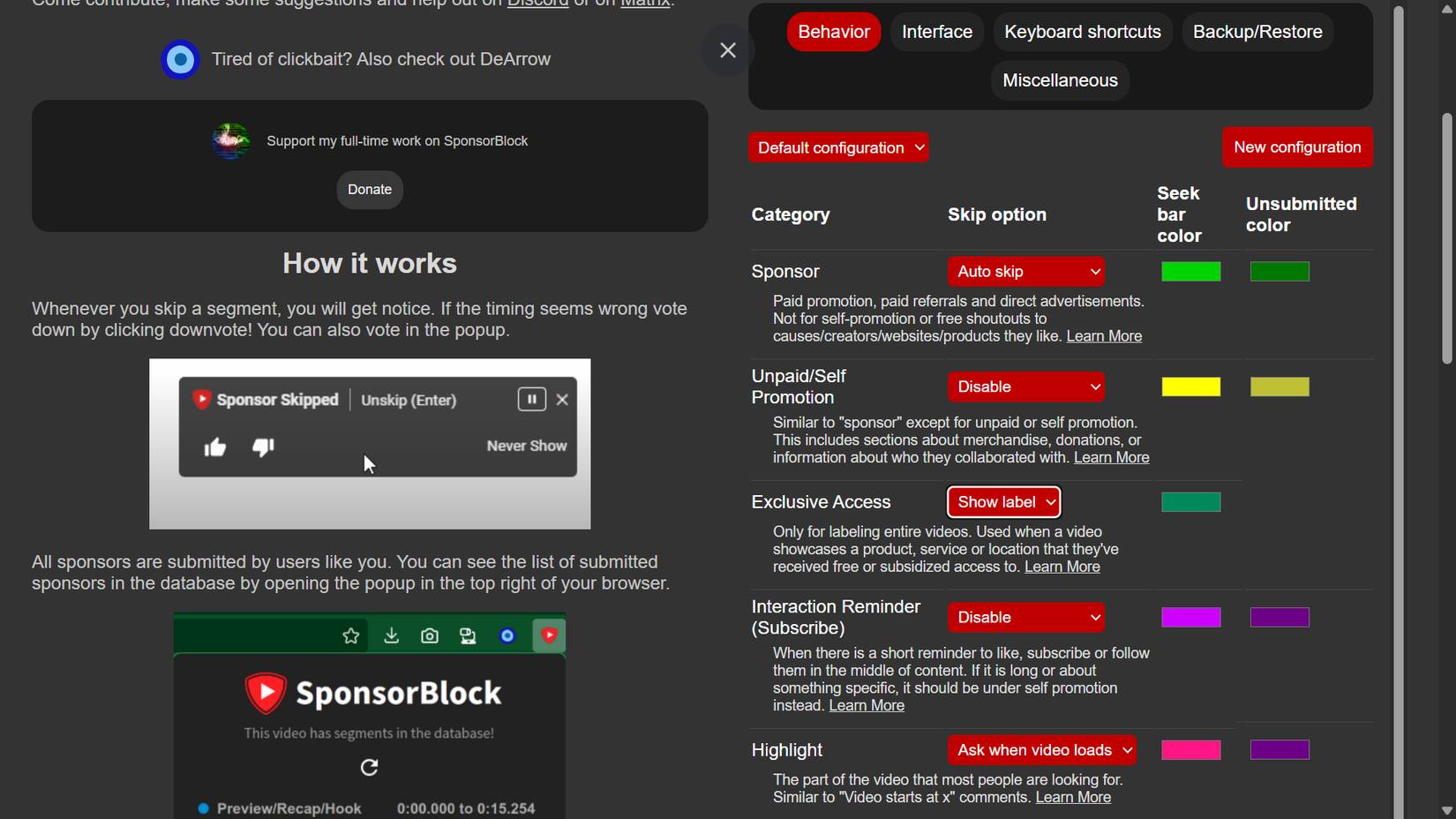
If you frequently watch YouTube on your computer, the best improvement you can make is adding SponsorBlock. This is one of those extensions that many people don't notice if they don't use YouTube. It automatically skips sponsored ads, long intros, and other time-wasters – and it does it pretty well. As soon as the video reaches a sponsored moment, it skips straight to the best part, as if the ad never happened.
- Download the SponsorBlock extension for Chrome | Firefox
Master the shortcuts and a few pro moves
Why click when you can command?
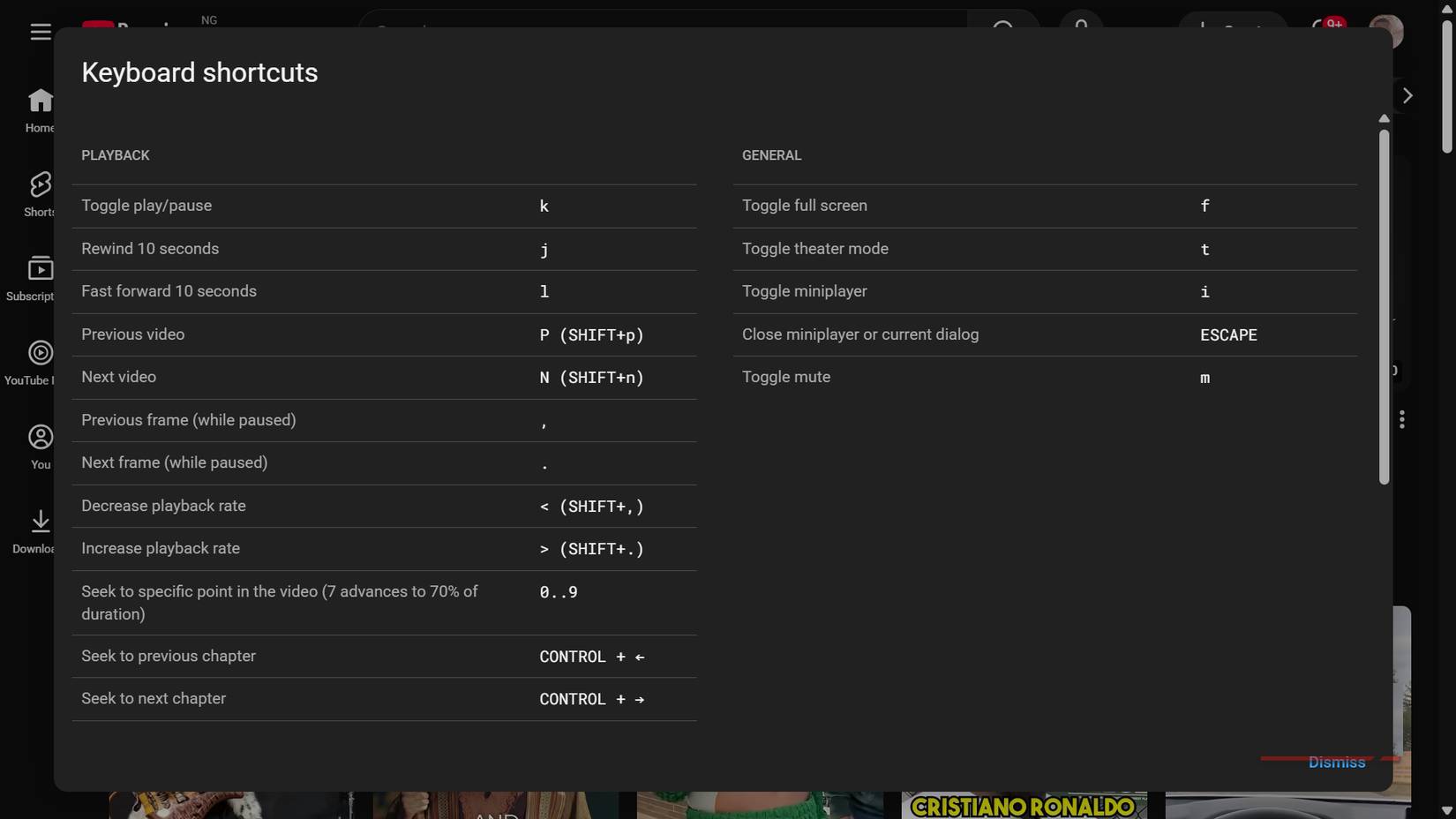
After the cleanup, speed comes next. YouTube has more keyboard shortcuts than you might think, and mastering a few will make your desktop viewing experience almost cinematic. Press K To pause or play. Press J Or L To rewind 10 seconds forward or backward. Numbers 1 Through 9 Will jump to specific parts of the video, and Shift + > Or to increase or decrease playback speed.
You can also add browser extensions like Enhancer for YouTube, which let you set your own default playback speed, volume level, and scrolling behavior.
- Download Enhancer for YouTube extension for Chrome
- Download the YouTube Enhancer extension for Firefox
Notification Control
Stop YouTube from mentioning you
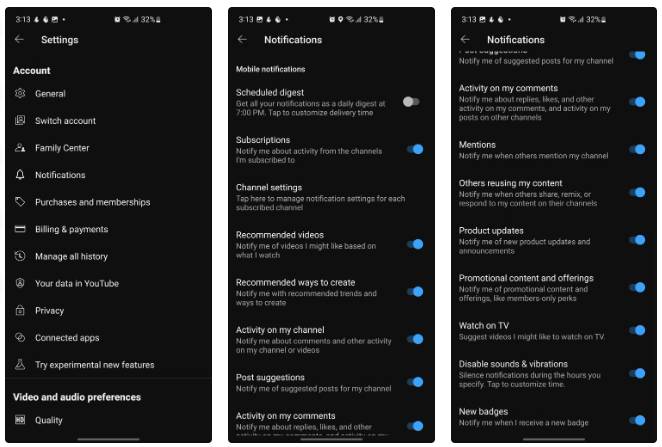
There's a fine line between staying up to date and feeling hounded by notifications. YouTube loves to nudge you with new uploads, community posts, comments, and 'Someone liked your comment' notifications. Turning that chaos into something manageable can help make the app feel more alive.
Go to Settings > Notifications On the mobile app and pare things down to the essentials. Keep upload notifications from your favorite creators, turn off Recommended videos , and mute community posts unless you're actively engaging with them.
Overcome autoplay
Because YouTube thinks you never sleep
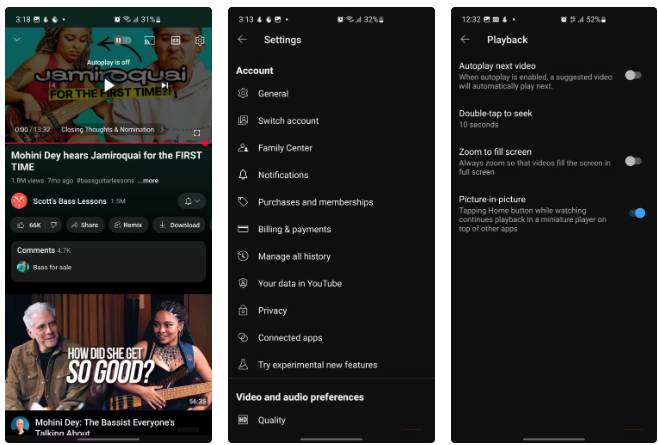
On the web, this is easy to fix. Hover over any video that's playing and tap the autoplay toggle in the bottom right corner. When the toggle is grayed out, you'll no longer have to scroll endlessly through videos. If you're on mobile, go to Settings , then open Playback Under Video and audio preferences. The Autoplay next video Toggle is right at the top, and you should have it turned off. Alternatively, when watching any video, tap the screen to reveal the player controls and you'll see the autoplay toggle at the top of the video.
Keep the volume stable throughout the video viewing process
Watching YouTube shouldn't be like enjoying a horror movie.
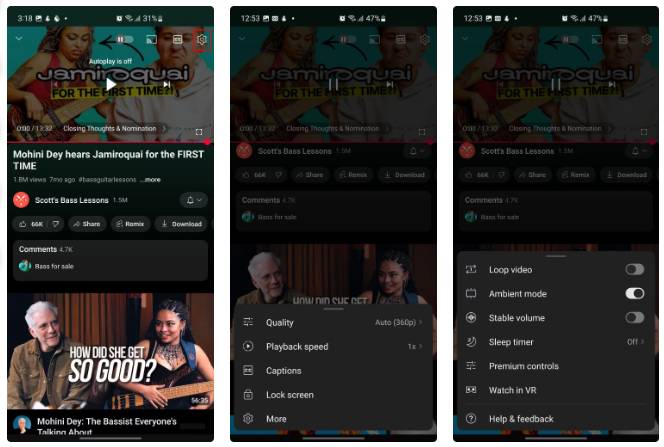
On the web, play a video and click the small gear icon in the player. If the video supports it, you'll see a toggle for Stable volume In the settings menu. On mobile, tap the video to reveal the controls, then click the gear icon in the upper right corner. Select More At the bottom of the list, then tap Stable volume To turn it on.
This is especially useful if you're watching many content at once—for example, a softly spoken tutorial video, followed by a heavily edited reaction video. Everything stays within the same comfortable range without making you uncomfortable or forcing you to rewind.
Make every video look perfect from the start!
360p is unacceptable
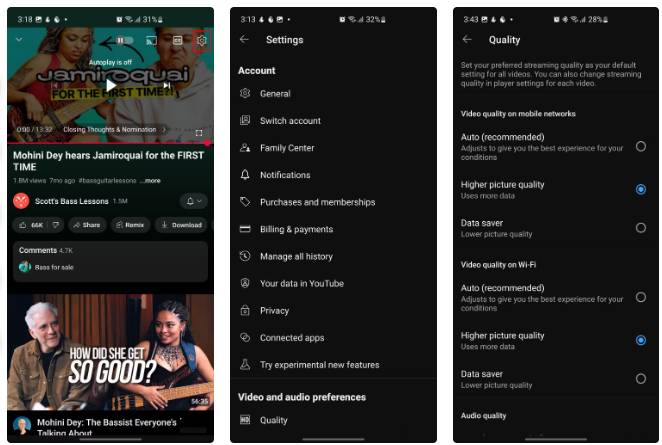
If you're on a mobile device, go to Settings , then tap Quality Under Video and audio preferences . Set both Video quality on mobile networks And Video quality on Wi-Fi To Higher picture quality . This will cause videos to start at 720p HD by default. Unfortunately, there's no built-in way to automatically lock them to 1080p or higher.
On desktop, YouTube isn't much help either, as videos still auto-scale based on your connection. However, a browser extension like Auto HD/4K/8K for YouTube can help with this, forcing every video to play at the quality you want from the start.
- Download Auto HD/4K/8K for YouTube extension for Chrome | Firefox
FAQ
What should you know about the options in this guide?
In practical terms, it wasn't until people started tinkering and making small changes that they realized how much they were suffering.
Which option is the best choice?
The best choice depends on your priorities, compatibility, budget, and the specific features discussed in the comparison.
What should you compare before deciding?
Compare core features, limitations, ease of use, compatibility, and long-term value before making a decision.
Related Articles
 4 YouTube Add-ons That Make Watching Long Videos More Enjoyable7 minutes read
 How to Fix the No Sound Issue When Watching YouTube Videos6 minutes read
 5 Ways to Increase Watch Time on Your YouTube Videos8 minutes read
 How to Prevent YouTube from Suspending?5 minutes read
 YouTube Will Soon Bring Picture-in-Picture Feature to the Desktop4 minutes read
 How to Turn on the Feature That Prompts You to Watch Videos Too Long3 minutes read
Reader Comments 0
Sign in with email or Google to join the discussion.