Table of Contents
This updated guide compares hidden iOS settings that are draining your data plan and highlights the details that matter most. The iPhone is great in many ways, but saving mobile data isn't one of them. If you're running out of data frequently, here are some key settings It is best to change to reduce the amount of data your phone uses.
6. Turn Off Background Refresh for Apps
The iPhone App Store is full of useful apps, and you probably have hundreds of them installed. By default, all of these apps can use cellular data in the background, even when you're not using them. This can quickly drain your data allowance, especially for apps that constantly refresh feeds or send notifications.
To limit this, it is best to only enable background app refresh for apps you really need. Here's how to adjust the settings on your iPhone:
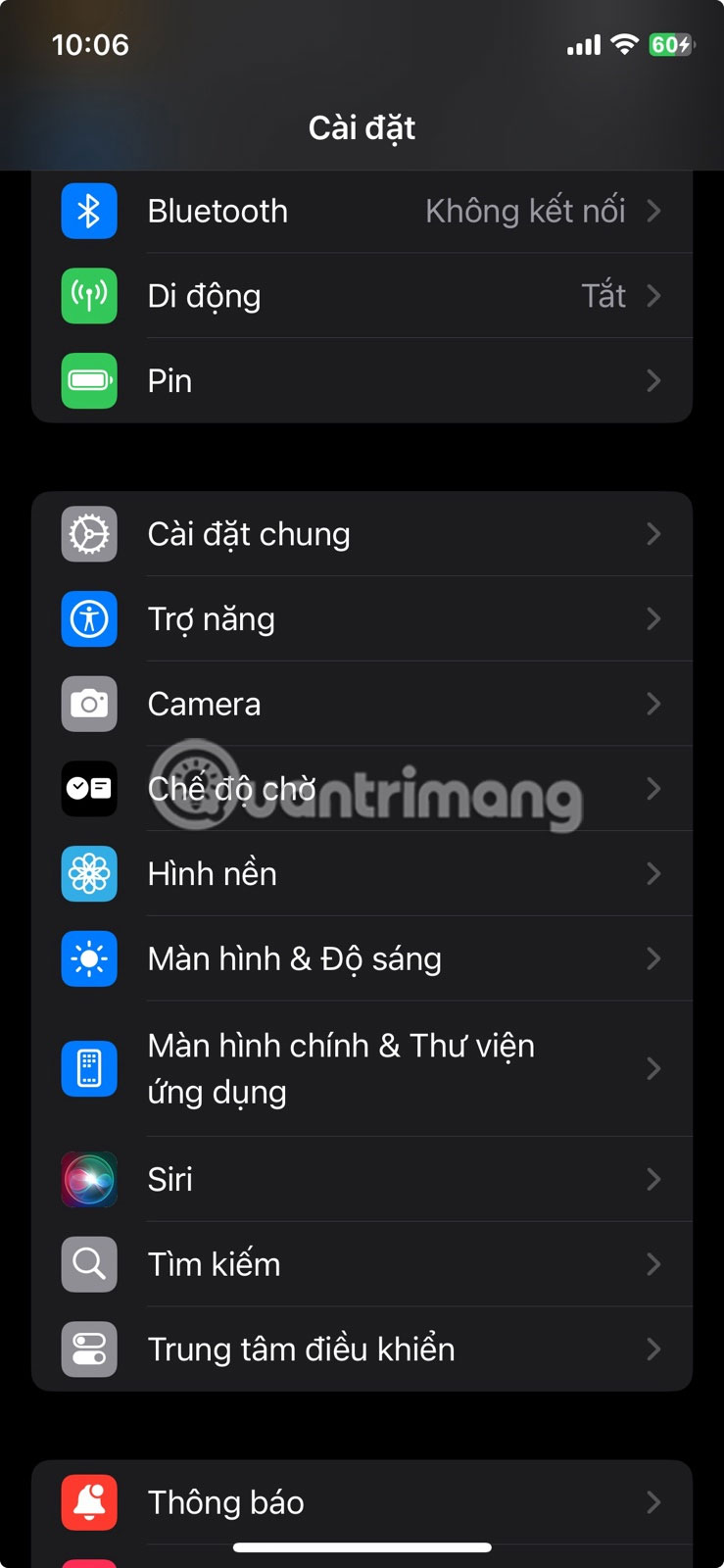
- Open Settings .
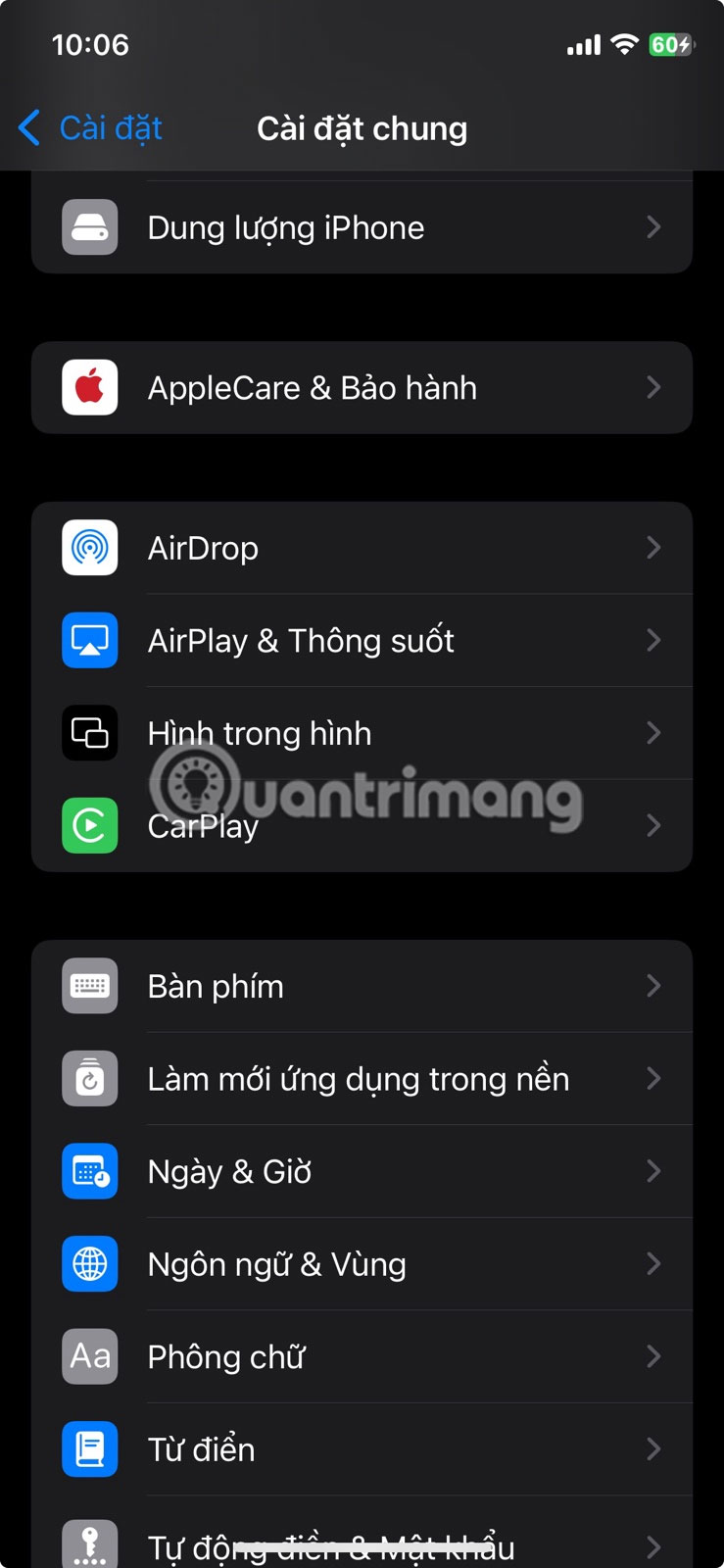
- Tap General Settings .
- Scroll down and select Background App Refresh .
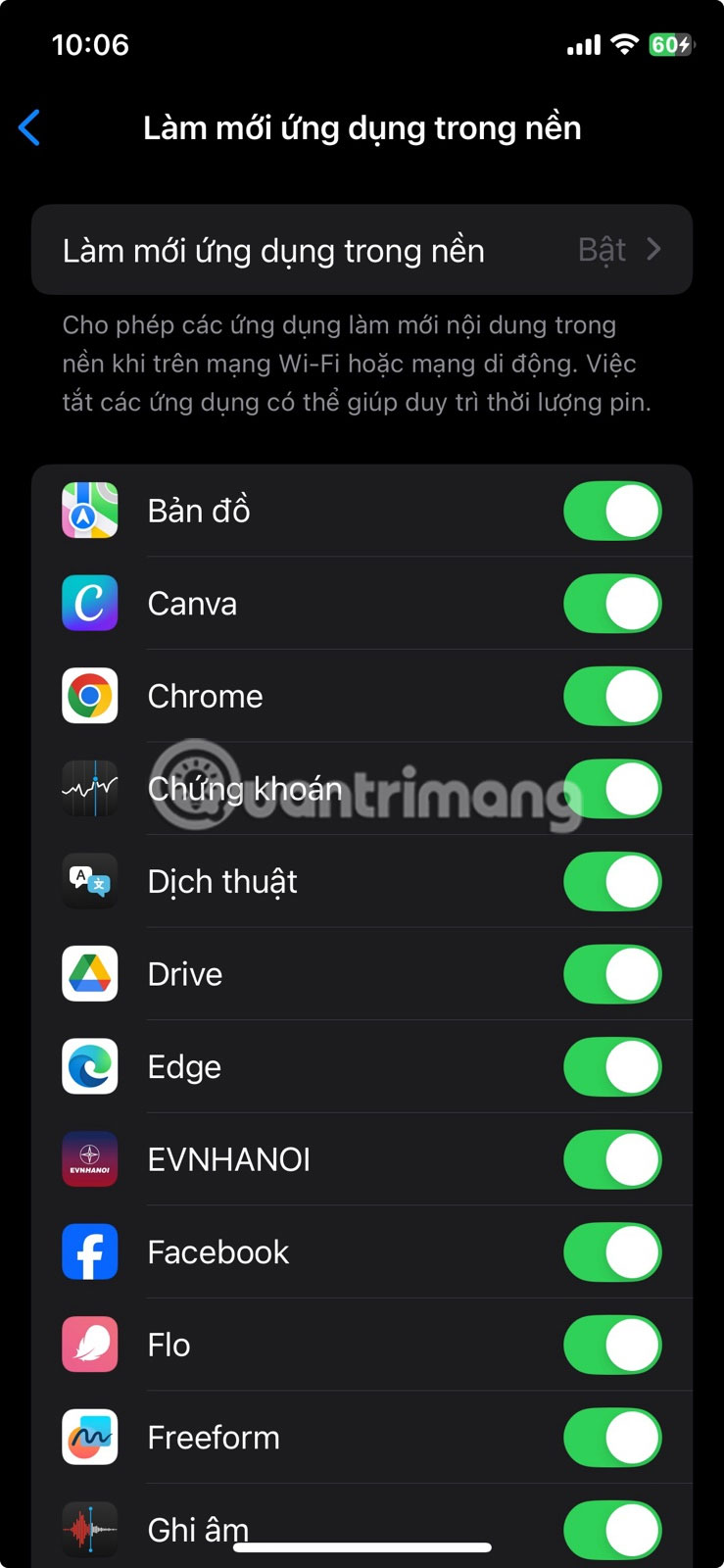
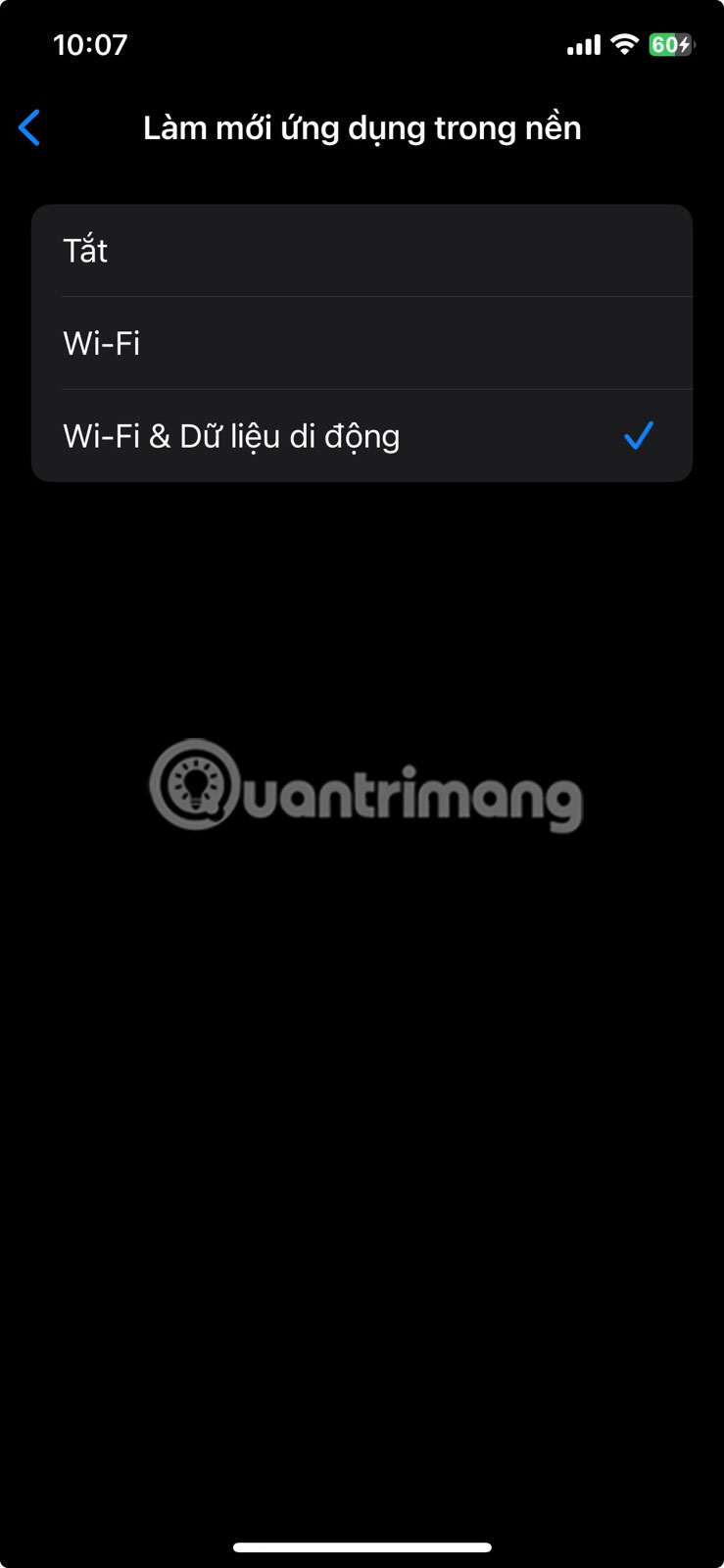
- Tap Background App Refresh again to select Wi-Fi or turn it off completely.
- You can turn off background refresh for individual apps to further reduce data usage.
5. Turn Off Automatic App Updates on Mobile Data
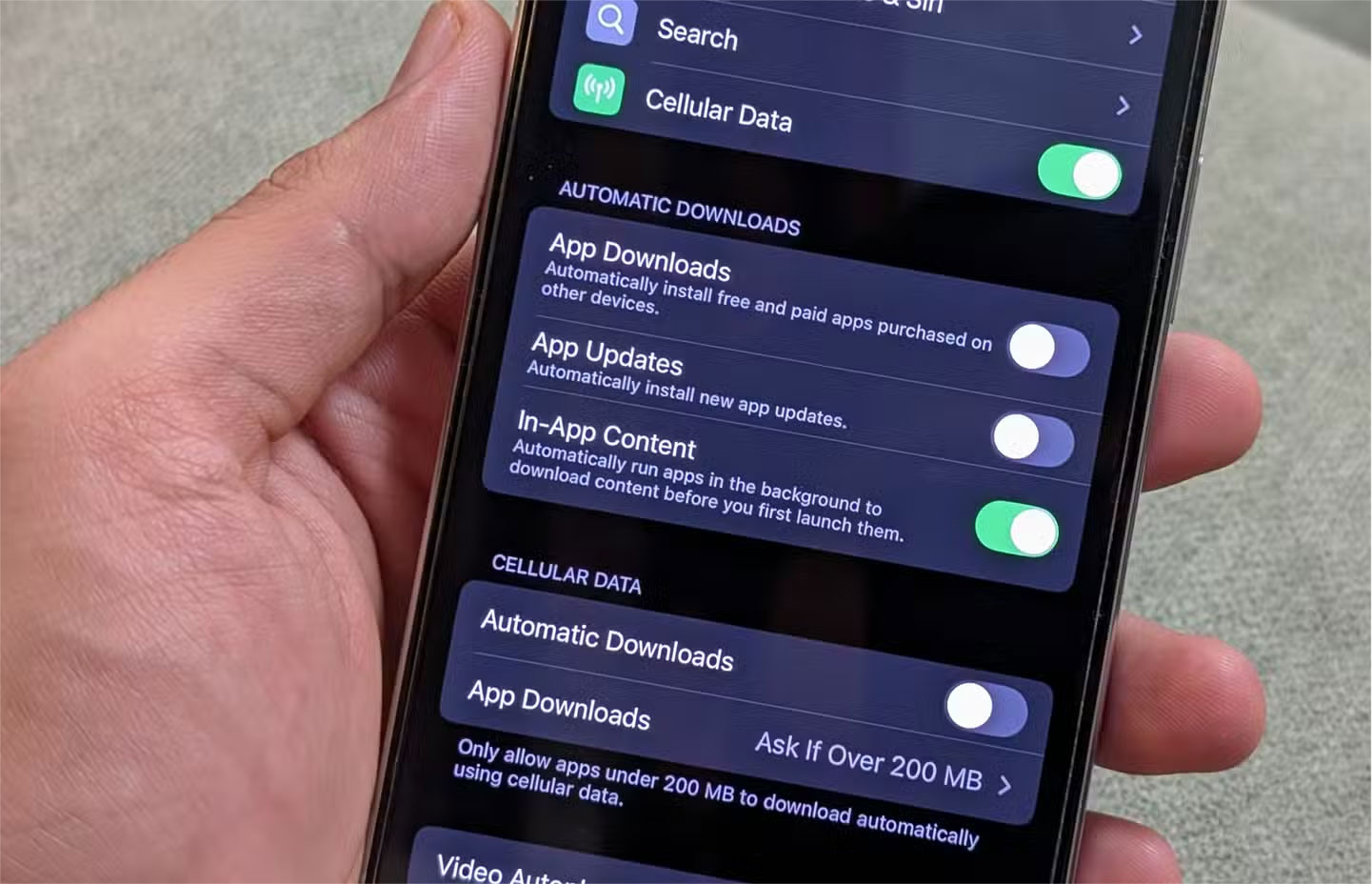
Another hidden setting that can silently drain your cellular data on iOS is the App Store's ability to download apps and updates over cellular data by default.
With app sizes increasing, this can quickly eat up your data allowance without warning, especially if you play mobile games. To prevent this and save mobile data, follow these quick steps to turn off automatic app downloads and updates:
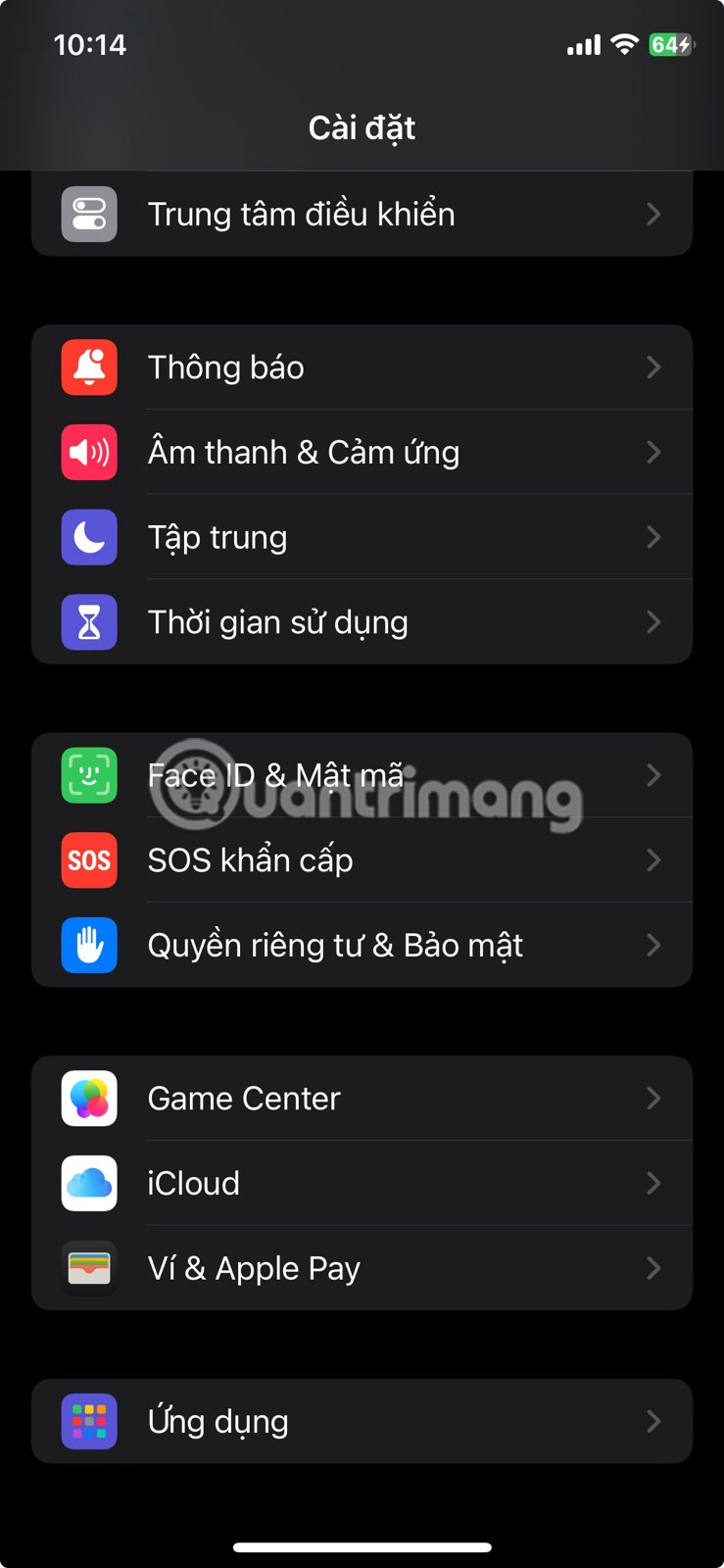
- Open Settings .
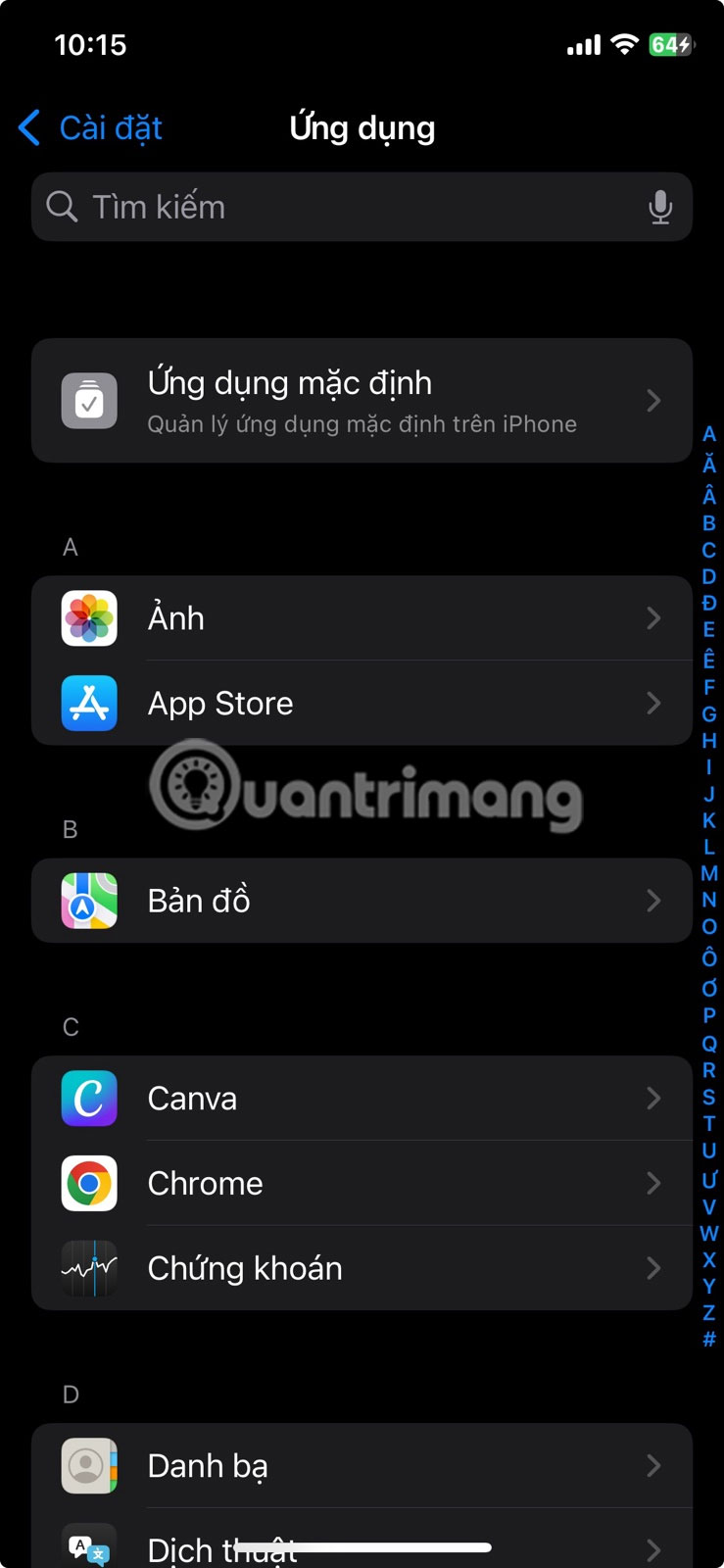
- Scroll down and tap Apps > App Store .
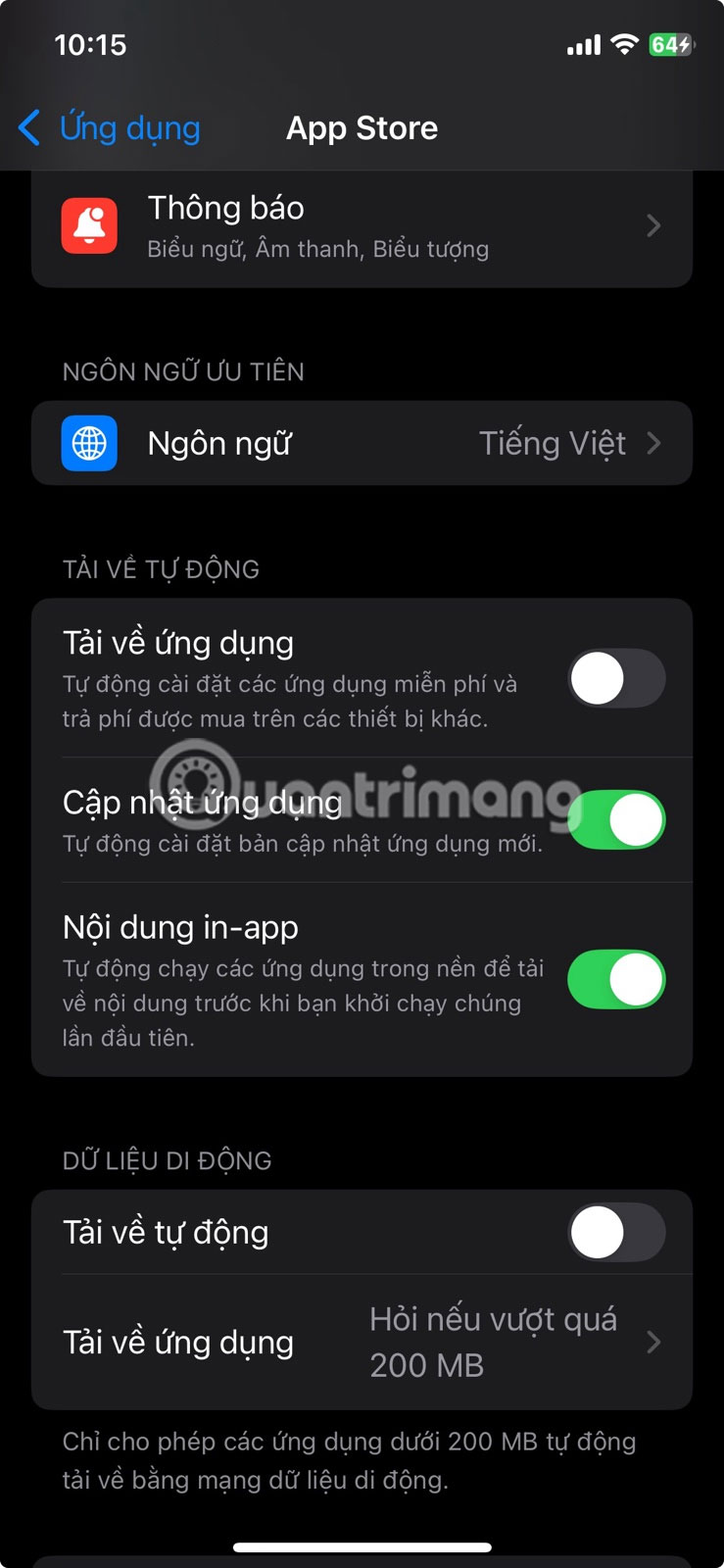
- In App Store settings, do these:
- Turn off "Automatic Downloads" to stop automatic updates via data.
- Or turn off cellular data for the App Store completely.
4. Prevent iCloud from Syncing Over Cellular Data
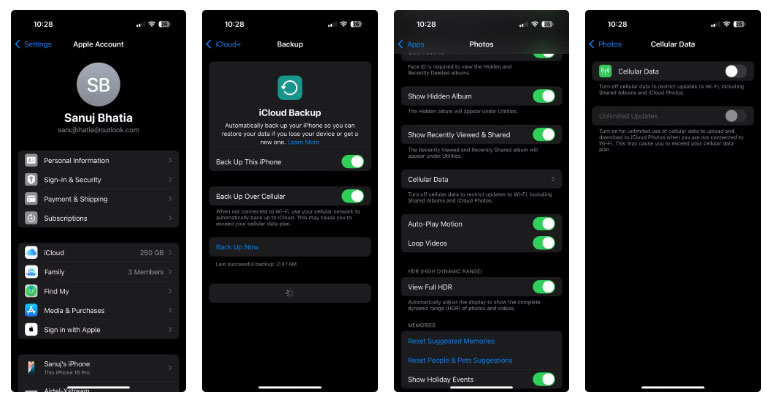
iCloud is one of the best features of the Apple ecosystem, allowing you to access your files, photos, and videos across all your Apple devices. Still, it can automatically back up your data when you're only connected to a cellular network. This is useful to back up your data without having access to Wi-Fi. Still, it quickly becomes a problem, especially when you're traveling and taking hundreds of photos or videos. This can lead to many data usage. Luckily, this feature is easy to turn off. Here's how:
- Open Settings and tap your profile icon at the top.
- Tap iCloud , then select iCloud Backup .
- Turn off Backup over mobile data .
- Go back, select Photos , then tap Cellular Data and turn it off.
3. Turn Off Wi - Fi Assist to Prevent Data Spikes
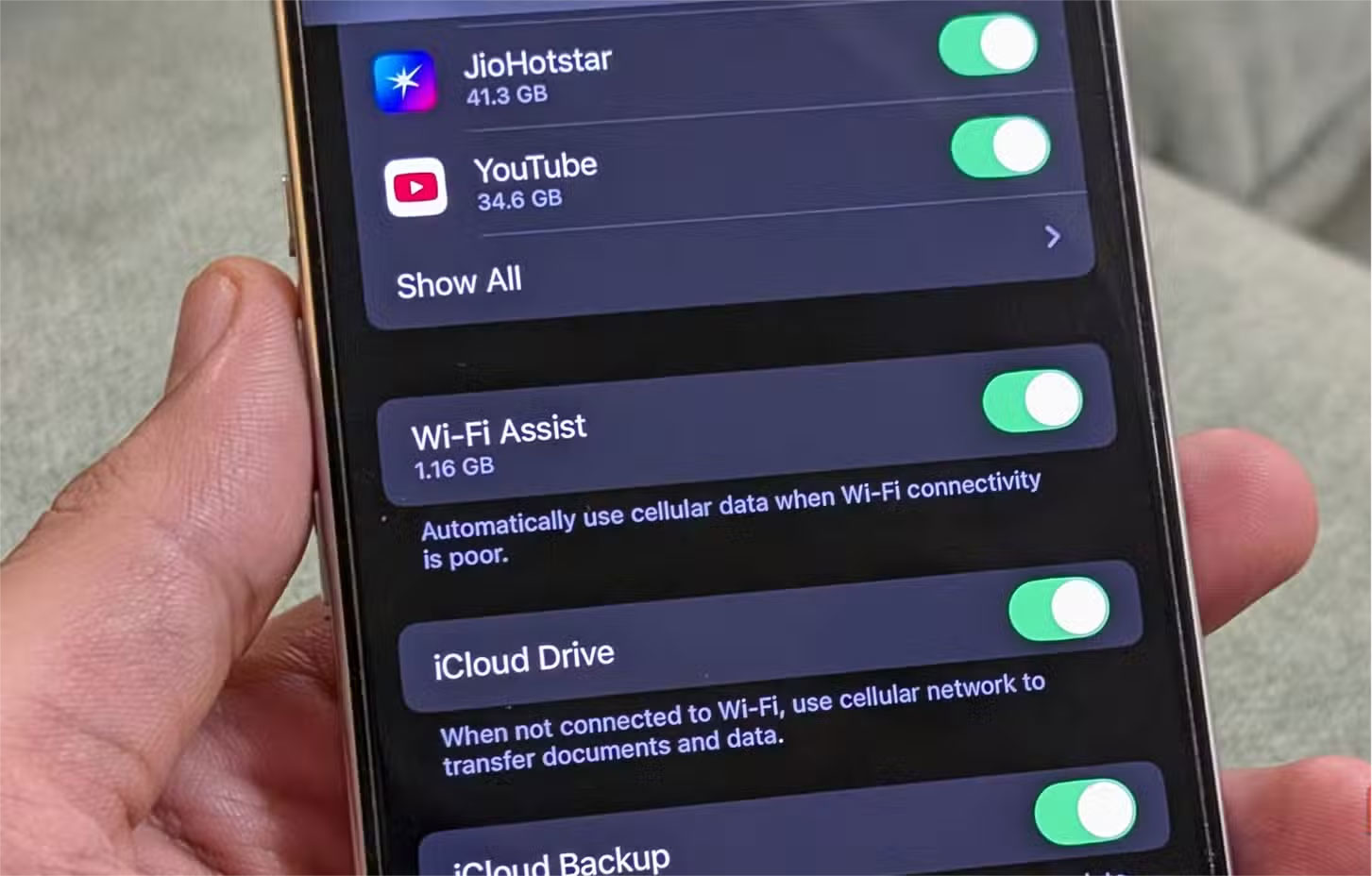
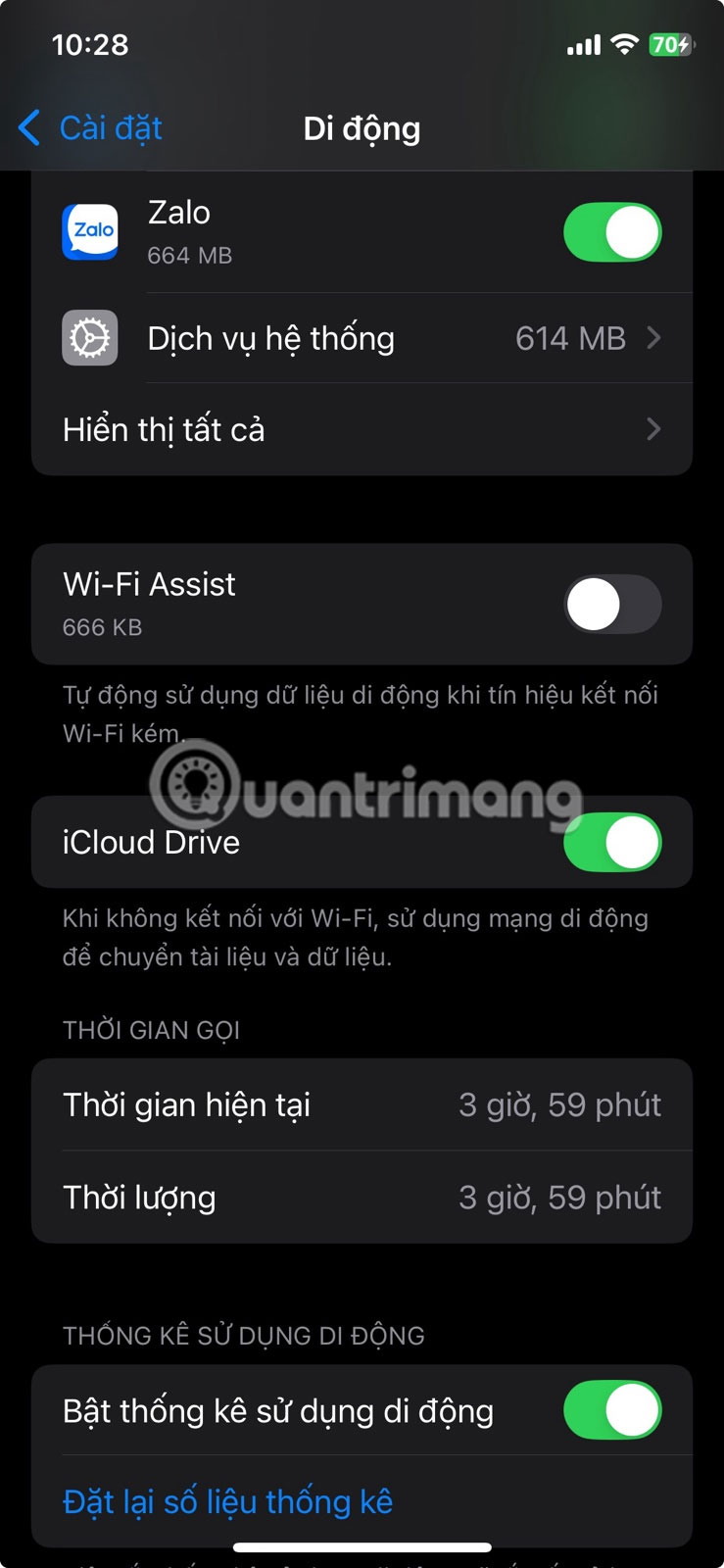
When your Wi-Fi signal is weak, your iPhone may automatically switch to cellular data to maintain a stable connection. While this can be helpful for streaming or video calling, it can lead to higher data usage without you realizing it. To stop your iPhone from switching to cellular data when your Wi-Fi is weak, follow these steps:
- Open Settings.
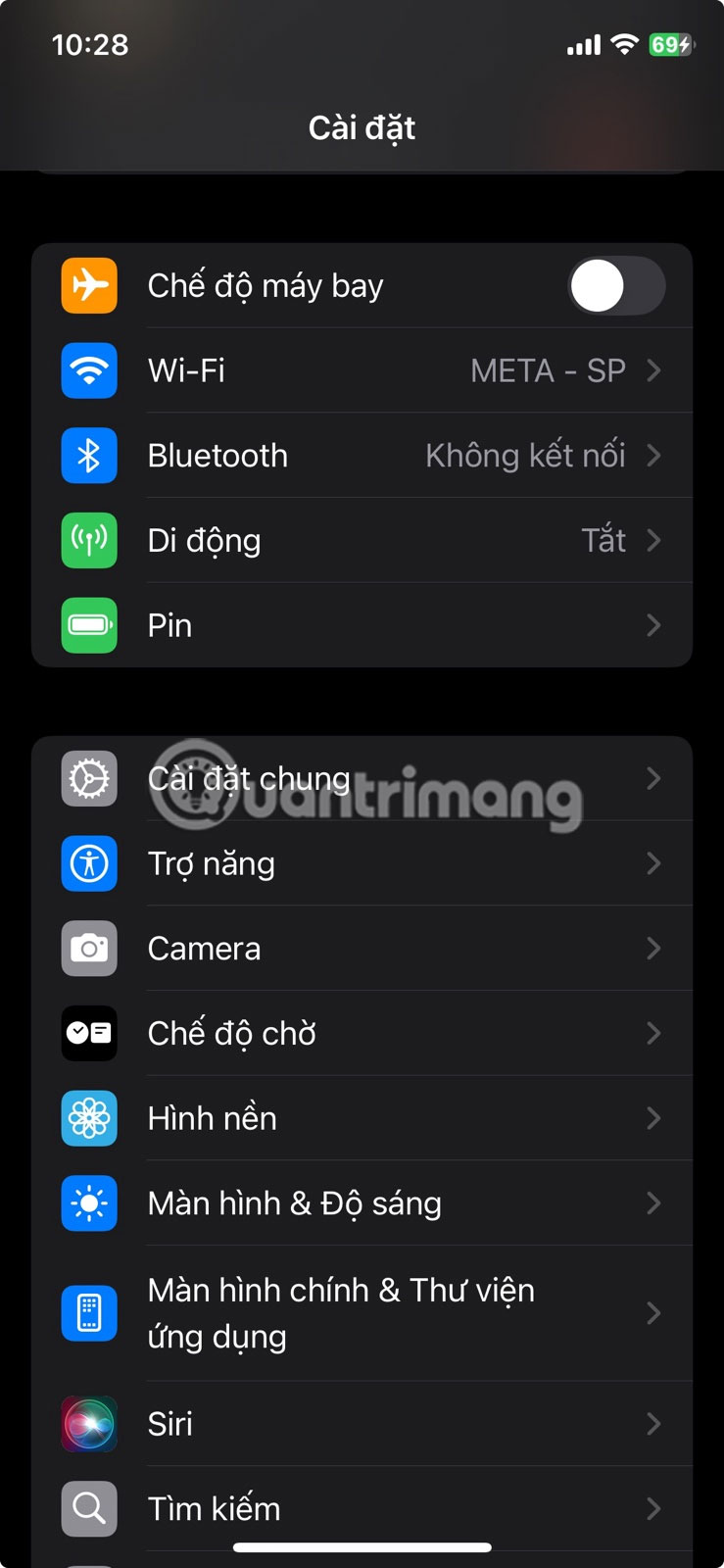
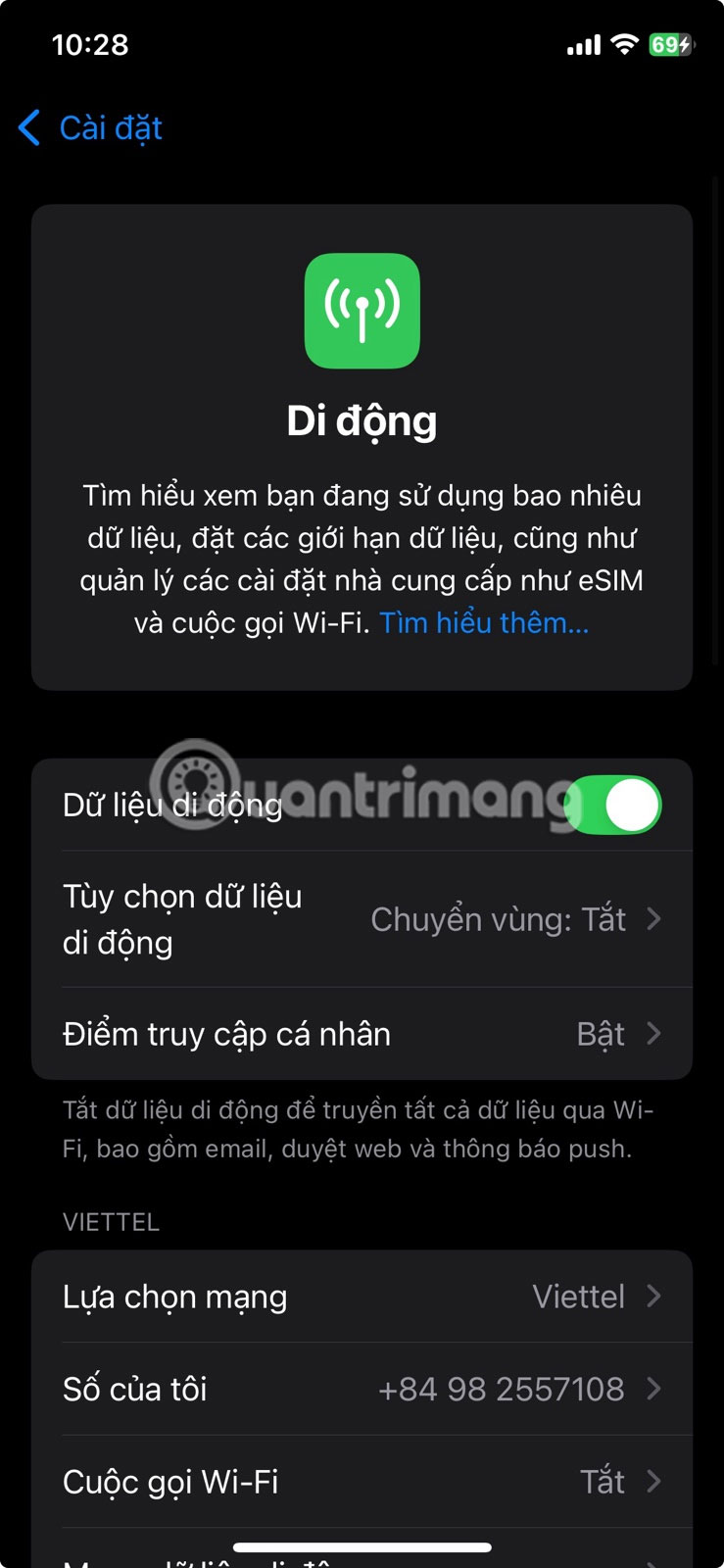
- Click Mobile .
- Scroll down and turn off Wi-Fi Assist .
2. Carefully Monitor Personal Hotspot and Data Roaming Usage
With iOS 18, Apple finally added a Personal Hotspot toggle directly to Control Center. While convenient, this can lead to high data usage if multiple devices are connected to your iPhone at the same time. This is why It is best to always monitor connected devices and enable Low Data Mode on any devices that use your iPhone as a hotspot.
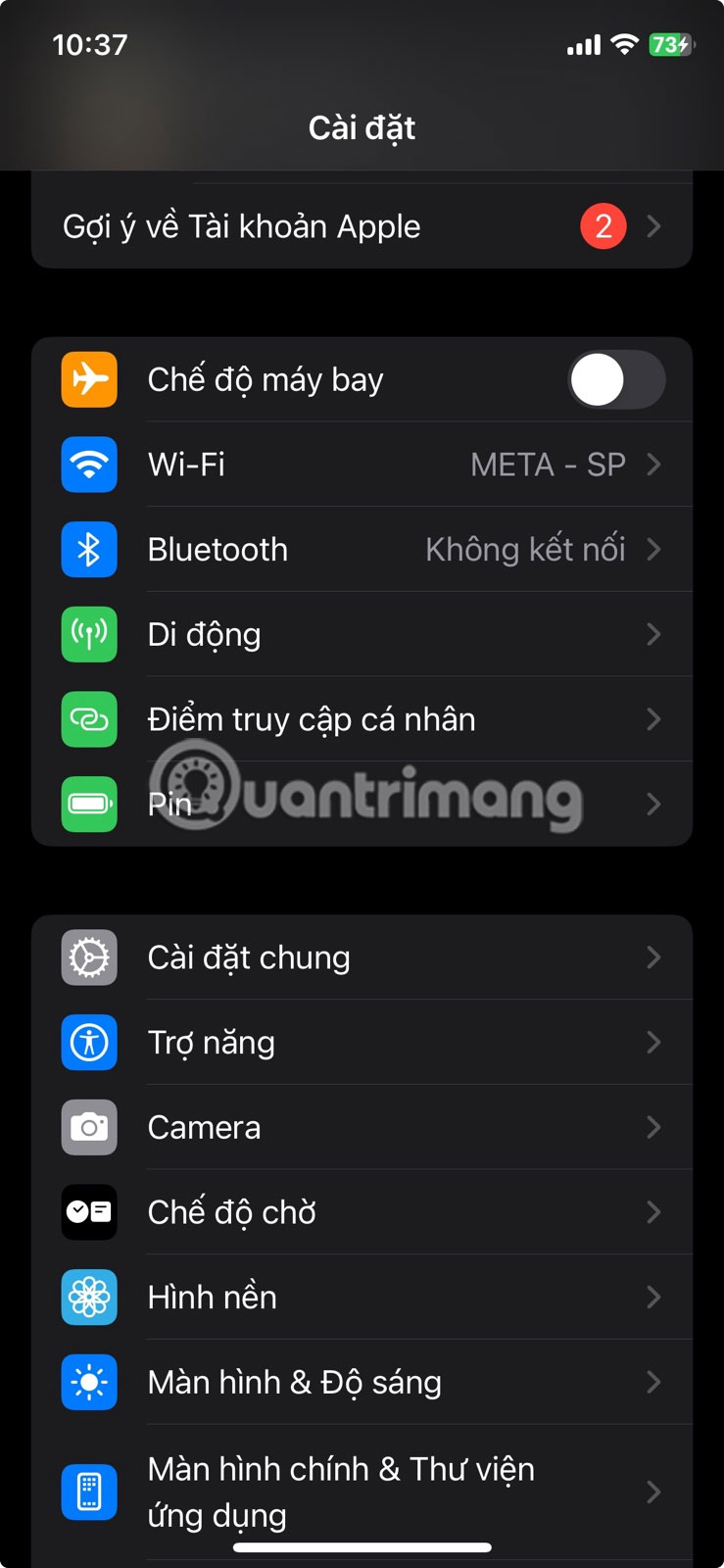
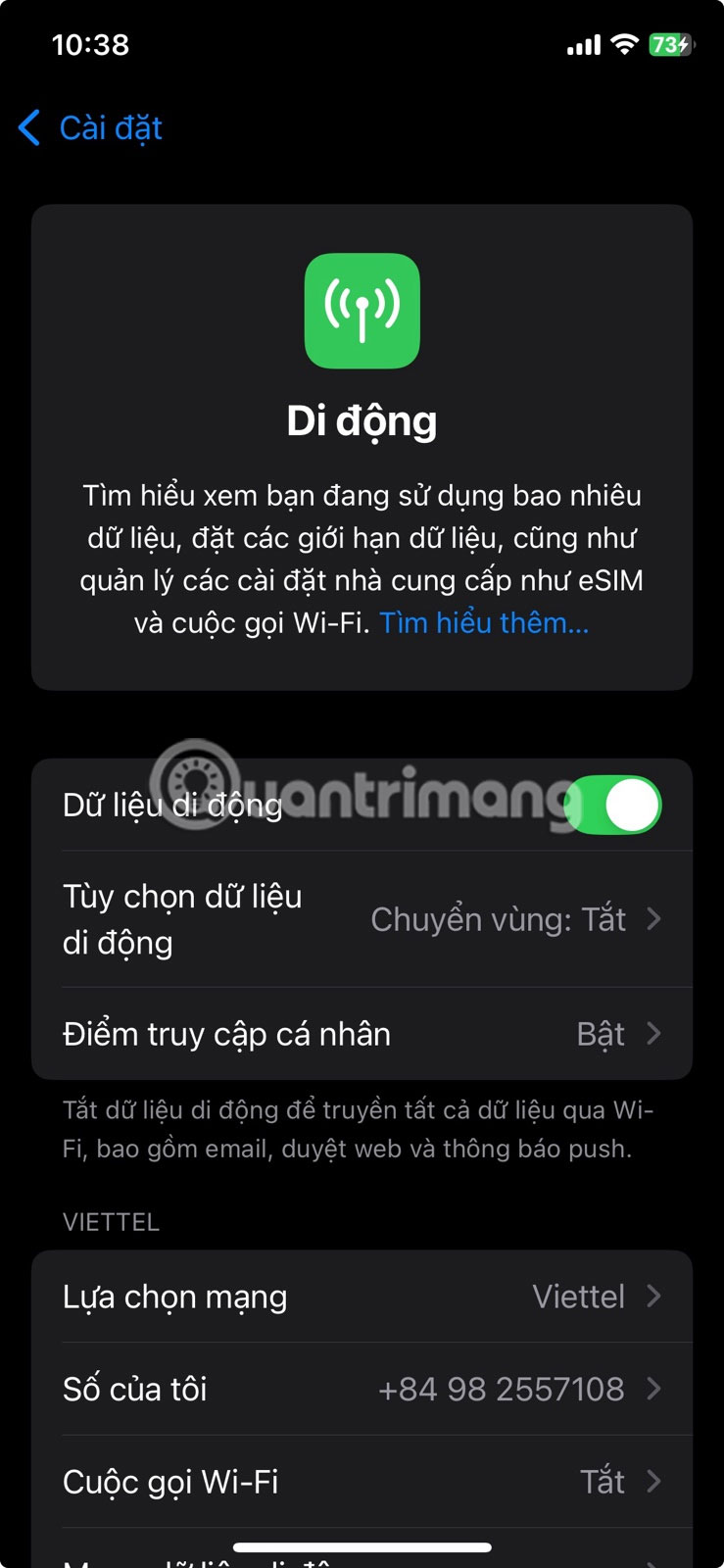
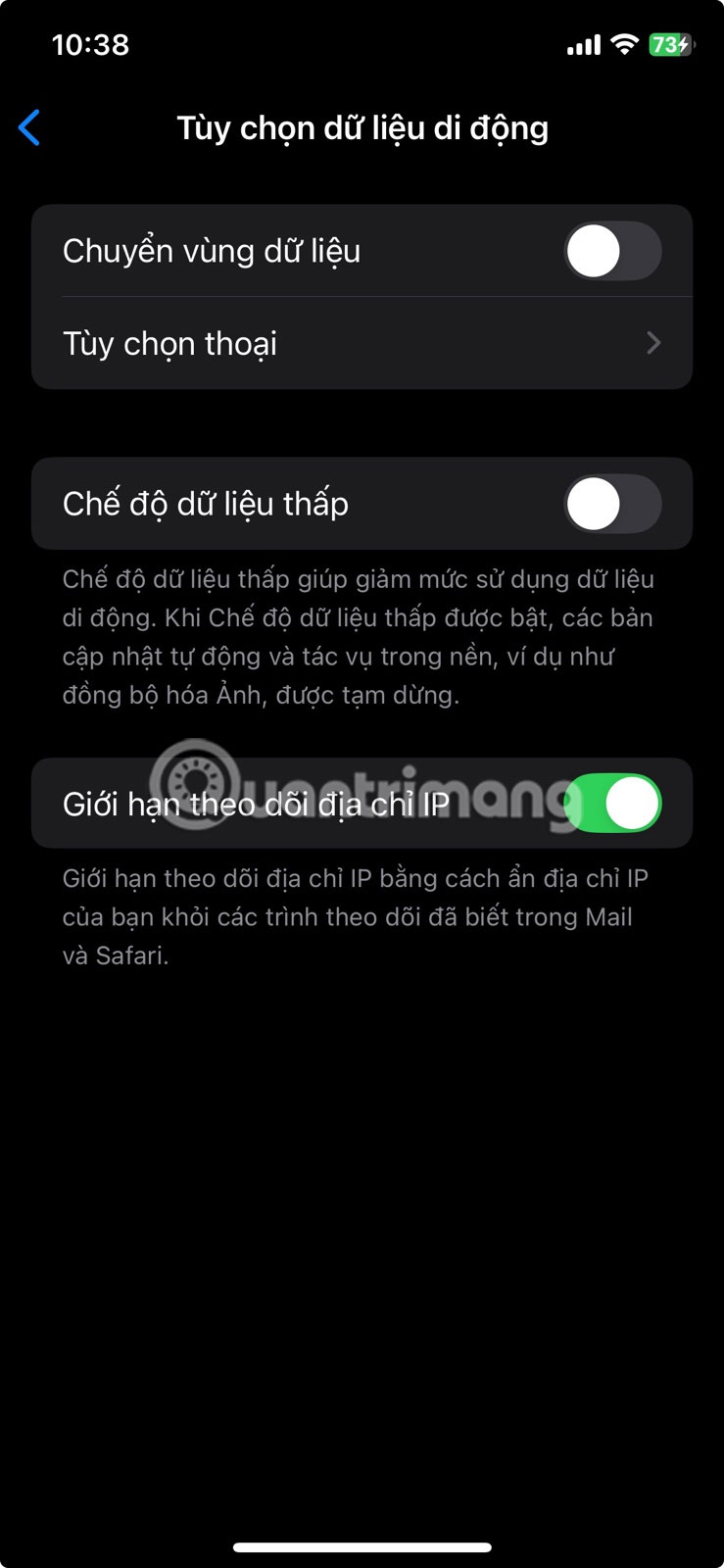
Likewise, roaming data can be a hidden drain, especially when you're traveling internationally. Even if you're not actively using your phone, background processes can still consume data while roaming, leading to big charges. To avoid this, consider turning off Data Roaming by going to Settings > Cellular > Cellular Data Options and turning off Data Roaming .
1. Prevent Safari from Using Data Before You Tap
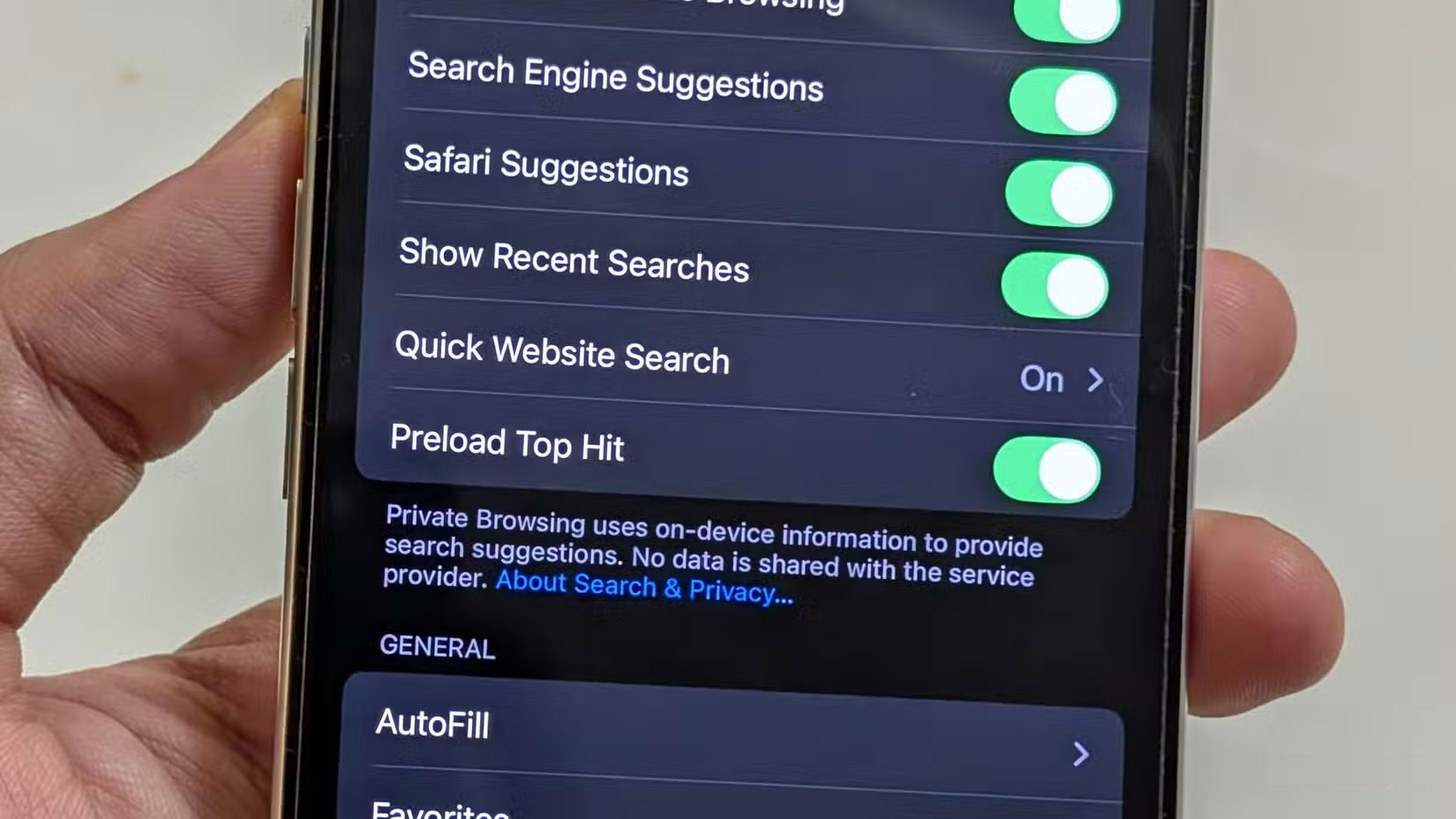
Even though Apple has opened up iOS to third-party browsers, Safari remains one of the most widely used browsers on the iPhone. it is fast, secure, and packed with features. But one of those features, called Best Match Preload , may be using more data than it should.
When you search in Safari, your iPhone automatically preloads the first search result so it opens immediately when you tap it. While that may sound useful, it can lead to unnecessary data consumption, especially if you do not select the result. To turn this feature off:
- Open Settings .
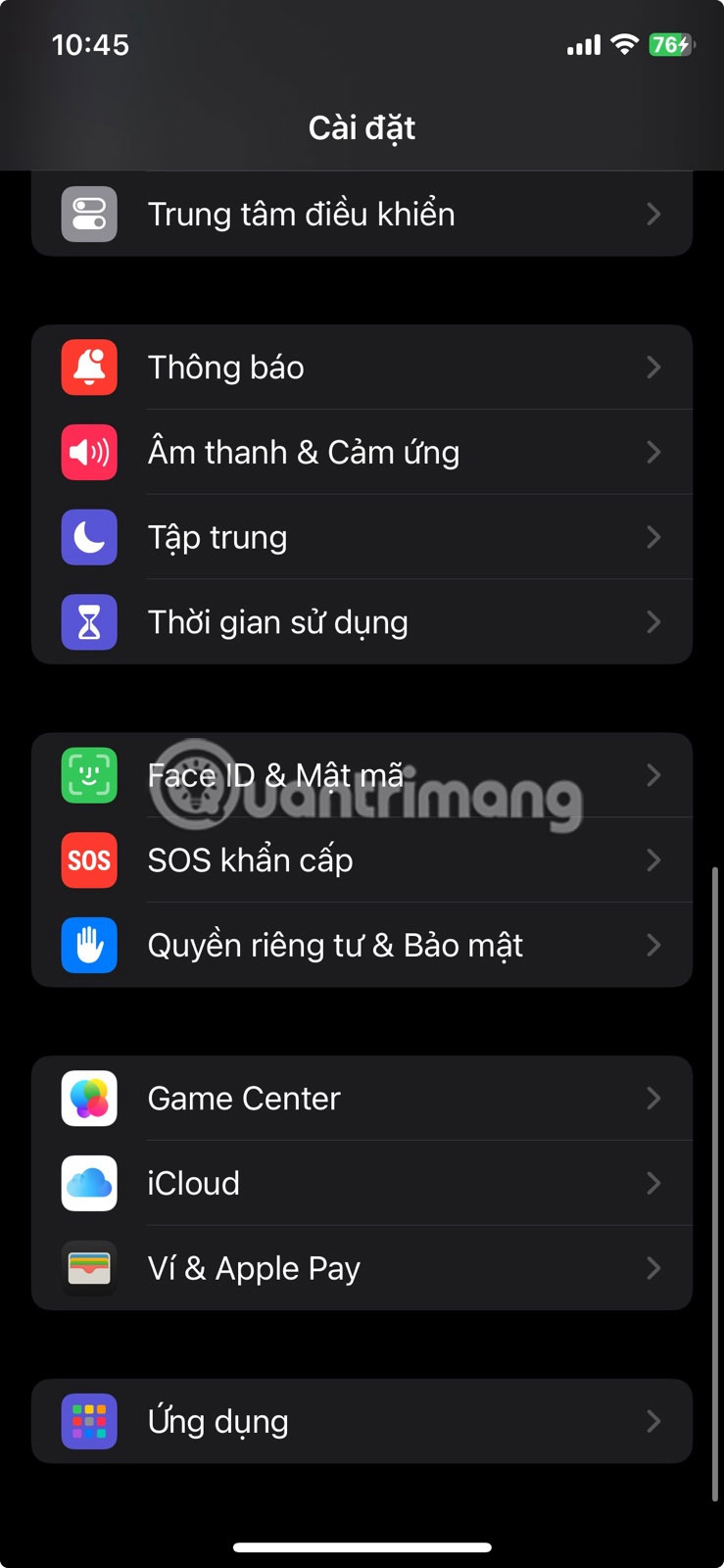
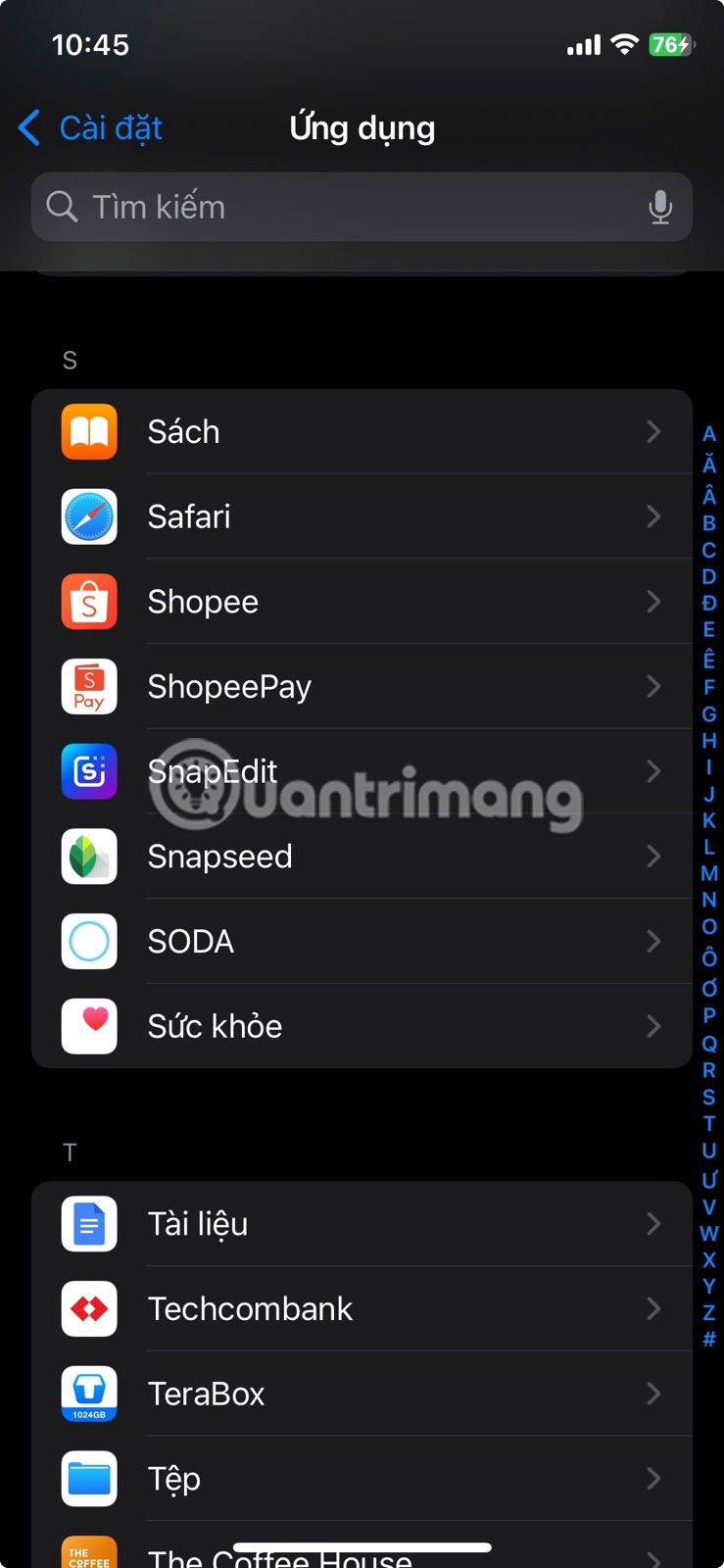
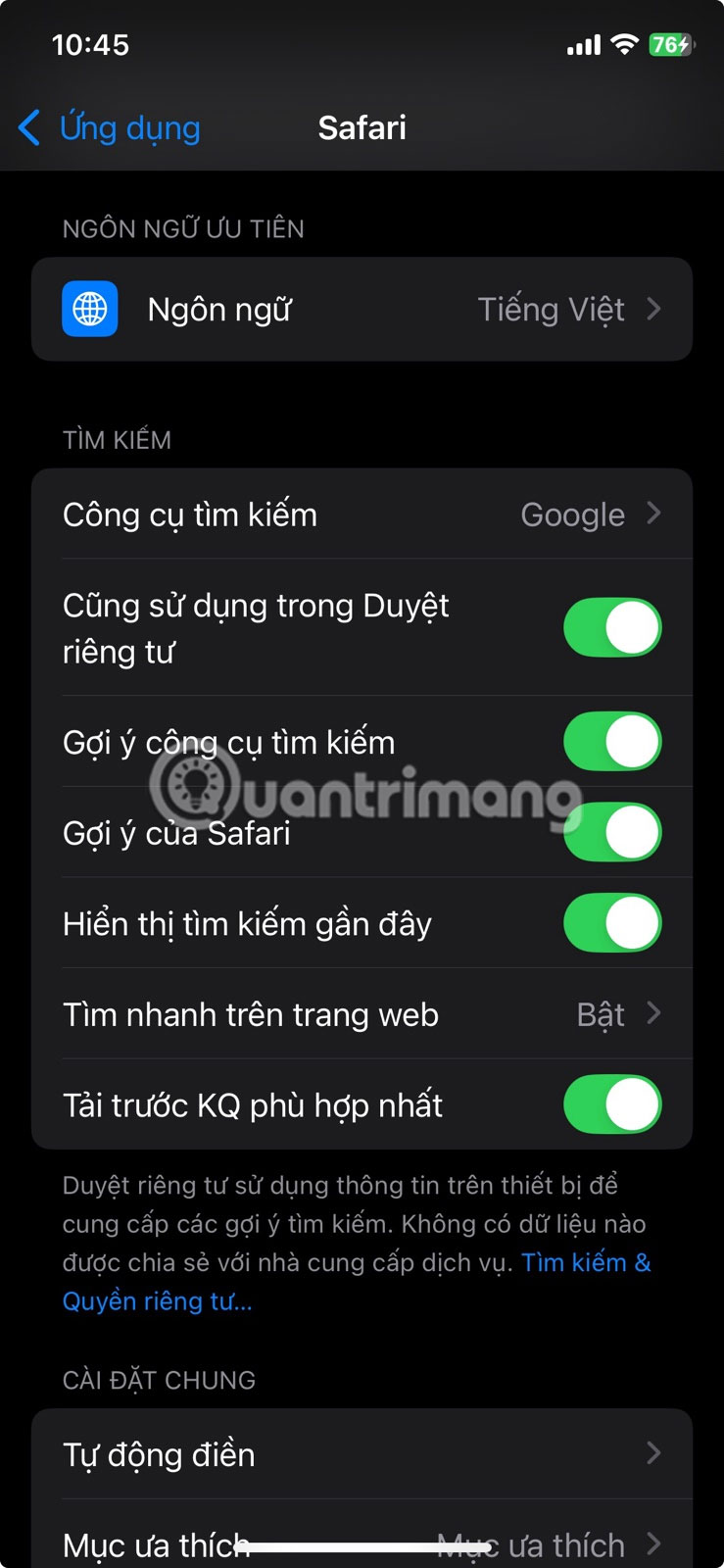
- open Apps and select Safari.
- Turn off Preload Best Fit .
These are just a few of the hidden settings It is best to adjust to reduce excessive data usage on your iPhone. With cellular plans costing more every day, here are some ways you can control how and when your data is used. Still, It is best to also check iOS settings that help maintain battery health so your iPhone runs efficiently.
FAQ
How were the hidden ios settings that are draining your data plan options evaluated?
The comparison focuses on practical features, ease of use, limitations, compatibility, and the type of user each option is most likely to help.
Which option is best for beginners?
Beginners should prioritize a clear interface, useful documentation, reliable support, and the core features needed for their first project.
Should I choose a free or paid option?
Start with a free option when it covers your needs. A paid plan may be worthwhile when you need advanced tools, commercial rights, collaboration, or professional support.
Related Articles
 7 Hidden Plex Settings You Should Use9 minutes read
 Apps That Are Secretly Draining Your Phone Battery: Complete Guide6 minutes read
 9 iPhone Settings to Change for Privacy and Convenience9 minutes read
 How to Change Advanced Settings Hidden in the Browser5 minutes read
 Unveiling Hidden iOS Settings That Will Give Your iPhone a New Look5 minutes read
 Hidden Firefox Settings: Best Options and Key Tips4 minutes read
Reader Comments 0
Sign in with email or Google to join the discussion.