Table of Contents
Some Windows apps become 'bloated' over time due to the integration of too many features. This can make them less appealing and harder to use. Here are four typical apps that are often called 'bloated' and the alternatives you can consider.
4. Microsoft 365/Office
Microsoft 365 apps like Word and Excel have become the standard for both office and personal work. However, they pack so many features that you rarely use them all. Many tools like styles, section breaks, and content controls are often overlooked. Navigating through the myriad ribbons, settings menus, and complex tools can be overwhelming.
These features are retained to meet the needs of certain users. However, the complexity and large number of functions make them considered "bloated".
Alternatives: You can switch to simpler versions that focus on core features like Google Docs or Microsoft 365 for the web (formerly Office Online). Both are free, easy to use, and stripped of unnecessary features.
3. Security suite
Since Microsoft Defender was integrated into Windows, third-party security software like AVG, Avast, and Norton have added more features to compete. They have evolved from offering only basic antivirus protection to full-featured suites, with different subscription plans and features.

Premium packages may include VPNs, PC cleaning tools, password managers, parental controls, and more. Packing too much functionality into a single app can be resource-intensive and require frequent updates. Additionally, some features may overlap with what Windows or your browser already has.
Alternative: For a more streamlined security suite, just use Microsoft Defender for basic system protection. Then you can purchase other services separately if needed, like a reliable VPN or a free password manager like Bitwarden.
2. ShareX
ShareX is one of the most powerful free screenshot tools for Windows, but its high customization and myriad of features can be confusing to new users.
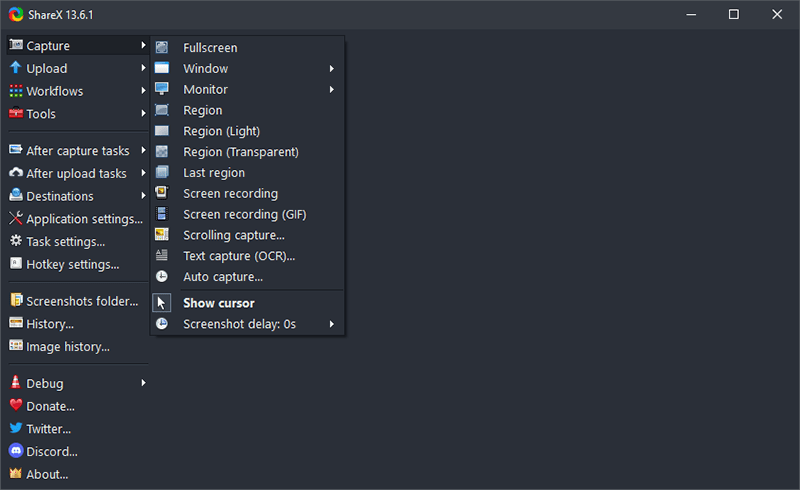
In addition to the usual capture and editing options, ShareX also offers a variety of auto-upload options to lesser-known services. The app's Tools menu also contains a number of tools that are unnecessary for a screenshot program, such as a metadata editor, an "image beautifier," and a monitor test.
Alternative: If you need a simpler screenshot tool, consider using PicPick or even the built-in Snipping Tool on Windows (open it with Win + Shift + S). Both offer the necessary features without being overwhelming.
1. PC Manager
Microsoft PC Manager was released to help users optimize their systems. Although this tool is safer than third-party cleaning software, it is still considered "bloated" because it integrates too many unnecessary or available functions.
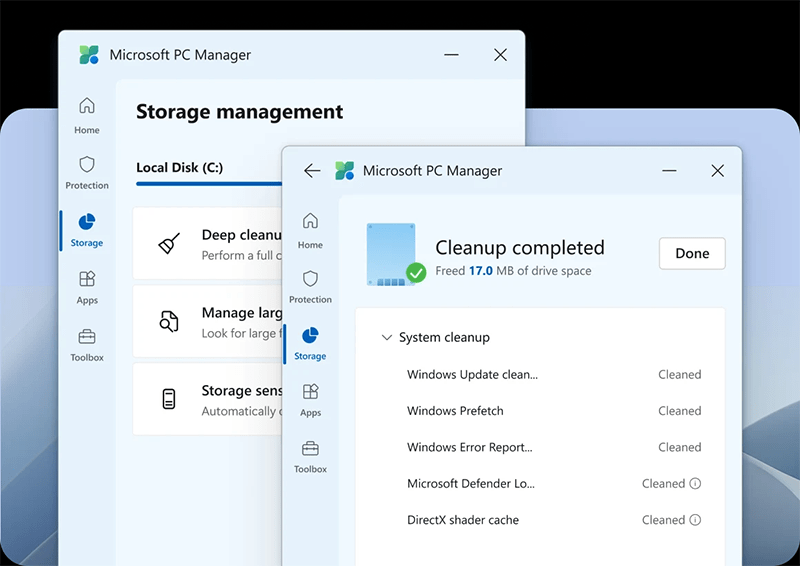
PC Manager has features like PC boost to free up RAM, security check, and pop-up management. However, some of its functions overlap with built-in Windows tools, like Disk Cleanup and Storage Sense (in the Storage tab), or Apps management options in Settings and Task Manager.
Workaround: Instead of using a general-purpose tool, you can access Windows' built-in tools directly to perform these tasks. This gives you more control and avoids feature overload.
Final Thoughts
The development covered in this article is worth following, but specifications, dates, and feature details may change until the relevant company or organization publishes an official confirmation.
FAQ
What is the main development covered in this article?
Some Windows apps become 'bloated' over time due to the integration of too many features. This can make them less appealing and harder to use. Here are four typical apps that are often called 'bloated' and the alternatives you can consider.
What should you know about 4. Microsoft 365/Office?
Microsoft 365 apps like Word and Excel have become the standard for both office and personal work. However, they pack so many features that you rarely use them all. Many tools like styles, section breaks, and content controls are often overlooked.
Is every reported detail officially confirmed?
Not necessarily. Product leaks, preview builds, research reports, and early announcements can change. Confirm important specifications, dates, and availability through an official source before making a decision.
Related Articles
 Lighter Alternatives to Built-in Windows Apps6 minutes read
 7 Ideal Alternatives to Default Mac Apps7 minutes read
 5 Best Skype Alternatives for International Calling6 minutes read
 4 Garageband Alternatives for Windows 106 minutes read
 6 Safe Watching Apps for Kids on Android and iPhone9 minutes read
 9 ChatGPT and Generative AI API Alternatives for Developers: Top Picks and12 minutes read
Reader Comments 0
Sign in with email or Google to join the discussion.