Table of Contents
A Nest speaker or display can start a useful sequence of smart-home actions with one phrase. These five routine ideas cover movie time, leaving home, mornings, reading, and bedtime. Choose only the devices and actions supported in your Google Home app, then test the sequence before relying on it.
Gemini for Home adds voice and automation features on eligible devices, with availability depending on region and feature. Some AI features require Google Home Premium. The underlying idea of a routine is not exclusive to Gemini: it combines a starter with actions, and sometimes conditions. Check Google's Gemini for Home availability guide for your setup.
1. Movie or game time
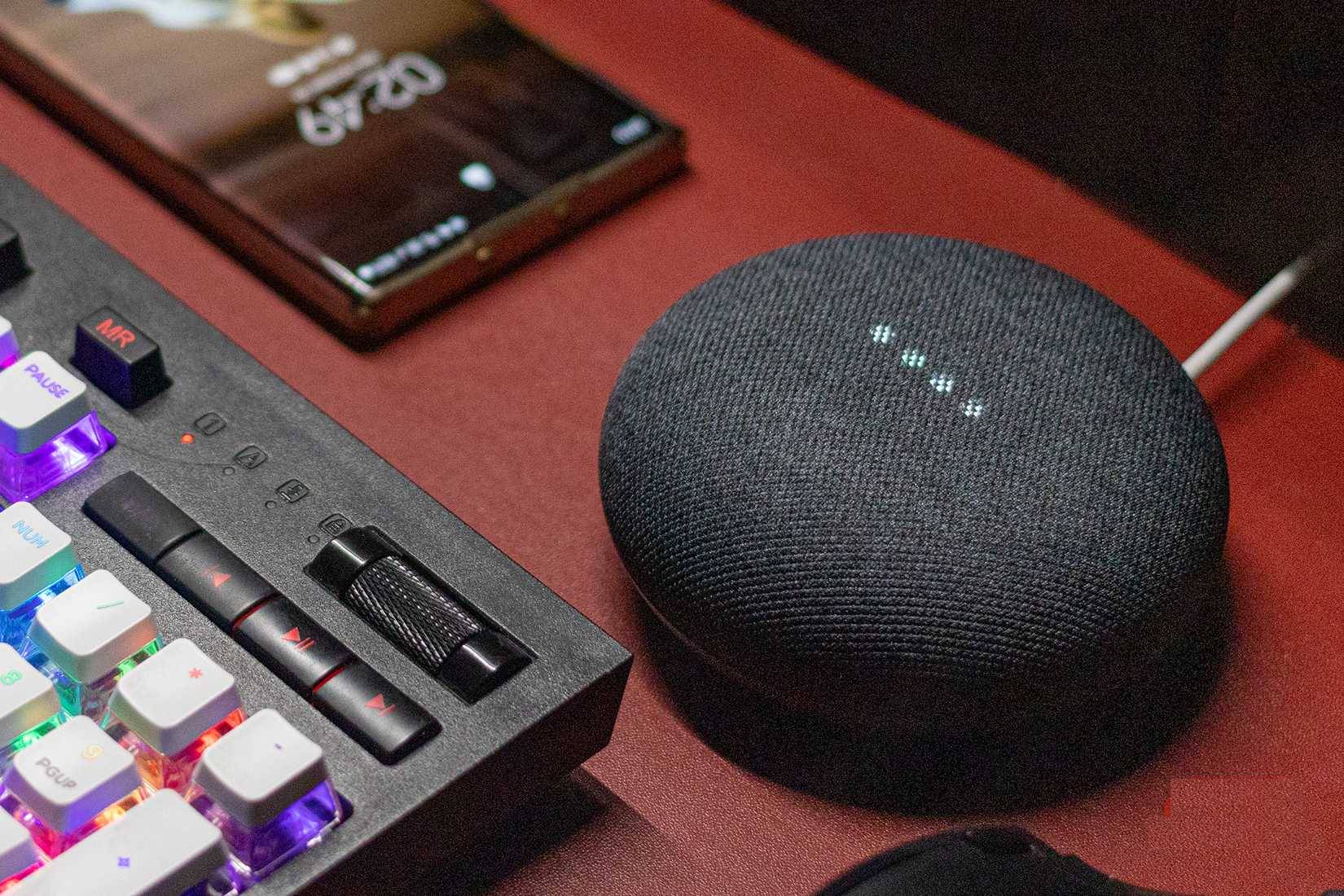
Create a voice starter such as “Hey Google, movie time” and add supported actions for the room: dim selected lights, set a comfortable speaker volume, and turn on a compatible TV. Keep lights near steps or doorways bright enough to move around safely.
Use explicit device names so the routine does not change lights in someone else's room. TV power and volume control depend on the TV and integration; test them individually first. Do not assume a household routine can also silence every phone. Set phone focus or notification controls separately if that action is not offered.
For more command ideas, see TipsMake's Google Home voice-command examples, checking each against the assistant and devices you currently use.
2. Home and Away
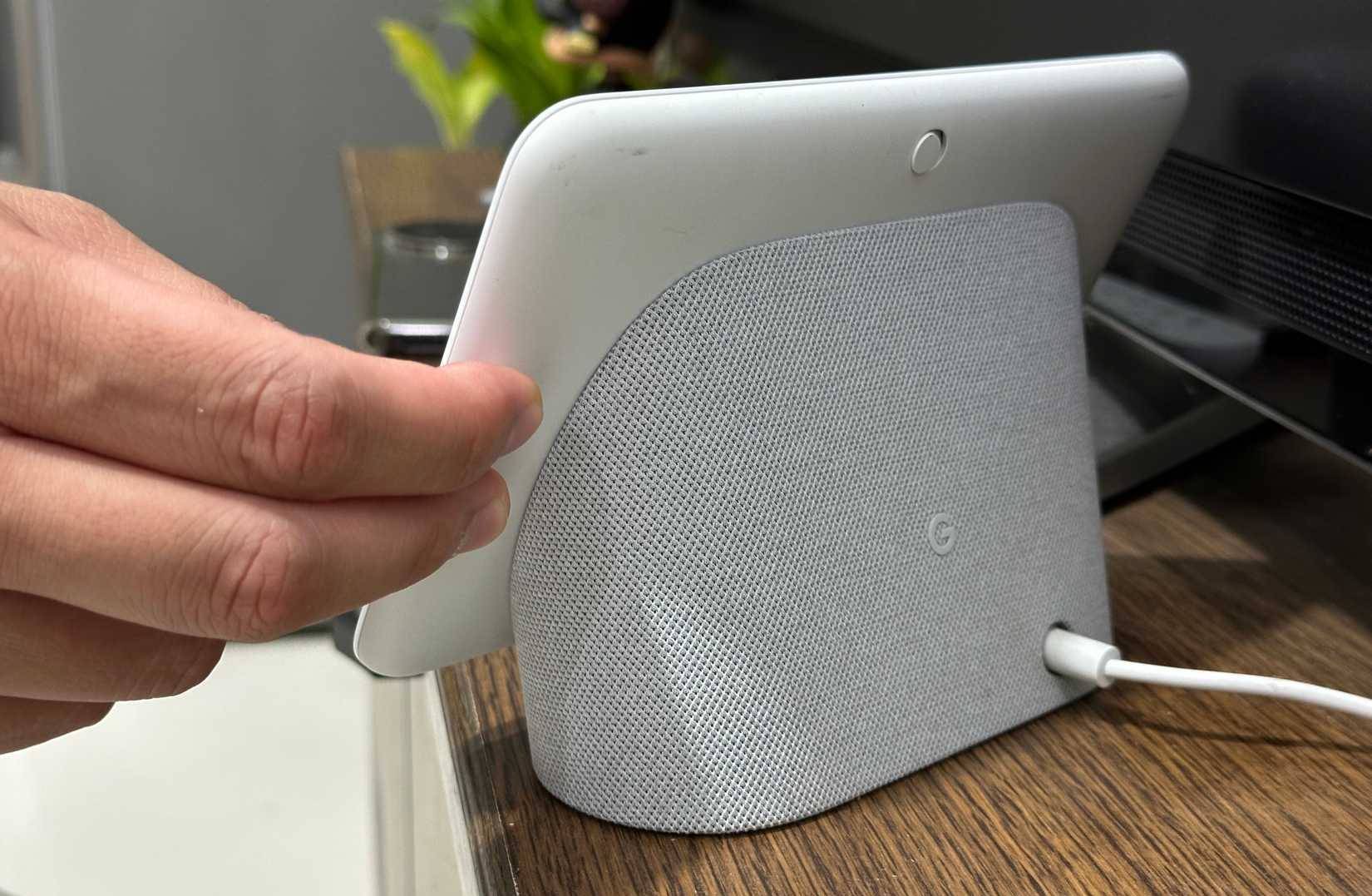
Presence-based automations can respond when everyone is away or someone returns. They are useful for switching off selected lights or plugs when the home is empty. Set up presence sensing first and review which eligible devices and opted-in phones contribute to it.
Consider the whole household. One person's phone leaving is not a reliable sign that nobody remains at home. Keep a manual way to change the home status and test what happens when a phone loses location access.
For a Nest thermostat, review Eco when away in the thermostat settings. Choose appropriate heating and cooling limits rather than simply lowering both temperatures: lowering a cooling target can increase air-conditioning use. Google's presence-automation guide explains the current controls.
Do not treat these routines as a guarantee that a door is locked or a security system is active. Check security devices directly and use their supported controls.
3. A concise morning briefing
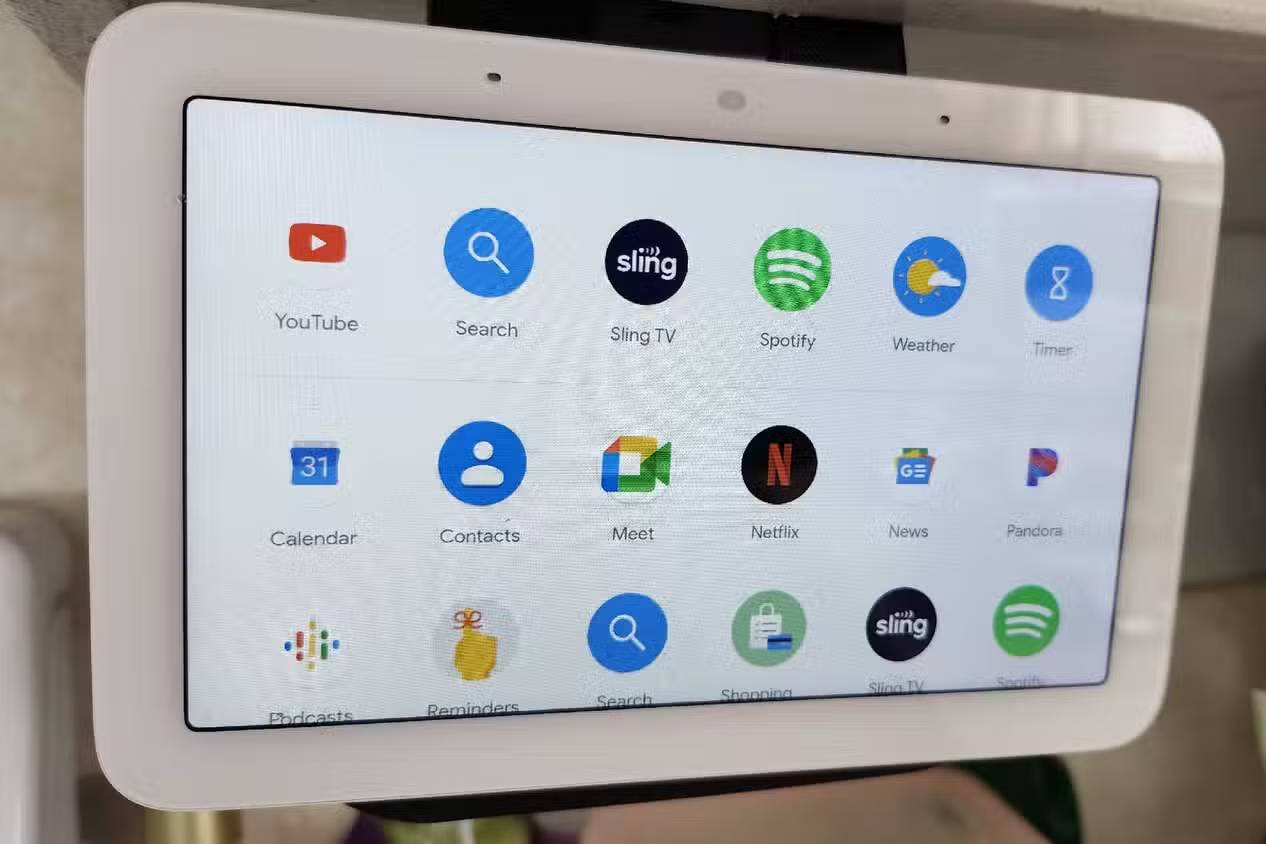
Customize a Good morning routine with the items you actually want to hear: weather, a short news briefing, or a music selection where supported. Set the playback device and a moderate starting volume so it does not wake the whole house unexpectedly.
Keep shared routines focused on household information. For calendar details or other personal results, use a Personal Routine and check the relevant account and personal-results settings. Remove actions you routinely interrupt; a short briefing is easier to use every day.
4. Reading or focus time
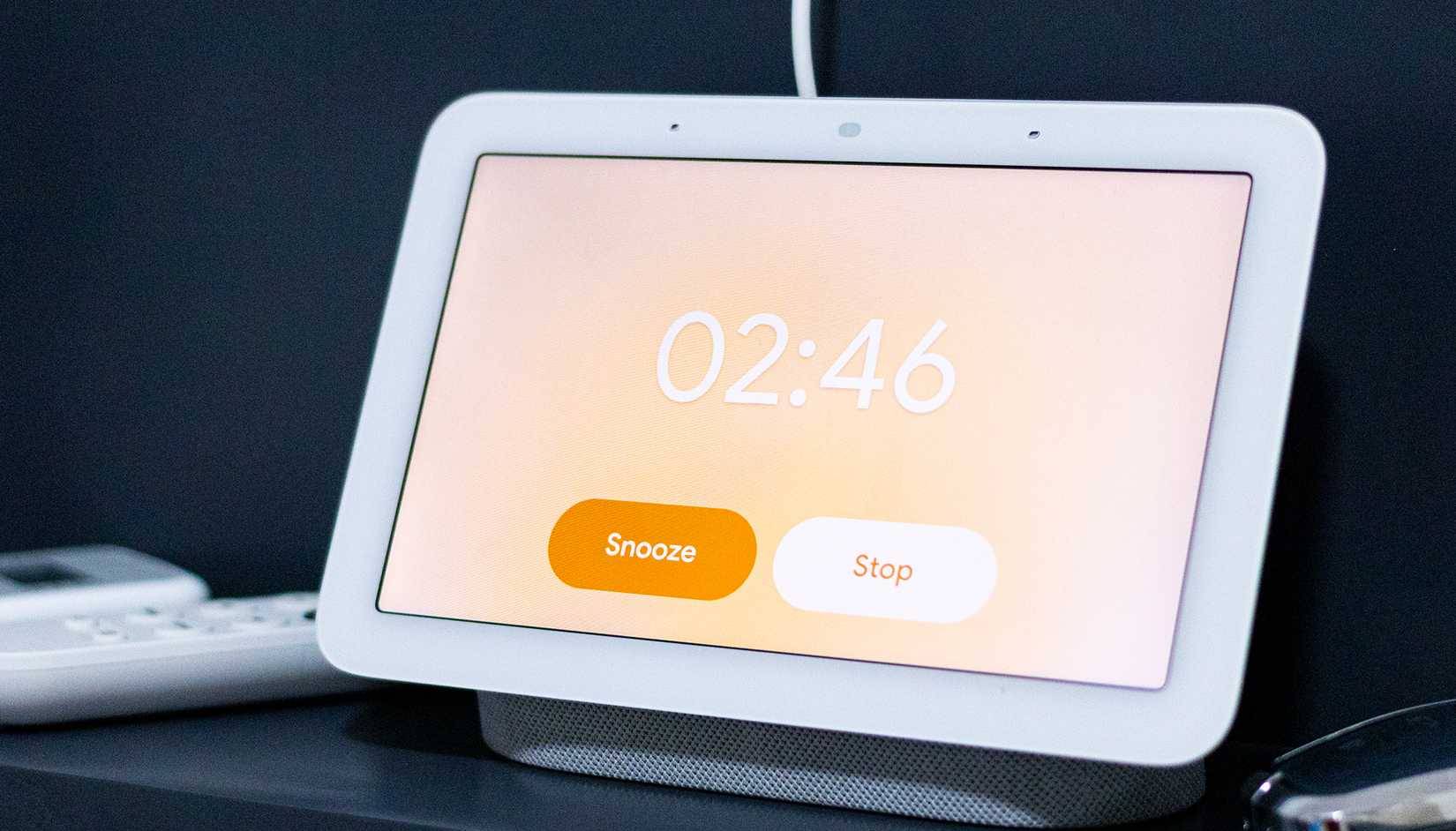
A custom Focus time phrase can adjust a reading lamp and start quiet background audio. Choose a brightness that lets you read comfortably; dimming the entire room is not always helpful.
Use this as a repeatable setup, not a promise that automation will improve concentration. Test the light and audio combination, then add a separate stop or restore routine so you can return the room to its usual state. TipsMake's smart-home setup advice covers common planning mistakes.
5. Bedtime with a matching morning reset
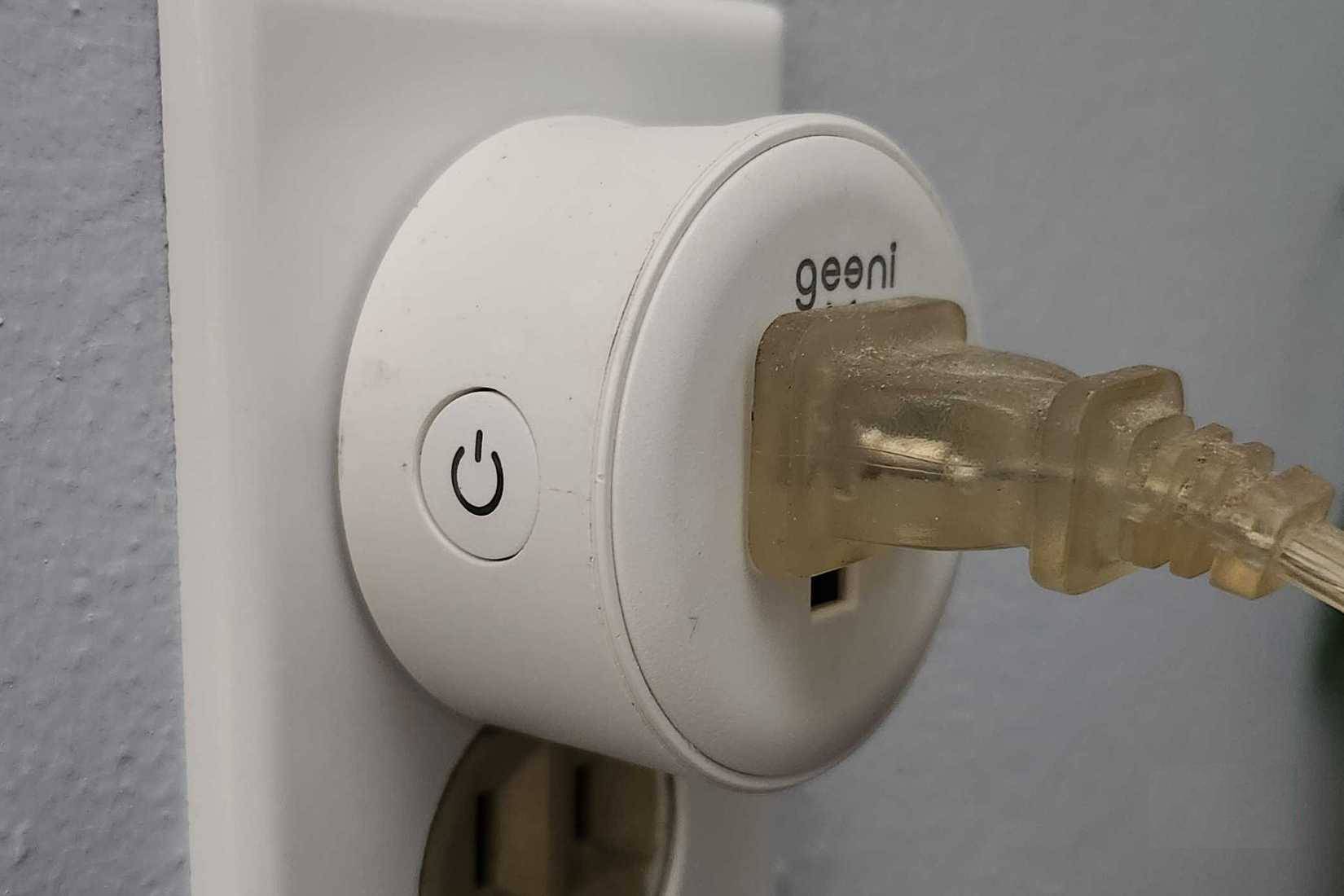
A Good night routine can turn off selected lights, leave a suitable night light on, and start a fan connected to a compatible smart plug. Check the plug's load rating and confirm that the fan can safely resume operation when power is restored. A plug cannot automatically press the fan's electronic power button.
Pair bedtime actions with a morning reset that switches off the devices no longer needed. Avoid controlling essential equipment or appliances whose unattended operation would be unsafe.
Set up and test the routine
- Open Google Home and choose the routine or automation controls available in your app.
- Select a Personal Routine for your own information, or a household automation for shared devices.
- Add the starter, supported actions, and any necessary conditions.
- Save and run it while you can observe every device.
- Check the manual controls and any overlapping schedules before enabling automatic operation.
If only part of a routine works, test the failed device directly, check its connection, and simplify the sequence. Automations depend on device and service availability, so keep an easy manual fallback.
Related Articles
 How to use Gemini AI as a virtual assistant on Android to replace Google Assistant
 Is Gemini Useful as an Android Assistant? What to Check
 Google Assistant is disappearing from your smartwatch
 How to Share a Gemini Gem and Manage Access
 How to Create a Custom Gem in Google Gemini
 Research: Women who use smart assistants are more polite than men
Reader Comments 0
Sign in with email or Google to join the discussion.