Table of Contents
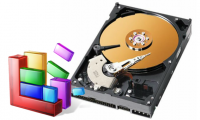
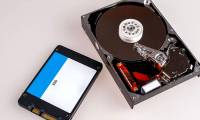
Defragmentation rearranges file fragments on a traditional mechanical hard disk (HDD) so the drive can access them more efficiently. It is generally not a routine task for a solid-state drive (SSD): Windows uses a different optimization process for SSDs. Use Windows’ built-in Optimize Drives tool and let it identify the drive type rather than running an old third-party defragmenter manually.
What fragmentation means
When files are created, changed, and deleted on an HDD, parts of a file can end up in different locations. The drive’s moving read head may need to travel between those locations. Fragmentation is only one possible factor in performance; a slow computer can also result from limited memory, background processes, a failing drive, or other issues.
Use Optimize Drives in Windows
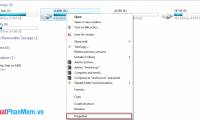
- Open Start and search for Defragment and Optimize Drives or Optimize Drives.
- Select the drive and review its media type and current status.
- Choose Analyze if the option is available for that drive.
- For a hard disk, use Optimize when Windows recommends it. For an SSD, allow Windows to apply its scheduled optimization instead of forcing a traditional defragmentation.
Labels and options vary by Windows version. Do not interrupt a maintenance operation in progress, and keep important files backed up.


Third-party tools mentioned in the original article
The source also names Defraggler, MyDefrag, Auslogics Disk Defrag, and Smart Defrag. Product status and compatibility can change; this is not a current endorsement. If you consider one, confirm that it is maintained, supports your Windows version, and distinguishes HDD maintenance from SSD optimization. Avoid running multiple disk-maintenance tools at the same time.


If the computer is still slow
Defragmentation will not fix every performance problem. Check available storage, startup apps, system updates, and drive health. If a drive reports errors or makes unusual noises, back up important data and seek appropriate support rather than repeatedly running optimization tools.


Reader Comments 0
Sign in with email or Google to join the discussion.