Table of Contents
Open your WhatsApp Status, tap its three-dot menu and choose Share to Facebook or Share to Instagram if available. Confirm the destination and its Story audience before posting. You can share one update without turning on automatic sharing.
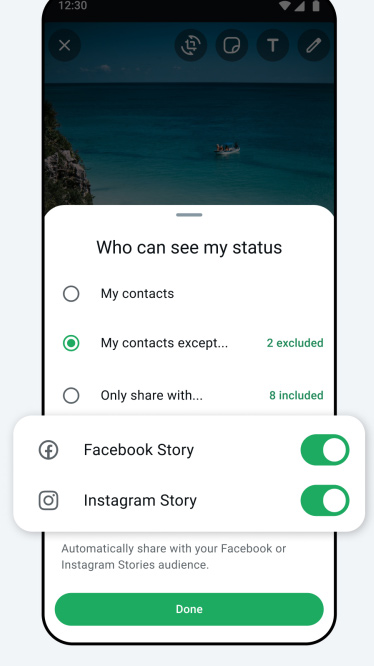
Share one WhatsApp Status
- Open the Updates tab and select your own Status.
- Open the menu for the update and select Facebook or Instagram.
- Follow the prompts to connect the intended account if asked, then tap Share.
Depending on your region and version, WhatsApp may call the linked settings Accounts Center or Meta Account. Adding WhatsApp is optional. See WhatsApp’s Status sharing guide for available options.
Keep control of future posts and their audience
To share future updates automatically, look under Updates > More > Automatically share your status. Leave it off if you prefer to select individual posts. A cross-posted update uses the Story privacy settings of Facebook or Instagram, which may reach a different audience than your WhatsApp Status. Meta says linking accounts does not change end-to-end encryption for personal WhatsApp messages and calls.
Related Articles
 Mark Zuckerberg explains the reason for merging Messenger, WhatsApp and Instagram
 New concerns when Facebook unites its messaging applications
 Users can now cross-post from Instagram and Facebook to Threads
 Will Facebook allow Messenger, Instagram and WhatsApp users to message each other?
 Facebook is about to rename new names for Instagram and WhatsApp
 Instructions for posting status on WhatsApp
Reader Comments 0
Sign in with email or Google to join the discussion.