Table of Contents
This updated guide answers the question 'Are You Using the Full Potential of the Shortcuts App on Your iPhone' with clear explanations and practical context. iPhone Shortcuts can seem complicated at first. But you do not need to be a tech expert to use them — and once you get started, even simple tasks become a lot easier.
- How to create shortcut folders on iPhone Shortcuts
Do Not Let Shortcuts Become Hard to Reach!
Shortcuts are Apple's built-in automation tool. Think of them as custom commands for your iPhone. They let you combine multiple actions into a single tap, phrase, or trigger. Want your phone to text your partner, turn on Do Not Disturb, and pull up directions home all at once? that is what Shortcuts are for.
They may seem complicated at first, but you do not need to know anything about programming or technology to get started. Shortcuts use simple building blocks that you can stack on top of each other, and Apple even provides a bunch of preset options to help you get started. If you've ever wished your phone could do something faster or more conveniently, there's probably a shortcut for it.
How to Find and Use Available Shortcuts
The easiest way to get started is to use the built-in shortcuts from Apple's library. These are curated, beginner-friendly options that work right out of the box—no setup required.
- Open the Shortcuts app (search for it if it is not on your home screen).
- select the Gallery tab at the bottom.
- Browse by category - there are sections like 'Essentials', 'Morning Routine' and 'Quick Shortcuts'.
- Tap any shortcut to preview it, then tap Add Shortcut to install it.
Once added, you'll see the shortcut in the Shortcuts tab. You may be prompted to grant permissions (like accessing Contacts or sending messages) - this is just to ensure the shortcut can work properly.
Here are some great starting shortcuts you can get from the Gallery:
- Log Water – Quickly track your water intake in the Health app.
- Text Last Image – Instantly send your most recent photo to someone. ensure to tap **Recipients** and add the contact you want to send the photo to via text message.
- Running Late – Send a pre-written "I'm running late" message to a contact of your choice.
You can run shortcuts from the app, the home screen (if you've saved them there), or even with Siri. Also, if you have a newer iPhone, you can run Shortcuts from the Action button.
Create Your First Shortcut (easier Than You Think)
Now that you've experimented with some of Apple's built-in shortcuts, it is time to create your own. This example will create a quick shortcut to text one of your contacts that you're on your way. This makes it easy to let people know you're on your way to meet them without having to call or text them yourself.
Let's start like this:
- In the Shortcuts app, tap the + sign in the top right.
- Tap Search Actions and search for "Send Message".
- Tap Message , type your message, then tap Recipients and select a contact.
- Tap Done in the upper right corner to save the shortcut.
- to rename the shortcut, select the name at the top and select Rename from the drop-down list.
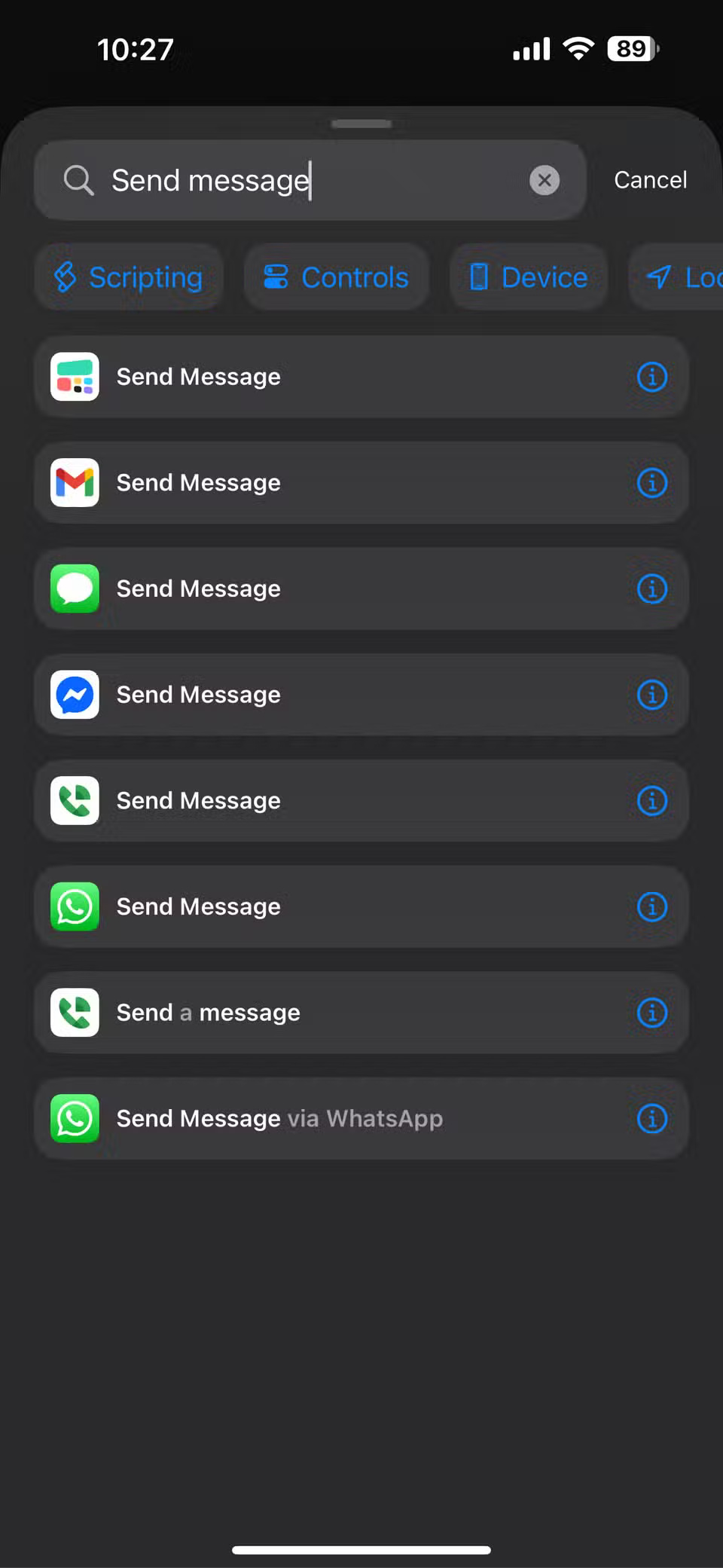
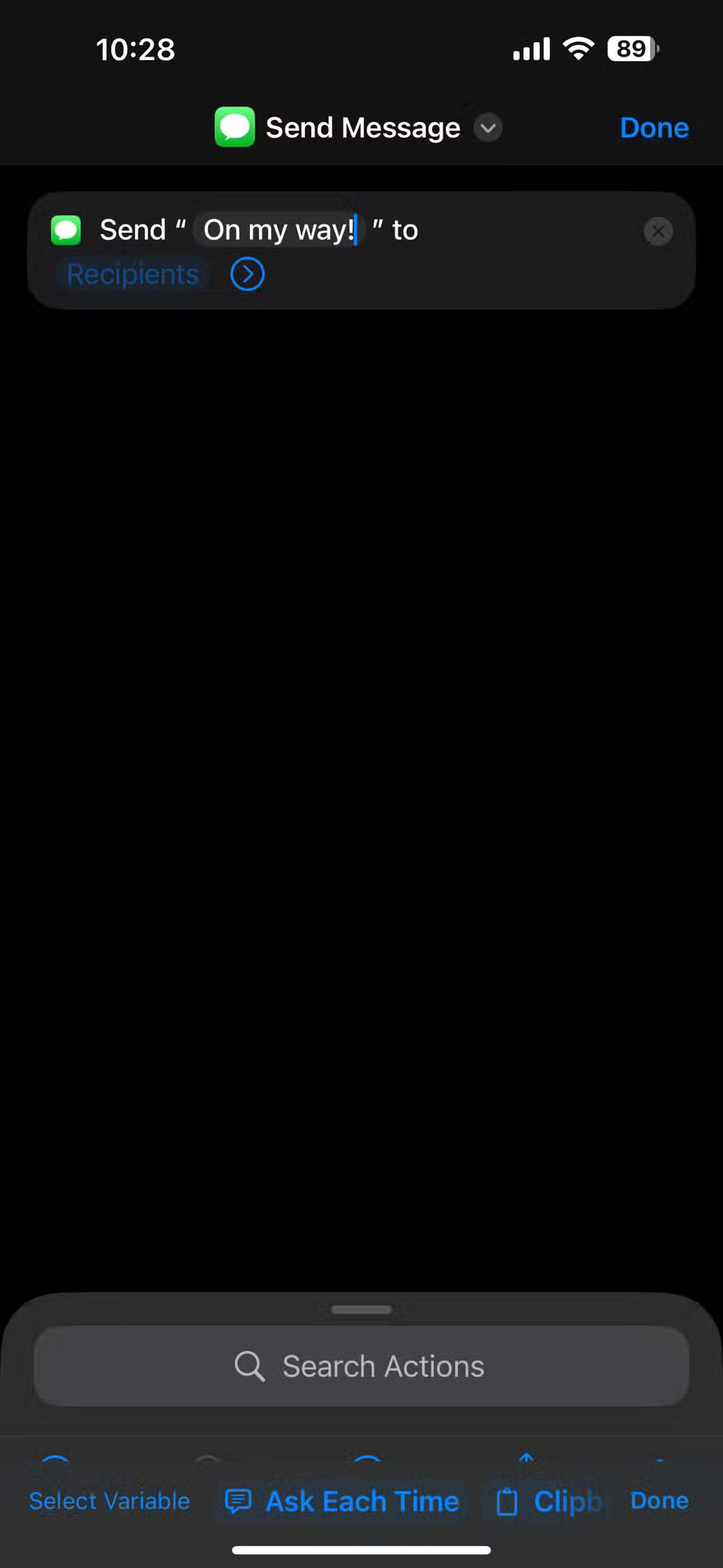
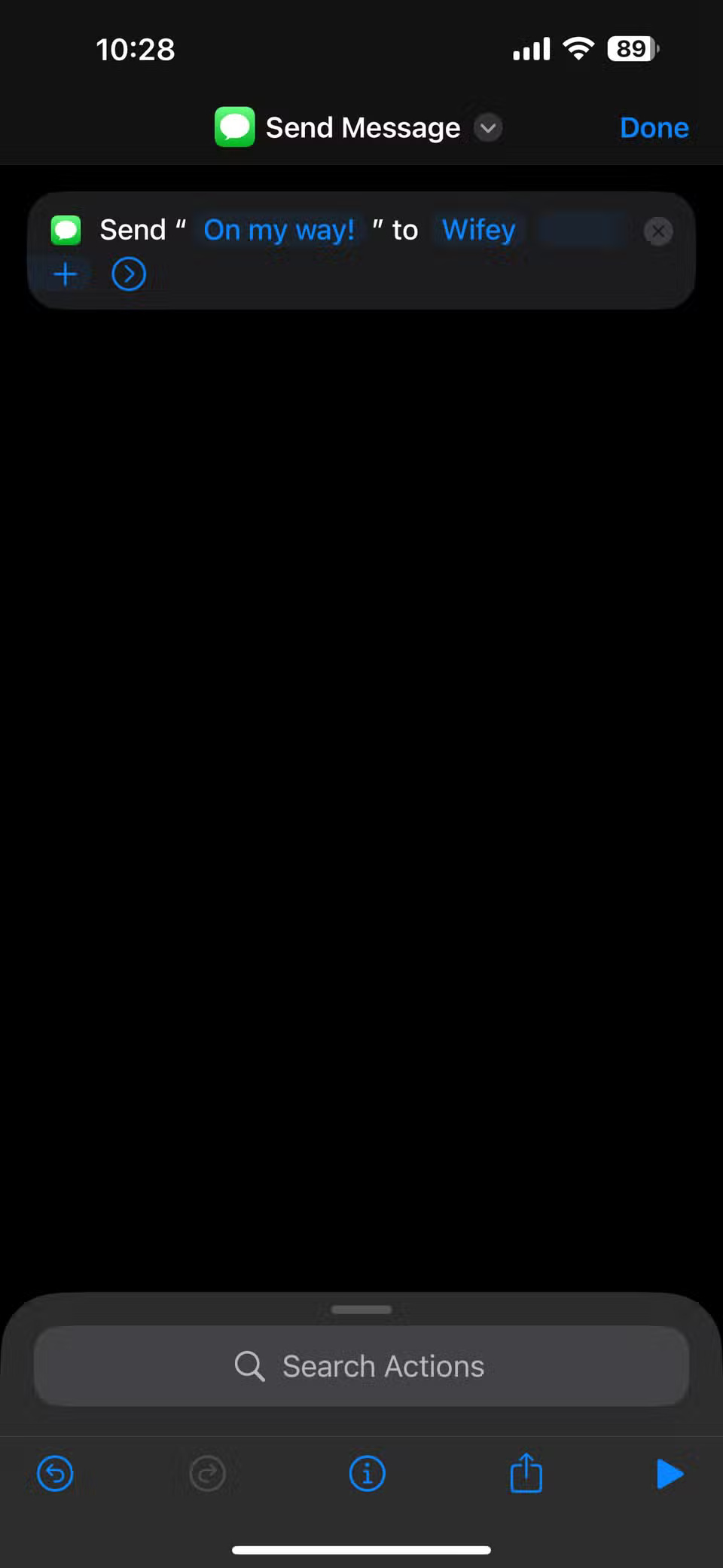
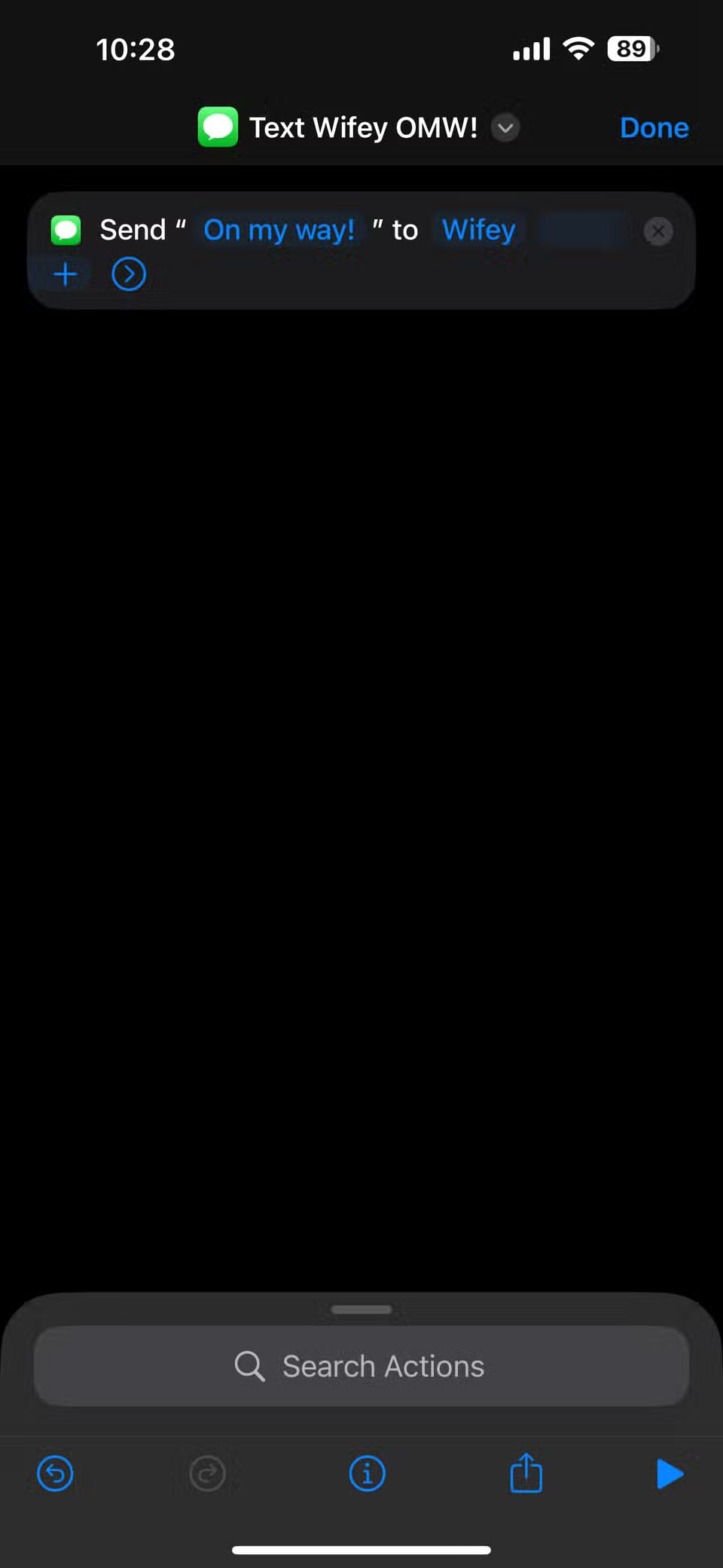
And that is it! You've just created your first shortcut.
From here, you can expand by adding options to open Maps, enable Focus mode, open your favorite playlist on Spotify or Apple Music, and more. All you need to do is tap Search Actions and look through the list to find any items you want to add.
Think of Shortcuts like stacking LEGO blocks. Each action is part of a larger structure, where you control the order and purpose. While it is easiest to follow a pre-made plan, there's many fun in experimenting with different blocks and seeing what you can combine.
More Great Shortcuts to Try Now!
You've experimented with some of the built-in shortcuts and even created your first custom shortcut. Now what? it is time to experiment even more. Apple has included some great shortcuts that you can customize and experiment with. In fact, here are some simple shortcuts you can grab from the Gallery and experiment with:
- Morning Routine - Set this up to check the weather, read your calendar, and play a news podcast.
- Directions Home - One tap opens Maps with turn-by-turn directions to your saved home address.
- Share Location - Send your real-time location to a contact - great for safety or meetup purposes.
- Convert Photos to GIFs - Turn a series of photos into a looping GIF instantly.
- Start Pomodoro - Launch a Pomodoro session, turn on Do Not Disturb mode, and play focus music.
Even one or two of these can save you time and make your iPhone smarter. Start small and build from there. naturally, you can find some other handy iPhone shortcuts in the library, so do not be afraid to pick something not listed here and give it a try! Shortcuts can be useful for thinking outside the box.
Shortcuts do not have to be complicated, and they're not just for power users. Even the most basic automation can cut down on taps, speed up your day, and make your iPhone more personal. Try one, tweak it, and you'll soon wonder why you didn't start sooner.
FAQ
What is the main takeaway about Are You Using the Full Potential of the Shortcuts App on Your iPhone?
The key is to understand the core idea, compare the available options, and apply the practical guidance that matches your situation.
What should beginners know about Are You Using the Full Potential of the Shortcuts App on Your iPhone?
Start with the essential steps and terminology. Avoid changing advanced settings until you understand how they affect performance, privacy, cost, or compatibility.
How can I use this information in practice?
Follow the relevant section in order, test one change at a time, and confirm the result before moving to the next step or recommendation.
Related Articles
 How to Fix the Problem of Not Seeing Shortcuts on iPhone, iPad7 minutes read
 9 Tips to Help You Use Google Apps to Their Full Potential7 minutes read
 How to Use Siri Shortcuts to Manipulate Quickly and Smartly on5 minutes read
 How to Find the Nearest Gas Station with Siri Shortcuts iPhone5 minutes read
 10 iPhone Operations and Shortcuts Not Everyone Knows8 minutes read
 Are You Using the Full Potential of the Buttons on Your Android Phone?8 minutes read
Reader Comments 0
Sign in with email or Google to join the discussion.