Table of Contents
Choose an HDMI cable by its certified speed and length before you compare brands. UGREEN and Vention both sell several kinds of cable, so check the exact model and length. For most 4K TVs running at 60 Hz, look for Premium High Speed HDMI. For a console or PC connected to a 4K display at 120 Hz, choose Ultra High Speed HDMI and check that the source and display support that mode.
Which HDMI cable speed do you need?
- 1080p at 60 Hz: A High Speed HDMI cable is enough for a typical setup.
- 4K at 60 Hz: Choose a certified Premium High Speed HDMI cable rated for 18 Gbps. It is designed for common 4K/60 and HDR setups.
- 4K at 120 Hz or 8K at 60 Hz: Choose an Ultra High Speed HDMI cable rated for up to 48 Gbps. A receiver or switch between the source and the display also has to support the mode you want.
Check the certification label on the package for the exact model and length you plan to buy. The HDMI Licensing Administrator’s cable guide shows what the labels look like.
What to check on UGREEN and Vention cables
Short cables for a desk or TV stand
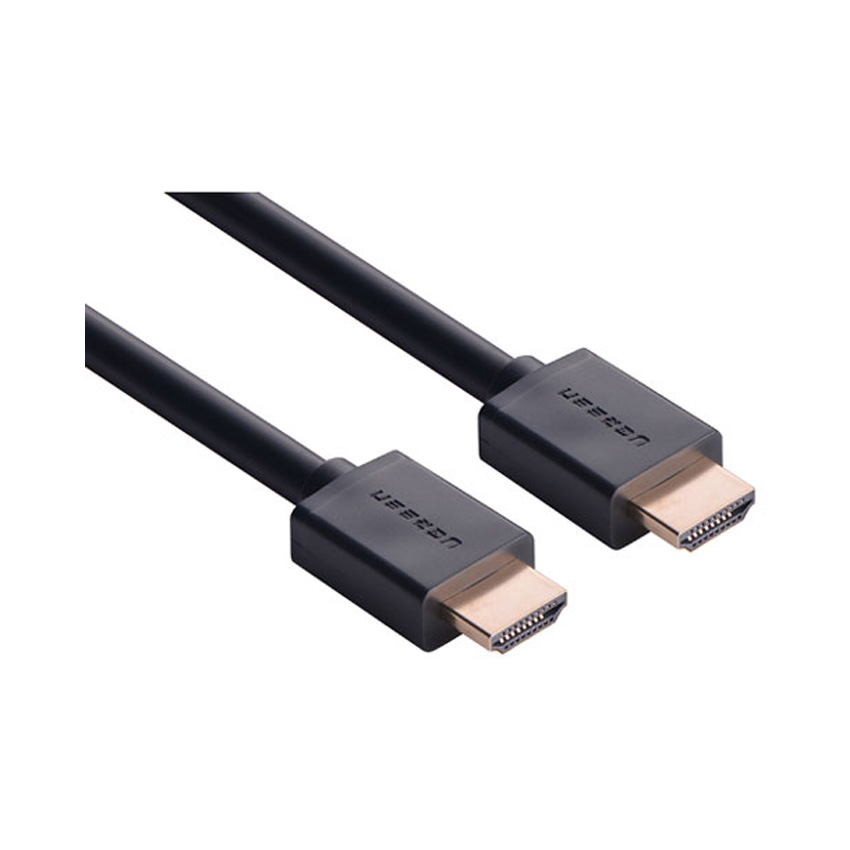
The 1.5 m flat UGREEN UG-10260 and the 3 m UGREEN 50109 illustrate two common choices. A flat cable can fit behind furniture where clearance is tight. A longer cable gives you room to route it around a stand and leave slack at the ports. Check the seller’s listing for the resolution and refresh rate at that specific length.
Longer cables for projectors and wall-mounted TVs
If you are comparing the 12 m UGREEN 40415 or the 30 m UGREEN 10114, measure the route along walls and around furniture before ordering. For a long run at 4K, consider an active or fiber-optic HDMI cable rated for your video mode. If the plugs are marked Source and Display, connect them in that direction. Test the complete setup before hiding the cable behind a wall or ceiling.

Check the refresh rate on listings that say “4K”
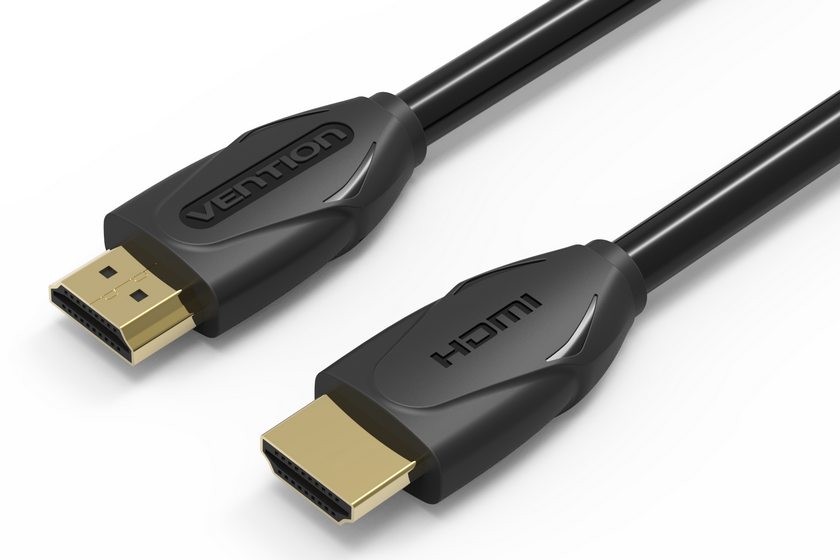
When comparing a Vention cable such as the 5 m VAA-M02-B500 with other models, look for a specification that states both resolution and refresh rate. A listing that only says “4K” leaves open whether the cable can carry the 60 Hz or 120 Hz signal your equipment needs.
Check your ports before replacing the cable
Confirm that your equipment has the right connectors. If you plan to connect a phone over USB-C, check that the phone supports video output and that your adapter supports the mode you need. For a PC setup, follow the steps to connect a computer to a TV over HDMI.
Use the TV input rated for the desired refresh rate and enable its enhanced HDMI mode if the TV requires it. If the picture drops out, test a direct connection with a short, known-good cable to rule out a receiver or switch. If the TV still shows nothing, try these steps for an HDMI no-signal error.
Related Articles
 Best HDMI cable for monitors, LG TVs, Samsung and Apple TVs
 Choosing an HDMI Cable for 4K 60Hz or 120Hz TV
 Does gold-plated HDMI cable make better image quality?
 Do Cheap HDMI Cables Hurt Picture Quality? How to Test Yours
 How many types of HDMI cables are there? HDMI cable classification
 What Is the Cylinder on an HDMI Cable? Ferrite Cores Explained
Reader Comments 0
Sign in with email or Google to join the discussion.