Table of Contents
Not locking your computer in Sleep mode will affect your privacy a lot. Below are the settings to lock your computer in Sleep mode Windows 11.
When you enable Sleep mode on Windows 11, the computer automatically locks so that no one can press any keys on the keyboard. But what if the computer does not lock when entering Sleep mode? Not locking the computer in Sleep mode will greatly affect your privacy. Below are the settings to lock the computer in Sleep mode Windows 11.
Lock computer in Sleep mode via shortcut key
To lock your screen, you can do so by pressing the Win + L shortcut key.
Lock computer in Sleep mode via Settings
Step 1:
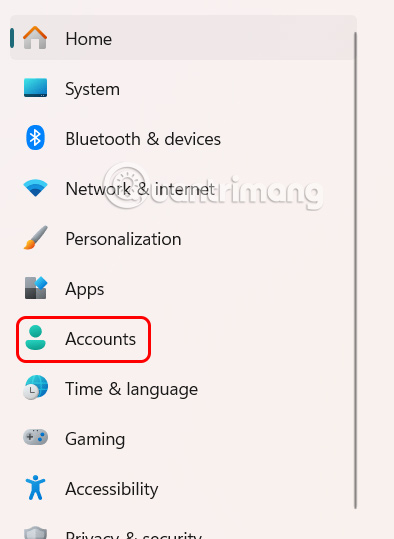
Open Settings on your computer then click on Accounts In the sidebar.
Step 2:
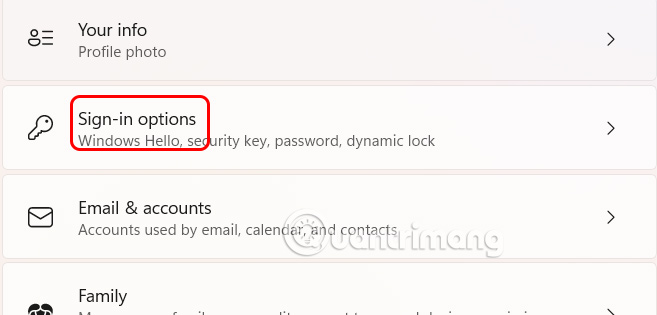
Look to the side and click on Sign-in options .
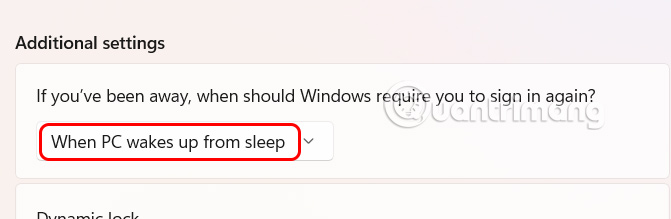
Scroll down to the Additional settings Section, at If you've been away, when should Windows require you to sign in again? We click On When PC wakes up from sleep .
Enable computer lock in Sleep mode via Registry
Step 1:
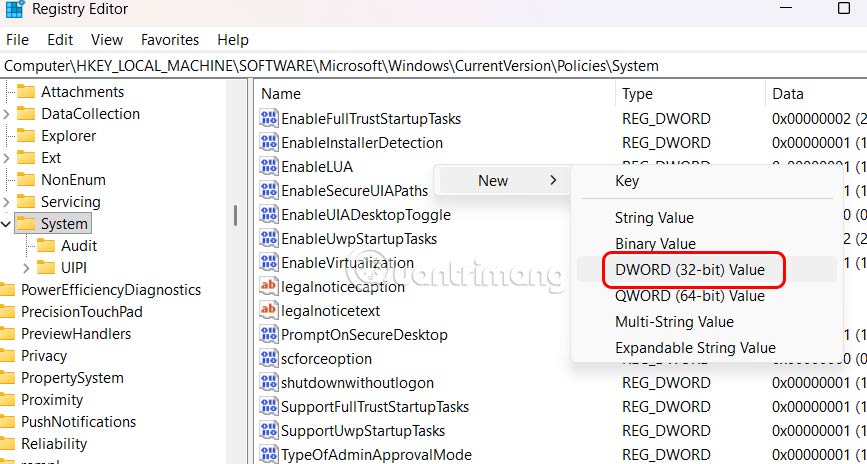
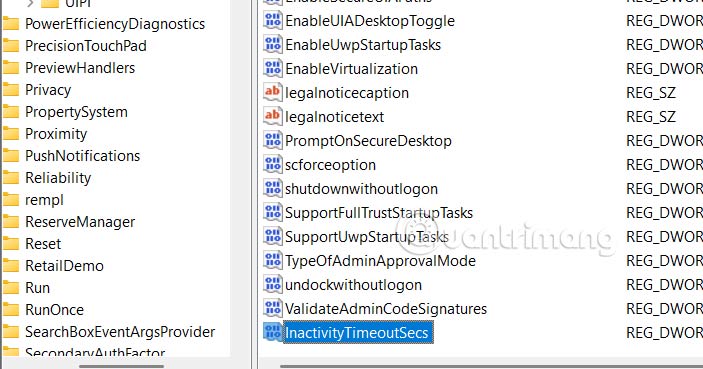
Type Regedit in the Run dialog box And Press Ctrl + Shift + Enter To open Registry Editor as Admin. Access the path below. Then look to the side and Select InactivityTimeoutSecs .
HKEY_LOCAL_MACHINESOFTWAREMicrosoftWindowsCurrentVersionPoliciesSystem
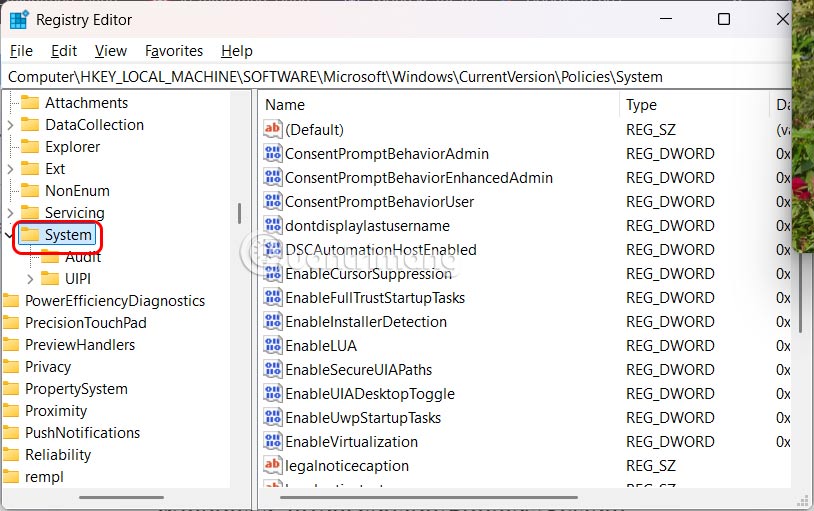
If not, Create a new one By right-clicking on the main window and creating a new DWORD file.
Next, double-click on the InactivityTimeoutSecs value.
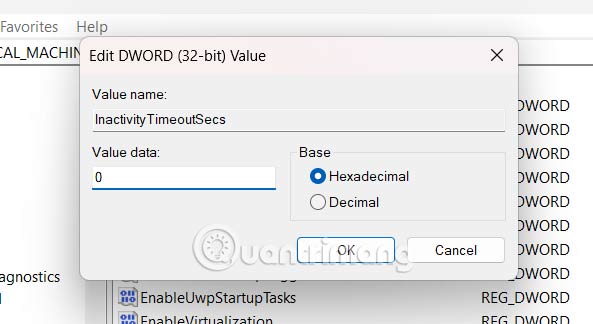
Step 2:
In this interface you Enter the number of seconds before the screen locks When inactive.
Using Command Prompt
Step 1:
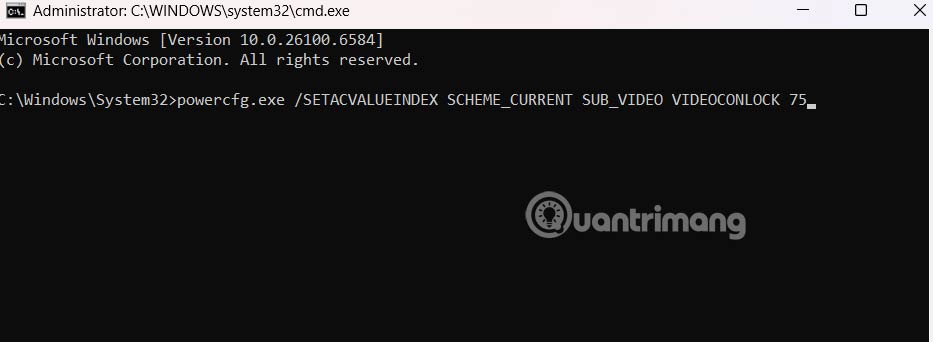
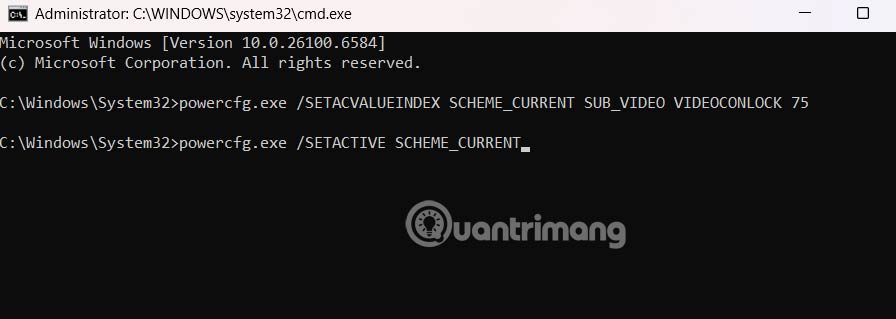
You Type cmd in the Run dialog box And then Press Ctrl + Shift + Enter To open Command Prompt under the Admin account.
Step 2:
You Enter the command powercfg.exe /SETACVALUEINDEX SCHEME_CURRENT SUB_VIDEO VIDEOCONLOCK [seconds] And press Enter.
Seconds and time before screen locks.
Step 3:
To complete, Type the command 'powercfg.exe /SETACTIVE SCHEME_CURRENT' And press Enter.
FAQ
How do you fix Windows 11 won't lock in sleep mode?
In practical terms, not locking your computer in Sleep mode will affect your privacy a lot. Below are the settings to lock your computer in Sleep mode Windows 11.
What should you check before getting started?
Review the requirements, compatible device or software version, and any warnings described in the guide before making changes.
What should you do if the steps do not work?
Repeat the steps in order, confirm that your app or system is up to date, and review the troubleshooting details provided above.
Related Articles
 How to Fix Windows 10 Automatically Activating Sleep Mode4 minutes read
 How to Troubleshoot Problems with Sleep Mode in Windows 109 minutes read
 To Enable or Disable Sleep Mode in Windows 105 minutes read
 How to Set up a Windows 11 PC to Automatically Go to Sleep4 minutes read
 How to Disable Sleep Mode on Windows 114 minutes read
 Steps to Customize Sleep Mode Settings on Windows 107 minutes read
Reader Comments 0
Sign in with email or Google to join the discussion.