Table of Contents
That's where Ventoy comes in! This open source application only needs to be installed once, then you can add as many disk images (ISO/WIM/IMG/VHD(x)/EFI files) as you want to the drive without having to reformat.
It's important to always have USB recovery media on hand. It can help you troubleshoot Windows by booting into WinPE, or in the worst case, reinstall the entire operating system. However, dedicating an entire 256GB SanDisk USB drive to a 5GB Windows ISO seems like a waste. Worse yet, every time you need another boot media, you'll have to reformat the entire drive, losing all your files.
That's where Ventoy comes in! This open source application only needs to be installed once, then you can add as many disk images (ISO/WIM/IMG/VHD(x)/EFI files) as you want to the drive without having to reformat. You can also install all your portable diagnostic applications and continue using the USB as a storage device.
Create multi-boot USB
Boot all Linux distributions and Windows ISOs from a single drive
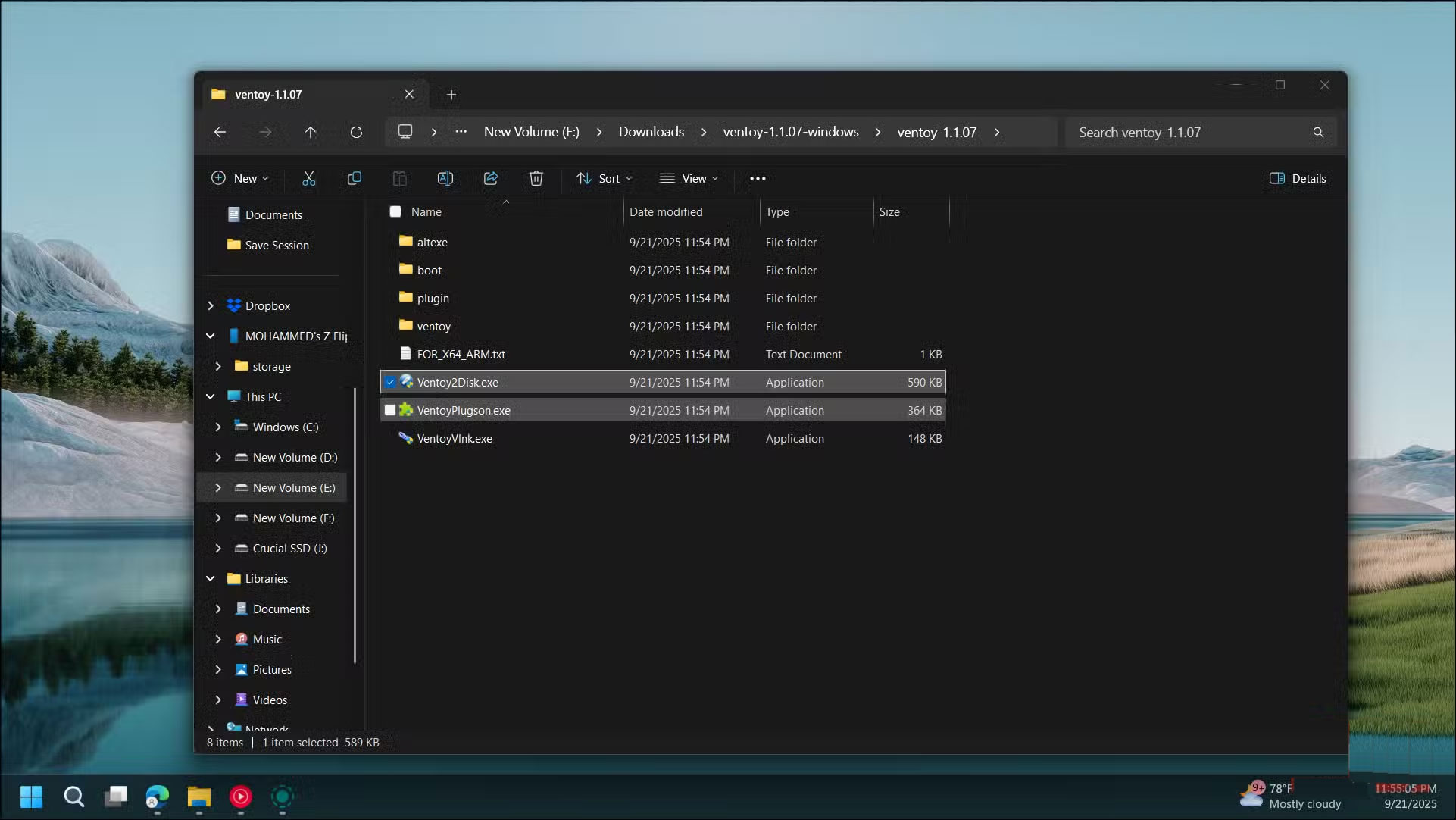
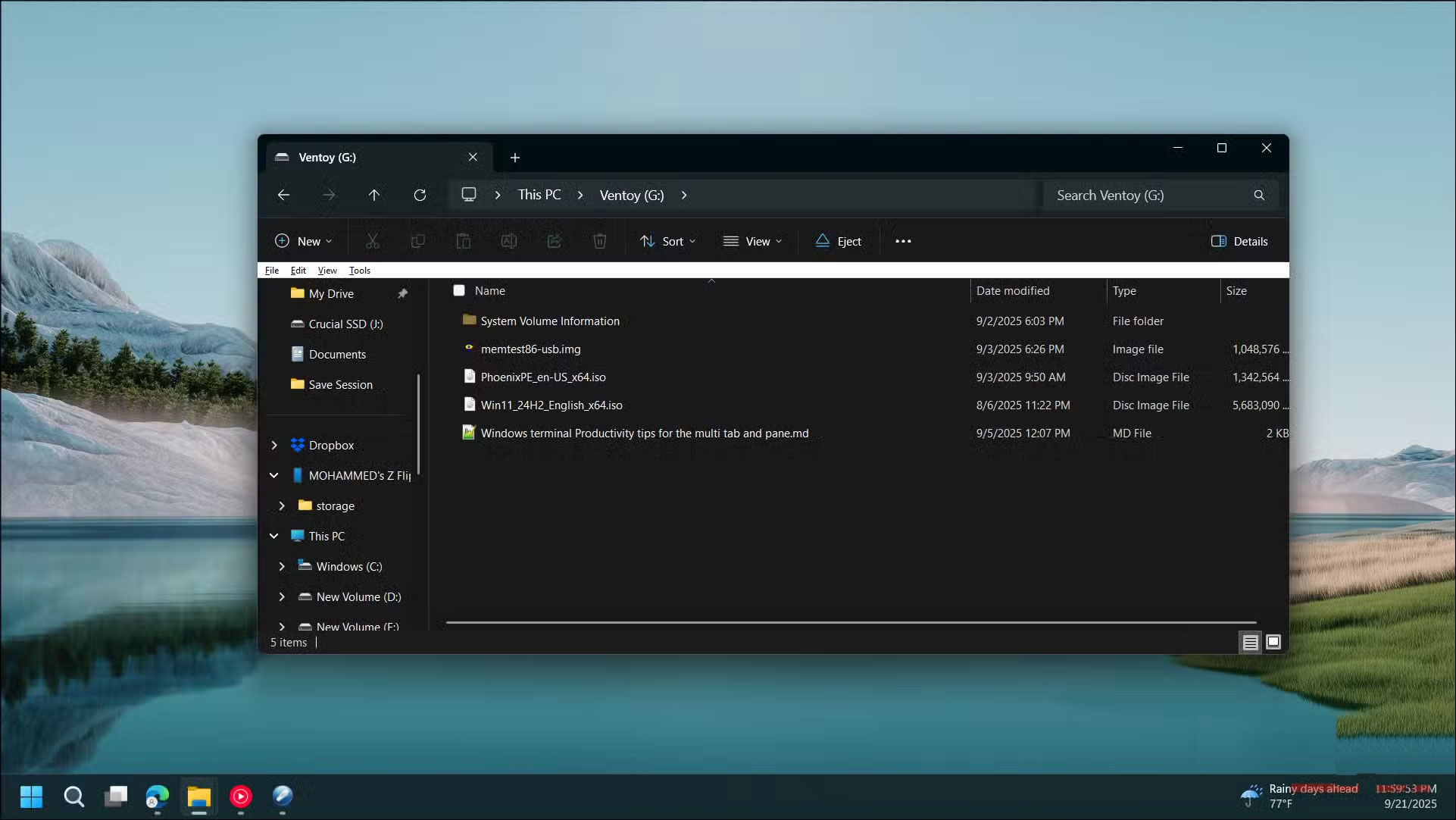
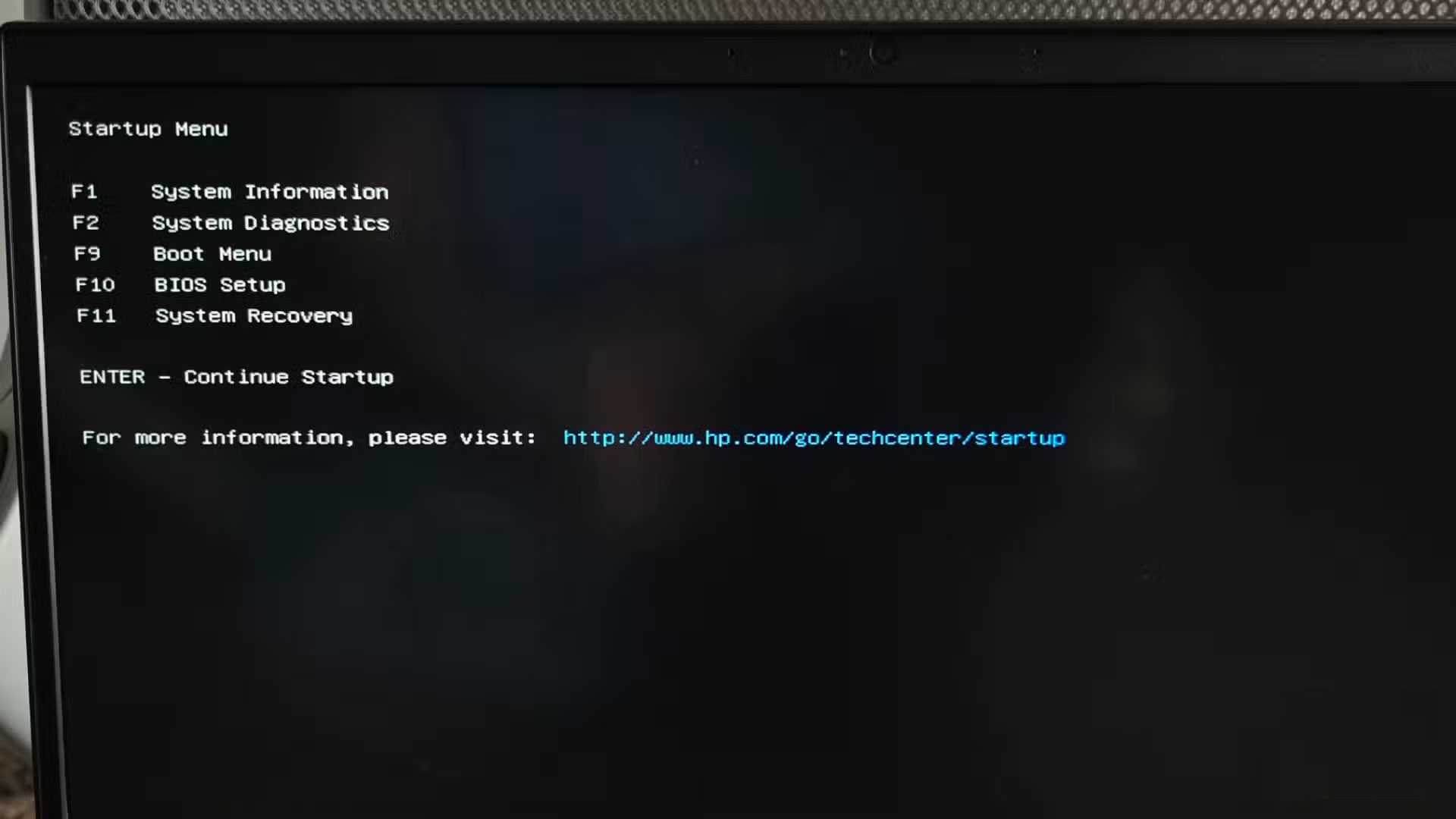
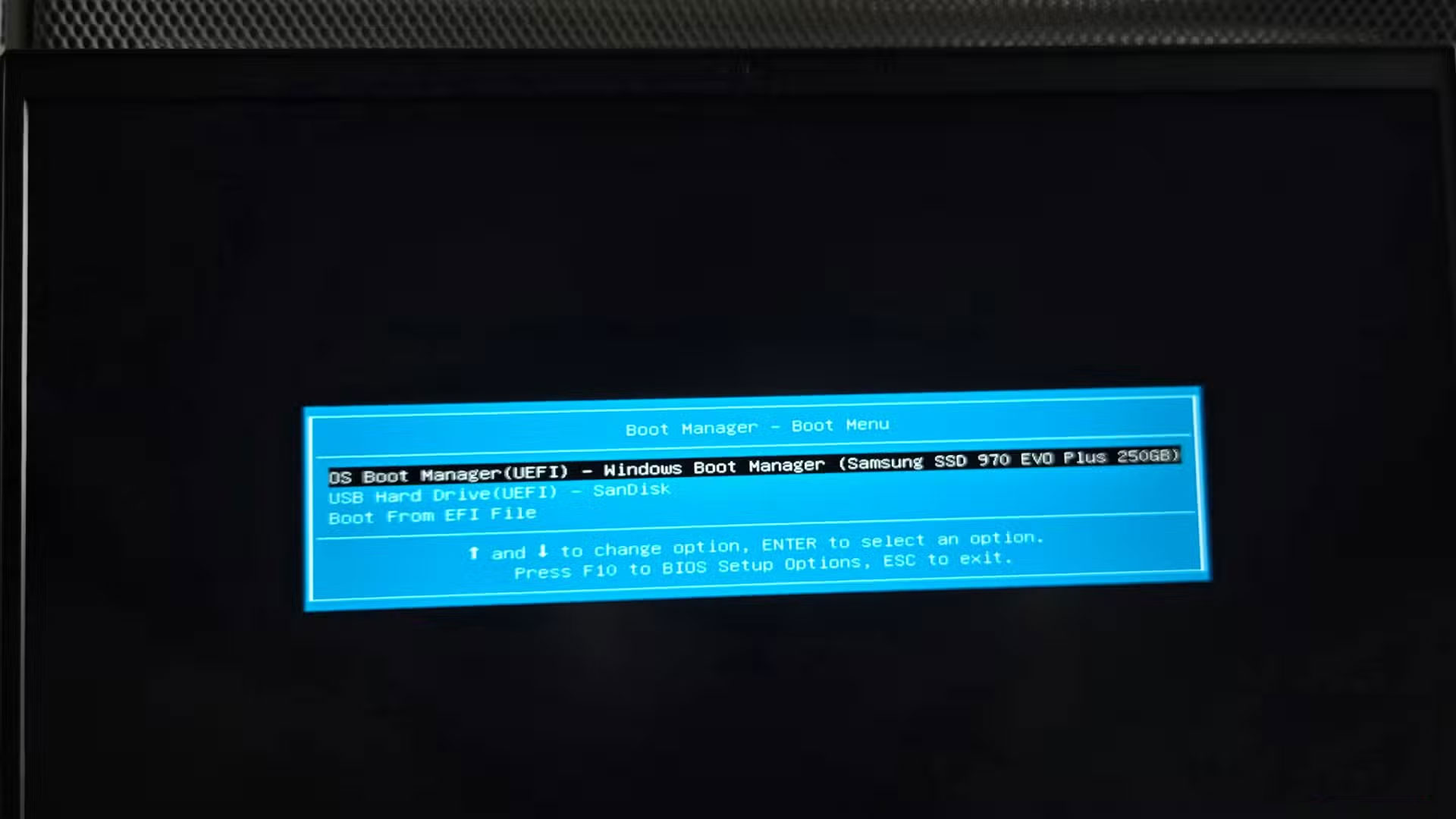
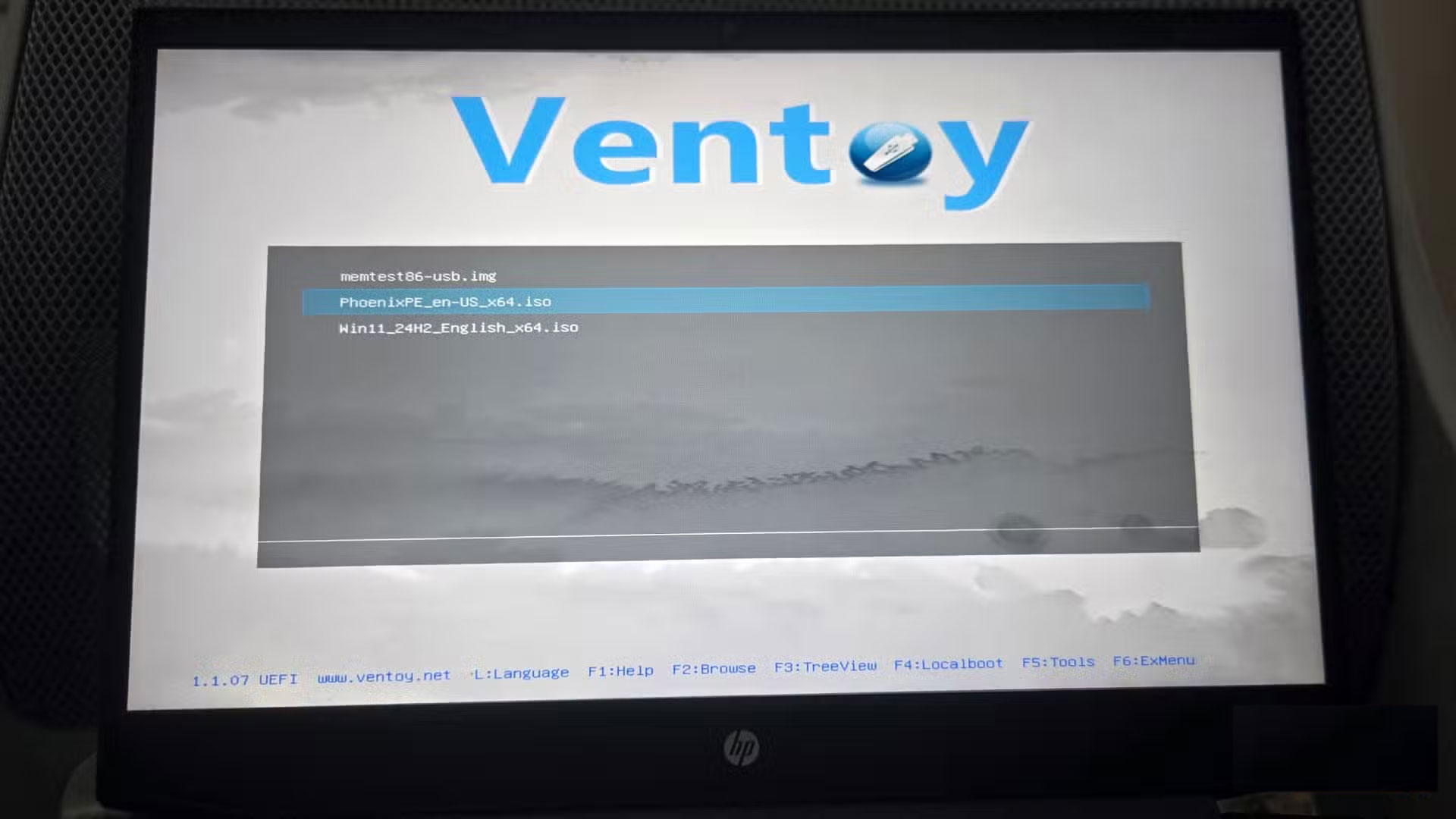
Unlike more popular disk imaging tools, like Rufus, which simply bind your drive to a single ISO, Ventoy acts as a smart bootloader, recognizing multiple ISOs and presenting them in a neat menu when you boot. That's all Ventoy does—it turns your USB into a bootable menu of ISOs, and honestly, that's all you need.
Creating a bootable USB using Ventoy is quite easy:
- Download Ventoy, extract the Zip file, then run the Ventoy2Disk.exe File.
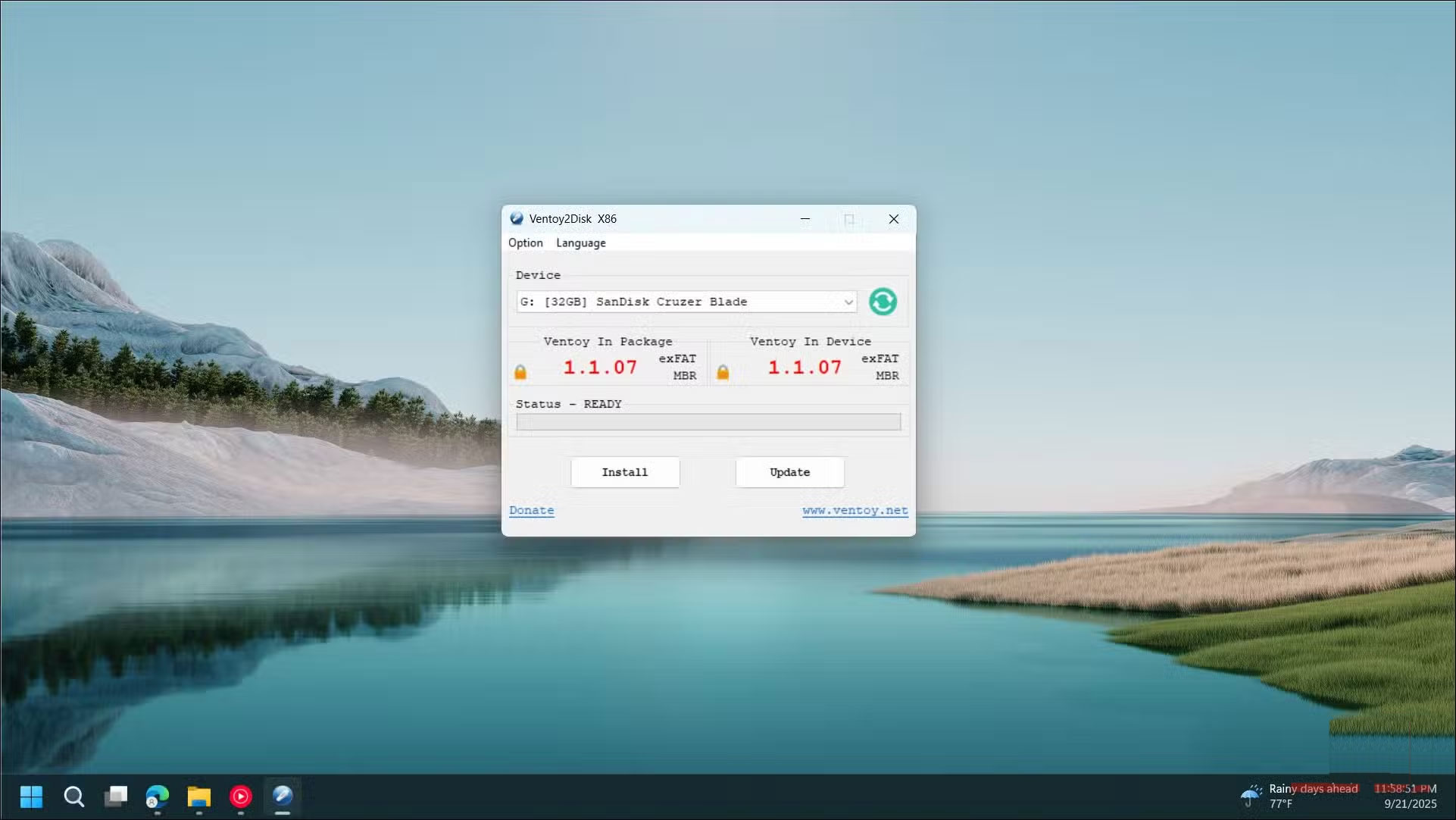
- Select your USB drive from the list and click Install .
- It will format your drive into two partitions: One for Ventoy's bootloader and one for your files.
Warning : This will wipe the USB drive, so back up any data you don't want to lose.
Create a portable PC diagnostic USB
Install PhoenixPE, Medicat and other portable PC diagnostic tools
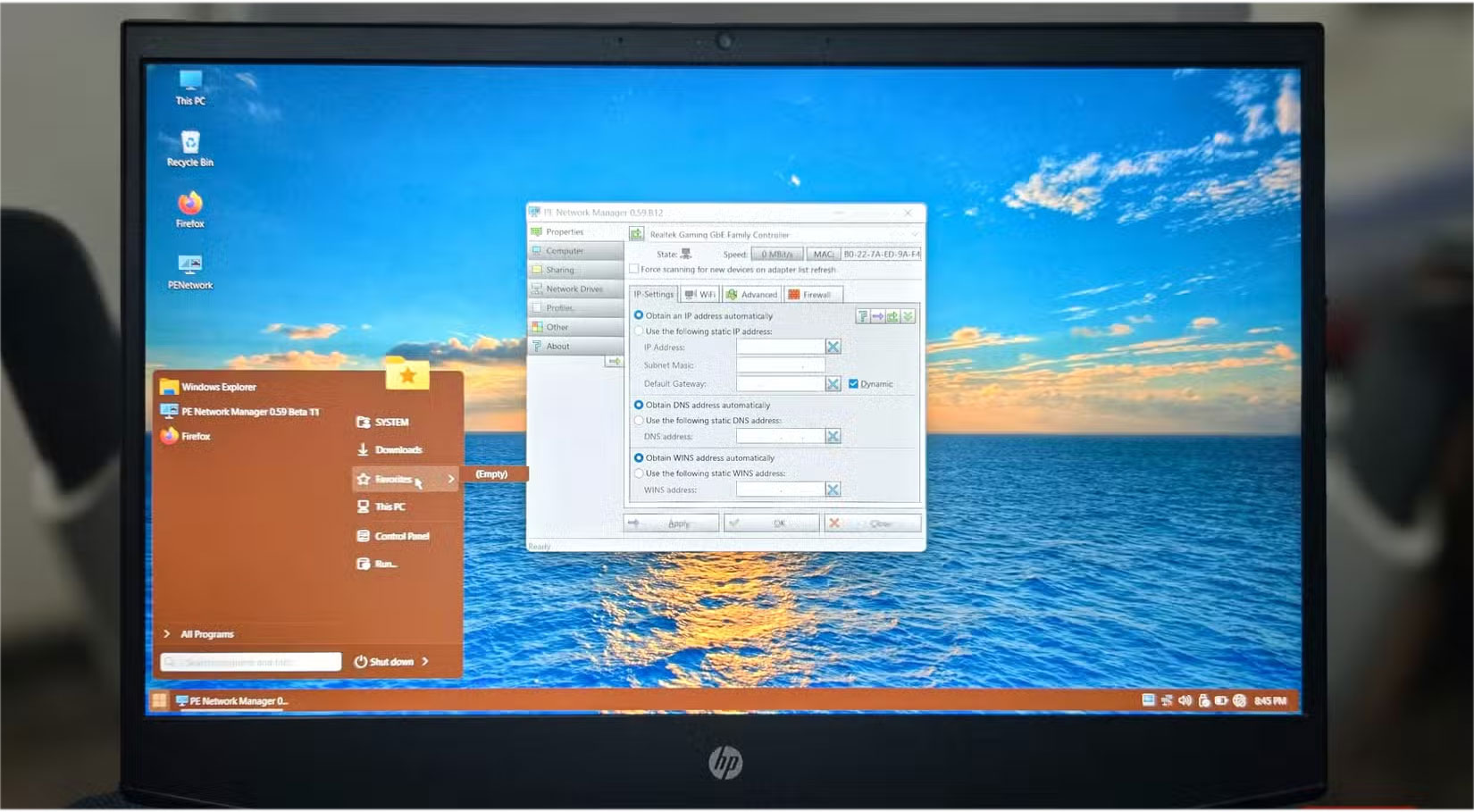
Not only does it boot different operating systems, Ventoy also excels in creating a comprehensive diagnostic toolkit. It can be used in conjunction with PhoenixPE to build a portable computer repair and rescue toolkit.
PhoenixPE creates a lightweight Windows environment that runs entirely from RAM. Think of it like Windows without the bloatware, with just the essential components needed to run diagnostic and repair software. When your main Windows installation fails to boot, you can boot into PhoenixPE and run password recovery tools, file recovery utilities, network troubleshooters, or malware scanners.
The combination of Ventoy and PhoenixPE is unparalleled. Ventoy handles the multi-system boot aspect, allowing you to choose between PhoenixPE and other tools like MemTest86 or Clonezilla, which require their own dedicated environments. PhoenixPE provides a Windows-based diagnostic environment when you need it.
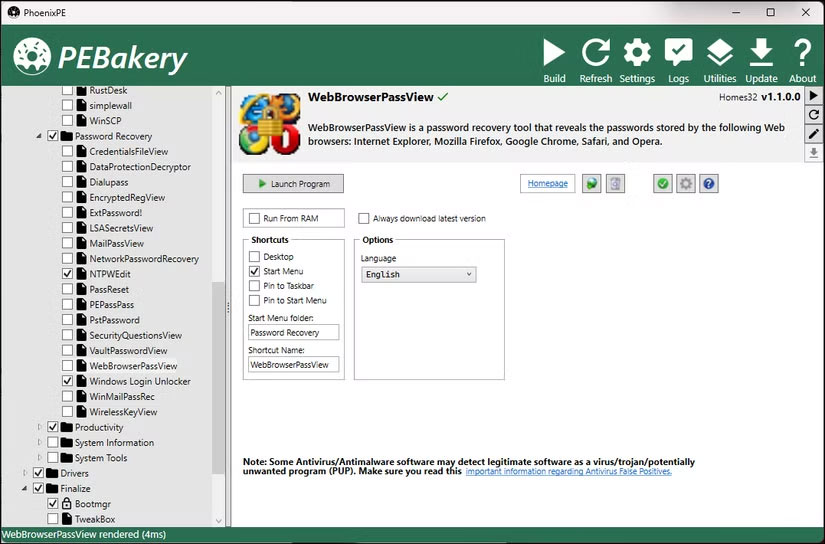
Creating a portable PC diagnostic USB with Ventoy and PhoenixPE is a bit of a hassle. You'll need to download PhoenixPE, configure it with your favorite tools, and create a custom ISO. But once you're done, you'll have password reset tools, a virus scanner, disk backup software, and network utilities all accessible from a single drive.
Use as a regular USB storage drive
Make use of empty space
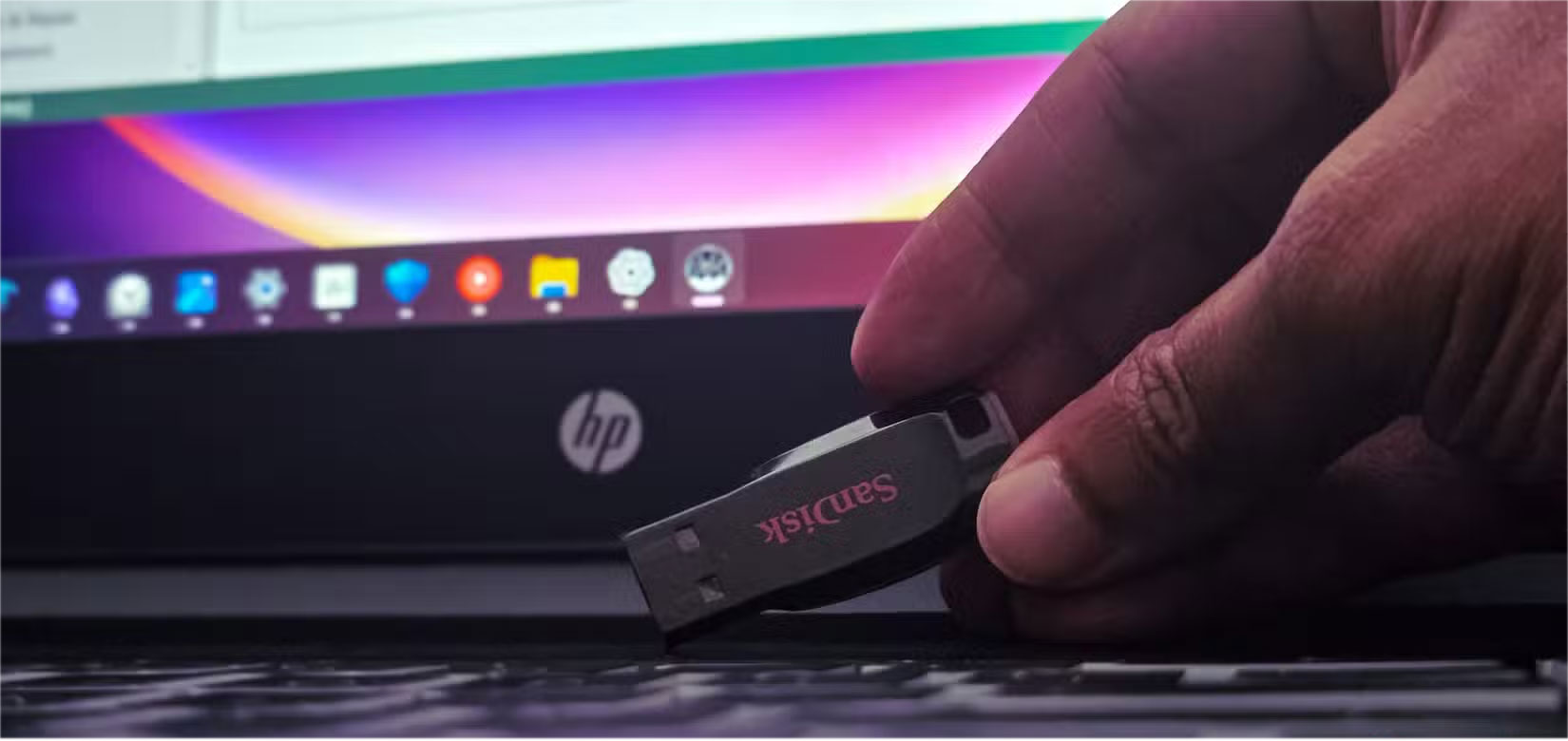
Ventoy creates two partitions – a small bootloader partition and a large data partition that acts just like a regular USB. You can store documents, photos, portable apps, or any other files alongside your ISO collection.
Keep portable versions of useful software on the same drive, such as 7-Zip, Notepad++, and system monitoring tools. When troubleshooting someone's computer, you have both the diagnostic ISO and the necessary portable applications all in one place.
The data partition works with any operating system. Whether you're using Windows, Mac, or Linux, you'll be able to access your files just like normal. Ventoy only shows the ISO menu when you boot from the drive; otherwise, it's just a regular USB drive.
To avoid cluttering your drive with various files, organize your ISOs into folders and leave enough free space. Large diagnostic environments like PhoenixPE require several gigabytes of space, so keep that in mind. You should aim for at least a 32GB drive, although 64GB will give you plenty of room for multiple operating systems and tools.
FAQ
How do you use ventoy to make USB more useful: step-by-step guide?
In practical terms, that's where Ventoy comes in! This open source application only needs to be installed once, then you can add as many disk images (ISO/WIM/IMG/VHD(x)/EFI files) as you want to the drive without having to reformat.
What should you check before getting started?
Review the requirements, compatible device or software version, and any warnings described in the guide before making changes.
What should you do if the steps do not work?
Repeat the steps in order, confirm that your app or system is up to date, and review the troubleshooting details provided above.
Related Articles
 Ventoy - Download the Latest Ventoy Here4 minutes read
 How to Create USB MultiBoot with Ventoy, Create USB Boot Very Easily with8 minutes read
 How to Easily Check a Bootable USB Drive on Windows 105 minutes read
 How to Make a Simple Yet Delicious Carrot Jam4 minutes read
 Instructions for Making Simple Creams Do Not Require an Ice Cream4 minutes read
 How to Make Taut Apple Jam, Delicious on Tet Holiday4 minutes read
Reader Comments 0
Sign in with email or Google to join the discussion.