Table of Contents
Learn how to fix Windows 11 stretched screen with clear steps, practical tips, and troubleshooting guidance for a reliable result.
Restart your computer
Try restarting your computer to fix the screen stretching issue. It is possible that Windows 11 has just downloaded the necessary graphics driver and is waiting to install it.
Rebooting will install all downloaded graphics drivers necessary for normal GPU operation.
Set the correct screen resolution
One major reason for screen stretching in Windows 11 is incorrect screen resolution settings.
Step 1
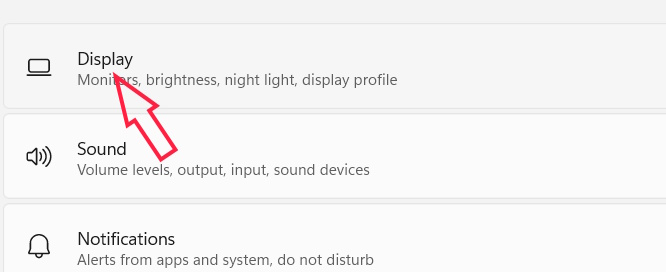
Open Settings on your computer then go to System to adjust. Continue to look to the side and select Display .
Step 2
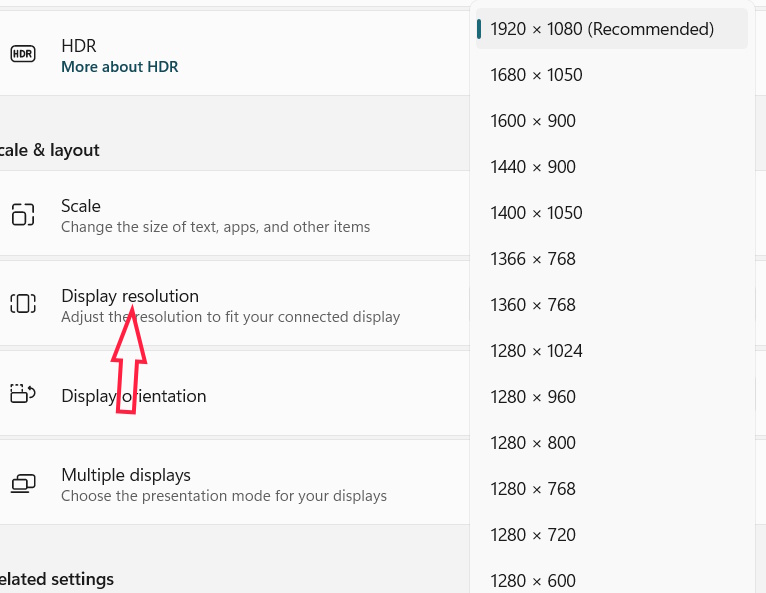
Switch to the new interface in the Display resolution section , you choose the resolution . You should choose the recommended resolution .
Find supported screen resolutions
Step 1
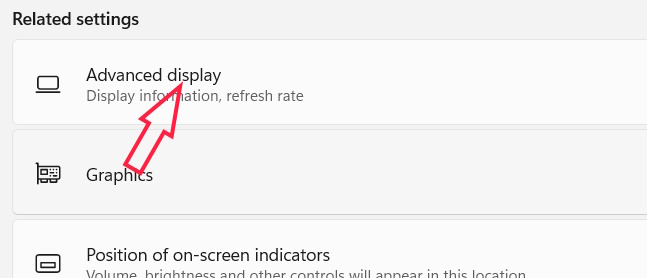
In the settings interface on your computer, click on Display , then select Advanced Display .
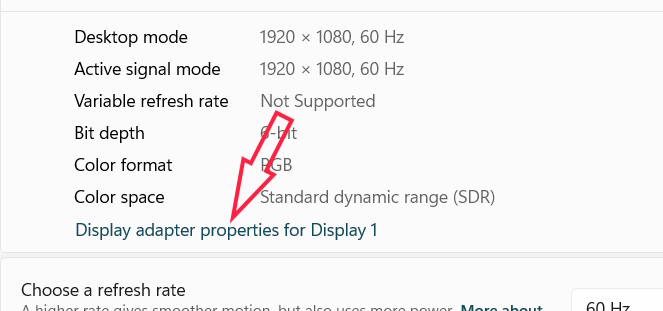
Continue clicking on Display adapter properties .
Step 2
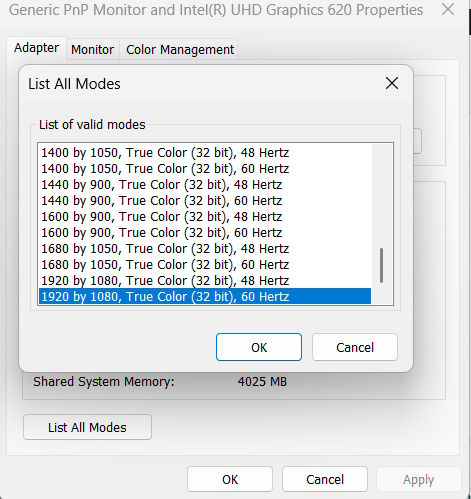
In the user display interface, click List all Modes .
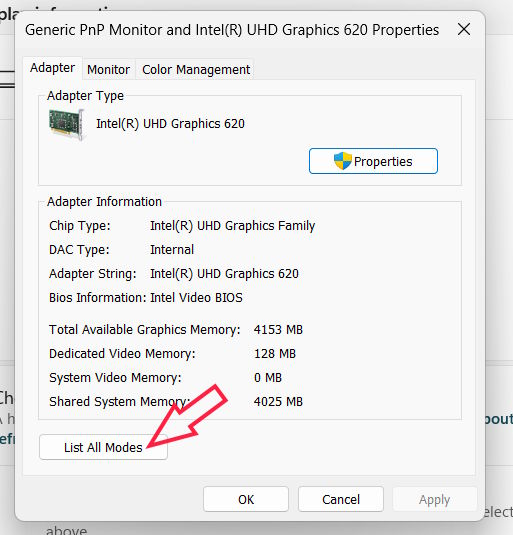
You can see a list of all supported resolutions. Select the resolution that matches your monitor's native resolution and save.
Update graphics driver
Faulty graphics drivers are also another major reason for the screen tearing issue on Windows 11. Updating the graphics drivers will automatically replace the corrupted driver files with new ones.
- How to update driver for NVIDIA graphics card
Reinstall graphics driver
If updating the GPU driver doesn't work, you can try reinstalling the GPU driver to fix the screen stretching issue on Windows 11.
- How to install/reinstall GPU driver on Windows
Connect another display
If the problem persists, you can connect another monitor to rule out the possibility of a hardware problem. If you don't have a secondary monitor, you can test the monitor by connecting it to any other PC or TV using an HDMI cable.
You can try replacing the cable connecting your PC to the monitor.
Final Thoughts
Use this guide as a practical checklist for how to fix windows 11 stretched screen. Work through the steps in order, verify each result, and adjust the options to match your needs.
FAQ
What do you need before following this How to Fix Windows 11 Stretched Screen guide?
Review the required tools, accounts, settings, or materials mentioned in the article. Learn how to fix Windows 11 stretched screen with clear steps, practical tips, and troubleshooting guidance for a reliable result.
What are the main steps for how to fix windows 11 stretched screen?
Follow the sections in order, especially Restart your computer, Set the correct screen resolution, Step 1. Complete each step before continuing and verify the result as you go.
What should you do if the process does not work as expected?
Recheck the prerequisites, update the relevant app or service, review the settings, and repeat the step that caused the issue. Use any troubleshooting notes included in the guide.
Related Articles
 Instructions to Turn Off Ads on the Screen Lock Screen Windows 104 minutes read
 How to Disable Lock Screen Lock Screen on Windows 8, 105 minutes read
 Fix Windows 8 Error When Encountering a Black Screen4 minutes read
 Fix the Error of Not Adjusting Screen Brightness on Windows 104 minutes read
 Should You Buy a Touchscreen PC?5 minutes read
 Key: How to Use Print Screen6 minutes read
Reader Comments 0
Sign in with email or Google to join the discussion.