Table of Contents
This guide provides a clear, practical overview of what is cortana? how to use cortana on Windows 10, with useful context, important details, and straightforward takeaways for everyday readers.
1. What is Cortana?
Cortana is the virtual assistant that Microsoft dedicated to the Windows operating system including: Windows 10 , Windows 10 Mobile , Xbox One and a few other operating systems. Languages that Cortana supports include: English, French, German, Spanish, Italian, Chinese (general), Japanese, and Portuguese.
Without using the keyboard, you can still ask Cortana to work on voice prompts . This virtual assistant can help you set reminders , look up information , search music , turn WiFi on and off , . In addition, you can also ask Cortana common questions like talking to a friend.

Because it is deeply integrated into the Edge browser on Windows 10, Cortana can look up information with the Bing search engine . If the question is simple, the answer will appear in the search window . If she encounters a difficult question and Cortana is unsure of the answer, she will open your favorite web browser and a list of results for you to find the answer for yourself.
2. How to install Cortana on a Windows 10 computer
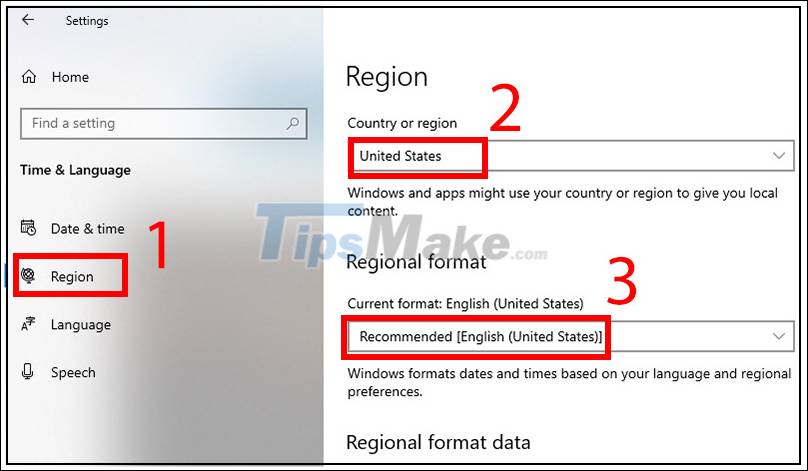
Since Cortana only supports certain languages, your computer needs to select the appropriate region and language to use Cortana.
Step 1 : Click the Windows icon > Select Settings .

Step 2 : Select the Time & Language tab .

Step 3 : Select the Region tab in the left menu column> Select the region as United States > Select the language as English (United States) .
You can also choose one of the other languages mentioned above for convenience.
3. How to use Cortana
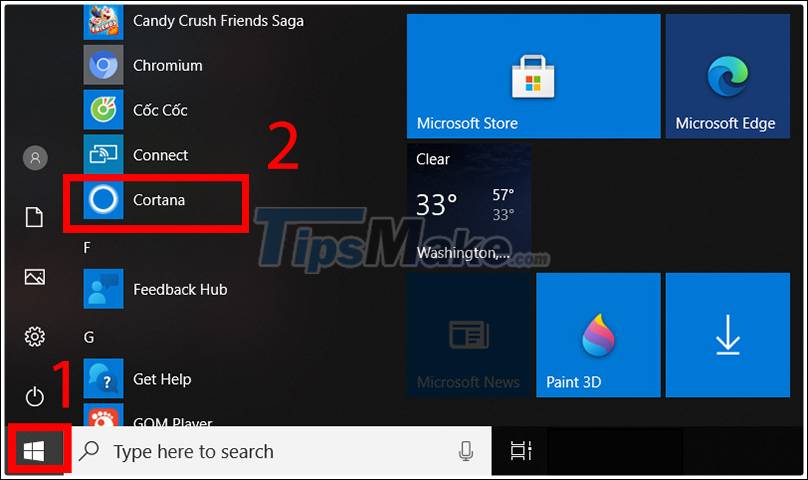
Step 1 : Select the Windows icon > Select Cortana .
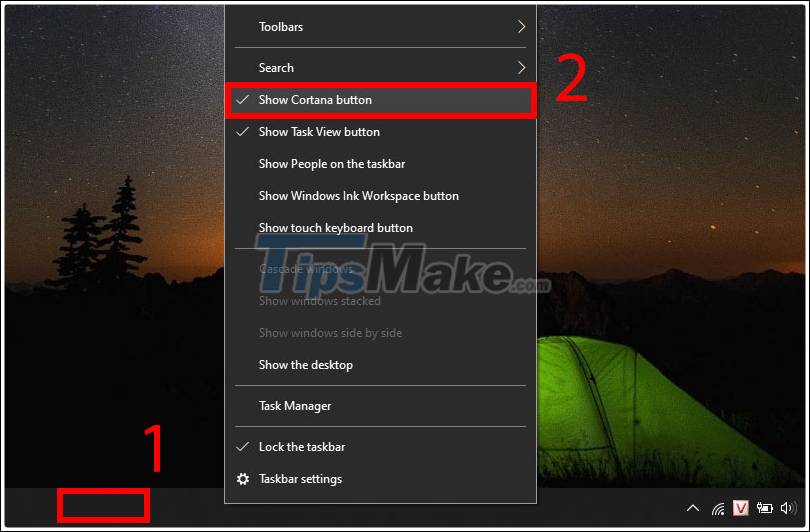
Step 2 : Display Cortana icon on the Taskbar.
You should now be able to see the Cortana icon on the Taskbar. If it doesn't appear , right- click the Taskbar > Check Show Cortana Botton .
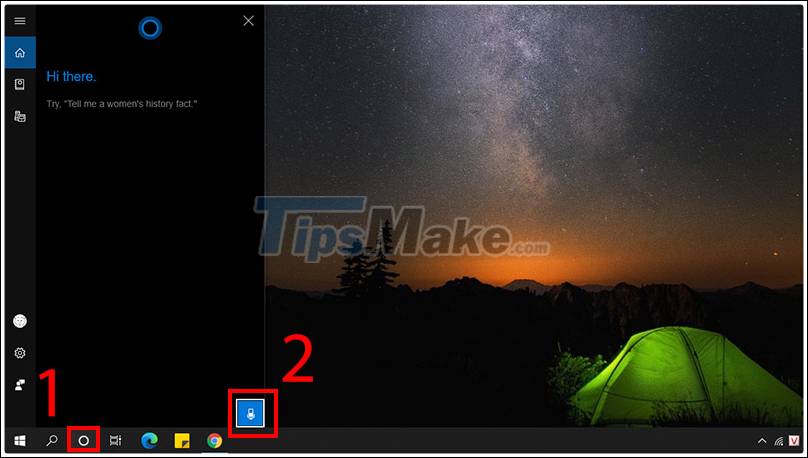
Step 3 : Select Cortana on the Taskbar> Micro Icon .
Now, you can ask Cortana any question in the language you installed earlier for Cortana. Then, take a look at how this virtual assistant quickly and intelligently responds!
4. How to call Cortana
You can call Cortana in 2 ways below:
Method 1 : Press the Windows + C key combination and start speaking.
Method 2 : Say " Hey, Cortana ".
To be able to call Cortana in these 2 ways, you need to do the 2 steps below.
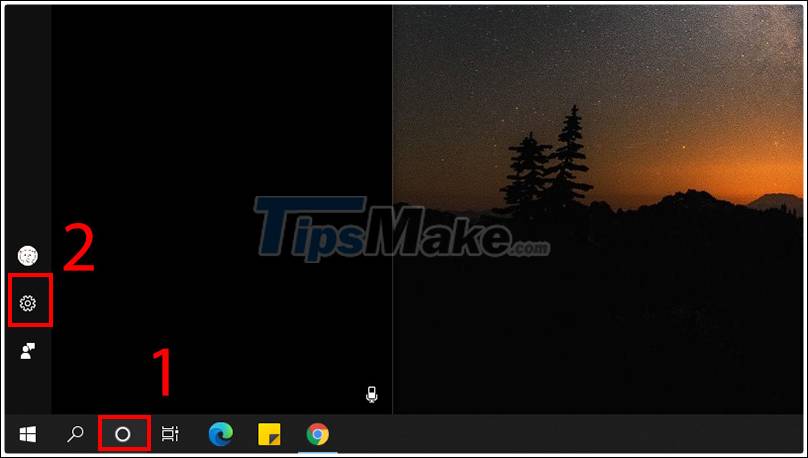
Step 1 : Open Cortana > Select Settings .
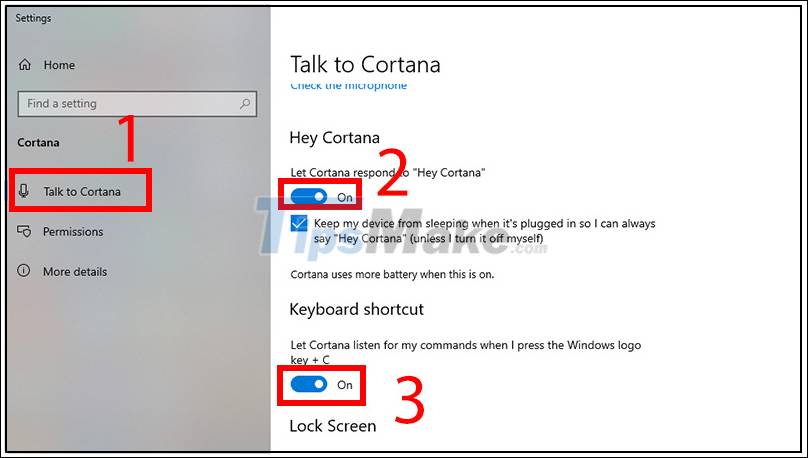
Step 2 : Select Talk to Cortana > Turn on Hey, Cortana and Windows + C functions .
At the Talk to Cortana tab on the left menu, you drag the switch from Off to On in Hey, Cortana and Keyboard Shortcut functions .
5. How to train Cortana to only answer your voice
Coach Cortana only responds to her voice in case someone else wakes up and commands her. You need to be in a quiet place to train Cortana to get acquainted and only answer your voice!
Step 1 : Open Cortana .
You can press the Windows + C key combination or click on the Cortana icon in the Taskbar to open the utility.
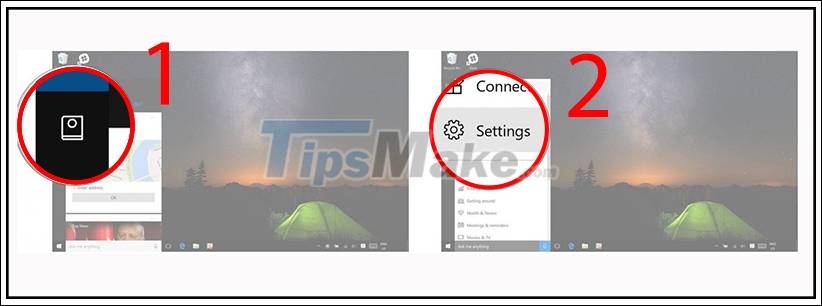
Then open Notebook (a small book-like icon below the house icon) on the Cortana app screen> Select Settings .
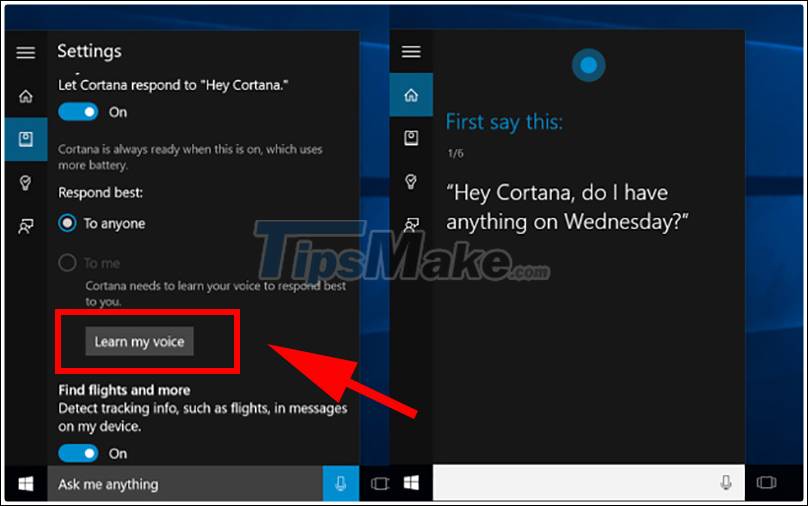
Step 2 : Click Learn my voice and start training Cortana.
You will be asked to speak 6 sentences so you need to speak loud and clear for Cortana to correctly recognize your voice!
So, with just simple steps, you can use the Cortana virtual assistant feature on Windows 10 operating system. Hope you can successfully activate Cortana yourself and have a good experience with this feature.
Key Takeaways
Use the information above as a practical reference for what is cortana? how to use cortana on Windows 10. Review each step carefully, confirm any requirements, and choose the option that best fits your situation.
FAQ
What does this guide explain about What Is Cortana? How to Use Cortana on Windows 10?
It explains the main concepts, practical considerations, and useful steps related to what is cortana? how to use cortana on Windows 10 without requiring advanced knowledge.
Who can benefit from learning about What Is Cortana? How to Use Cortana on Windows 10?
This information is useful for readers who want a clear overview, practical guidance, and reliable steps related to what is cortana? how to use cortana on Windows 10.
What should I check before applying this information?
Review the requirements, confirm that your device, software, or situation matches the instructions, and back up important data before making major changes.
Related Articles
 What Is Cortana: Use and Configure Cortana on Windows 107 minutes read
 How to Use Cortana to Turn Off or Restart Windows 10?4 minutes read
 The Best Setup Guide for Cortana on Windows 10 (Part 1)8 minutes read
 The Best Setup Guide for Cortana on Windows 10 (the Last Part)7 minutes read
 Instructions to Turn on Cortana and Use This Virtual Assistant on6 minutes read
 How to Change the Language for Cortana in Windows 103 minutes read
Reader Comments 0
Sign in with email or Google to join the discussion.