Table of Contents
This updated guide answers the question 'What Is A.gz File' with clear explanations and practical context. A GZ file is a compressed file created using the gzip compression utility, which was originally created by two software developers as a replacement and improvement on Compress in UNIX. This utility is most commonly used on UNIX and Linux systems.
Gzip files contain useful information such as the original file name and timestamp, which is useful when the compressed file name has been truncated or the timestamp has been lost when the file was transferred. GZ compression is often used to compress certain elements of a web page to speed up page loading.
Files with the.gz file extension can only be launched by certain applications.
What Is A.gz File?
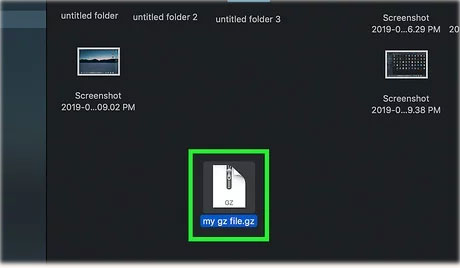
Files with the.gz extension are called GNU compressed archives.gz files are implemented using the encoding and compression standards developed by the GNU Project for the GZ compressed file format.
These compression specifications are based on the GNU ZIP compression algorithm, also known as GZIP compression technology. Users can select a single file or folder or even a group of files and folders and compress them into a GZ file.
Multiple GZ files can even be compressed into a single GZ file, or these GZ files can be placed in a directory that can then be compressed into a GZ file. The GZIP compression technology and the GZ compression format were developed for Linux systems, although there are some Microsoft Windows decompression applications implemented with support for decompressing and opening these GZ files.
Mac platform users can install and use a number of Mac compatible decompression tools to open and view the archive contents of GZ files.
How to Open.gz File?
How to Open GZ Files on Windows
There are a number of different ways to open and create archives on Windows, and the same goes for.GZ files. If you prefer commands, you can use the Command Prompt method. If you prefer a graphical user interface, you can use a free third-party application to access your GZ archives.
Extract GZ files on Windows using Terminal or Command Prompt
There is a command called tar that you can use in the Windows Terminal or Command Prompt to extract the contents of your GZ archive. This command is built into your operating system, so you do not need to install anything to use it.
Once you have the GZ file with you, use these steps to extract its contents:
1. Open the Start menu, search for Command Prompt (or Terminal ) and choose Run as administrator .
2. choose Yes in the prompt.
3. Type these command replacing SOURCE with the source GZ file and DESTINATION with the destination directory and press Enter.
tar -xvzf PATHTOSOURCE -C PATHTODESTINATION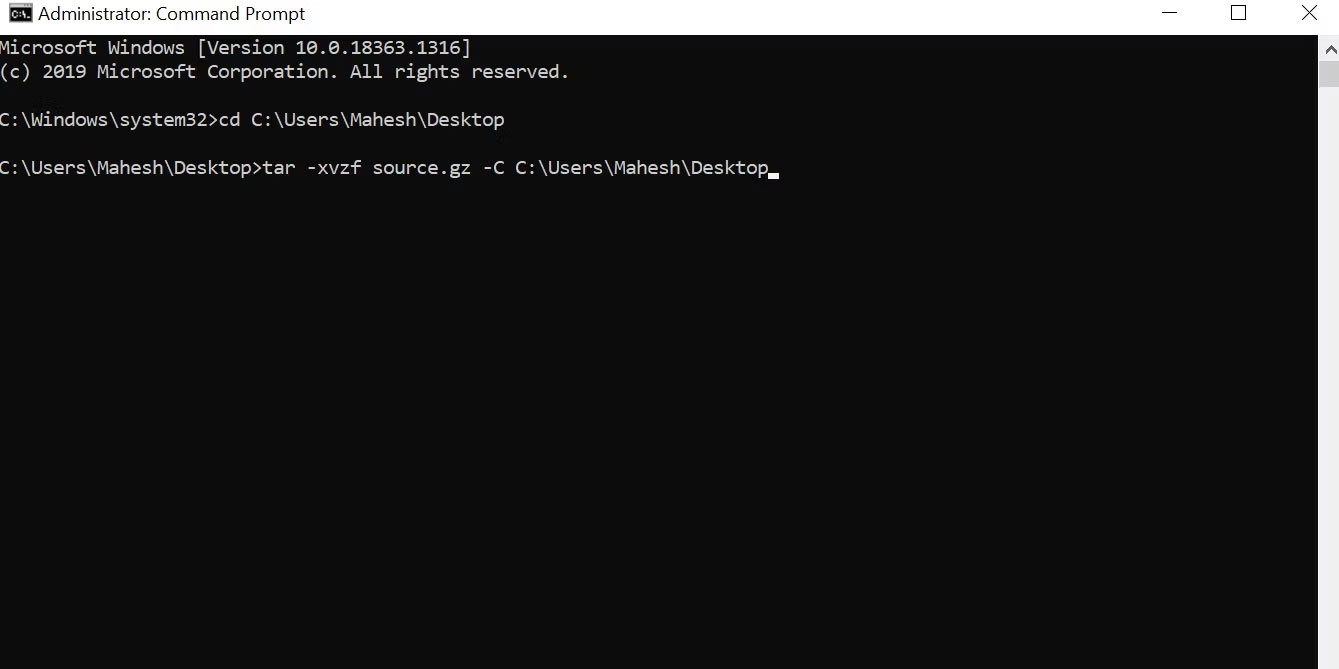
4. If all goes well, your extracted files should be available in the destination folder.
If your destination folder looks empty even after running the command successfully, it might be because you ran it without admin rights. Just open CMD with admin rights and it should be fine.
How to open GZ files using applications on Windows
to unzip GZ files on Windows using an application, there are plenty of free alternatives. 7-Zip is a pretty good choice for this task, as it is easy, free, and open source.
Here's how you use this application to extract GZ archives on your PC:
1. Download and install the free 7-Zip tool on your PC.
2. Open the tool and navigate to your GZ file using the built-in file manager.
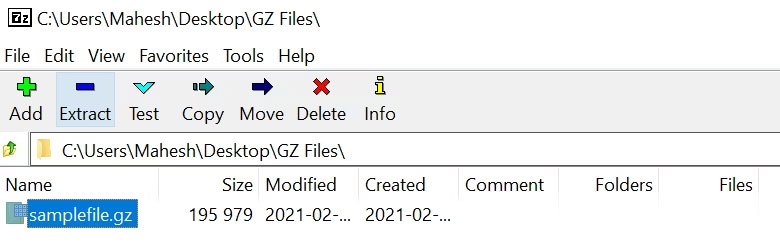
3. Select your GZ file in the list and choose Extract in the top toolbar.
4. Select the destination folder in the Extract to section.
5. Adjust other options if desired and choose OK.
6. Open the destination folder and you will have all the contents of the GZ file there.
Alternatively, you can use 7zip's context menu tools on Windows to extract.GZ files. ensure to select this option during installation, then you can simply right-choose to open GZ files with 7zip.
Unzip GZ Files on macOS
Compressed file types like RAR require an unzipping app on macOS, but you do not need to do that for GZ.
You can open GZ files on your Mac without using any third-party tools. Again, you can use Terminal to extract files from GZ archives or the built-in macOS tool to unzip your files.
How to unzip GZ files on macOS using built-in tools
Just like a ZIP file, you can simply double-choose your GZ archive and it will begin extracting the contents. You can do this from any Finder window on your Mac, and your extracted files will be available in a new folder in the same directory as the original GZ archive.
If that does not work for you, ensure you're opening your GZ file using the built-in unzip tool — the same tool used to compress files on macOS. If you're not sure what the default archive handler on your Mac is, just right-choose your GZ archive and select Open With > Archive Utility to open the archive using the built-in tool.
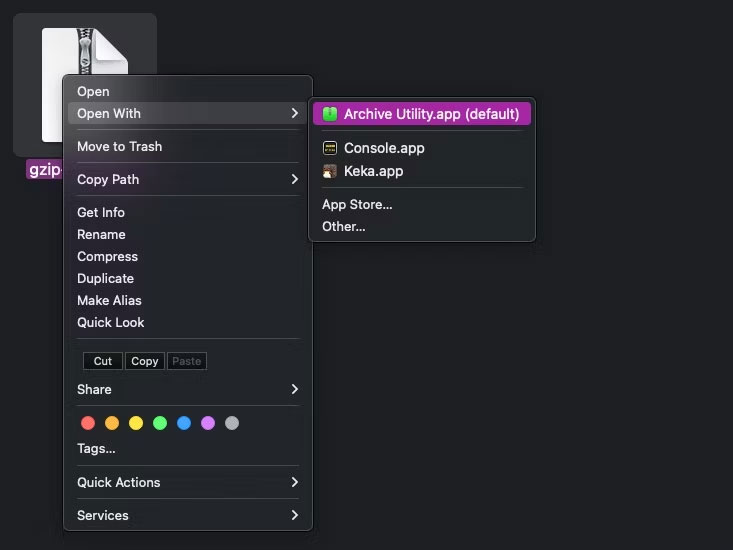
Another way to open GZ archives in macOS is to use free apps. There are popular options, like The Unarchiver or Keka (paid on the macOS App Store but free on the developer's website). Both apps also support a number of other formats, including ZIP and RAR.
Using Terminal to Unzip GZ Files on macOS
Using Terminal, you can extract all the files inside your GZ archive with a single command. Your files will be placed in a new folder in the same directory as the original GZ file.
Here is how you use this method:
1. choose Launchpad in the Dock, search for Terminal , and choose the utility.
2. Type these command, replacing source.gz with the path to your GZ file and press Enter.
gunzip -k source.gz
3. Terminal will begin extracting files from your specified GZ archive.
How to Unzip GZ Files on Linux
If you are a Linux user looking to open GZ files, you can use a command in Terminal to extract all the files from your GZ archive. Some distributions also have built-in context menu options to extract.GZ files.
Open.GZ file in command line on Linux
Gzip is a command that lets you uncompress the contents of a GZ archive on your Linux machine.
Here's how you use this command and start extracting your archives:
1. Open the Terminal application - any distribution has a Ctrl + Alt + T shortcut for this.
2. Type these command, replacing SOURCE.GZ with the path to your actual GZ file and press Enter.
gzip -dk SOURCE.GZ3. Your GZ archive will now be unpacked.
4. If your file is a.TAR.GZ file, You need to use a different command to unpack your archive. Run these command in Terminal to unpack the TAR.GZ file.
tar -xf SOURCE.tar.gzHow to open GZ files on Linux using built-in tools
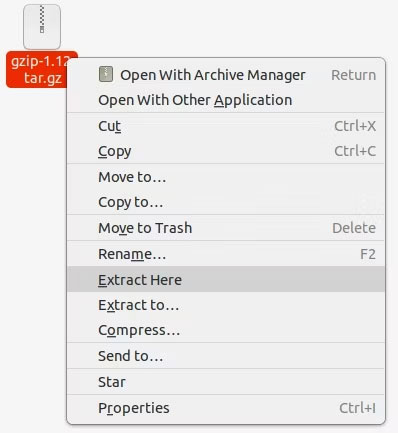
There are multiple ways to unzip compressed files on Linux using the built-in graphical tool. Just like the macOS and Windows versions, it only takes a right-choose. Here's how to unzip GZ files on Linux using the graphical interface:
- Using your favorite file manager, navigate to the folder containing the.GZ file
- Select the.GZ file and right select it
- Select Extract here .
- The file(s) or folder(s) inside the GZ file will be extracted to the same folder you are in.
How to Read Gzip Compressed Files in Linux Command Line

If you work with backend logs, you may have noticed that they are mostly compressed with the.gz extension. This is not surprising because compressing log files saves many storage space and thus saves on storage costs.
But unlike regular text files where you can use cat to see all the contents of the file, use grep on it, or use less to read the contents without flooding your screen, compressed files cannot be used with regular Linux commands.
do not worry, because you also have the powerful Z commands to handle them. These Z commands provide a 'Z' equivalent to the regular file manipulation commands.
So you get:
- zcat instead of cat to view compressed files
- zgrep instead of grep to search inside compressed files
- zless instead of less, zmore instead of more , to view files in pages
- zdiff instead of diff to see the difference between two compressed files
The best thing about using these Z commands is that you do not have to unzip the file. It works directly on the compressed files.
View Compressed Files with Zcat
If you use cat, you can replace it with zcat. zcat is used exactly the same way you use cat. for instance:
zcat logfile.gzThis command will display all the contents of logfile.gz without extracting it. Actually it temporarily extracts the file in /tmp but that is not the same as actual extraction, right?
You can use the regular less and more commands with zcat to see the output in pages:
zcat logfile.gz | less zcat logfile.gz | moreIf you do not know if the file is compressed or not (i.e. the file does not have a.gz extension), you can use zcat with the -f option . This will display the contents of the file regardless of whether it is decompressed or not.
zcat -f logfile.gzRead Compressed Files with Zless and Zmore
Similar to less and more , you can use zless and zmore to read the contents of a compressed file without extracting it. All the keyboard shortcuts for less and more work the same.
zless logfile.gz zmore logfile.gzSearch Inside Compressed Files with Zgrep
Grep is a powerful command. Zgrep is the Z version of grep, which lets you search inside compressed files without extracting them.
You can use zgrep with all the usual grep options. for instance:
zgrep -i keyword_search logfile.gzCompare Compressed Files with Zdiff
While this may not be useful for large log files, you can use zdiff to see the differences between compressed files, just like you would use the diff command.
zdiff logfile1.gz logfile2.gzSee also:
- What is a DLL file? Why does my computer sometimes say a DLL file is missing?
FAQ
What is A.gz File?
A.gz File refers to the concept, feature, product, or process explained in this guide. The main sections cover how it works and where it is useful.
Why is A.gz File important?
Its value depends on the problem you are trying to solve. Understanding the benefits and limitations makes it easier to decide whether it fits your needs.
Is A.gz File suitable for beginners?
Yes, beginners can start with the basic explanation and examples in this guide, then move to more advanced settings or techniques as their confidence grows.
Related Articles
 What Is ISO File?10 minutes read
 What Is the .DAT File: How to Open and Read the .DAT File?10 minutes read
 What Is File 000? Complete Guide6 minutes read
 All You Need to Know About ZIP Files - What Is a ZIP File?5 minutes read
 What Is DMG File?7 minutes read
 What Is Xml File: What Is an XML File and How to Open It?9 minutes read
Reader Comments 0
Sign in with email or Google to join the discussion.