Table of Contents
You can make a printable coloring page in two ways: upload a photo and convert its shapes into line art, or enter a text prompt and generate a new scene. Colorify AI and ColoringBook.ai both support these workflows in a browser and can export PNG or PDF files.
For a child-friendly result, choose a clear subject, simple background, bold closed outlines, and an age-appropriate amount of detail. Always inspect AI-generated hands, faces, letters, and small objects before printing.
Method 1: Create a coloring page with Colorify AI
Colorify AI offers text-to-coloring-page and photo-to-coloring-page tools. The current service also provides style and output options; available models, credits, and high-resolution features can vary by plan.
Generate a page from text
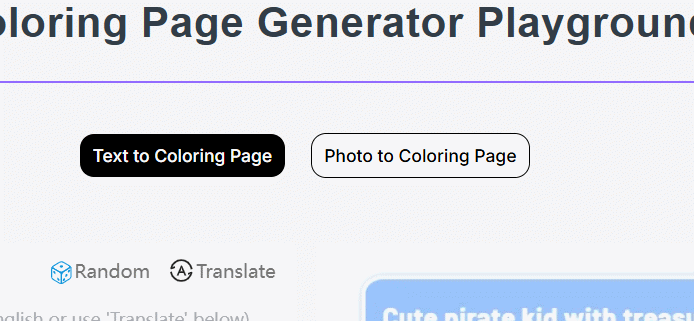
- Open Colorify AI and choose the text-to-coloring-page tool.
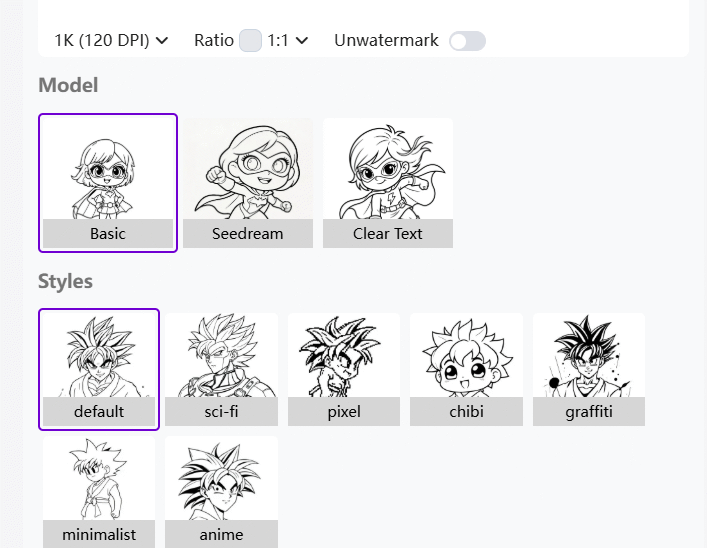
- Describe one clear scene. Include the subject, line style, background complexity, and intended age group.
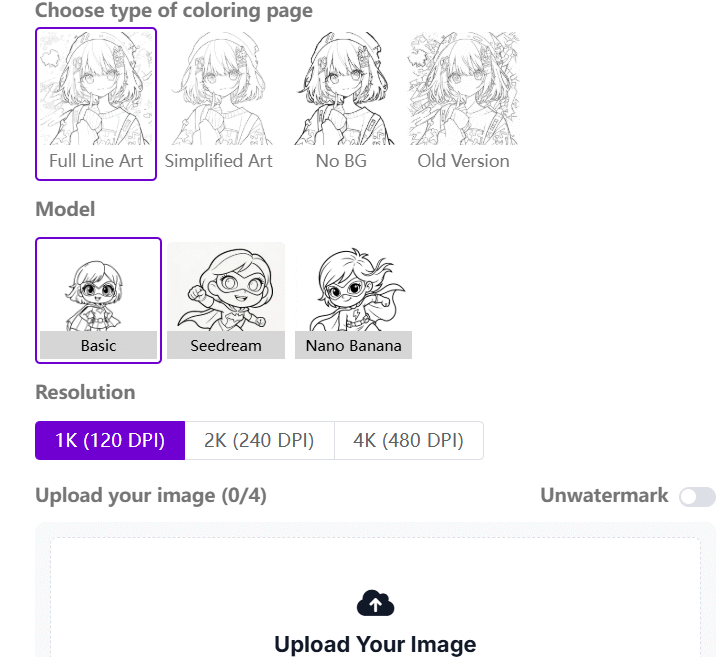
- Select a suitable style and page size.
- Generate the image, inspect the preview, and revise the prompt if important shapes are unclear.
- Download the accepted page as PNG or PDF, depending on the available export options.
A useful prompt pattern is:
Friendly dinosaur planting a flower, full-body composition, bold clean black outlines, large closed areas, white background, no shading, no text, simple coloring page for ages 5–7.
“No shading” and “white background” help avoid gray areas that are awkward to color. State “large closed areas” for younger children and “intricate line art” for older users.
Convert a photo into line art
- Choose the photo-to-coloring-page tool.
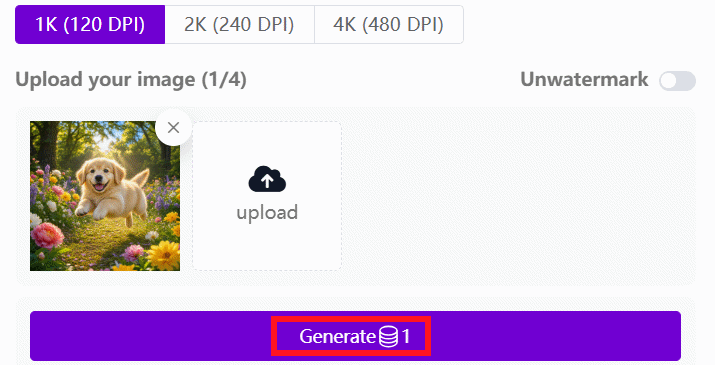
- Upload a well-lit image with one main subject and visible separation from the background.
- Select the line-art style and level of detail.
- Compare the result with the source photo. Regenerate or crop the image if the face, fingers, or object boundaries are distorted.
- Download the final PNG or PDF.
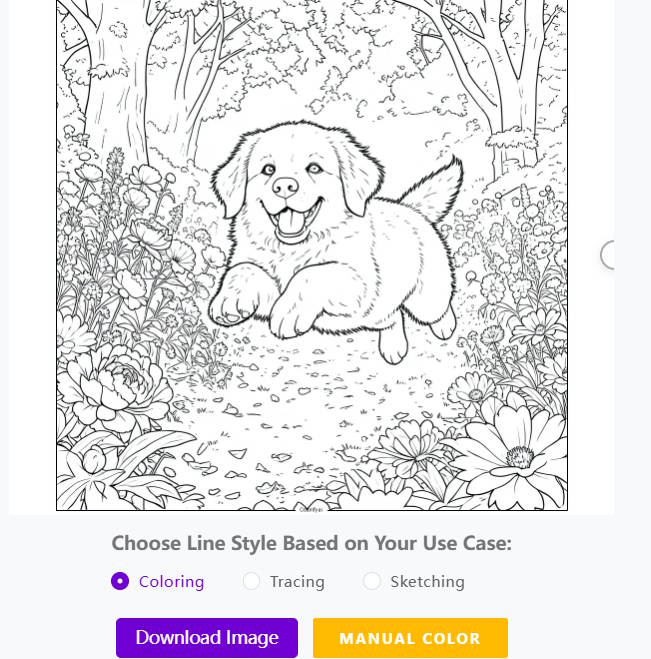
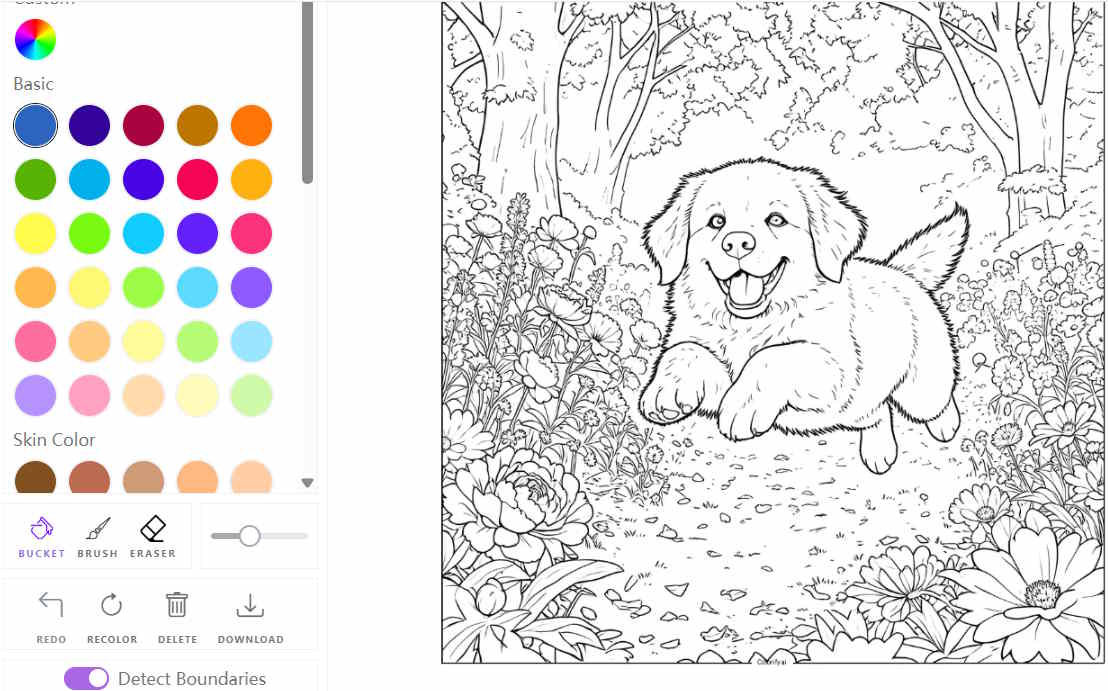
If a manual-color option appears in the current interface, you can color the result online before downloading. Tool availability and credit use can change, so check the generation screen before selecting a premium model or high-resolution output.
Method 2: Convert an image with ColoringBook.ai
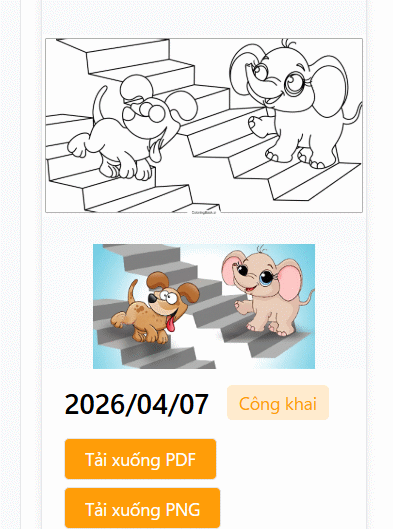
ColoringBook.ai can generate pages from text or uploaded photos and export printable PNG or PDF files. Its current site provides a small monthly free-credit allowance for new accounts, while higher-volume and print-upscaling features may require a paid plan.
- Open the site and select the image-to-coloring-page option.
- Create an account if the selected feature asks for one.
- Upload the source image. Crop tightly around the main person, pet, or object when possible.
- Choose the available style or detail settings, then start generation.
- Review the black-and-white output at full size.
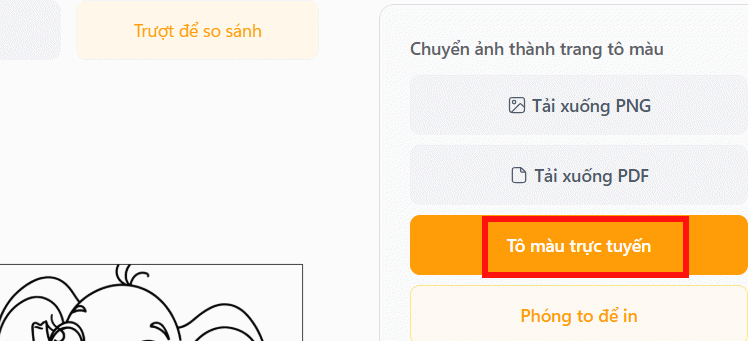
- Download a PNG for image editing or a PDF for straightforward printing.


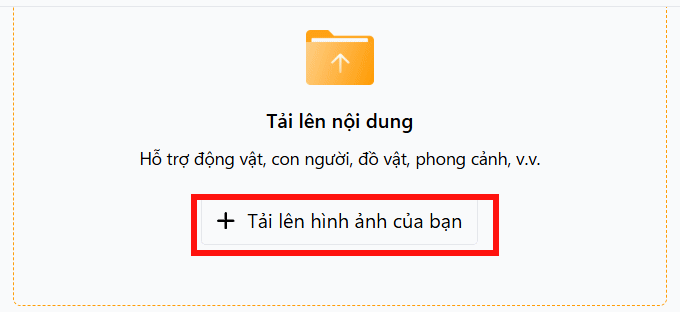
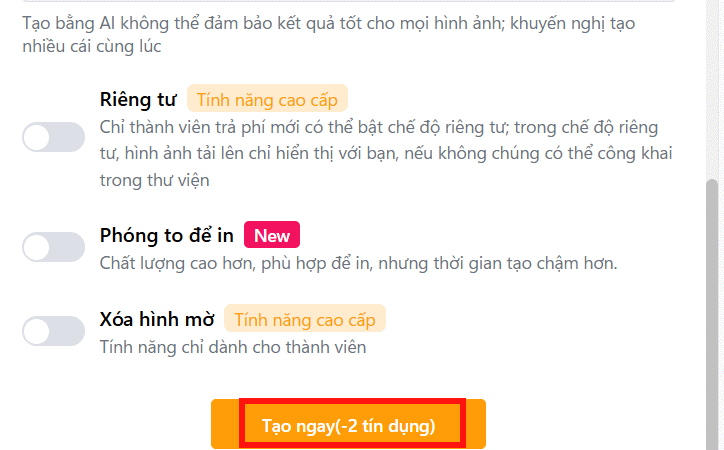
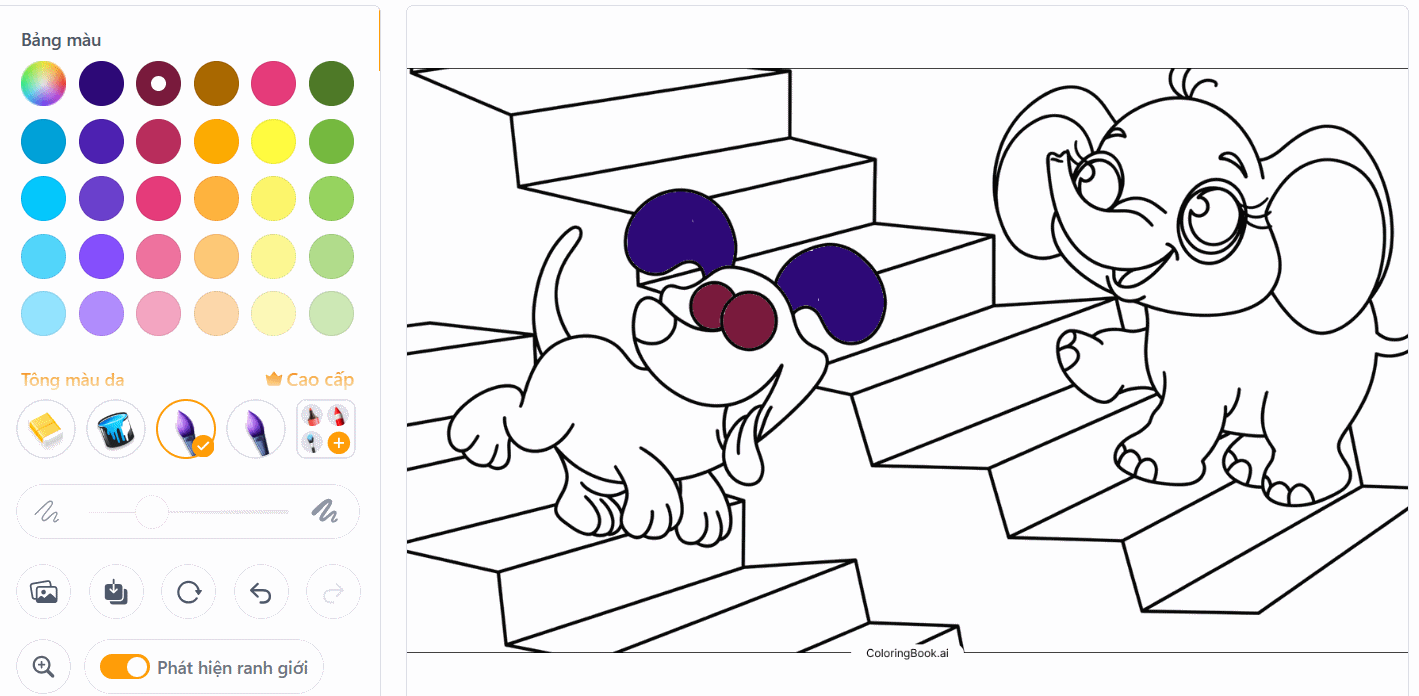
If Color Online is available, open the generated image and use the on-page tools. Boundary-aware fills can speed up digital coloring, but thin gaps in the generated outline may still allow color to spill into an adjacent area.
How to get cleaner coloring pages
| Problem | Better input or prompt |
|---|---|
| Too many tiny areas | Use a simpler background and request large closed shapes with bold outlines |
| Face looks unlike the photo | Use a front-facing, well-lit crop; keep the result generic rather than relying on identity accuracy |
| Gray shadows remain | Request pure black line art on a white background with no shading |
| Broken or doubled lines | Reduce detail, use a cleaner source, or repair the final file in an image editor |
| Page prints blurry | Generate or export at a higher resolution and size it for the paper before printing |
| Text is misspelled | Generate the illustration without text and add lettering afterward in a layout tool |
Prepare the file for printing
- Choose A4 or US Letter according to the printer and paper.
- Leave margins so important lines are not cut off.
- Print one draft using normal quality before producing multiple copies.
- Use heavier paper for markers and place a protective sheet underneath; crayons and colored pencils work on ordinary paper.
- Keep the original downloaded file so it can be printed again without rescaling a screenshot.
Privacy and copyright checks
- Uploading a photo sends it to an online service. Read the current privacy policy before using pictures of children, identity documents, classroom records, client work, or other sensitive material.
- Use photographs and characters you have the right to reproduce. A generated outline does not automatically remove copyright or publicity-right restrictions from the source.
- Do not ask AI to imitate a living artist or reproduce a protected character for commercial sale without permission.
- Review every generated page before giving it to a child; automated systems can add odd or unsuitable details.
Colorify AI is useful when you want several prompt and photo styles, while ColoringBook.ai offers a direct path from a photo or description to a printable page. Whichever tool you choose, the quality of the subject, prompt, and final inspection matters more than the number of generated variations.
Related Articles
 Coloring Pages for Kids with Many Themes4 minutes read
 Format Background Color for Text Page in Word4 minutes read
 What Is 3D Transform: 3D Transform in CSS4 minutes read
 Synthetic Princess Coloring Pictures for Babies4 minutes read
 Beautiful Free Coloring Pages on Slidesgo5 minutes read
 What Is 2D Transform: 2D Transform in CSS7 minutes read
Reader Comments 0
Sign in with email or Google to join the discussion.