Table of Contents
So how do you find a lost iPhone? iPhones and iPads have a very useful Find My iPhone feature. Here's a detailed guide on how to find your lost iPhone or iPad using Find My iPhone and Find My iPad.
1. What is Find My iPhone?
Find My iPhone is a very useful feature from Apple for users. Through your iCloud account, you can easily determine the exact location of your device and activate other features such as locking the phone and erasing data to ensure that personal information and sensitive data do not fall into the wrong hands.
2. Activate Find My iPhone on your iPhone or iPad.
Enable Find My iPhone on the latest iOS 15 update.
Essentially, the Find My feature in iOS 15 is the same as in previous iOS versions. However, it's an upgrade, connecting with more Apple devices so we can find our iPhones faster and avoid misplacing them.
Even when the iPhone has only 10% battery left, Find My still allows users to locate their iPhone if it's stolen, lost, in power-saving mode, turned off, or even factory reset.
When using AirTag or with Apple devices like Macs, iPads, etc., if you move away from these devices, your iPhone will remind you that you left it behind with the "Left behind" option. This ensures users don't forget to put it away.
Step 1:
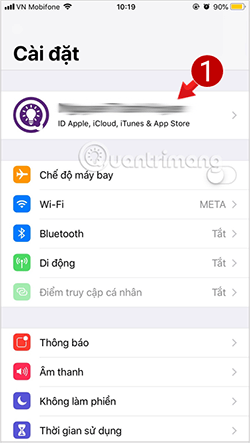
On your iPhone, tap Settings , then tap your iCloud account. Next, enable the Find My app and other options within this mode.
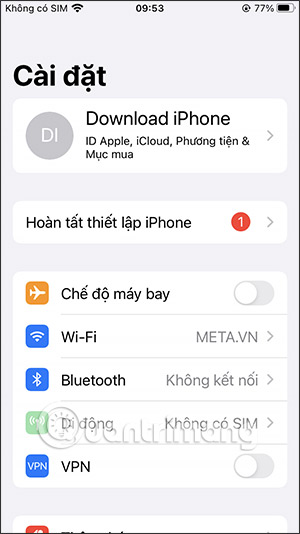
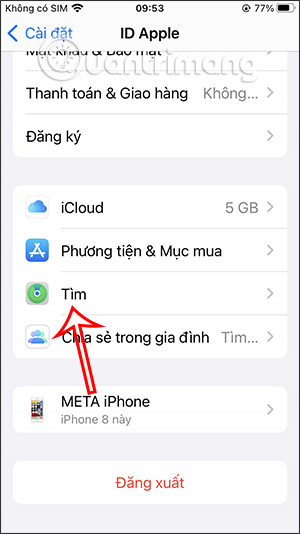
Next, you need to enable location services on your phone to configure this feature so you can use it to find your lost iPhone.
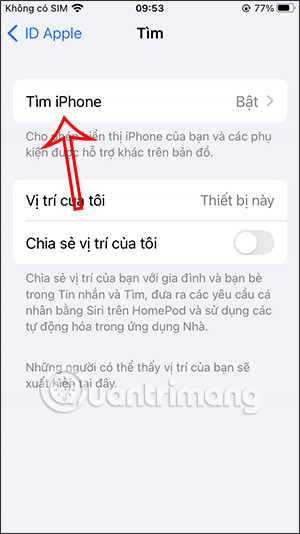
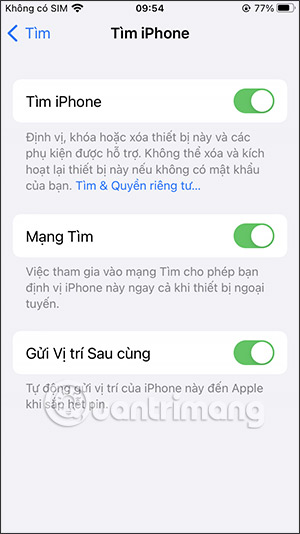
Step 2:
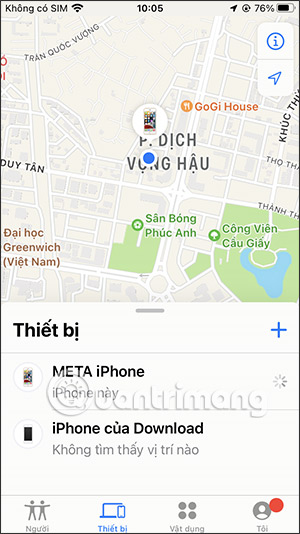
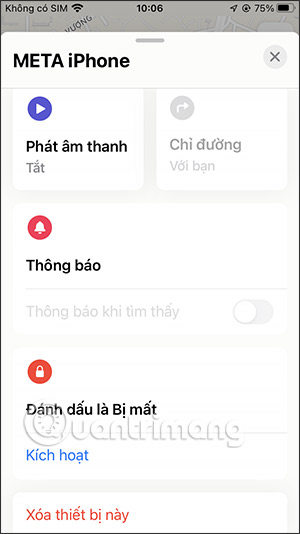
Open the Find My app on your iPhone and tap on Devices to check the devices linked to this iCloud account.
Step 3:
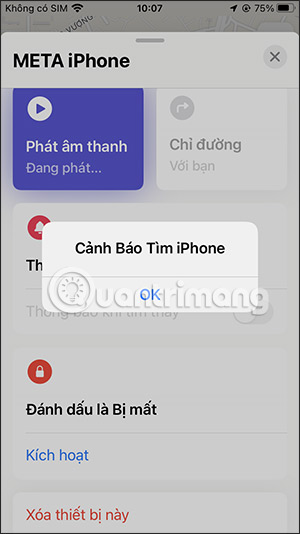
In this interface, you will see many settings options. Under the "People" section , you can share your location with specific contacts.

Step 4:
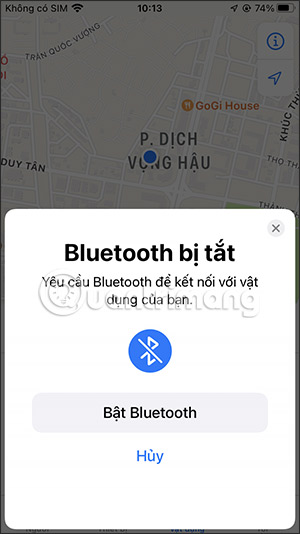
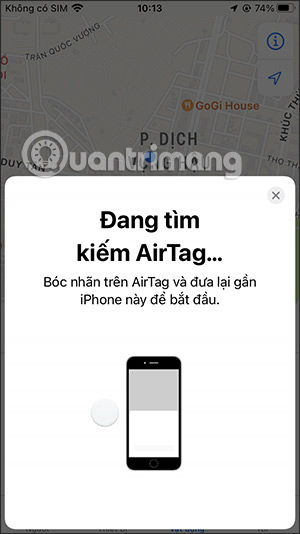
In the Devices section, you can connect your iPhone to various other devices via Bluetooth, or with AirTag, you need to bring your iPhone close to the AirTag to connect. Follow the instructions displayed on the interface to proceed with the connection.


Once connected, tap on the iPhone you want to enable Find My and you can also turn on the Notify When Left Behind feature.
Step 5:
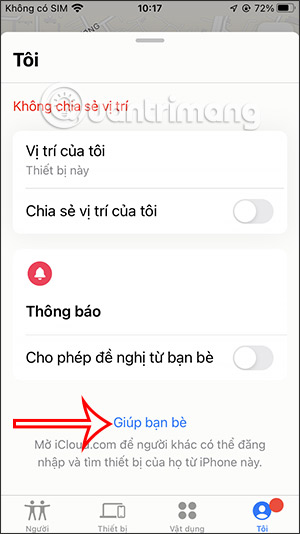
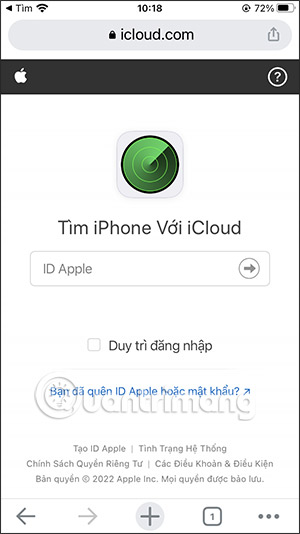
Tap on "Me" and scroll down to find the "Help a Friend" option to find your friend's iPhone through their iCloud.com account.
On iOS 10.3 and later
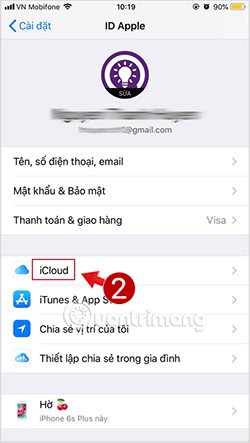
First, from the home screen, tap Settings , then tap your Apple ID account name at the top, and then select iCloud.
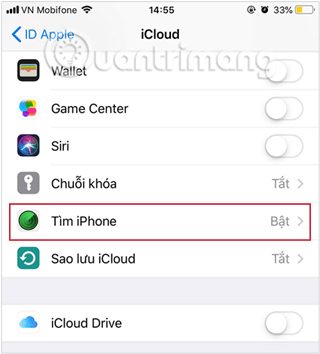
Next, in the iCloud list, scroll down, find and turn on Find My iPhone.
For iOS versions 10.2 and below:
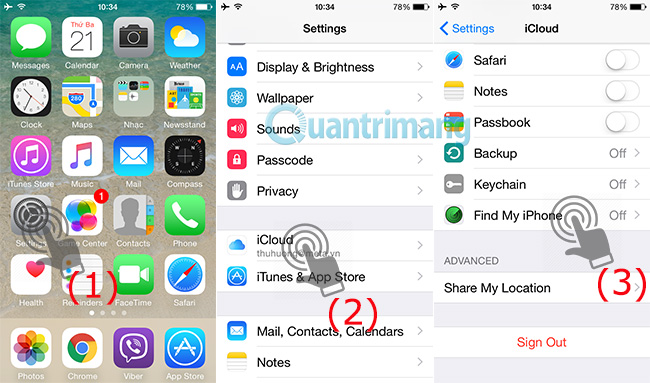
To enable the Find My iPhone feature, go to Settings > iCloud > Find My iPhone as shown below:
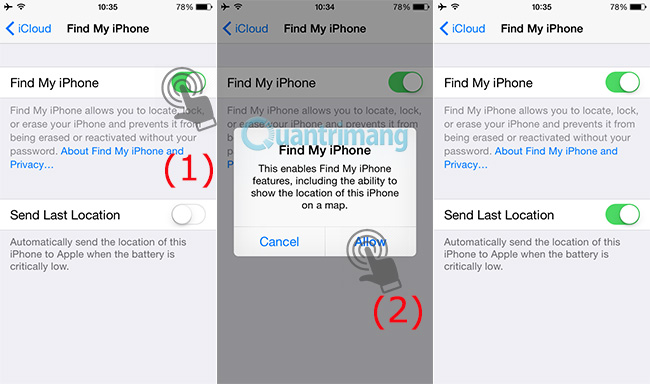
Switch the power setting from Off to On , then log in to your Apple account to confirm:
So, basically, we have completed the process of activating the Find My iPhone service.
3. Access Find My iPhone via the web.
To find a lost iPhone, first, go to Find iPhone on iCloud and log in with the Apple ID account used on the device you want to find.
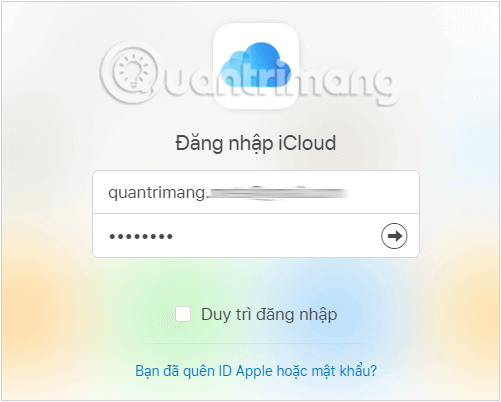
In the next screen, a map showing all the devices linked to your Apple ID account will appear. Click on All Devices and select the name of the phone you want to find.
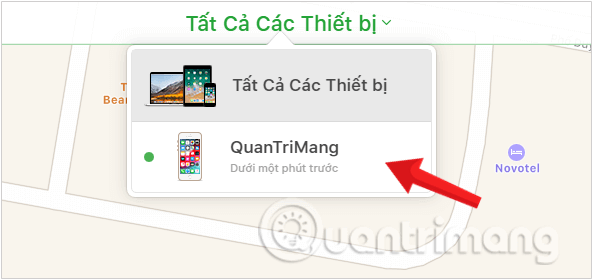
After selecting your device, you'll see three usable options for your iPhone with a lost display in the upper right corner of the screen, including:
- Play sound
- Loss mode
- Delete iPhone
Sound Play mode on Find iPhone
When you select this feature, the iPhone will continuously emit a beeping sound (ding ding ding ding.) to alert the owner of its location.
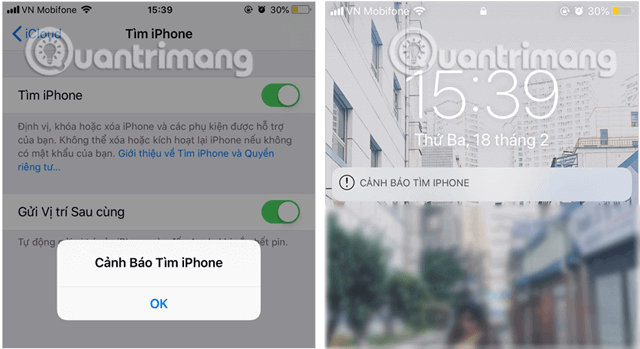
Lost Mode on Find My iPhone
When you select this mode, the system will ask you to enter the message that will be displayed on the screen when the mode is activated, and a new phone number so that the finder can contact you.
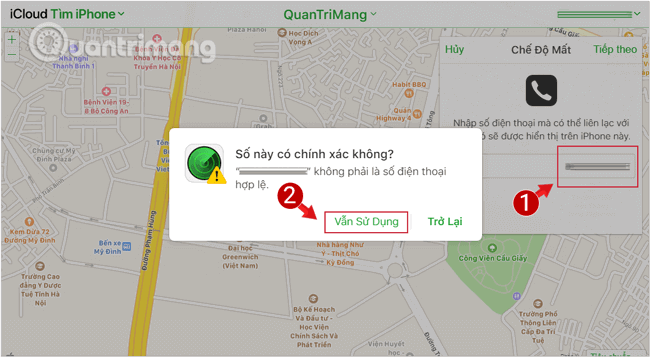
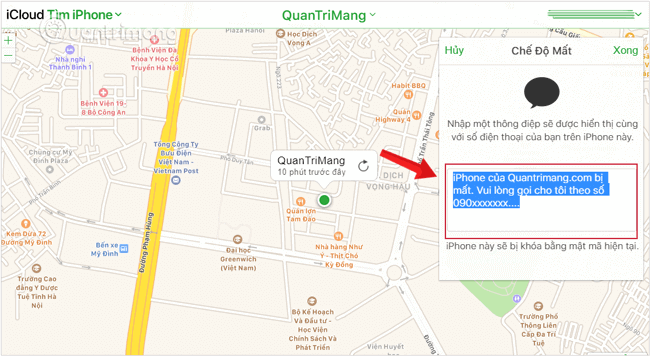
The lock screen of a lost iPhone will display the exact information you just set up.

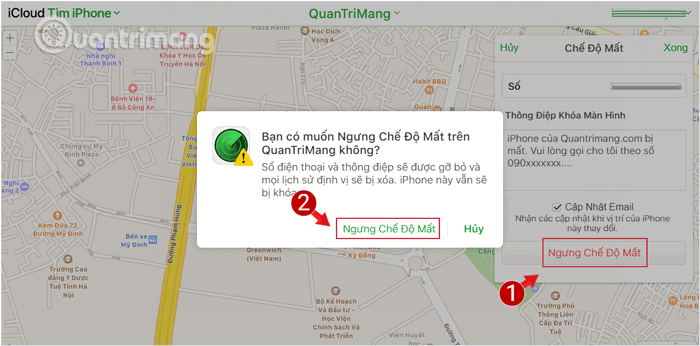
Once you've found your iPhone or iPad, you can turn off the lock function and use it normally.
Erase iPhone mode on Find iPhone
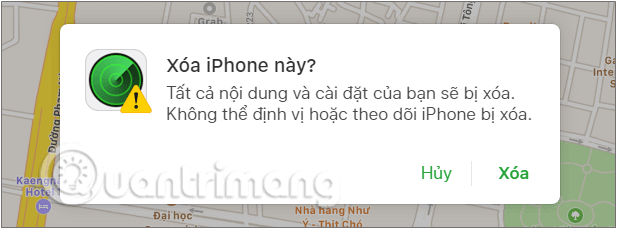
This is the last option, to use when you are certain you cannot recover your device. To protect your data and prevent it from being exploited by malicious actors, restore factory settings and erase your entire iPhone using this option.
4. Access Find My iPhone on your iPhone and iPad.
Not only can you track a lost iPhone or iPad online, but you can also use the Find My iPhone app to locate your device. You can use it on any iPhone or iPad to track a device linked to your iCloud account by following these steps:
First, launch the Find My iPhone app from your iPhone or iPad. If this isn't your device, tap Sign Out in the upper right corner, then sign in with your iCloud ID.
When you log in, you'll see a map showing all the devices linked to the Apple ID account you just logged in with. Select your lost iPhone from that list.
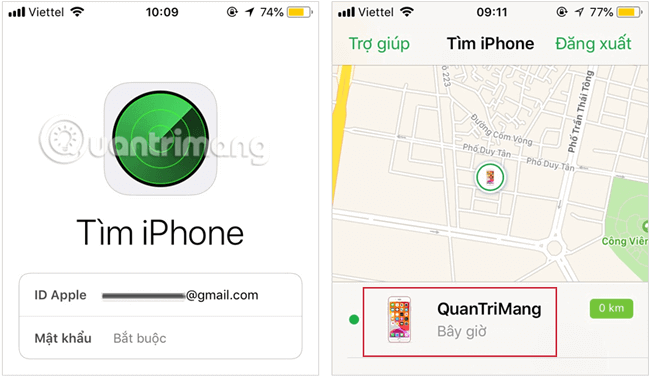
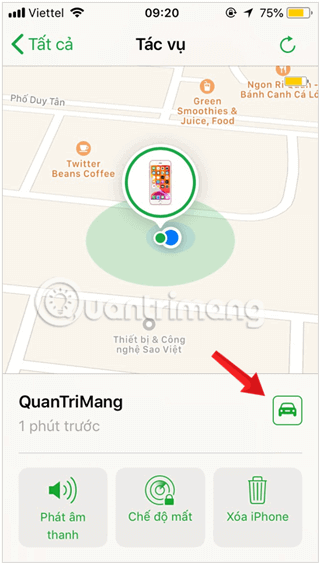
After downloading and locating the device, you will see a large dot on the map indicating the location of your lost phone. You can zoom in and out of this location by pinching your fingers together.
Tap on Actions at the bottom to see the options. Here you will have 3 options similar to those on the web: Play Sound, Lost Mode, Erase iPhone. Choose the mode that best suits your needs.
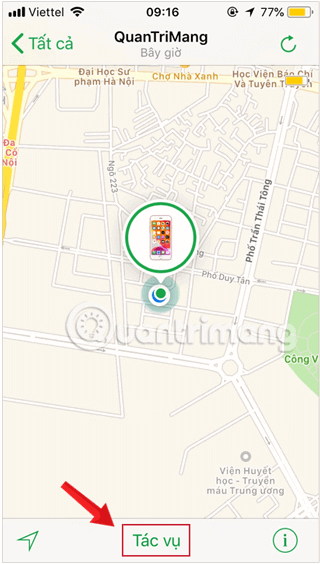
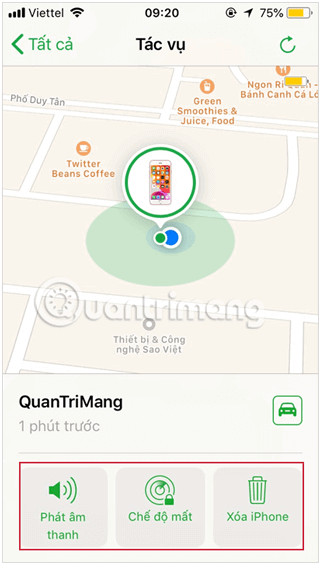
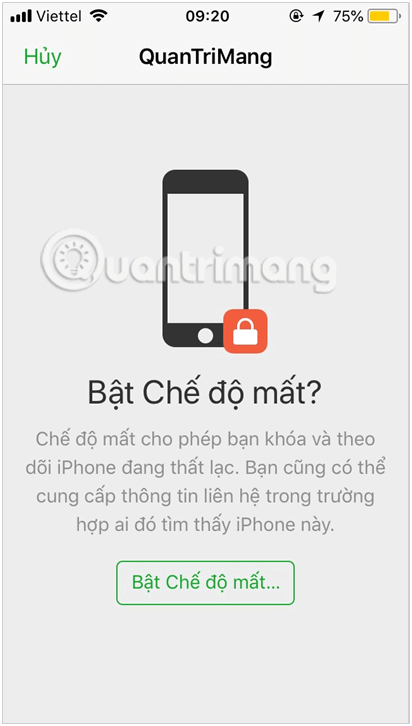
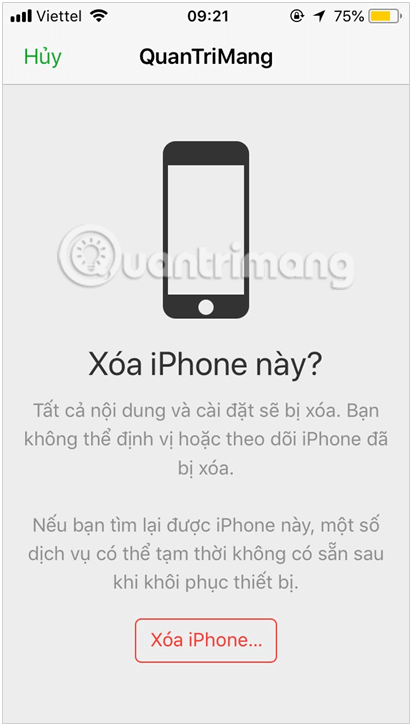
Three options are available: Play Sound, Lost Mode, Erase iPhone
To find directions to the location shown on the map, tap the car icon ; you will be redirected to the maps app. The app will navigate you to the exact location where Find My iPhone last located your lost iPhone, even if the device is out of battery.
Hopefully, with the steps above, you can now find your iPhone or iPad if you accidentally lose it.
Good luck with your project!
Related Articles
 Find iPhone, iPad Lost by Find My iPhone7 minutes read
 How to Lock a Lost Phone: Clear Instructions9 minutes read
 If Your Windows Phone Is Lost, Here's How to Find It Again!4 minutes read
 Find Samsung Phone, How to Locate Samsung When Lost5 minutes read
 How Does the Find My Apple Feature Find Lost Iphones Without3 minutes read
 Instructions for Using Apple Watch to Find iPhone4 minutes read
Reader Comments 0
Sign in with email or Google to join the discussion.