Table of Contents
Learn how to change this hidden setting on Android to make everything run twice as smoothly with clear steps.
Driven by curiosity, many people decide to explore new things. Simply changing one Android setting completely transforms the experience, making scrolling smoother, the phone much more responsive, and the overall user experience incredibly satisfying.
What is this feature on Android?
When Android phones finally catch up to you

The enhanced scrolling feature on Android is an accessibility setting that helps your phone operate more smoothly, quickly, and responsively during everyday use. For example, when scrolling through a long article in Chrome, browsing social media pages, or perhaps multitasking between apps, you want your phone to respond instantly and keep up with your actions.
In many cases, the default speed can be a bit slow, and even minor lags can ruin the smooth, fluid experience you expect. That's where this setting comes in handy. By adjusting it, your Android will respond faster to gestures, animations will be smoother, and overall interaction with the smartphone will feel more natural, almost like boosting the phone's performance without changing the hardware.
First stop: Developer Options
A quick trip to the phone's secret menu
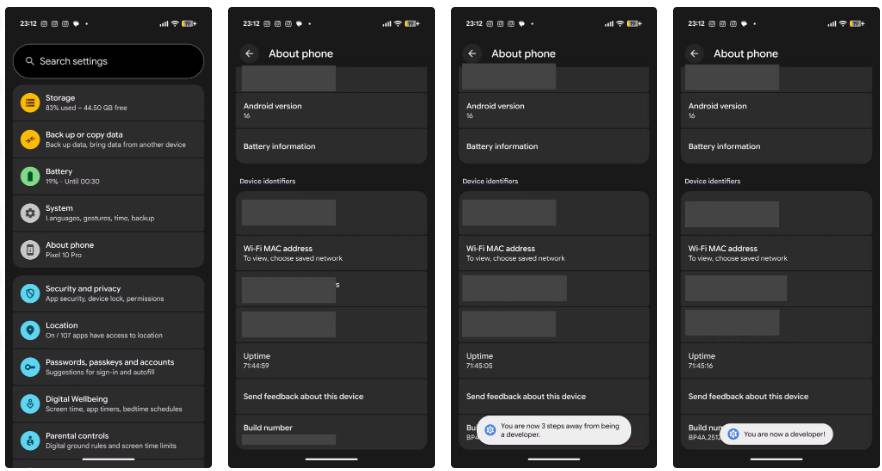
Android's developer settings are full of hidden tweaks, and improving scrolling smoothness is one of the simplest to try. Before you can access them, you need to unlock Developer Options. Here's how:
- Open the Settings app on your Android phone.
- Scroll down and tap on About Phone .
- Find the build number in the device information, then tap it seven times in quick succession.
- You will see a prompt showing the number of taps remaining.
- Enter your phone's PIN, pattern, or password when prompted.
- Once completed, a message will appear saying, " You are now a developer! ".
Turn off these settings to improve the scrolling effect
Remove unnecessary details for smoother swiping
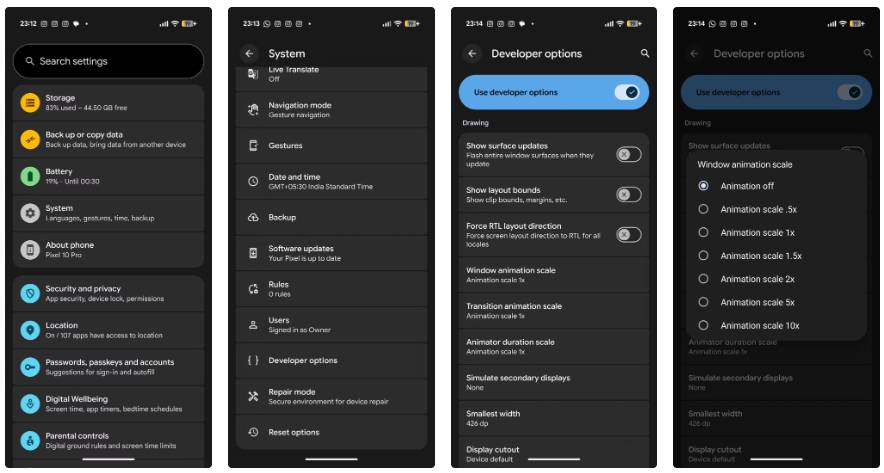
After enabling Developer Options on your Android phone, the next step is to disable a few animation settings that directly affect scrolling smoothness. These animations look nice, but they can also add a bit of lag to each swipe and scroll. Here's what you need to do:
- Open the Settings app on your phone.
- Scroll down and click on System .
- Go to Developer Options .
- Scroll down until you find the Drawing section.
- You will see three options here: Window animation scale , Transition animation scale , and Animator duration scale .
- Click on each option and set it to Animation off .
After disabling these animations, your Android device will run significantly faster. Scrolling becomes quicker, switching between apps is smoother, and the overall experience feels more responsive—the difference is noticeable almost immediately.
Sometimes, smoothness is all your phone really needs
Many people replace their smartphones simply because they start to slow down or fail to meet expectations. While it's entirely a personal choice, everyone should try to get the most out of their phone after they've bought it. In such cases, when your Android starts to feel sluggish, small tweaks can make a significant difference to your daily user experience. They're easy to try, easy to undo (if you don't like them), but once you notice the difference in usability, it's really hard to go back. And if you're already considering tweaking your phone, there's also a simple screen tweak that allows you to display more content on the screen at once, making daily use more efficient without changing the hardware.
Final Thoughts
Use this guide as a practical checklist for how to change this hidden setting on android to make everything run twice as smoothly. Work through the steps in order, verify each result, and adjust the options to match your needs.
FAQ
What do you need before following this How to Change This Hidden Setting on Android to Make Everything Run Twice as Smoothly guide?
Review the required tools, accounts, settings, or materials mentioned in the article. Learn how to change this hidden setting on Android to make everything run twice as smoothly with clear steps.
What are the main steps for how to change this hidden setting on android to make everything run twice as smoothly?
Follow the sections in order, especially What is this feature on Android?, When Android phones finally catch up to you, First stop: Developer Options. Complete each step before continuing and verify the result as you go.
What should you do if the process does not work as expected?
Recheck the prerequisites, update the relevant app or service, review the settings, and repeat the step that caused the issue. Use any troubleshooting notes included in the guide.
Related Articles
 This Hidden Setting in Windows Will Make Videos Play Smoother!4 minutes read
 Here's How to Find Hidden Games on Android Phones4 minutes read
 3 Hidden Features on Android P Should Be Explored Immediately5 minutes read
 How to Find Hidden Apps on Android6 minutes read
 Instructions for Setting Virtual RAM on Windows 10 to Make Your Computer Run8 minutes read
 How to Change Custom Icons for Apps on Android5 minutes read
Reader Comments 0
Sign in with email or Google to join the discussion.